Solution for Timed out waiting for packet header on MacBook with Arduino

힘센캥거루
2025년 5월 30일
2
43

When trying to upload code to the Wemos D1 R2 Arduino on my MacBook, I kept encountering an error.

The error message was as follows:

A fatal esptool-py error occurred: Failed to connect to ESP8266: Timed out waiting for packet headerUser

And in the terminal, outputs from previous code uploads kept appearing.
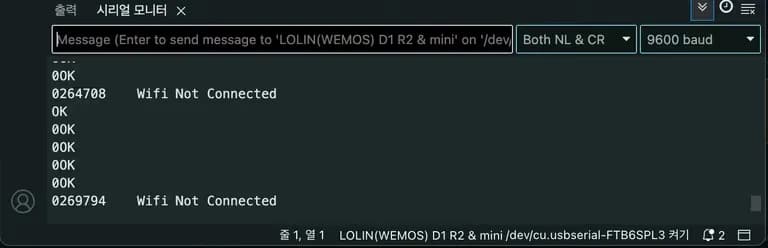
Solution for Timed out waiting for packet header on MacBook with Arduino-1

It seemed that some issue was preventing my code from being uploaded to the Arduino.

No matter how much I asked ChatGPT, it couldn't give a precise reason, so I kept searching and asking GPT again until I found the cause.

1. Is the CH340 chipset driver the problem?

Most issues found through searches were solved by installing the CH340 chipset driver.

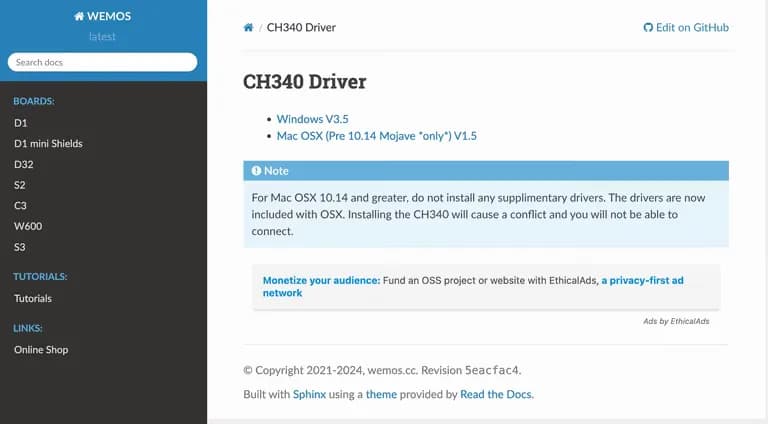
The official site I found through searches stated the following:
Solution for Timed out waiting for packet header on MacBook with Arduino-2

According to the text, there's no need to install chipset drivers for MacBook versions after Mojave.

Since Apple provides its own drivers, installing them might cause conflicts and result in issues.

Through searching, I finally found the problem.

2. Cause of the error

The cause of the error was the USB hub.

Due to the nature of MacBooks, with not enough USB ports or no Type A USB ports, a hub is often used.

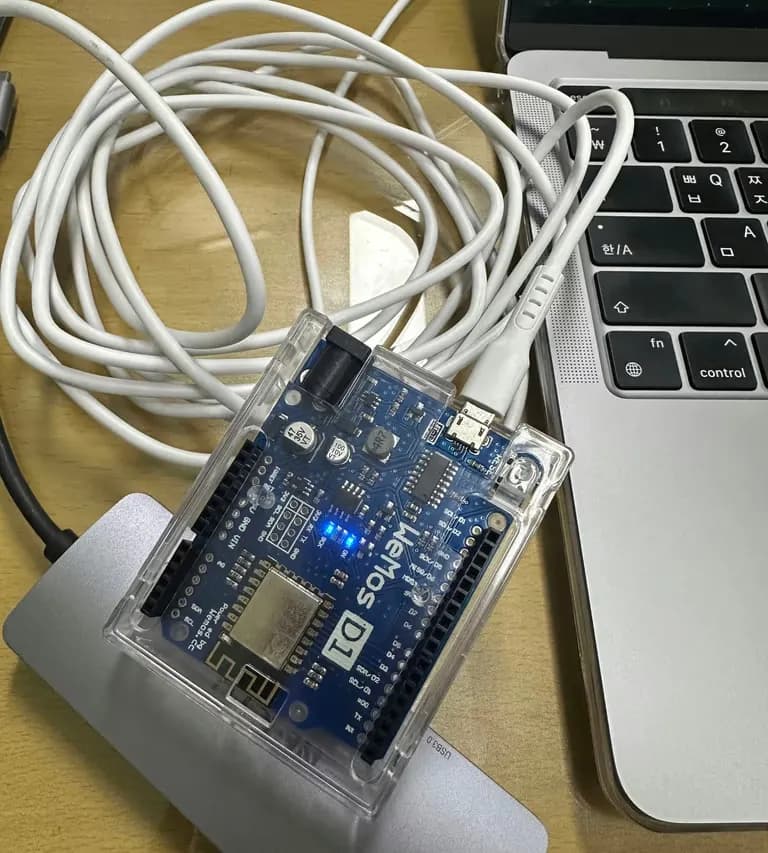
I also connected the Arduino using a USB hub as shown below:
Solution for Timed out waiting for packet header on MacBook with Arduino-3

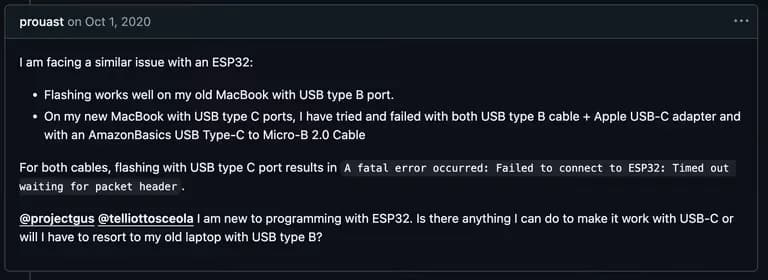
This causes slight timing variations in the flash signal sent to the Arduino, preventing the board from entering flash mode automatically.

There’s a GitHub troubleshooting section on this issue.

Such issues are prominent when connecting from USB-C to USB-A type.
Solution for Timed out waiting for packet header on MacBook with Arduino-4

3. Solution

If you connected the Arduino using a USB port, you must forcibly put the Arduino into flash mode.

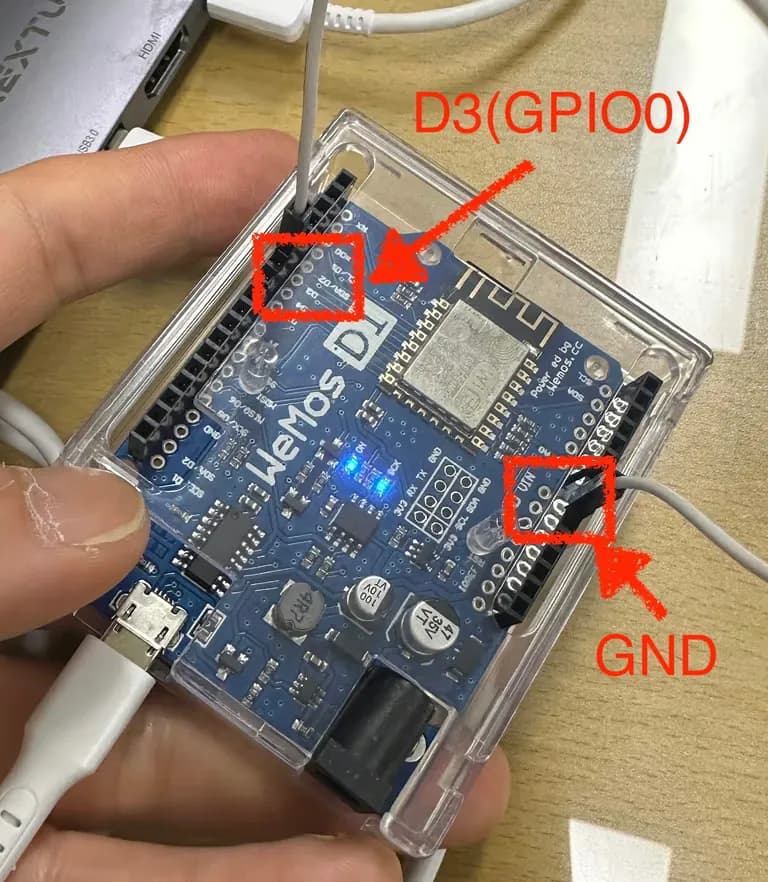
First, connect the board's GPIO0(D3) pin and ground (GND) pin.

Then press the board's reset button.
Solution for Timed out waiting for packet header on MacBook with Arduino-5

This will enter flash mode on the board.

If you remove the pins, it will exit flash mode, so do not remove the pins before uploading.

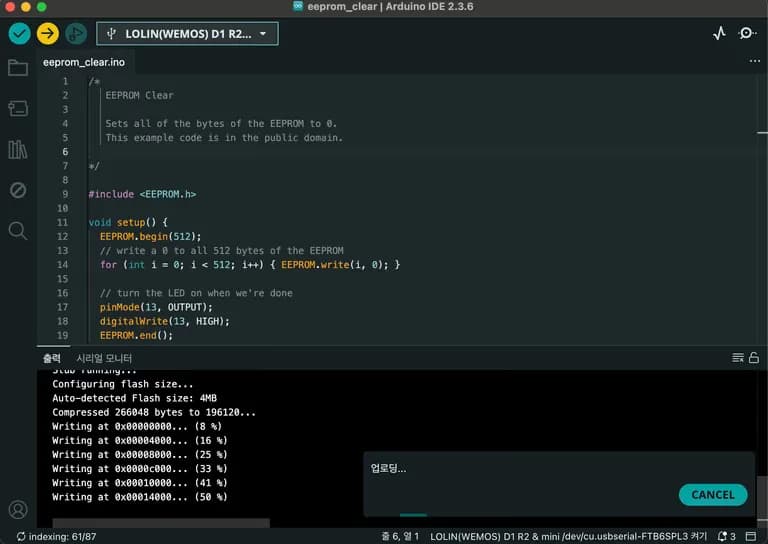
Then try uploading the file on Arduino....
Solution for Timed out waiting for packet header on MacBook with Arduino-6

It uploads successfully.

After the upload is complete, you can remove the pins.

4. Afterthoughts

I wasted a total of 5 hours trying various things with the Arduino yesterday.

However, once you learn something through trial and error, that memory stays with you for a very long time.

I think I can help someone around me if they encounter the same issue next time.

After contemplating since last night, I finally feel relieved.

The thrill of solving a problem after hard work is always enjoyable.

Solution for Timed out waiting for packet header on MacBook with Arduino-7

관련 글

Coding a Spider Robot with a micro:bit
This time, a free lecture was opened at a robotics technology meetup.It was a training session at Jaehyun High School on controlling a spider robot us...
Cloning an RFID Card with Arduino
Today I’m going to write about how to clone an RFID card with an Arduino.Once I write something down I don’t forget it, so I’m leaving this here as a...
Collecting Temperature and Humidity Data with Arduino ESP32
Today, we will create a Wi-Fi Stevenson screen that measures temperature and humidity and transmits data using Arduino ESP32. This content is based on a script for a +1 session that will be conducted at school. 1. Materials The materials are simple. ESP32, DHT-22, three wires First, briefly explain the ESP32...
Using the Arduino D1 R2
It could have been done using a regular Arduino Uno, but I decided to try the Wemos D1 R2 with built-in WiFi and struggled quite a bit. This article is for those using Arduinos like the D1 R2 with different pin mappings. 1. IDE Setting Due to the various types of Arduinos, you also need to install the board package suitable for each board...
Connecting Arduino with Spreadsheets - Configuring Code
In the last article, we explored the sheet setup required to connect Arduino with a spreadsheet. In this article, we'll learn about data transmission using HTTPS communication from the Arduino D1 board. 1. Installing Arduino D1 Board Library It is necessary to install the board library...
Connecting Arduino with Spreadsheets - Google Sheets Setup
Recently, I decided to work with students to observe and analyze the temperature and humidity around the school using Arduino. To store the data measured by Arduino, an SD card was necessary, and it was cumbersome to remove and reinsert the SD card to check the data. I suddenly thought about saving the data on the web...

댓글을 불러오는 중...