In the last article, we explored the sheet setup required to connect Arduino with a spreadsheet.
In this article, we'll learn about data transmission using HTTPS communication from the Arduino D1 board.

1. Installing Arduino D1 Board Library
To use the Arduino D1 board, you must first install the board library.
Go to File-Settings in the Arduino IDE.
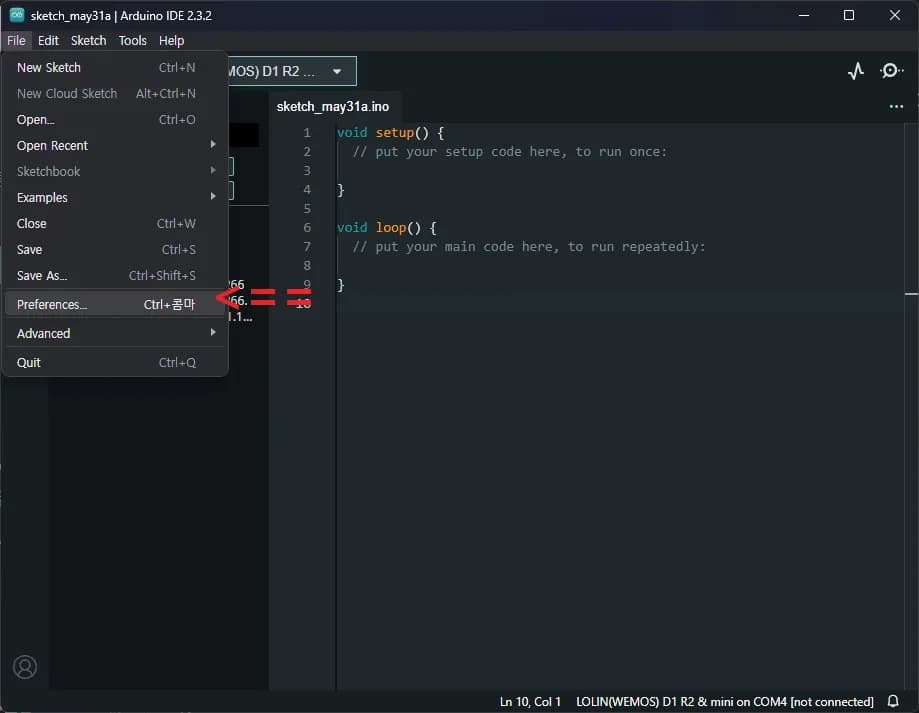
Enter the following address in the additional board manager URLs.
http://arduino.esp8266.com/stable/package_esp8266com_index.json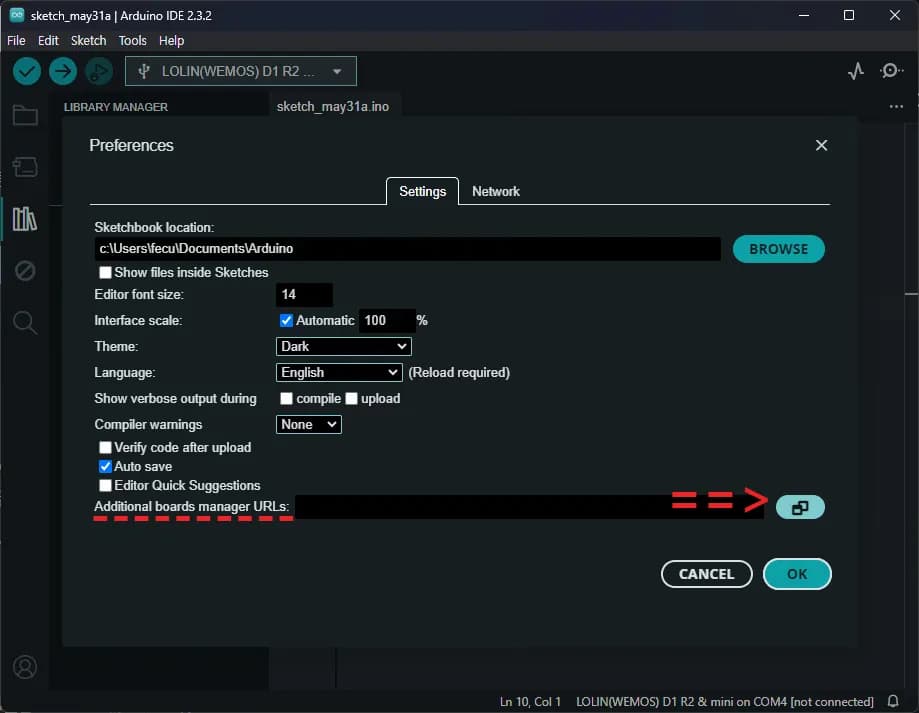
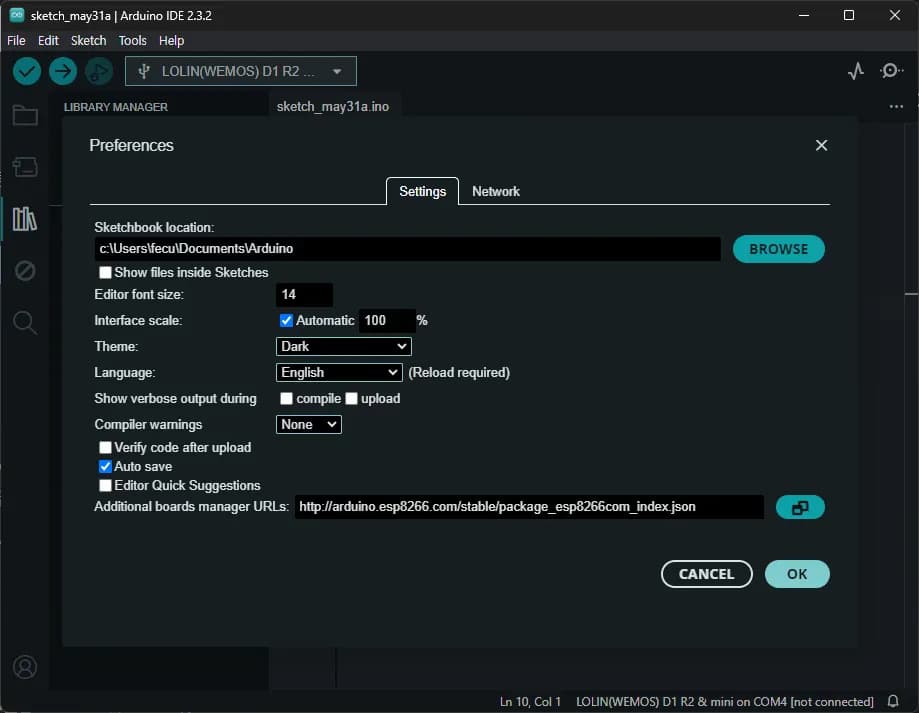
Click confirm once you have finished entering.
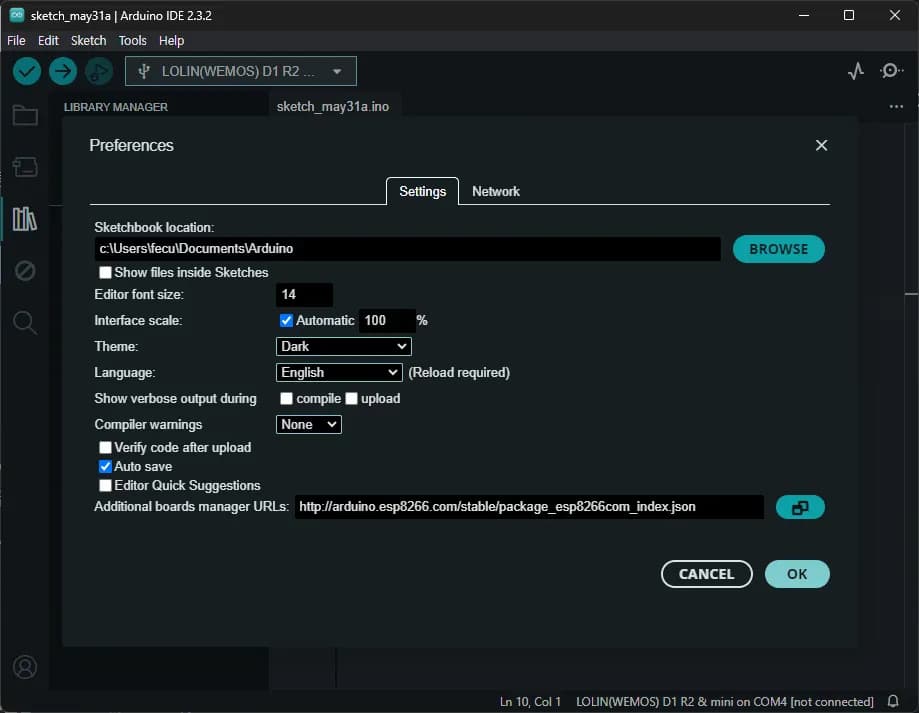
Search for and install the Arduino D1 board in the board manager on the left.
This completes the installation of the board library.
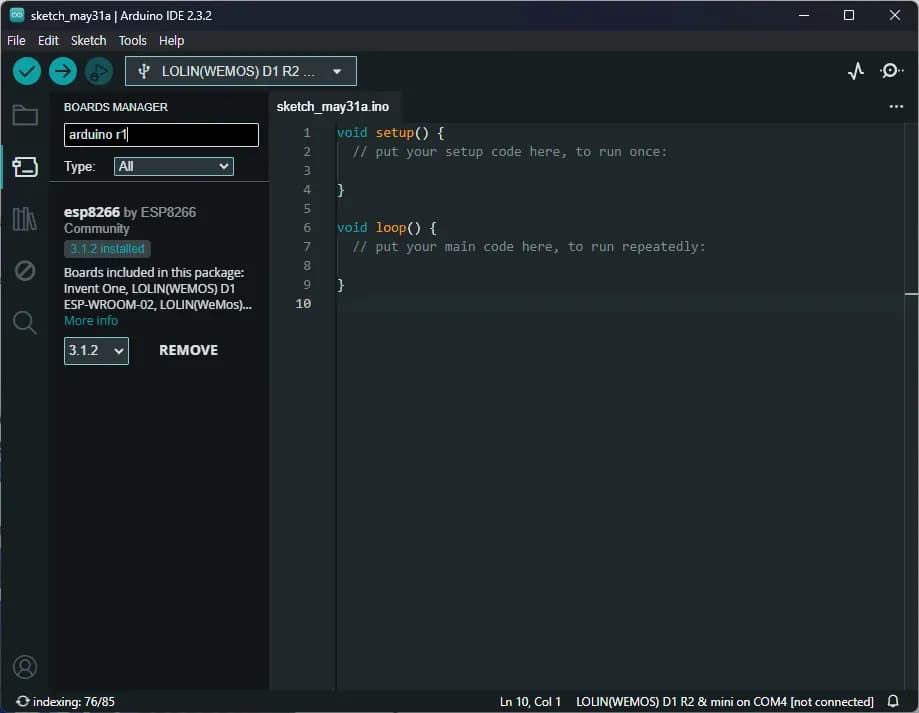
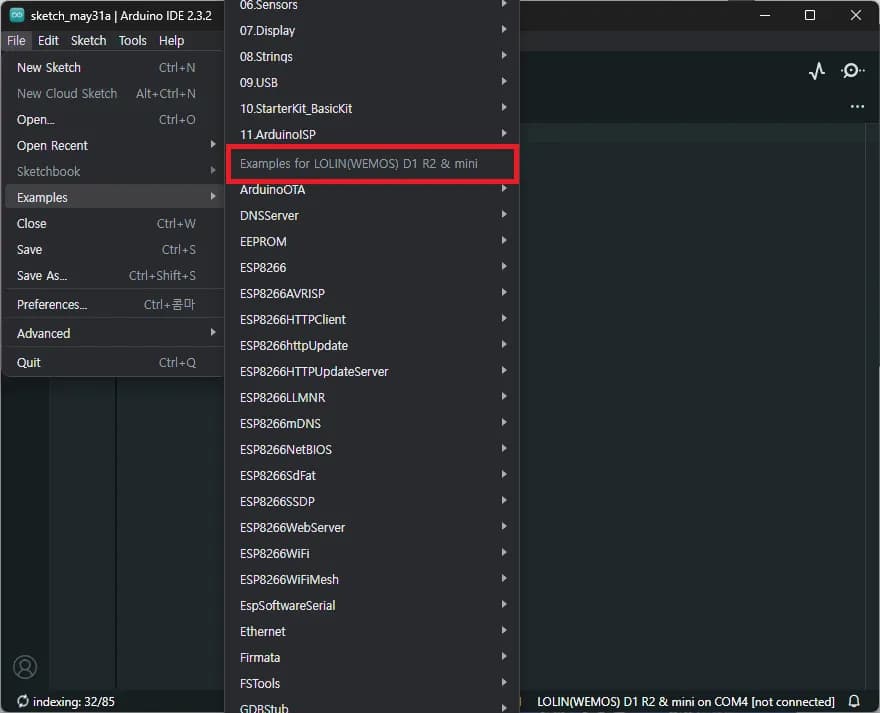
Select the board and go to File-Examples to check if the ESP8266 examples are displayed correctly.
Set the board as shown below first.
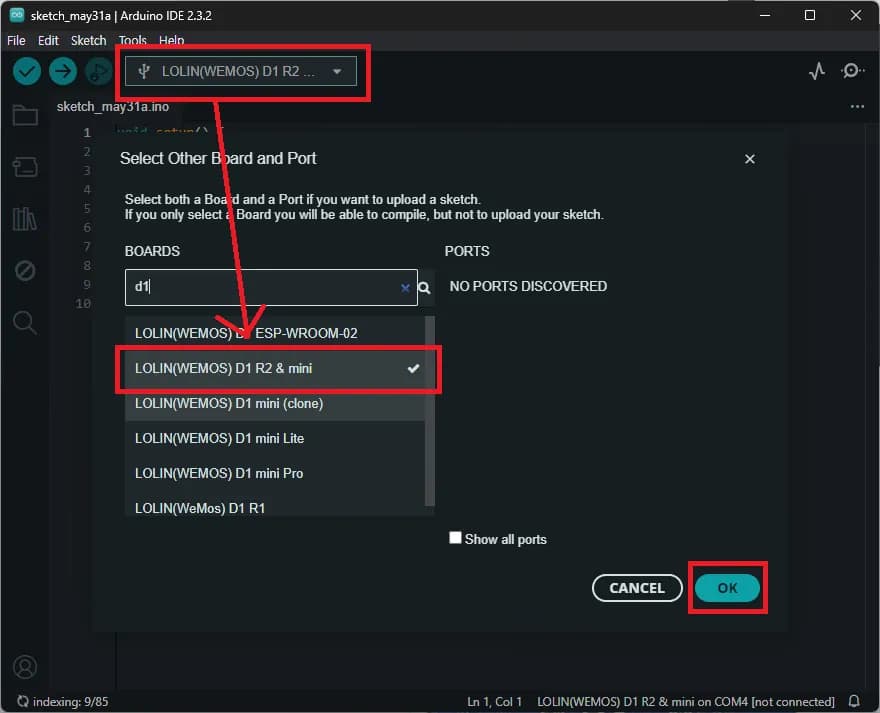
If the examples are displayed correctly, the installation is successful.
2. Compiling Arduino Code
It's now time to upload the code to Arduino.
First, call the module and set up the basic settings for connecting to Wi-Fi.
#include <ESP8266WiFi.h>
#include <WiFiClientSecure.h>

// int fan_pin = 8;

const char* ssid = "Wi-Fi name";   // Wi-Fi name
const char* password = "Wi-Fi password"; // Wi-Fi password

//----------------------------------------Host & https port (HTTPS is fixed at 443)
const char* host = "script.google.com";
const int httpsPort = 443;
//----------------------------------------

WiFiClientSecure client; // Create WiFiClientSecure object

// Google spreadsheet script ID
String GAS_ID = "Google Spreadsheet Script ID";
Set the serial communication speed in setup and connect to the Wi-Fi.
The default serial communication speed of ESP8266 is 115,200.
Use WiFi.begin(ssid, password) to attempt connection and check the connection status with WiFi.status().
Use client.setInsecure to enable HTTPS connection.
void setup() {
  Serial.begin(115200);
  WiFi.begin(ssid, password); // Connect to Wi-Fi router
  Serial.println("");
  //----------------------------------------Connection waiting
  Serial.print("Connecting");
  while (WiFi.status() != WL_CONNECTED) {
    Serial.print(".");
    delay(1000);
    };
  //----------------------------------------
  Serial.println("");
  Serial.print("Wi-Fi connection success: ");
  Serial.println(ssid);
  Serial.print("IP address: ");
  Serial.println(WiFi.localIP());
  Serial.println();
  //----------------------------------------
  client.setInsecure();
}
Now it's time to write the main code.
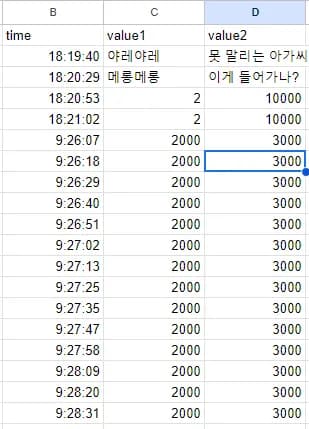
As nothing is connected to Arduino currently, I sent only two specified variables to the Google Sheet.
void loop() {
  delay(1000);
  int v1 = 2000;
  int v2 = 3000;
  if (!client.connect(host, httpsPort)) {
    Serial.println("Failed to connect to host");
    return;
  };
  String value1 =  String(v1);
  String value2 =  String(v2);
  String url = "/macros/s/" + GAS_ID + "/exec?value1=" + value1 + "&value2=" + value2;
  client.print(String("GET ") + url + " HTTP/1.1\r\n" +
         "Host: " + host + "\r\n" +
         "User-Agent: BuildFailureDetectorESP8266\r\n" +
         "Connection: close\r\n\r\n");
  Serial.println("Request sent");
};
Looking at the sheet, you can see that the values are transmitted well.
Now let's create a function for the value transmission part.
Let's name the function sendData, and this function will take two int parameters.
As you can see in the function below, the core part is the same as above, and a response processing section is added.
void sendData(int data1, int data2) {
  Serial.println("==========");
  Serial.print("Connecting to host");
  Serial.println(host);

  //----------------------------------------Connect to Google host
  if (!client.connect(host, httpsPort)) {
    Serial.println("Failed to connect to host");
    return;
  }
  //----------------------------------------
//----------------------------------------Processing data and sending data
  String value1 =  String(data1);
  String value2 =  String(data2);
  String url = "/macros/s/" + GAS_ID + "/exec?value1=" + value1 + "&value2=" + value2;
  Serial.print("Request URL: ");
  Serial.println(url);

client.print(String("GET ") + url + " HTTP/1.1\r\n" +
         "Host: " + host + "\r\n" +
         "User-Agent: BuildFailureDetectorESP8266\r\n" +
         "Connection: close\r\n\r\n");

Serial.println("Request sent");
  //----------------------------------------

//----------------------------------------Checking whether the data was sent successfully or not
  while (client.connected()) {
    String line = client.readStringUntil('\n');
    if (line == "\r") {
      Serial.println("Header received");
      break;
    }
  }
  String line = client.readStringUntil('\n');
  if (line.startsWith("{\"state\":\"success\"")) {
    Serial.println("Data transmission successful");
  } else {
    Serial.println("Data transmission failed");
    Serial.println(line);
  }
  Serial.print("Response: ");
  Serial.println(line);
  Serial.println("Closing connection");
  Serial.println("==========");
  Serial.println();
  //----------------------------------------
}
Put this in the loop statement and check if it works correctly.
void loop() {
  delay(1000);
  int v1 = 2000;
  int v2 = 3000;
  sendData(v1, v2);
}
3. Complete Code
The complete code is as follows. I hope it's useful, and in the next article, we'll measure temperature and humidity using a temperature and humidity sensor.
#include <ESP8266WiFi.h>
#include <WiFiClientSecure.h>

// int fan_pin = 8;

const char* ssid = "Wi-Fi name";   // Wi-Fi name
const char* password = "Wi-Fi password"; // Wi-Fi password

//----------------------------------------Host & https port (HTTPS is fixed at 443)
const char* host = "script.google.com";
const int httpsPort = 443;
//----------------------------------------

WiFiClientSecure client; // Create WiFiClientSecure object

// Google spreadsheet script ID
String GAS_ID = "Google Spreadsheet Script ID";

void setup() {
  Serial.begin(115200);
  WiFi.begin(ssid, password); // Connect to Wi-Fi router
  Serial.println("");
  //----------------------------------------Connection waiting
  Serial.print("Connecting");
  while (WiFi.status() != WL_CONNECTED) {
    Serial.print(".");
    delay(1000);
    };
  //----------------------------------------
  Serial.println("");
  Serial.print("Wi-Fi connection success: ");
  Serial.println(ssid);
  Serial.print("IP address: ");
  Serial.println(WiFi.localIP());
  Serial.println();
  //----------------------------------------

client.setInsecure();
};

void loop() {
  delay(1000);
  int v1 = 2000;
  int v2 = 3000;
  sendData(v1, v2);
};

// Send data to Google spreadsheet
void sendData(int data1, int data2) {
  Serial.println("==========");
  Serial.print("Connecting to host");
  Serial.println(host);

  //----------------------------------------Connect to Google host
  if (!client.connect(host, httpsPort)) {
    Serial.println("Failed to connect to host");
    return;
  };
  //----------------------------------------

//----------------------------------------Processing data and sending data
  String value1 =  String(data1);
  String value2 =  String(data2);
  String url = "/macros/s/" + GAS_ID + "/exec?value1=" + value1 + "&value2=" + value2;
  Serial.print("Request URL: ");
  Serial.println(url);

client.print(String("GET ") + url + " HTTP/1.1\r\n" +
         "Host: " + host + "\r\n" +
         "User-Agent: BuildFailureDetectorESP8266\r\n" +
         "Connection: close\r\n\r\n");

Serial.println("Request sent");
  //----------------------------------------

//----------------------------------------Checking whether the data was sent successfully or not
  while (client.connected()) {
    String line = client.readStringUntil('\n');
    if (line == "\r") {
      Serial.println("Header received");
      break;
    };
  };
  String line = client.readStringUntil('\n');
  if (line.startsWith("{\"state\":\"success\"")) {
    Serial.println("Data transmission successful");
  } else {
    Serial.println("Data transmission failed");
    Serial.println(line);
  };
  Serial.print("Response: ");
  Serial.println(line);
  Serial.println("Closing connection");
  Serial.println("==========");
  Serial.println();
  //----------------------------------------
}


댓글을 불러오는 중...