Gyeonggi Education Messenger provides a relatively simple way to backup chats and messages.
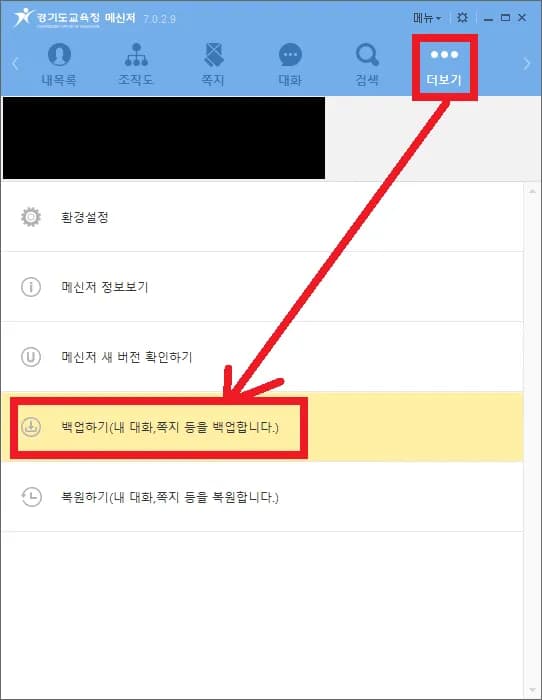
1. [More] → [Backup]
On the far right side of the menu, there is a 'More' option.
Click on Backup here to backup the messages and chat contents.
2. Save File to Desired Location
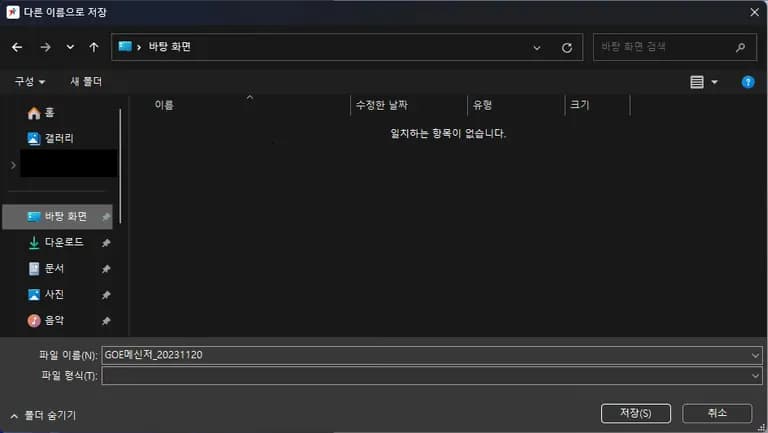
When the window appears, save it to the desired location.
Backup files usually have a name composed of the backup date and time.
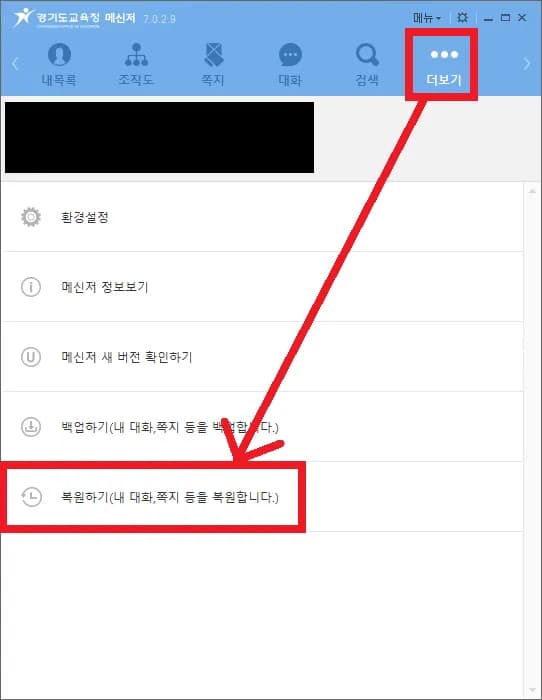
3. [More] → [Restore]
Now, restore the file on a new computer.
Similarly, click on 'More' and select Restore to open the window.
4. Load File
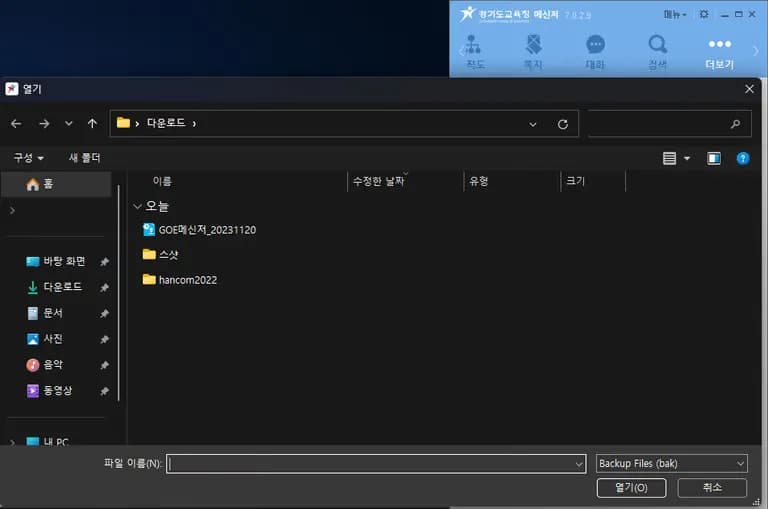
Now, load the backed-up file to restore the chat contents.
5. Verify
You can verify that it has been restored correctly as shown below.
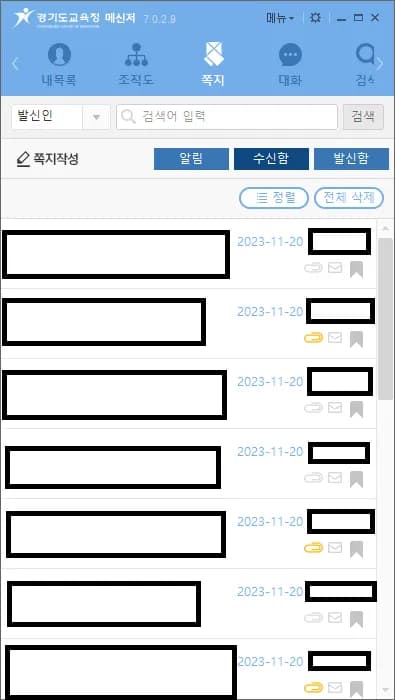
6. Another Way to Restore
Initially, I didn't know where Gyeonggi Education Messenger stored the database, but when deleting, it showed the path.
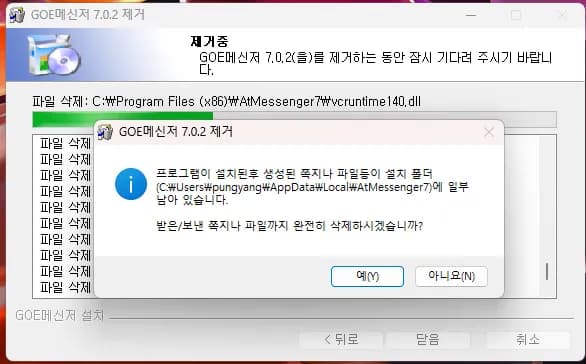
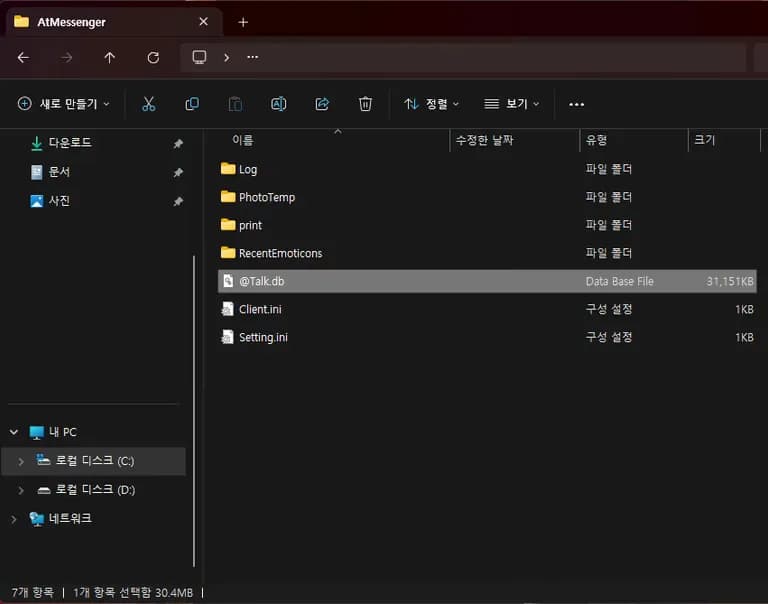
I checked by going directly to that path. There is a DB for messages.
If you want a perfect restoration, you can copy all the contents of that folder and overwrite it in the same location on the new computer.
Since the method to restore messages is easy, hopefully, you will safely transfer your chat contents.



댓글을 불러오는 중...