Last night.
I was studying alone at the dining table with a cup of warm water, and I accidentally knocked the cup over, spilling water on my MacBook.
In a hurry, I removed the bottom cover and tried to dry it, but the MacBook was already unresponsive...
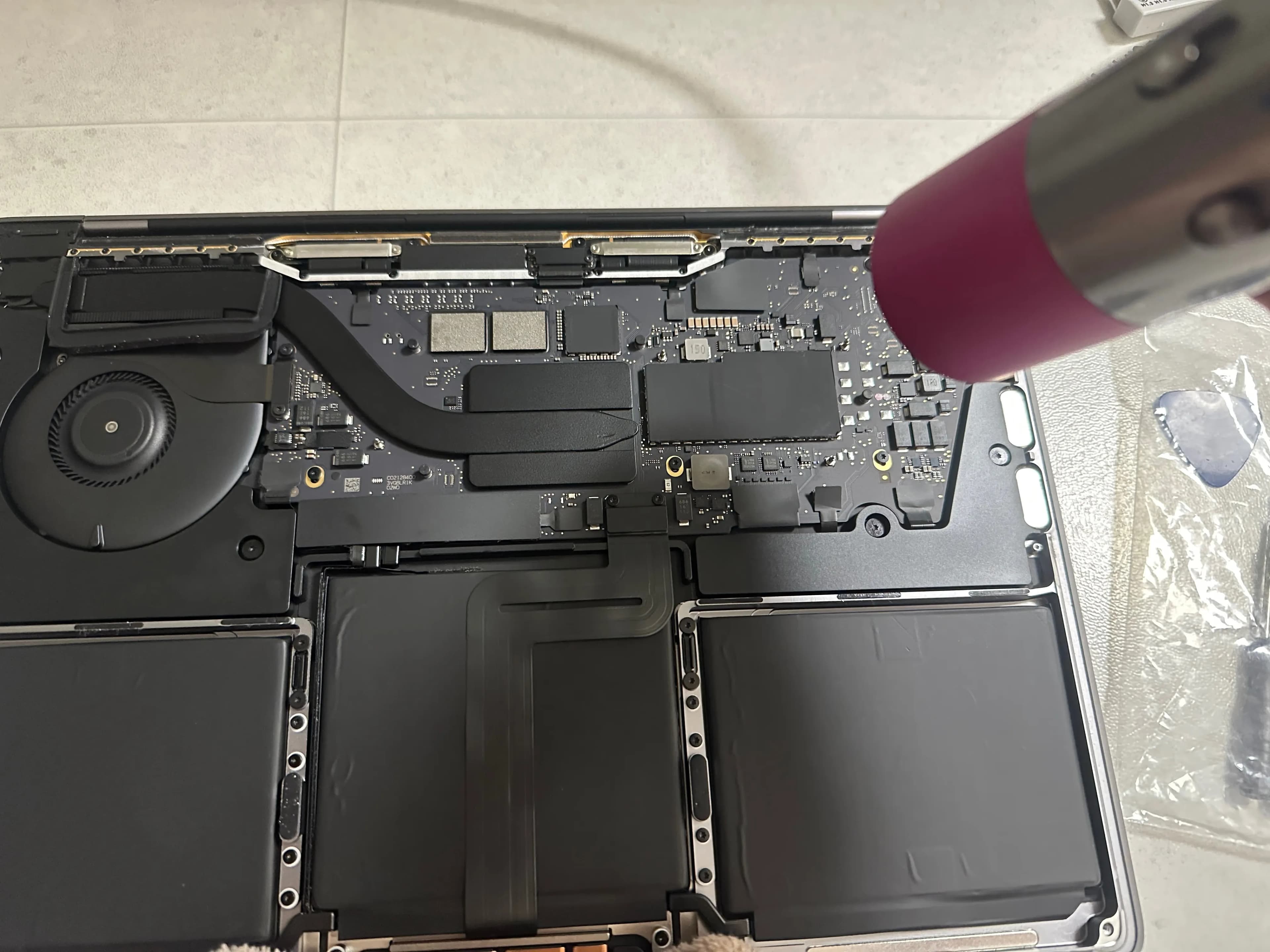
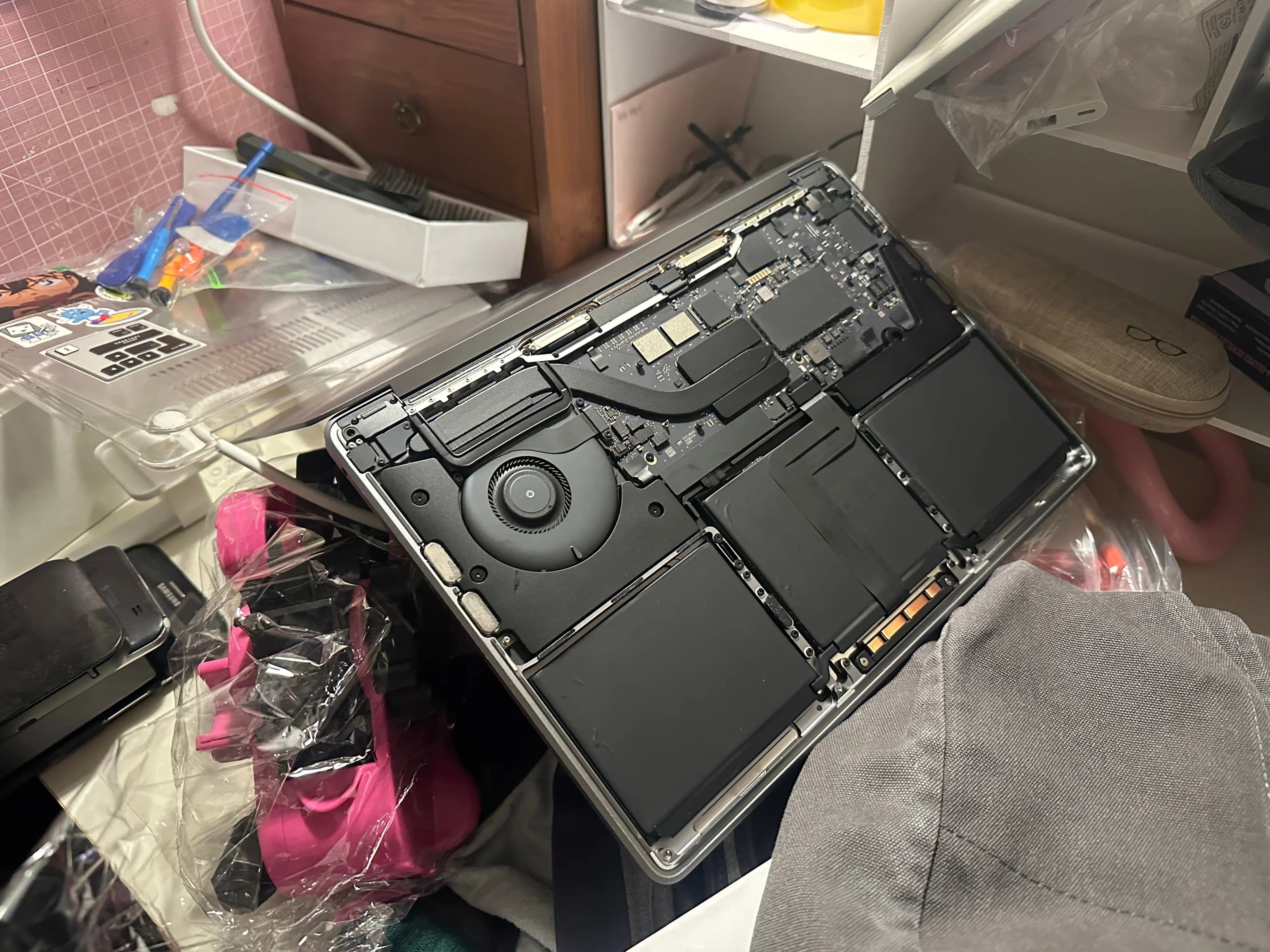
I decided to dismantle the MacBook and dry it for about a week.
If it still doesn't work after that, I plan to take it to a service center.
So, I'm forced to use a Windows laptop.
However, the Windows touchpad doesn't support three-finger drag.
But we all know.
Nothing is impossible.
So I started looking into it.
1. Gestures on Windows 11 Touchpad
The touchpad gestures in Windows 11 have improved significantly.
Below is a list of gestures available in Windows 11.
Action | Gesture |
|---|---|
Select an item | Tap the touchpad. |
Scroll | Place two fingers on the touchpad and slide them horizontally or vertically. |
Zoom in or out | Place two fingers on the touchpad and pinch or stretch them. |
Show more commands (like right-click) | Tap with two fingers or press the bottom right corner of the touchpad. |
Show all open windows | Swipe up with three fingers on the touchpad. |
Show desktop | Swipe down with three fingers on the touchpad. |
Switch between open apps or windows | Swipe left or right with three fingers on the touchpad. |
Switch desktops | Swipe left or right with four fingers on the touchpad. |
Though not listed here, you can see more options by entering System - Touchpad.
In the image below, you can see Tap twice and drag to select multiple items, which is essentially Drag.
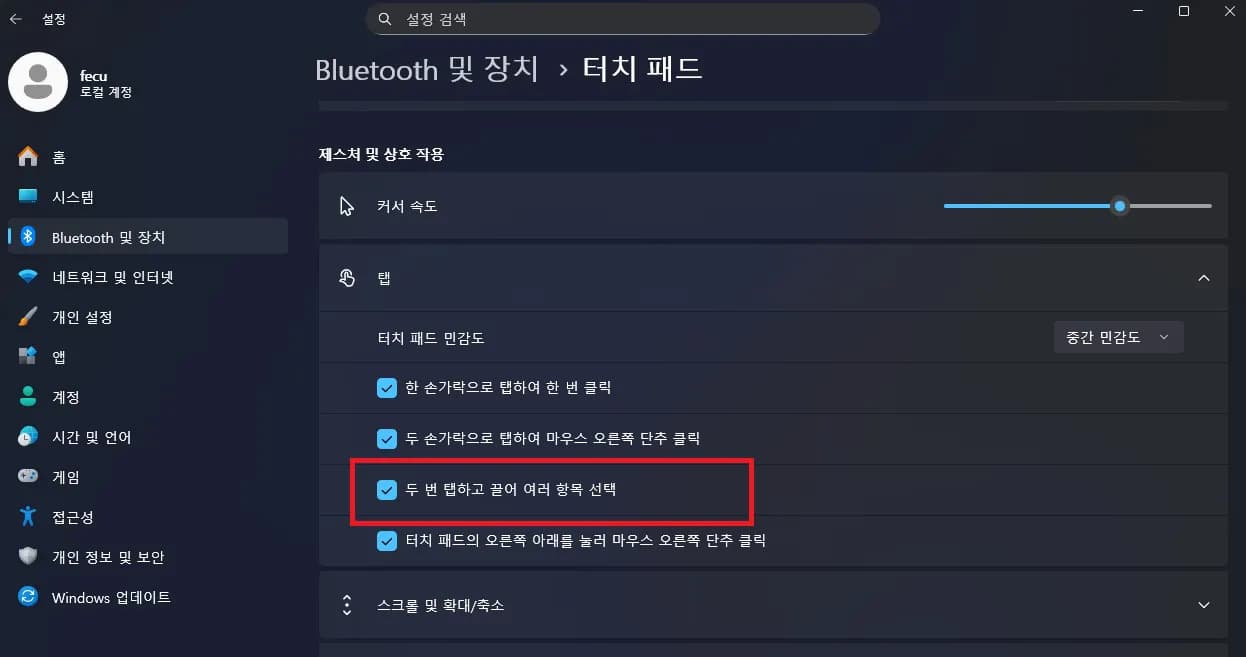
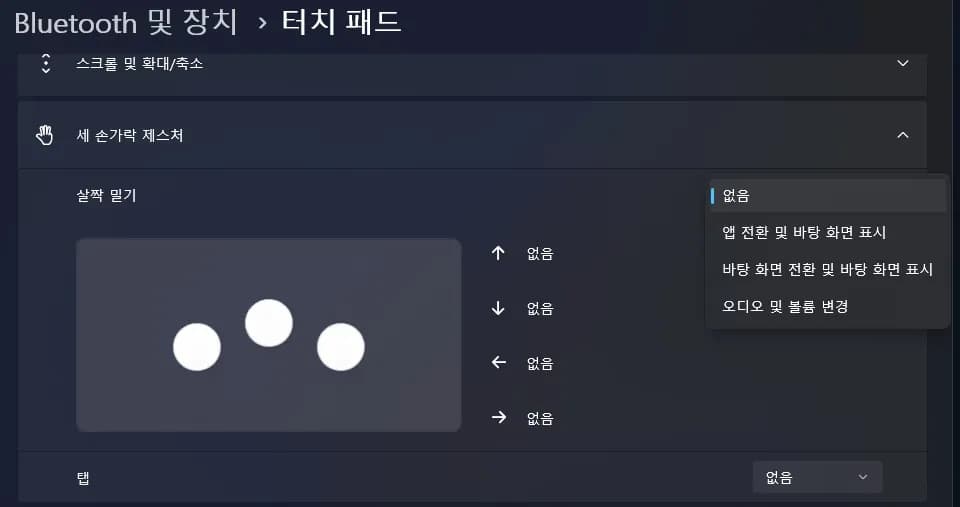
A slight drawback is that three-finger and four-finger gestures are limited.
Only app switching, desktop, and volume control are available.
You can drag in Windows with a double-tap, but having experienced the three-finger drag on a MacBook, I couldn't resist.
2. Three-Finger Drag
There is no native three-finger drag program offered by Windows 11.
But someone made one on GitHub.
I encountered an error upon installation, realizing there was a dependency.
I added one more program that popped up.
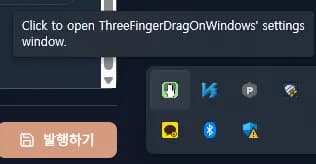
After doing so and starting, an icon appeared in the bottom right corner.
Double-click it to activate.
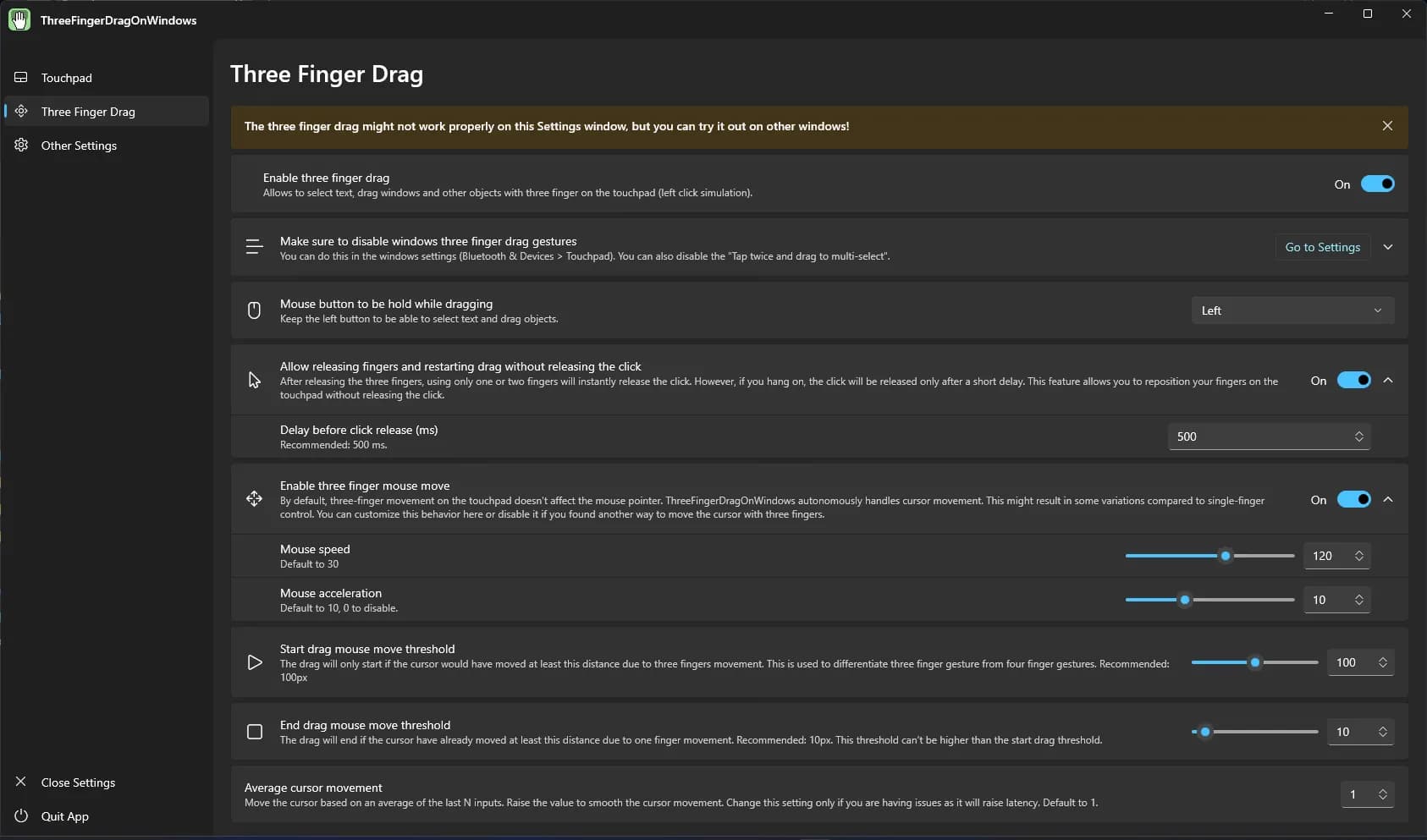
The first tab checks touchpad input, the second tab is for setting the three-finger drag.
Note that you must disable Windows default gestures for three fingers to use this.

After doing this, the three-finger drag works.
It seems quite decent.
3. Review
Using three-finger drag has greatly improved usability.
It's disappointing that there is no built-in functionality, but it seems there is no major inconvenience with this setup.
Using a Windows laptop for the first time in a while, I'm slightly surprised by the weight.
The 16-inch laptop feels lighter than the 13-inch MacBook.
My hand keeps reaching for Alt instead of Control, but it's not too inconvenient.
Still, I want to use a MacBook.

댓글을 불러오는 중...