I tried to install Python using Homebrew on my MacBook, but when entering python3 in the terminal, the default Python 3.9 version kept being called.
I’m leaving a guide for Python environment setup in case I need to reset my MacBook later.
1. Installing Homebrew
First, let's install Homebrew.
If Linux has apt-get, then MacBook has brew.
Enter the following command in the terminal to install homebrew.
/bin/bash -c "$(curl -fsSL https://raw.githubusercontent.com/Homebrew/install/HEAD/install.sh)"You might still see a message saying there is no command when you enter brew in the terminal.
You need to set the environment variables for the brew command.
Enter the following command in the terminal, then
open ~/.zshrcEnter the content below and press cmd+s repeatedly.
export PATH=/opt/homebrew/bin:$PATHThen, by applying the changes with the source command, you can install Python with the homebrew command.
source ~/.zshrc2. Installing Python
Use brew to install Python.
If you want a specific Python version, you can append @ and enter the version number after python.
brew install python

brew install python@3.11
Next, check the installation location of Python using the which command.
which python3.11Usually, the path for Python on Apple Silicon MacBook is /opt/homebrew/bin/python.
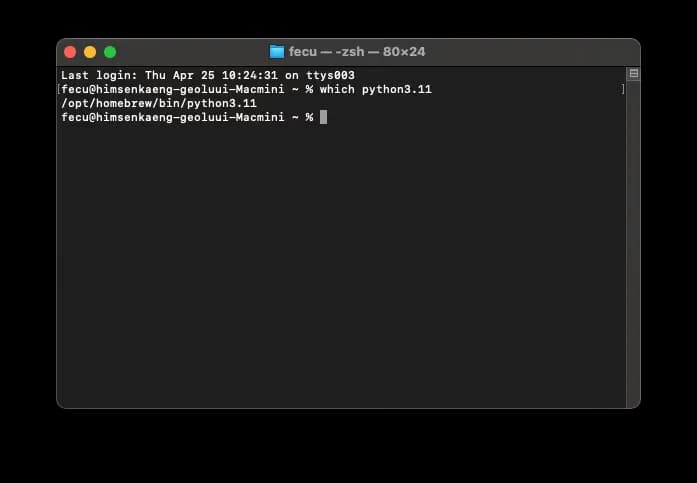
Now it's time to set the Python path. Open the ./zshrc file using the open command like before.
open ~/.zshrcEnter the command below and press cmd+s repeatedly.
alias python="/opt/homebrew/bin/python3.11"By applying the changes with the source command, you can confirm that the Python version has changed to the one installed via homebrew.
source ~/.zshrc
python --version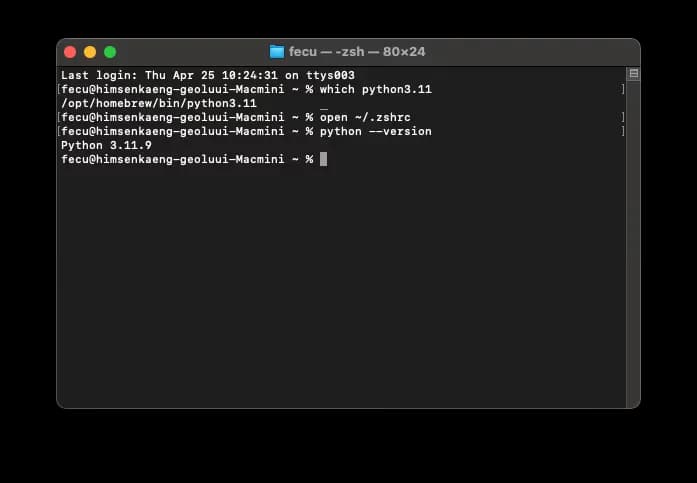
3. Installing pip
After doing this, you may see warnings when trying to install something with pip.
The pip registered in the system points to the Python that comes pre-installed on the Mac.
To avoid complications, I just installed pip on Python. Try the command below in the terminal.
curl https://bootstrap.pypa.io/get-pip.py -o get-pip.py
python get-pip.py
This is all it takes to install pip.
Check the version of pip and the Python location where pip is installed with the following command.
pip -V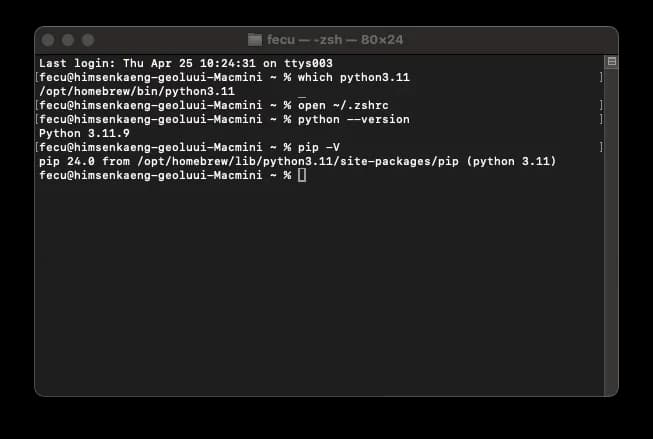
This completes the global environment setup.
Happy coding!





댓글을 불러오는 중...