In the previous article, we tackled practical exercises in visualizing data using Pandas and Matplotlib.
This time, we will explore Matplotlib's subplots for drawing multiple graphs at once.
1. Subplots
Subplots take the coordinates of the spaces for graphs and return the entire graph and axes for each graph.
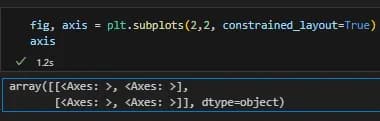
fig, axis = plt.subplots(2,2, constrained_layout=True)
axis
By checking what's inside axis, you can see the axes are arranged in a 2x2 format.
Since they are all objects, they can be handled separately.
In Jupyter Notebook, graphs are drawn right away.
Since nothing has been entered yet, four empty graphs appear.

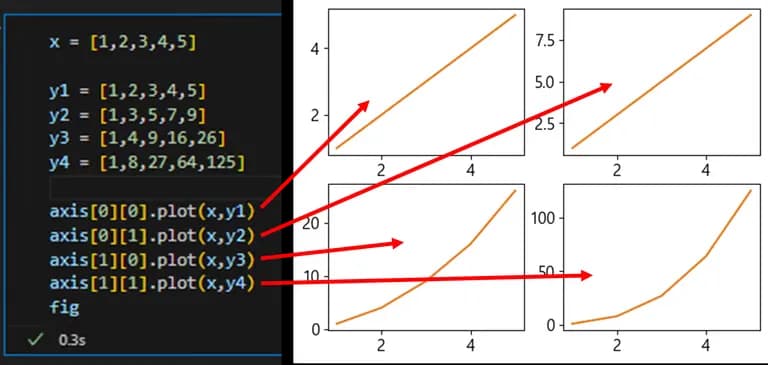
Let's fill in the graphs one by one. Different y values with the same x values are plotted.
Since the structure of aixs is as per the comment below, you can access them like coordinates.
x = [1,2,3,4,5]
y1 = [1,2,3,4,5]
y2 = [1,3,5,7,9]
y3 = [1,4,9,16,26]
y4 = [1,8,27,64,125]

# Inside axis, from top-left to right,
# [[first, second],[third, fourth]] graph objects are present.
axis[0][0].plot(x,y1)
axis[0][1].plot(x,y2)
axis[1][0].plot(x,y3)
axis[1][1].plot(x,y4)
fig
By comparing the above code and the image below, you can see how they match up.
You can access each graph object for detailed modifications.
Previously, you could add set_ before the function used in plt.
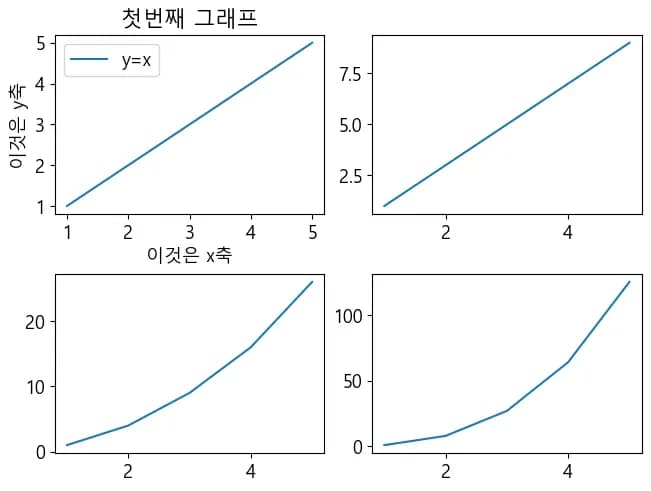
axis[0][0].plot(x,y1, label="y=x")
axis[0][0].set_title("First Graph")
axis[0][0].set_xlabel("This is x-axis")
axis[0][0].set_ylabel("This is y-axis")
axis[0][0].set_xticks(x)
axis[0][0].set_yticks(y1)
axis[0][0].legend()
You can see that the first graph is well modified below.
Let's modify the other graphs in the same way.
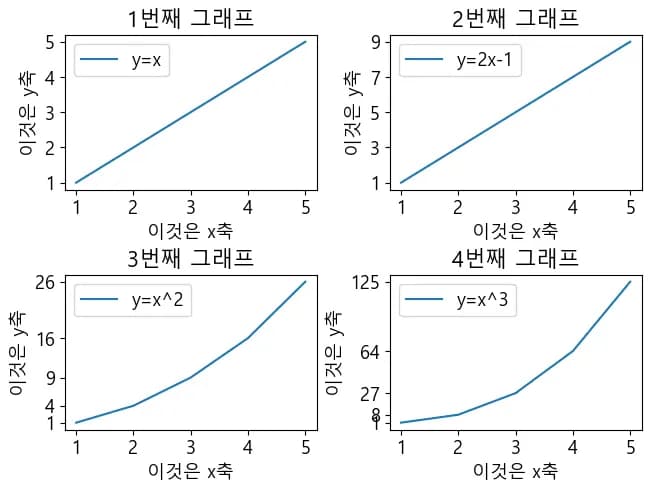
Instead of hard-coding, let's use a nested for loop to access each object and modify them.
x = [1,2,3,4,5]
y1 = [1,2,3,4,5]
y2 = [1,3,5,7,9]
y3 = [1,4,9,16,26]
y4 = [1,8,27,64,125]

# Create lists containing y values and legends
# Use nums to loop through the 4 values
ys = [y1,y2,y3,y4]
legends = ["y=x", "y=2x-1", "y=x^2", "y=x^3"]
nums = 0

# Loop through (0,0), (0,1), (1,0), (1,1) in a 2D loop
for i in range(2):
    for j in range(2):
        # Add x value and nums-th value from ys
        axis[i][j].plot(x,ys[nums], label=legends[nums])
        axis[i][j].set_title(f"{nums+1}th Graph")
        axis[i][j].set_xlabel("This is x-axis")
        axis[i][j].set_ylabel("This is y-axis")
        axis[i][j].set_xticks(x)
        axis[i][j].set_yticks(ys[nums])
        axis[i][j].legend()
        nums += 1
fig
The last graph's axis is a bit unsatisfactory, but everything is well modified.
2. Application Example
Let's draw a graph of the number of crimes and arrests by year using subplots.
Of course, we start by importing values with pandas.
import pandas as pd

# Call module and set Korean font
import matplotlib.pyplot as plt
import matplotlib

# Font setting for MacOS
# matplotlib.rcParams["font.family"] = "AppleGothic"

# Font setting for Windows
matplotlib.rcParams["font.family"] = "Malgun Gothic"

# Font size setting
matplotlib.rcParams["font.size"] = 13

# Fix minus output issue
plt.rcParams['axes.unicode_minus'] = False

crime = pd.read_excel("./crime_statistics.xlsx")
crime.head(3)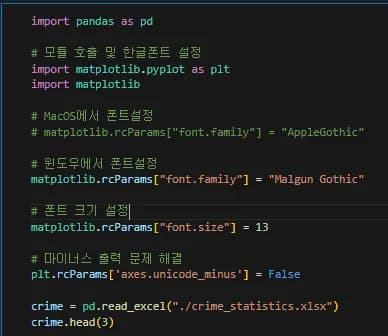
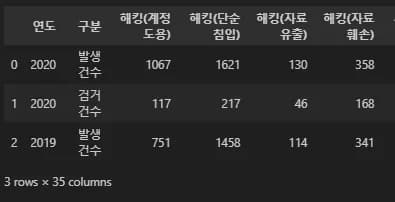
I looked up everything that contains 'hacking' among the data columns.
Since there are only 4 graphs, I reduced the list to select only 4 columns.
I then set x as the year, y1 as the number of occurrences, and y2 as the number of arrests from the data.
cols = [i for i in crime.columns if "해킹" in i]
cols = cols[:4]
x = crime.iloc[:,0].unique()
y1 = crime.loc[crime.구분=="발생건수",cols[0]]
y2 = crime.loc[crime.구분=="검거건수",cols[0]]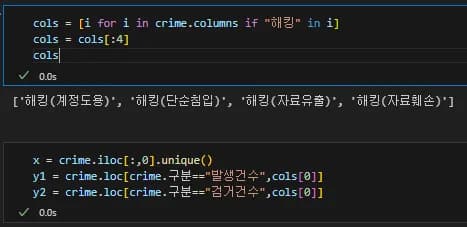
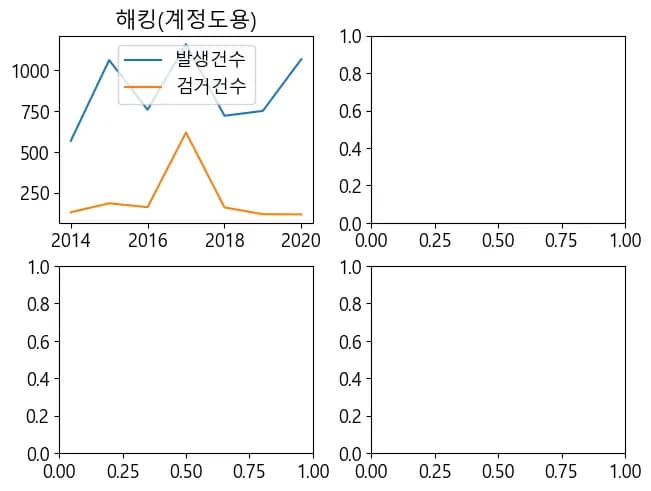
I've drawn the first graph with this.
fig, axis = plt.subplots(2,2, constrained_layout=True)
axis[0][0].plot(x,y1,label="발생건수")
axis[0][0].plot(x,y2,label="검거건수")
axis[0][0].legend()
axis[0][0].set_title(cols[0])
axis[0][0].legend()
The graph is well drawn. The position of the legend or font size is a bit unsatisfactory, but it can be drawn first and modified later.
Let's create a nested for loop to generate the entire graph.
Put the entire code inside the for loop and change the parts that need to be changed.
First, the axis part should be changed to axis[i][j], but changing one by one is tiresome and not stylish.
Alt + Shift + Mouse Drag enables multi-cursor.
Remove [0][0] and change it to [i][j].
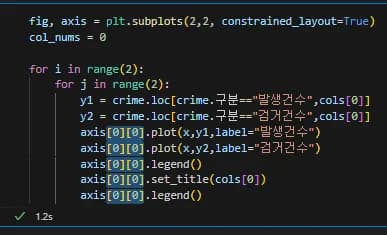
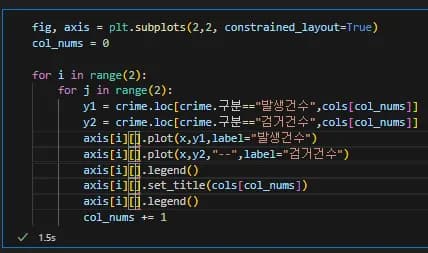
After modifying all the codes, it will look like this.
Executing this will draw the graph well.
fig, axis = plt.subplots(2,2, constrained_layout=True)
col_nums = 0
for i in range(2):
    for j in range(2):
        y1 = crime.loc[crime.구분=="발생건수",cols[col_nums]]
        y2 = crime.loc[crime.구분=="검거건수",cols[col_nums]]
        axis[i][j].plot(x,y1,label="발생건수")
        axis[i][j].plot(x,y2,"--",label="검거건수")
        axis[i][j].legend()
        axis[i][j].set_title(cols[col_nums])
        axis[i][j].legend()
        col_nums += 1
If you are not satisfied with the legend, you can reduce the font size with the fontsize parameter, or change the legend position using bbox_to_anchor.
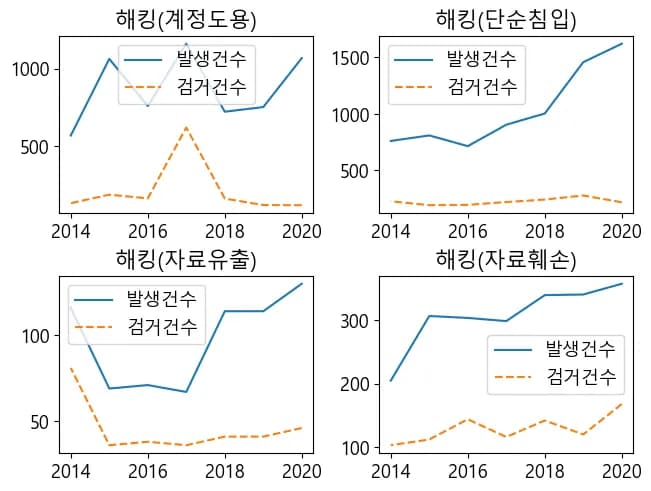
The code is now complete. If you want to check different data, just change the column names stored in cols.
This time, I changed it to 'gambling'.
Running the rest of the code will automatically draw graphs on gambling.

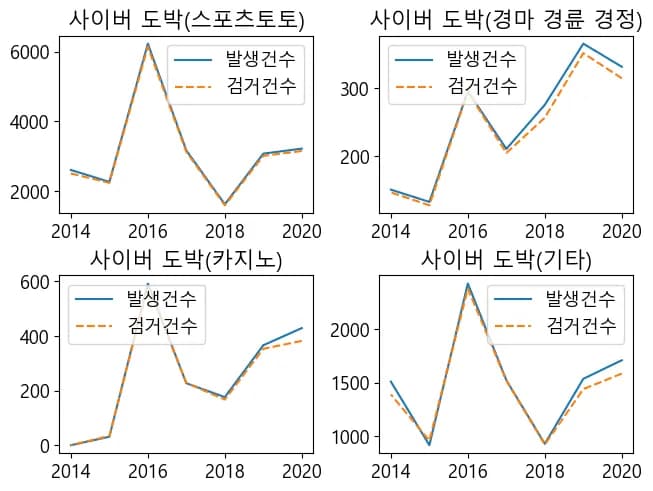
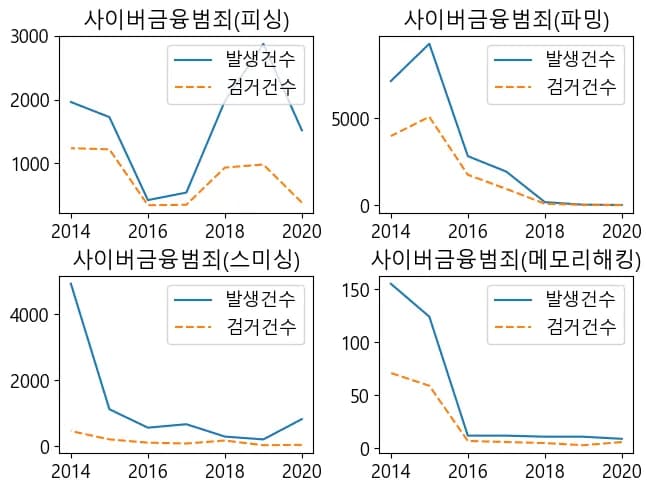
Now, let's draw graphs on cyber financial crimes.

The graph shows significant changes in crime patterns around 2016-2018.
3. Conclusion
Today, we learned how to use subplots in matplotlib.
Here, we simply used plot to draw graphs, but we can apply various graphs such as bars, horizontal bars, violin plots, etc.
Next time, we'll look at drawing linear regression analysis graphs using a module called numpy.





댓글을 불러오는 중...