After installing Python on Windows, if the environment variables are not set, pip won't work.
In this case, you need to set the environment variables.
Follow the procedure below to set the environment variables.
1. Re-download Python and set it up in Modify mode
First, download the same version of Python you installed from the Python website.
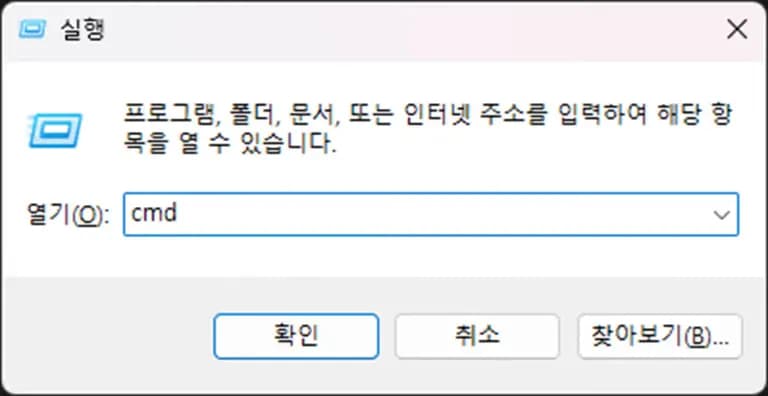
If you don't know the version, press Win key + R to open Run, and then type cmd.
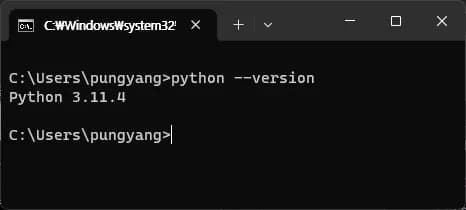
Then, type python --version to find out the Python version.
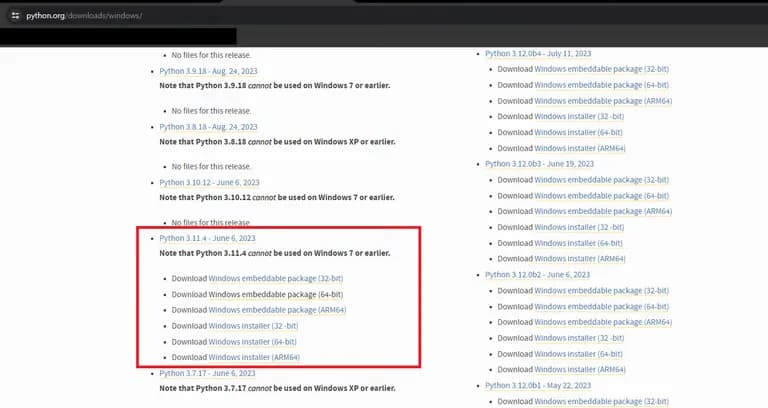
Once you know the version, go to the Python website and download Python.
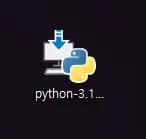
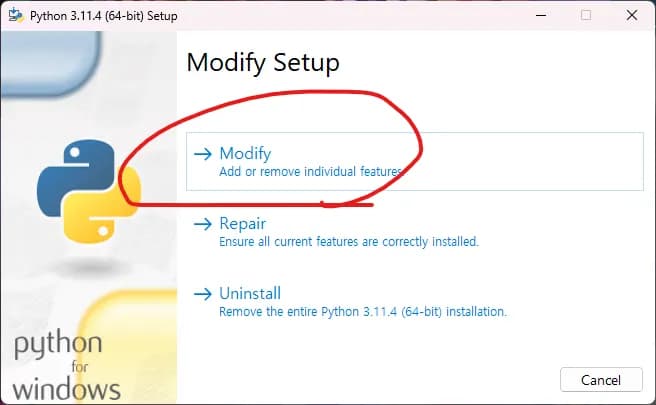
Run the downloaded Python file.
When the window appears, click on the topmost option.
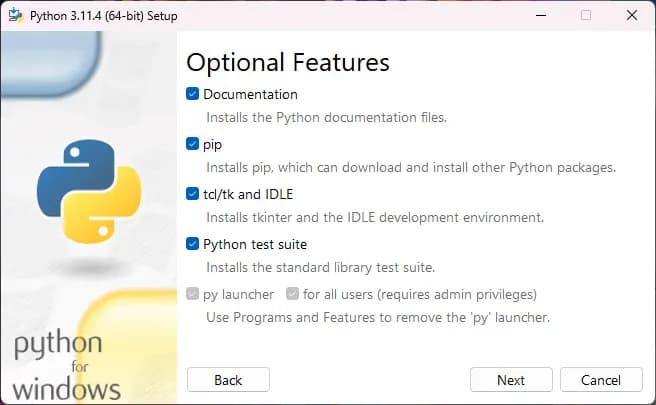
Click on all the check buttons on the next screen.
And then relaunch VS Code and try pip in Python.
If the error is still not resolved, try setting the Python path by following the method below.
2. Setting Environment Variables
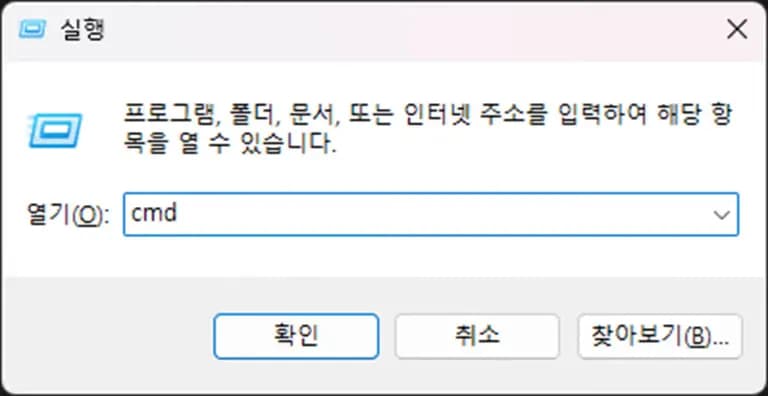
First, press Win key + R to open Run, type cmd, and confirm.
Then, if you type python, the input prompt changes to >>>. At this point, enter the following:
import sys
sys.executable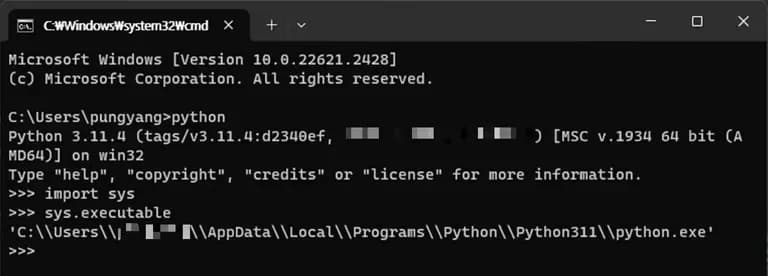
The path that appears is the Python path. The usual paths for Python installation are one of the following:
# Python installation path 1
C:/Program Files/Python3x/python.exe

# Python installation path 2
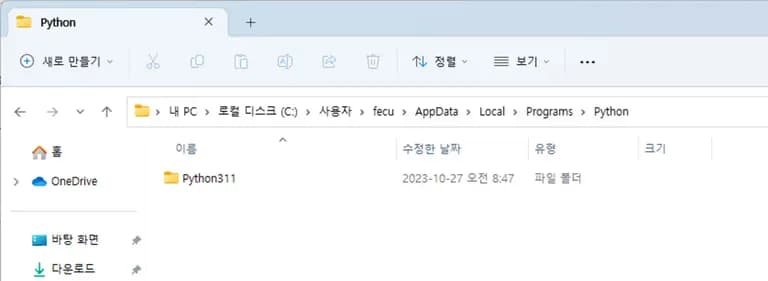
C:/Users/Username/AppData/Local/Programs/Python/Pyhon3x/python.exe
Navigate to the respective path and check Python.
Then copy the path.
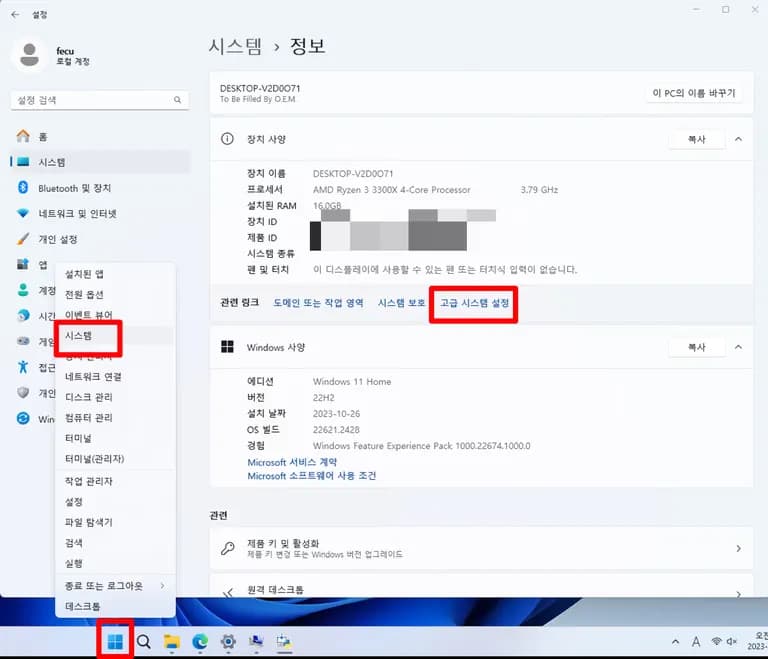
Then, right-click on the Windows Start button.
Go to System >> Information >> Advanced system settings from the menu.
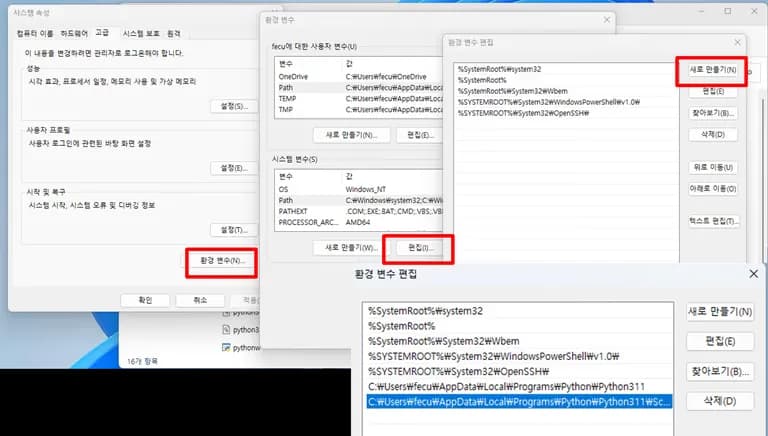
Then, in System Properties >> Environment Variables >> Edit the system variables at the bottom, click New, and paste the copied path.
The two paths you need to paste are the Python path and the path of Scripts inside the Python folder.
Then, relaunch VS Code and execute pip in the terminal.
If it still doesn't work, you need to change the default terminal.
3. Change Default Terminal
If pip still doesn't execute, try changing the default terminal.
In VS Code, press the F1 key, search for Terminal:Select Default Profile, and click it.
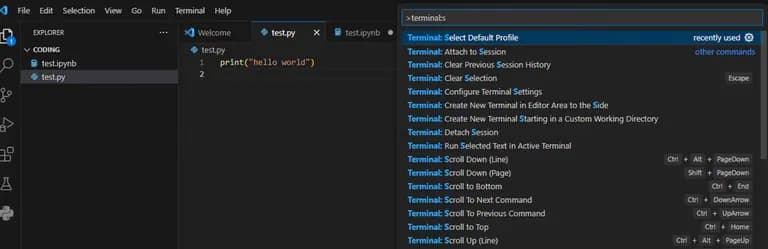
Change the default terminal from powershell.exe to cmd.exe.
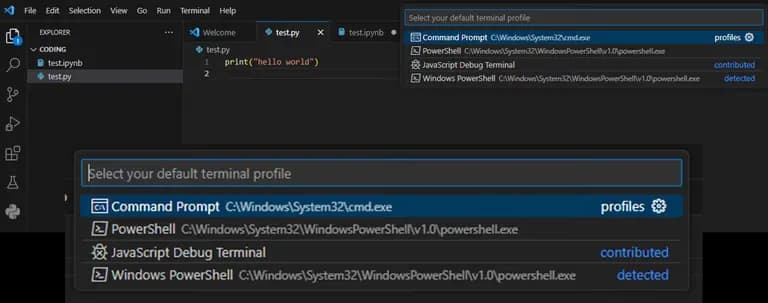
Then try installing with pip again.
4. Summary - When pip does not execute
Rerun the Python installer >> Modify >> Check all checkboxes >> Reboot or relaunch VS Code
Windows System Settings >> Environment Variables >> Add Python, scripts path
Change VS Code default terminal
If there are any other methods besides the three mentioned above, I plan to add them later.



댓글을 불러오는 중...