This time, I decided to try Python Selenium and physical computing with the kids.
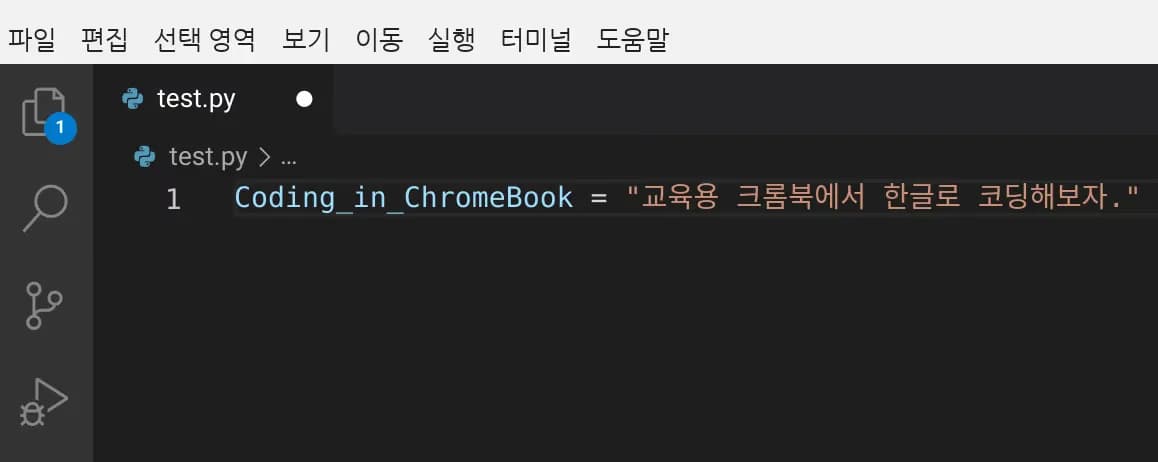
VSCode supports Unicode variables, so it seemed perfect for teaching coding in Korean.
However, the kids wanted to code on the Chromebooks distributed by the school.
So, I did a lot of Googling to set up the development environment on the Chromebooks and decided to document it.
1. Disabling the Linux Virtual Machine Restriction
Chromebooks used at school generally have developer mode and Linux virtual machine mode disabled.
Due to the strong control features of Chrome OS, the only option is to ask the school teacher to disable it.
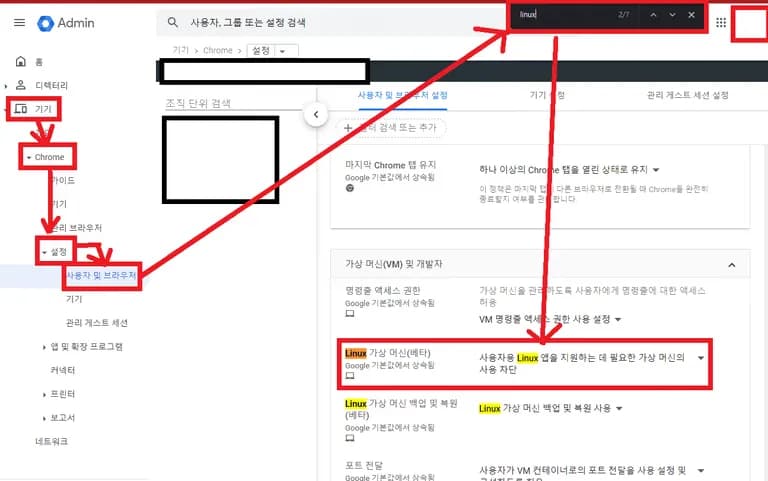
You can disable Linux mode under Admin Console-Device-Chrome-Settings-User & Browser-Linux Virtual Machine (Beta).
2. Setting Up the Linux Virtual Machine
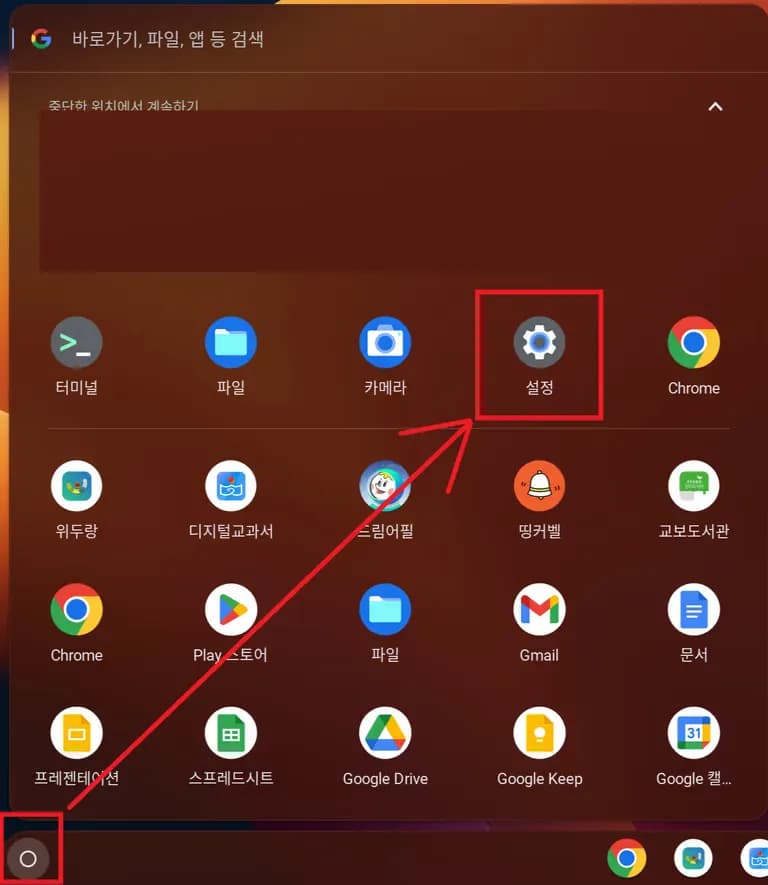
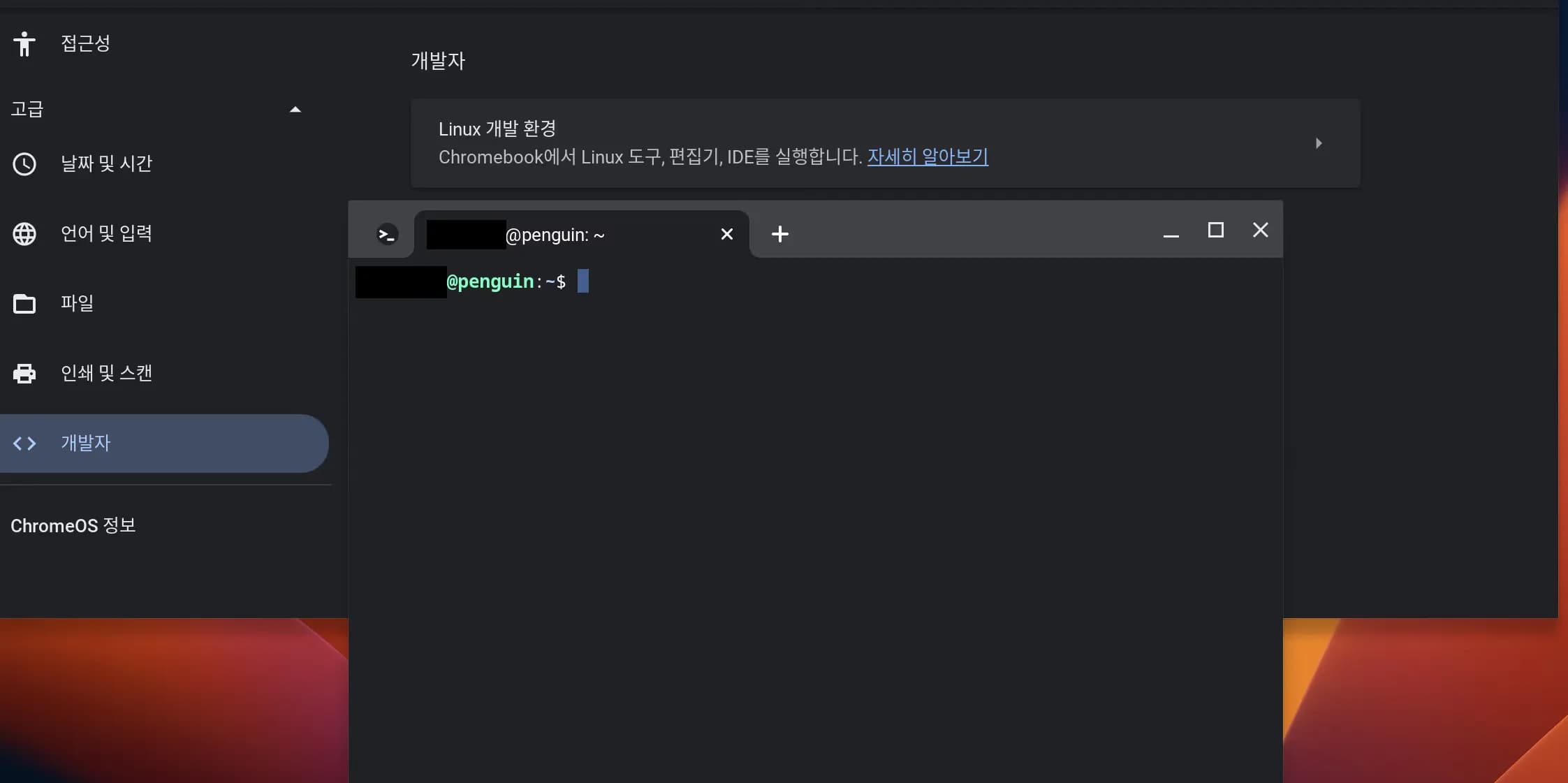
Press the button on the left, as shown in the image below, to enter the Chromebook's settings.
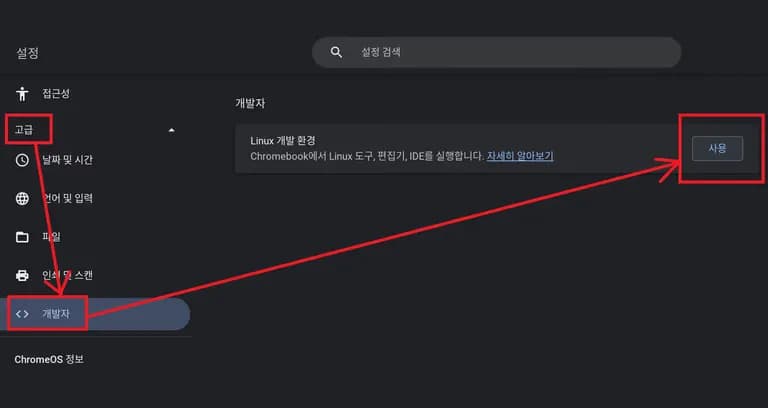
Then click Advanced-Developers-Use the Linux Development Environment.
The following setup is easy. Just blindly clicking “Next” completes the Linux installation.
The virtual machine's default capacity is 10Gb, but it can be easily adjusted later.
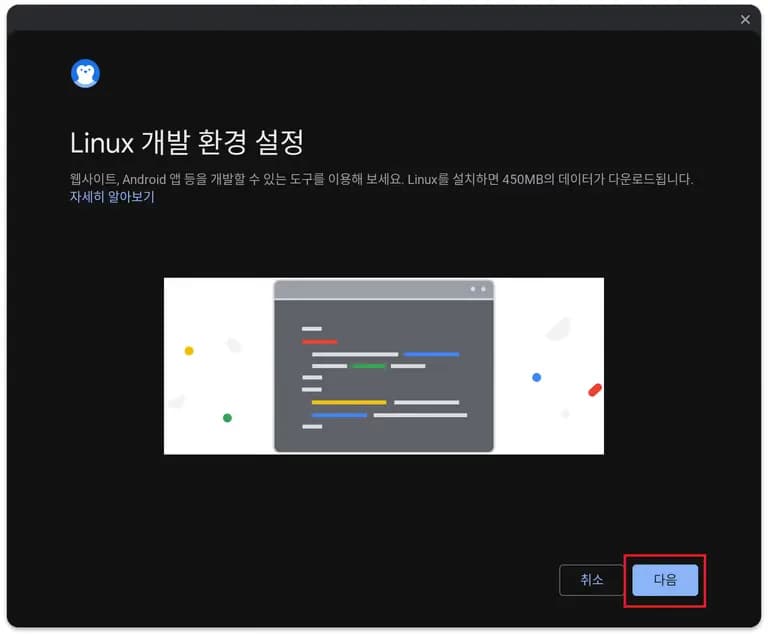
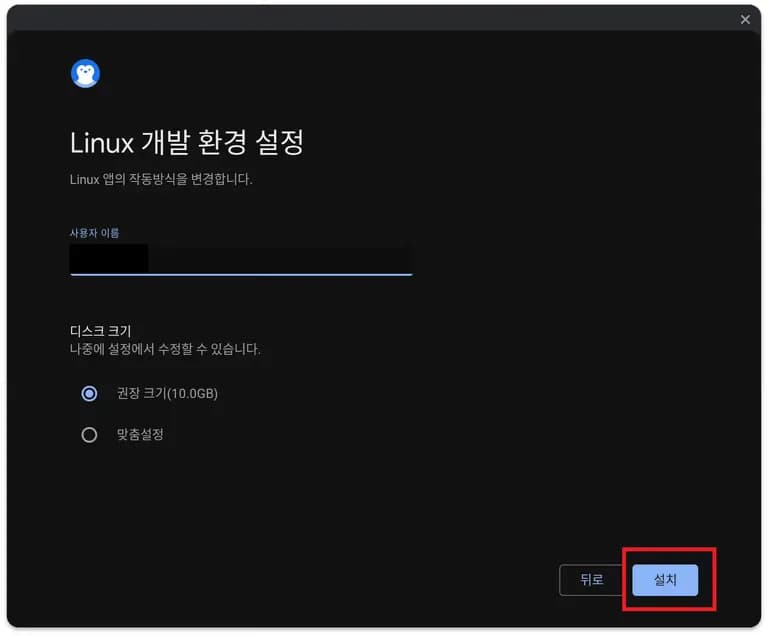
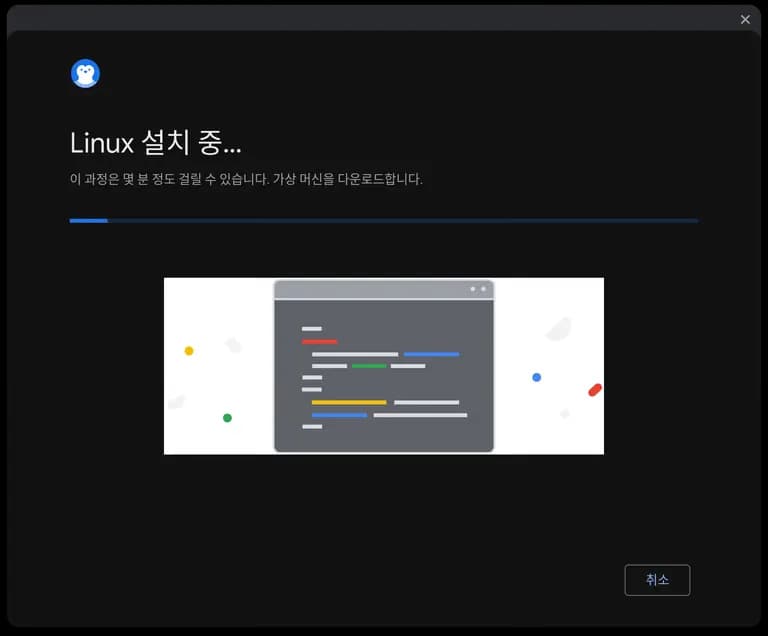
After a short wait, the Linux terminal opens as shown below.
Now, the Linux setup is complete.
3. Installing VS Code
First, update Linux using the following command.
The “&&” between commands means executing the next command after the previous one completes.
sudo apt update && sudo apt upgrade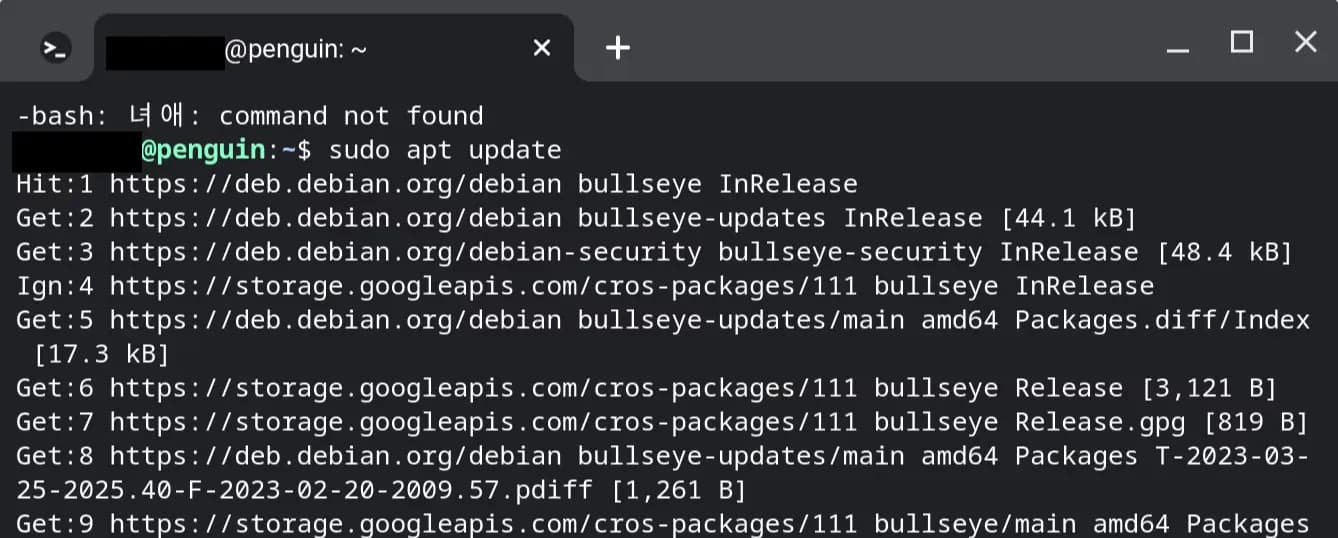
Then, use the dpkg command to check the architecture of the CPU.
dpkg --print-architecture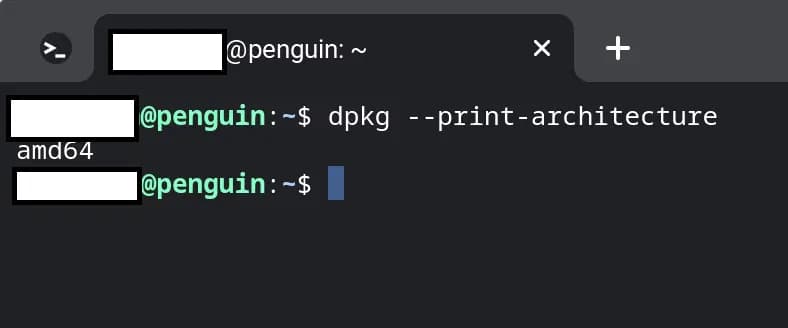
If it shows amd64, it means a typical 64-bit program can be installed.
Go to the Visual Studio homepage and download the Linux distribution file, the “deb” file.
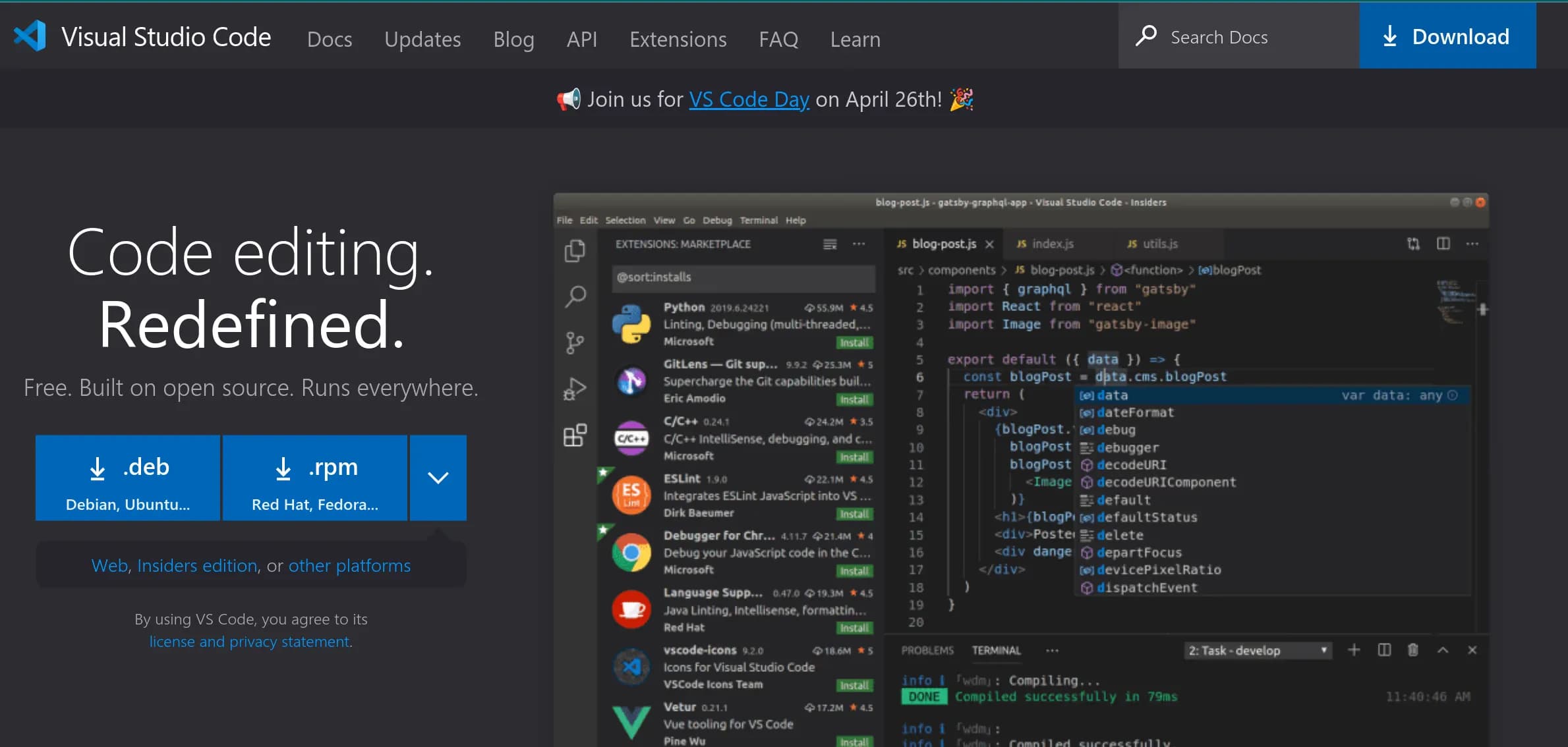
You can download by clicking [.deb] on the left.
Alternatively, you can check other distributions by clicking [Download] at the top-right corner.
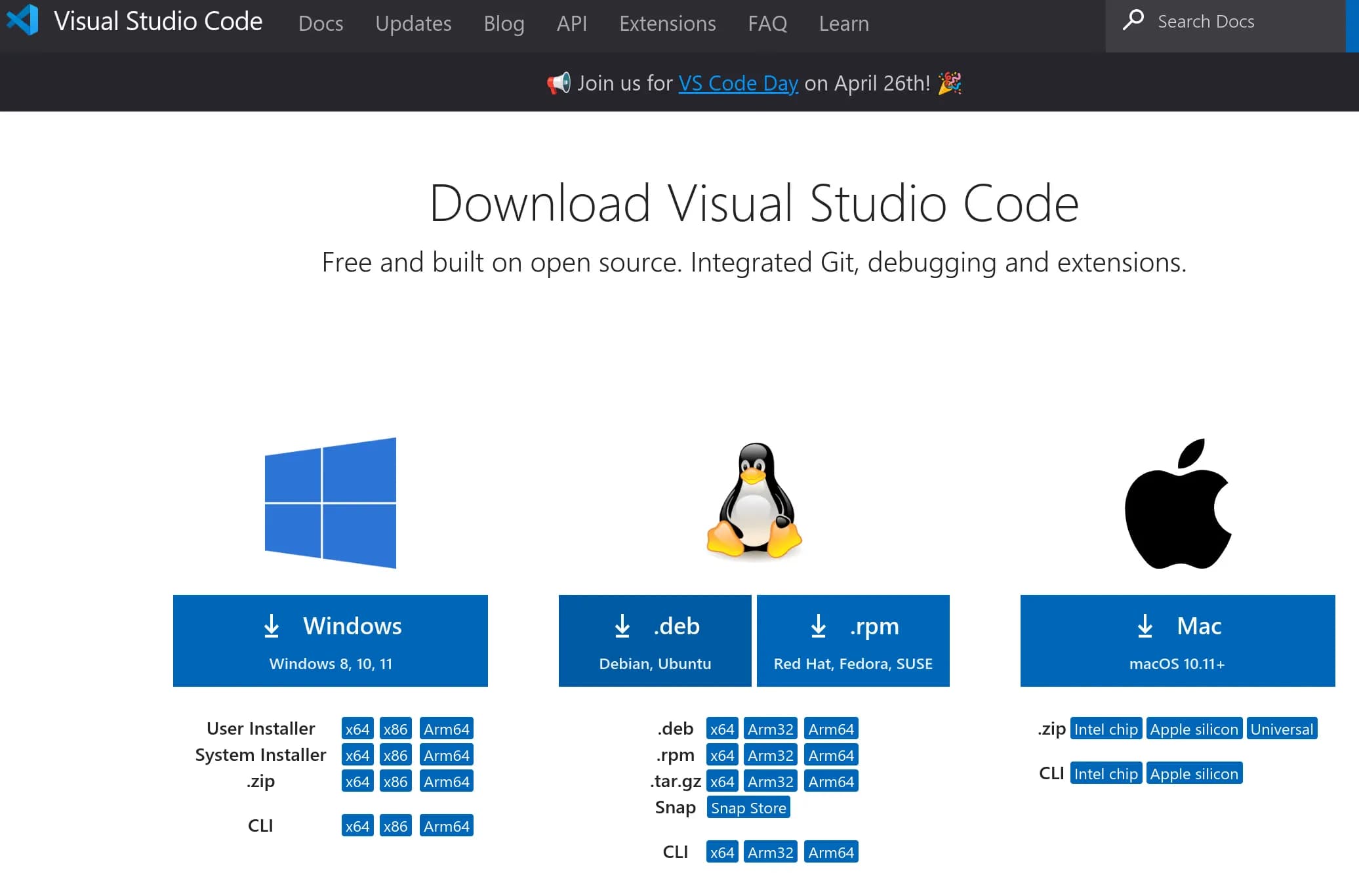
Now double-click the downloaded file to install it.
If you're good at Linux, you can install using wget and dpkg commands or apt.
Note that Linux distributions downloaded via apt cannot use Korean.
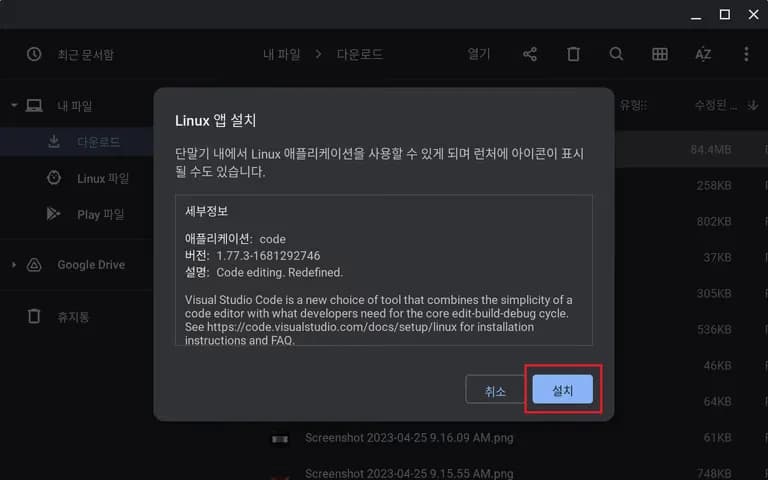
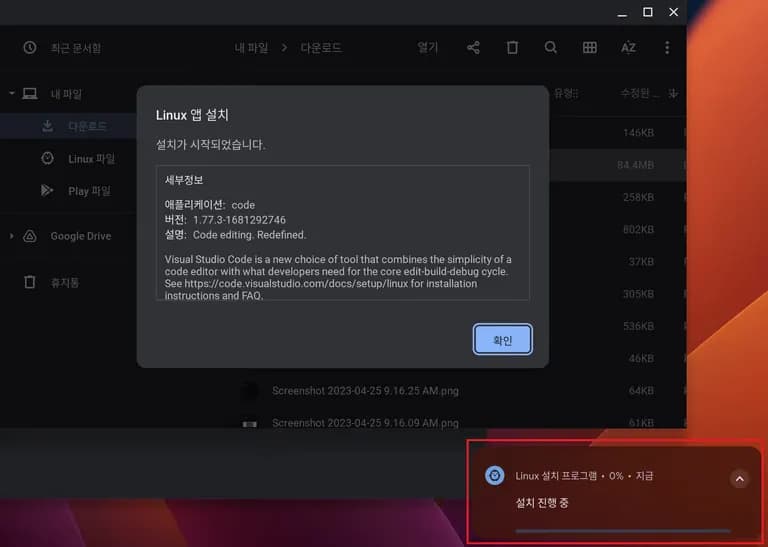
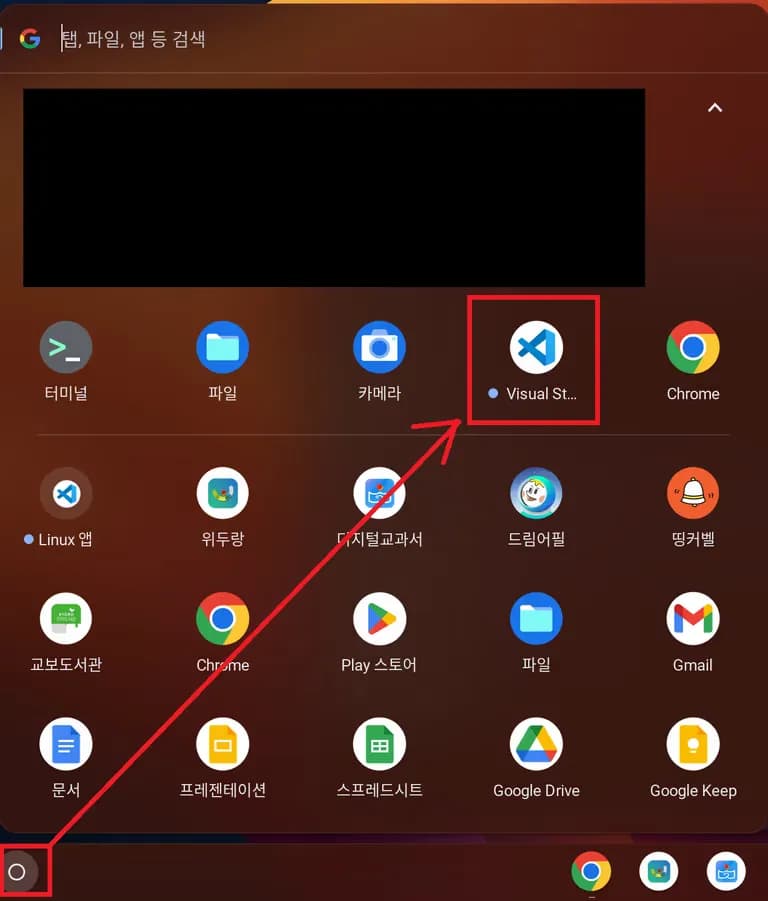
In a short while, you can find VS Code on the Chromebook start page.
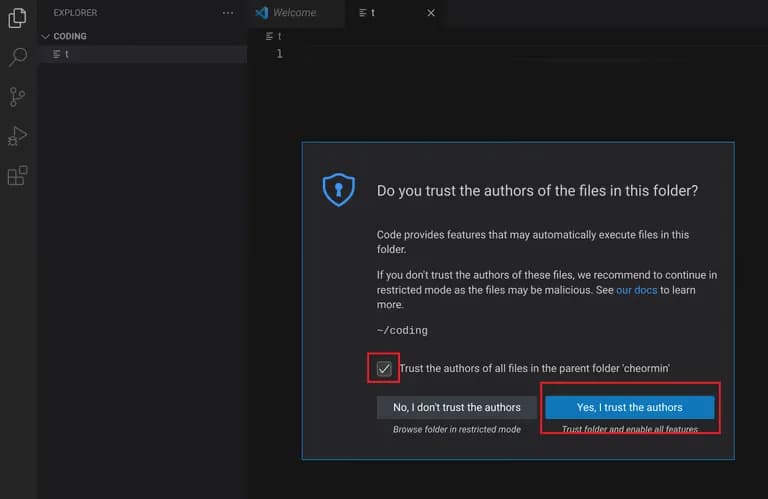
Click to open the folder and verify execution.
Allow all if a trust window appears.
4. Installing Python and pip
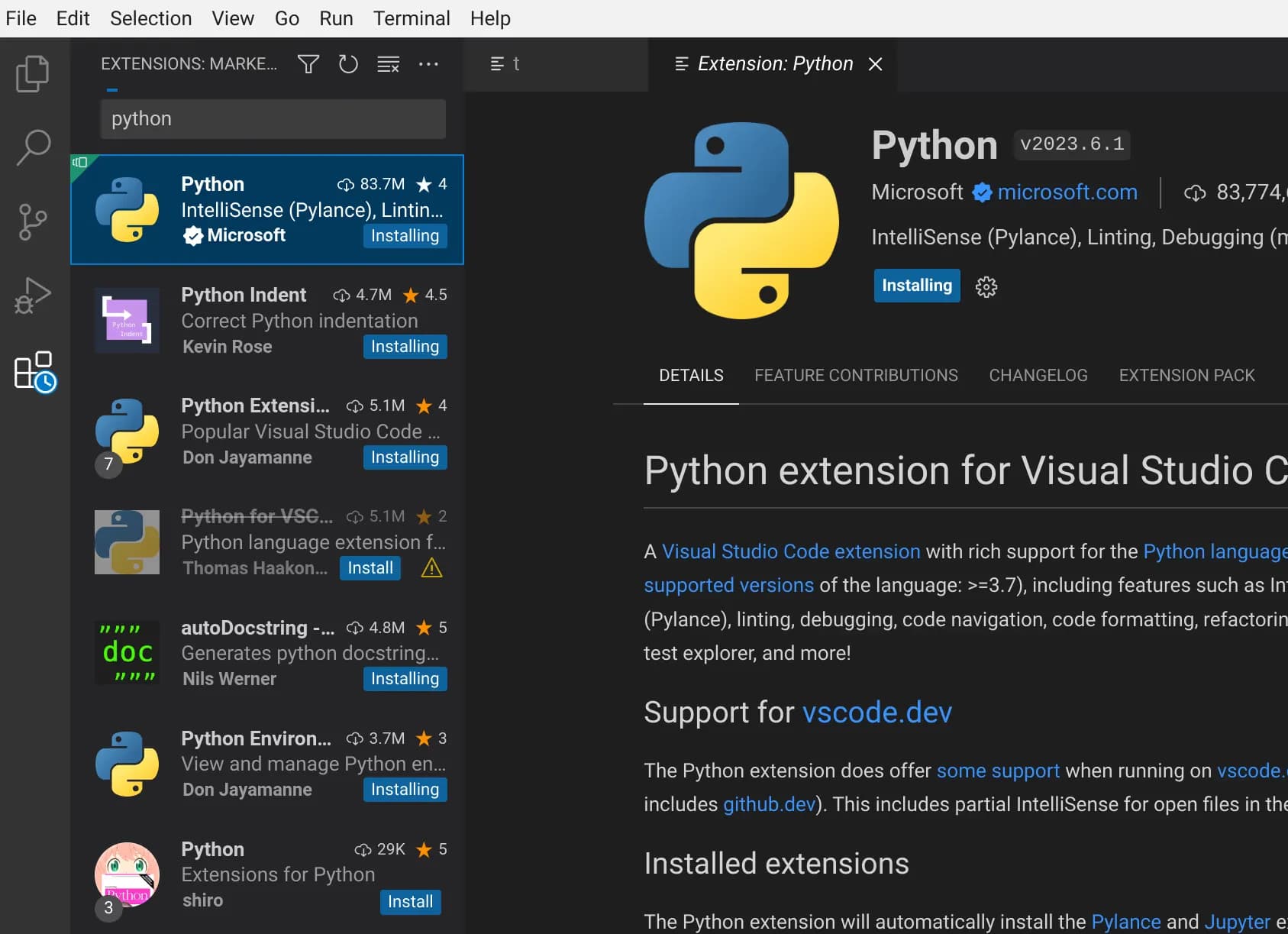
Install Extensions in VS Code.
When searching, install anything related to Python to execute Python files.
Install Python, Python Extension, and anything else you want.
Then enter the following command in Terminal to install pip.
sudo apt install python3-pip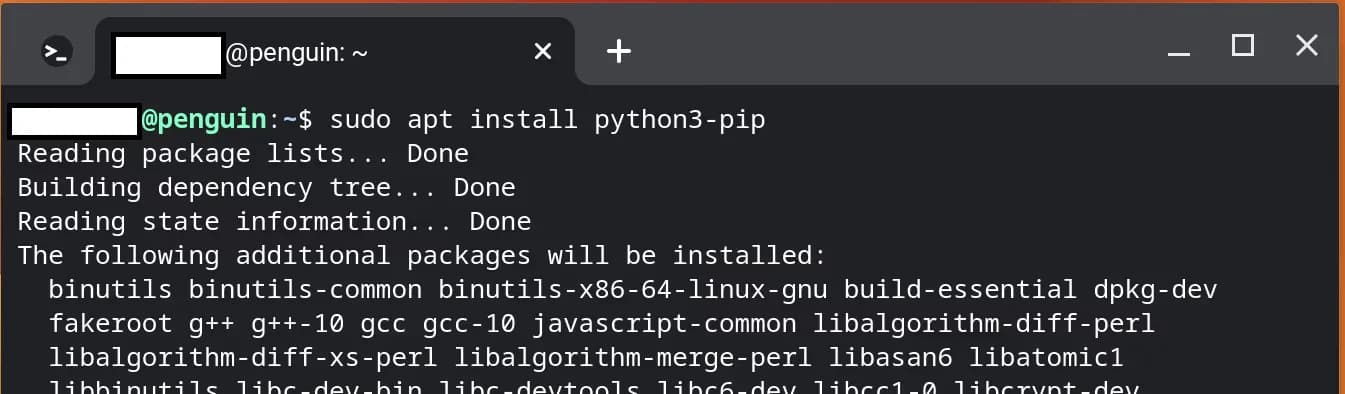
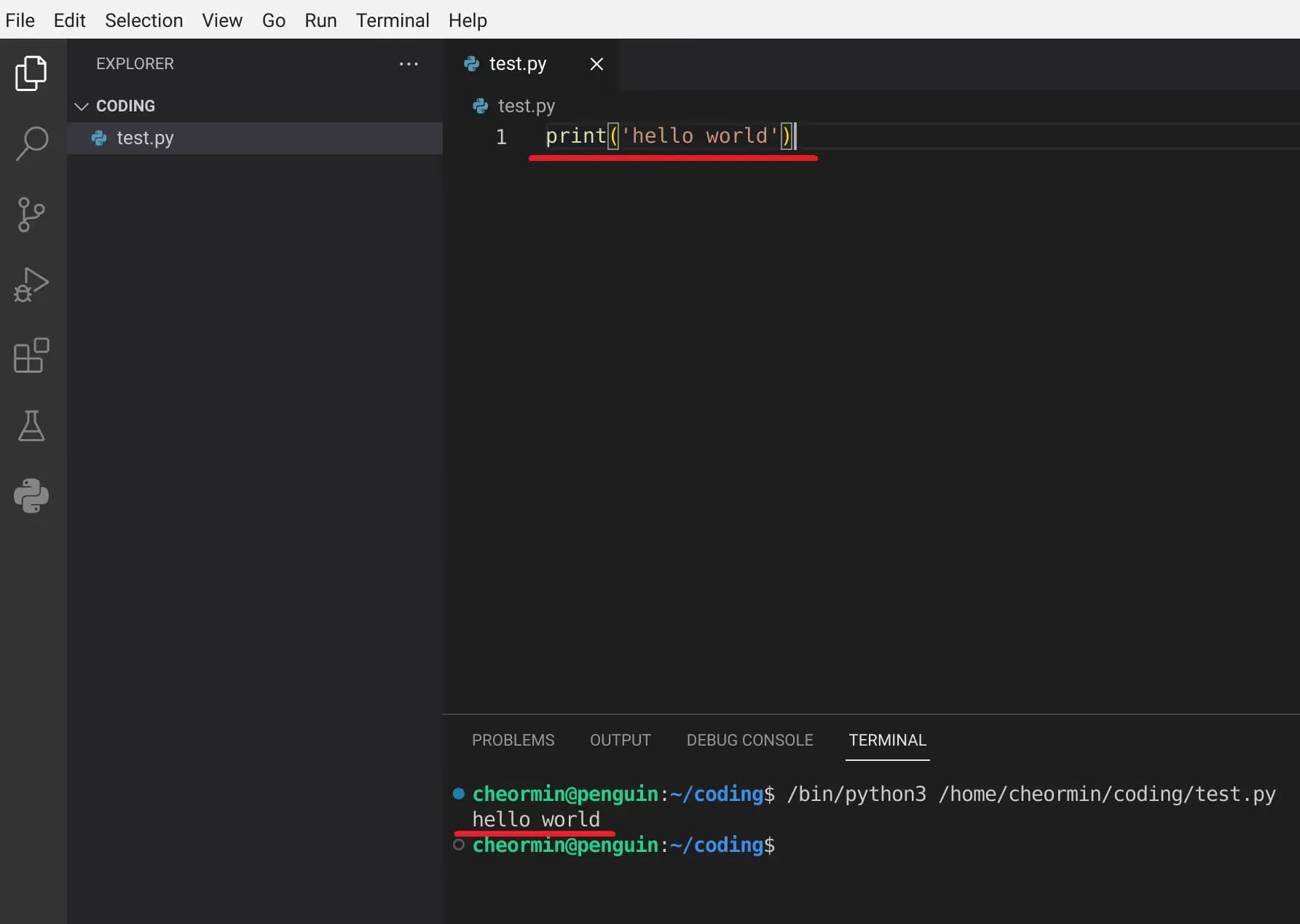
Finally, in VS Code, as always, enter print("hello world") to check the output.
Aside from the major issue of “unable to use Korean,” there shouldn't be any other differences.
5. Setting Up Korean Use on Linux
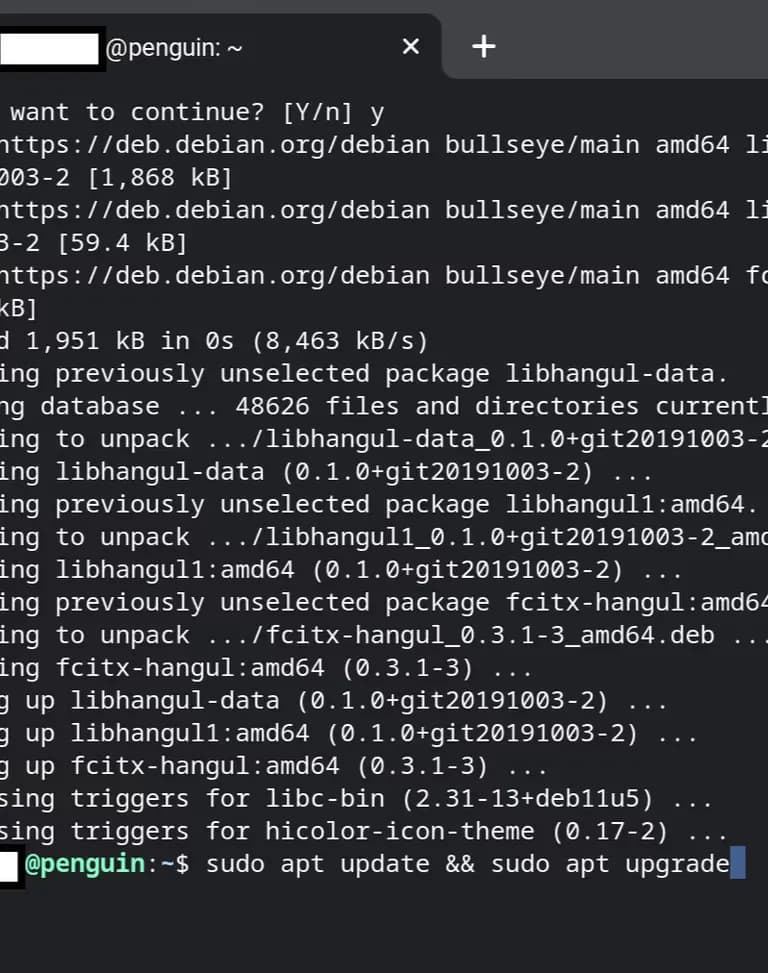
Now I plan to install four modules including fcitx and Korean fonts.
You can install multiple modules at once by separating them with a space after install as shown below.
sudo apt install fcitx fcitx-hangul fcitx-lib* fonts-nanum*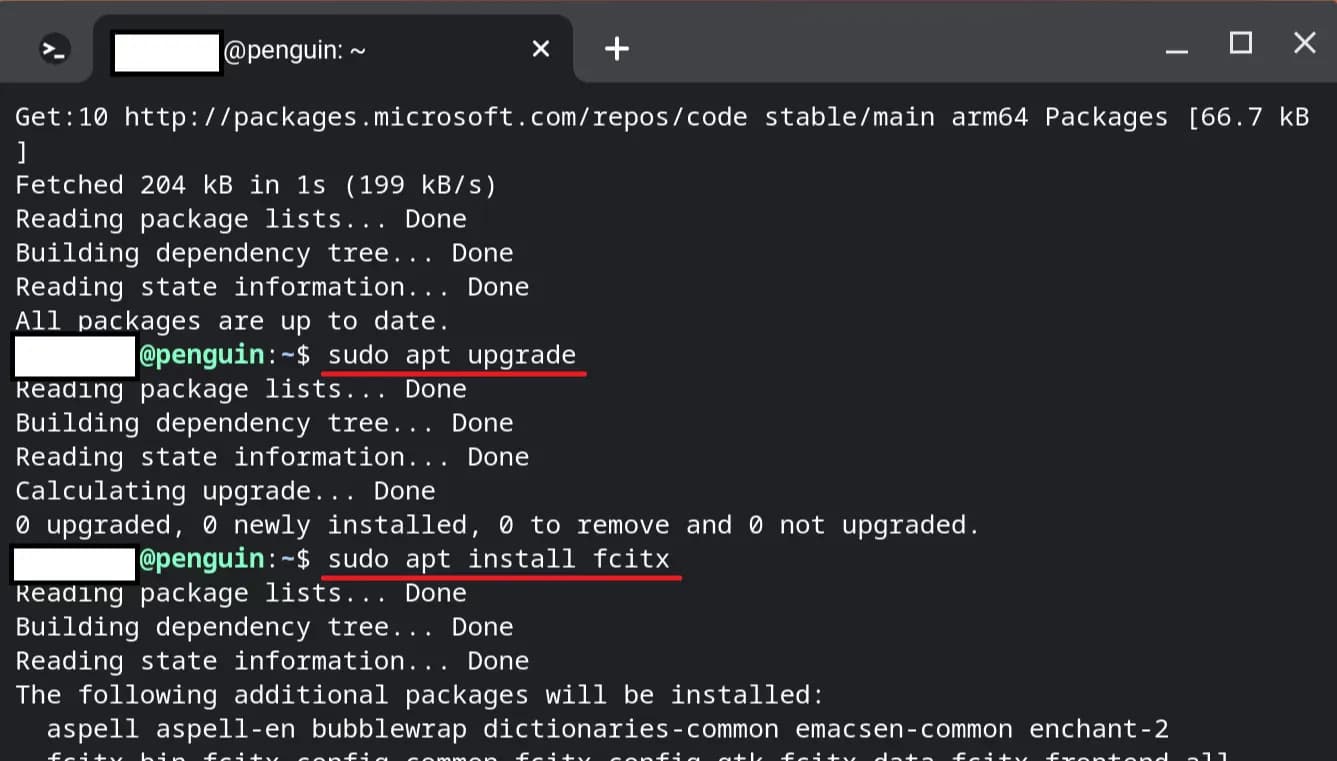
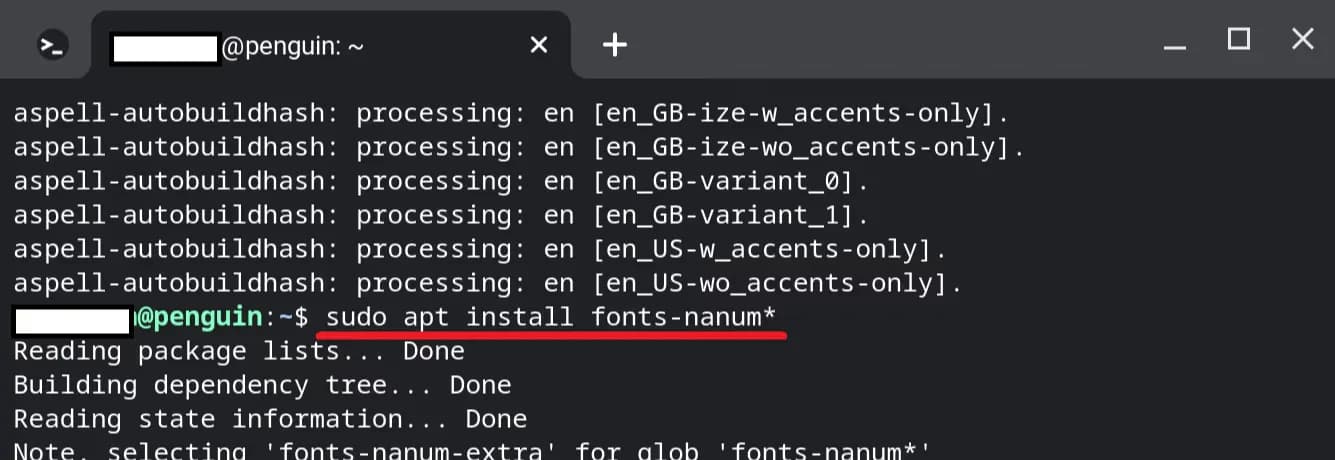
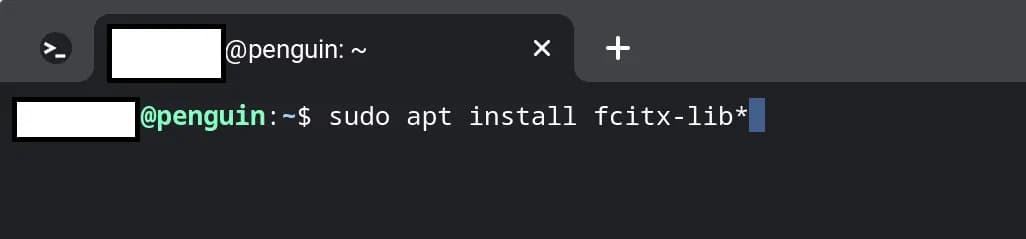
Enter im-config in the Terminal to initiate settings.
Press ok for all, and choose default midway through.
im-config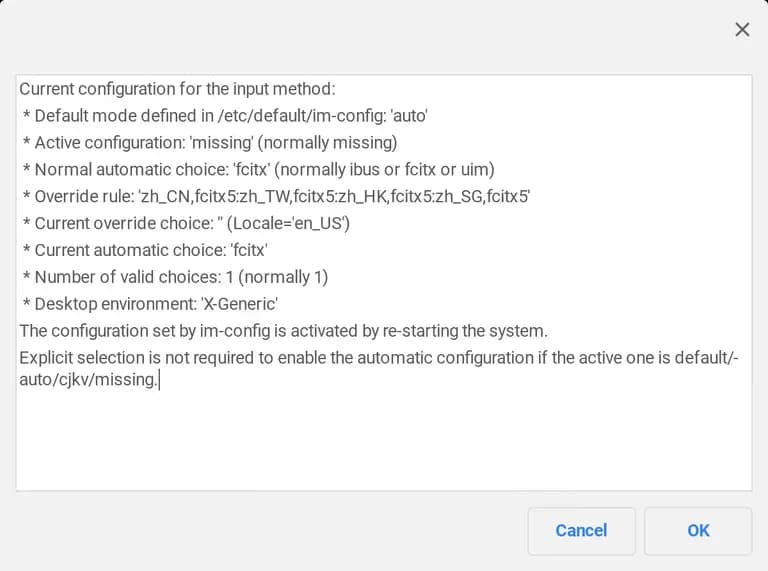
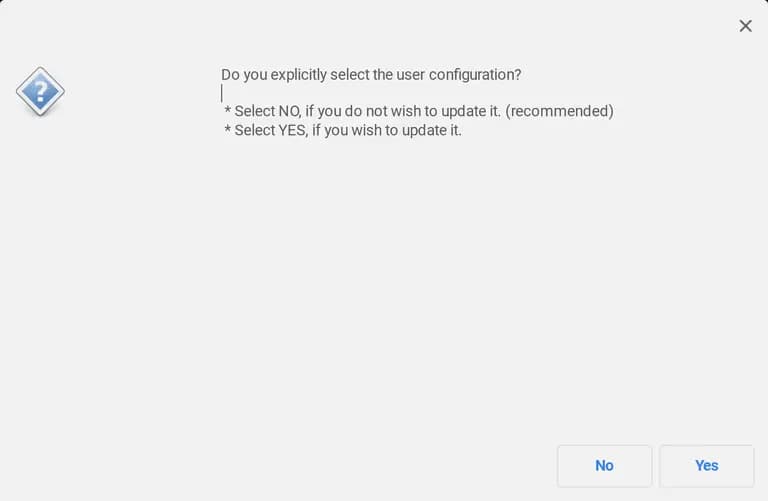
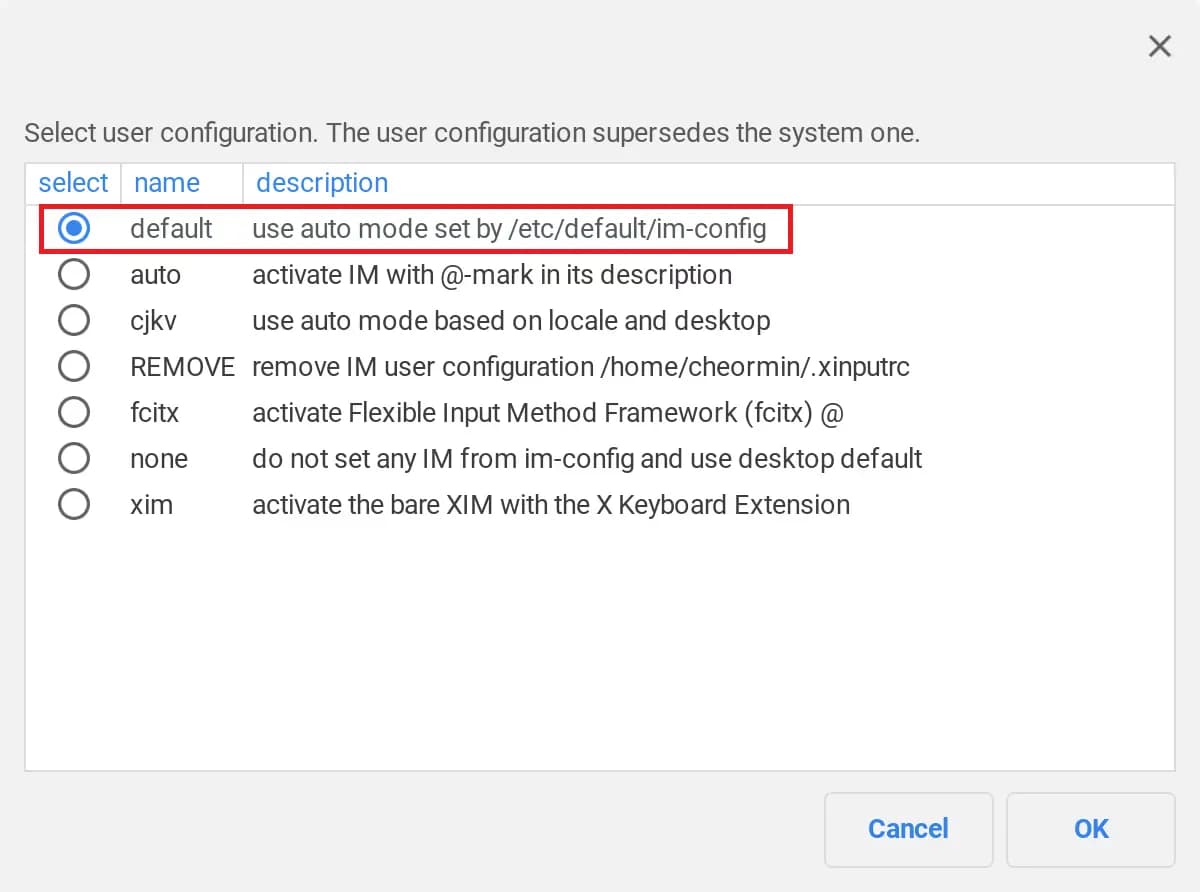
Enter the following command to see the language settings window.
It's about executing it with autostart and running configtool.
If no language appears here, update apt, and try again; it should display correctly.
sudo fcitx-autostart && sudo fcitx-configtool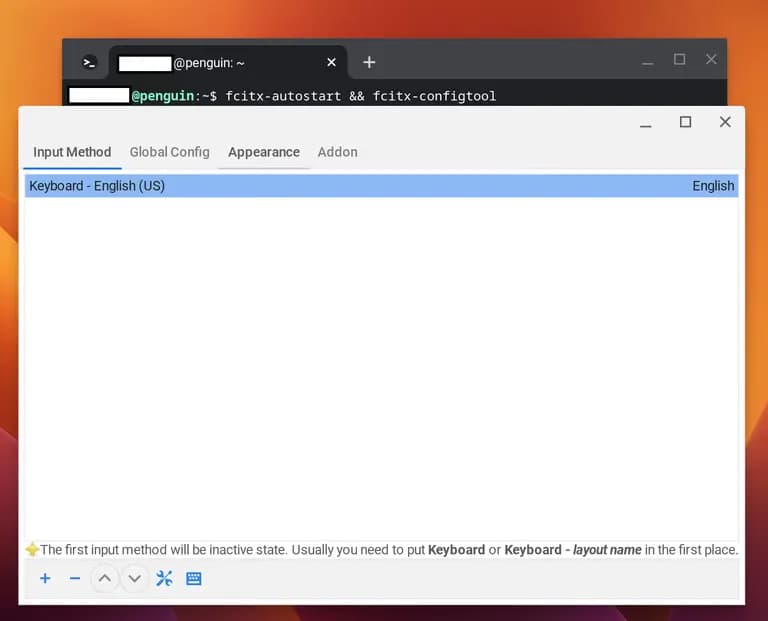
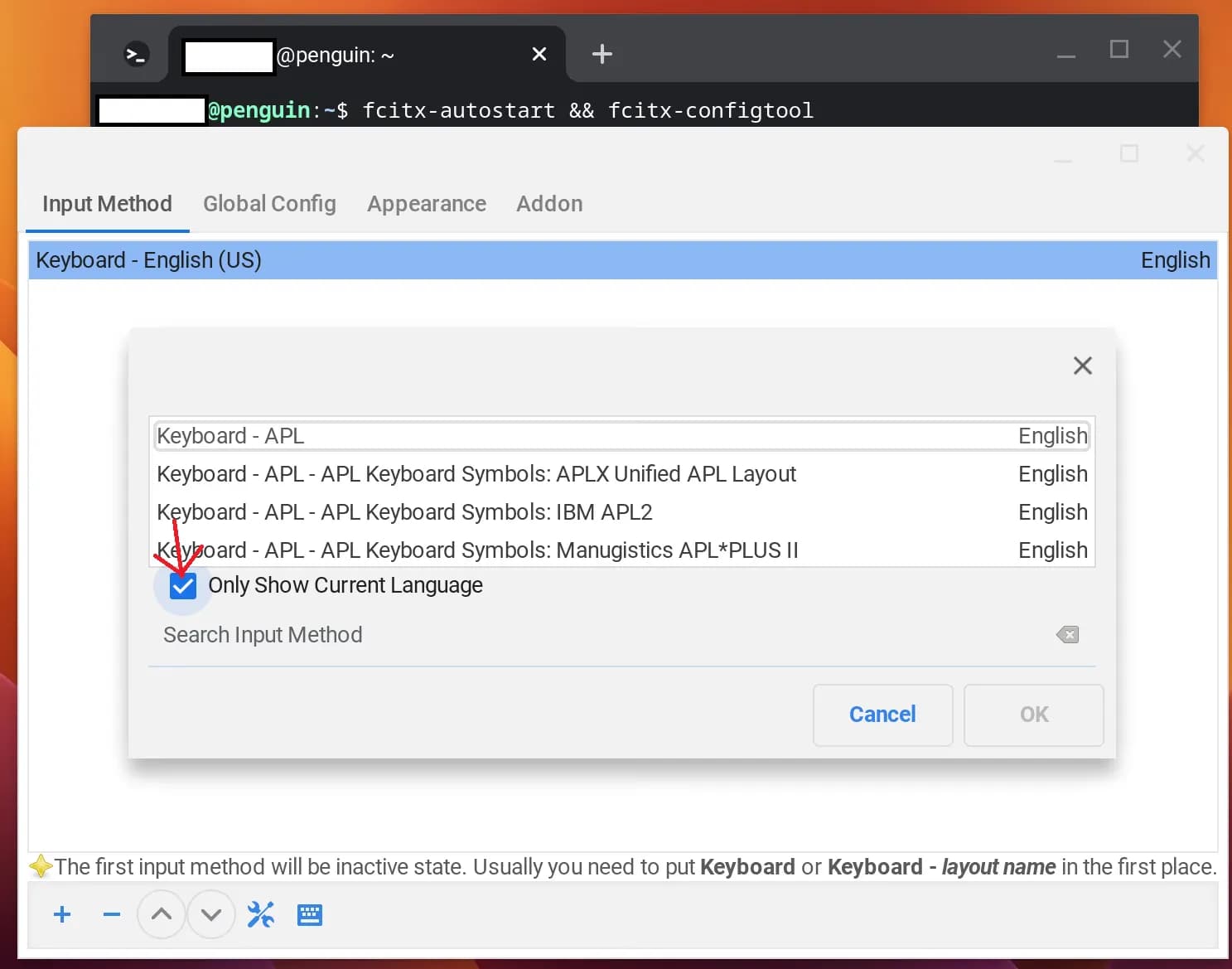
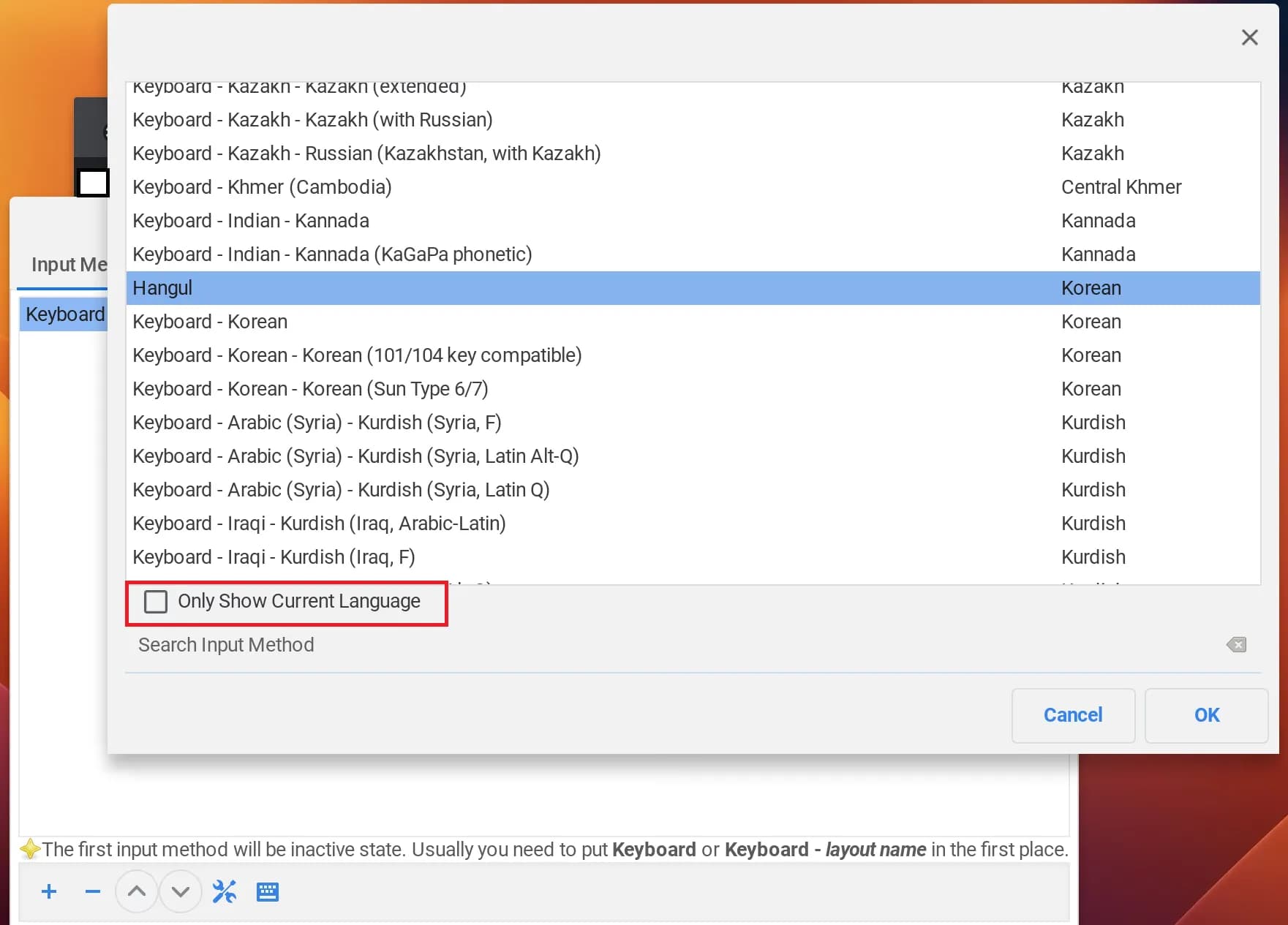
Press the (+) button at the bottom to add a language.
By unchecking the checkbox before [ ] Only Show ~, you can find Korean.
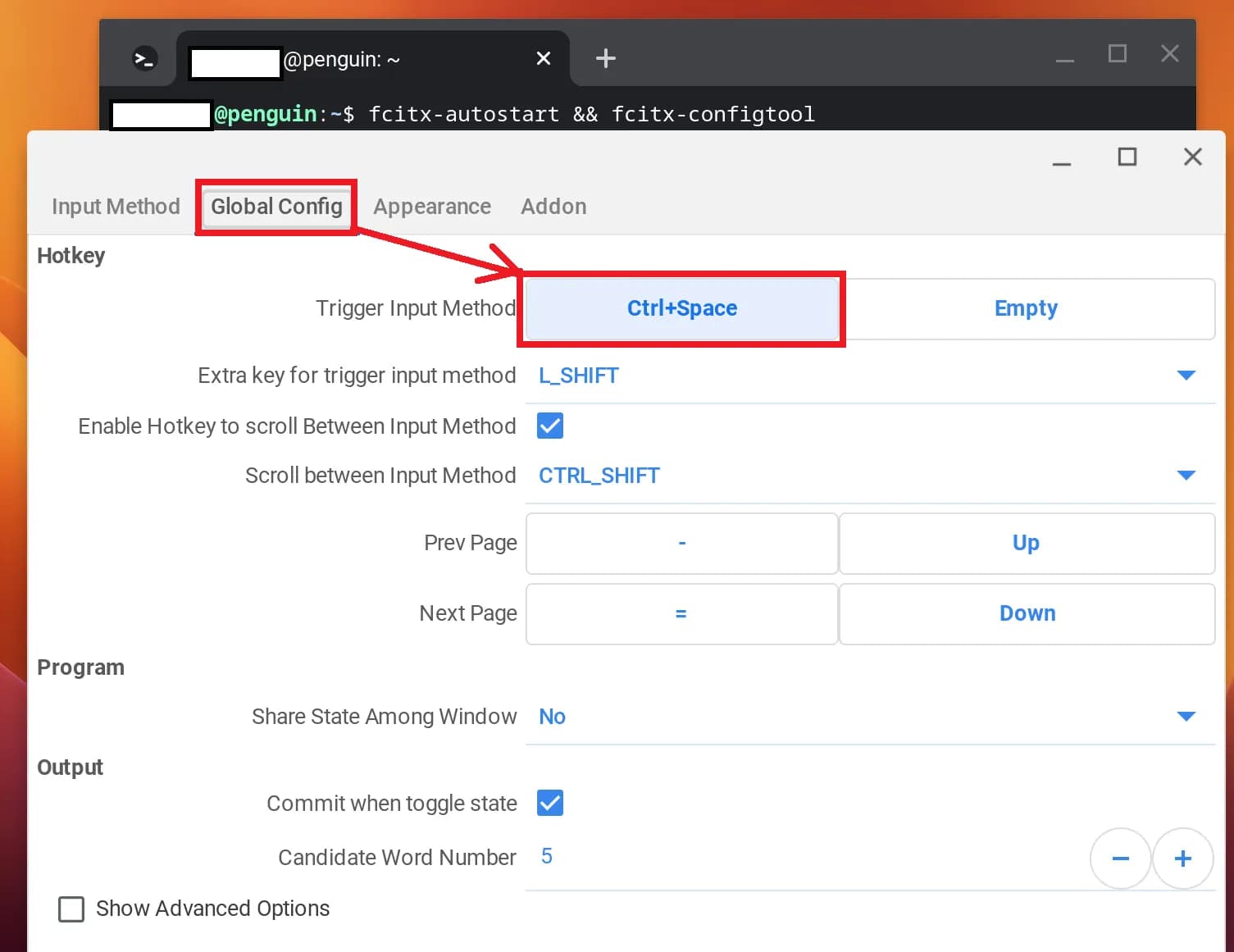
Next, enter Global config and change the Korean/English switch key.
It's initially set to Ctrl+Space, which conflicts with other shortcuts in VS Code, so it's better to change it.
To change, click the method and press the key you want to use for Korean/English switching.
6. Registering Commands in Linux Startup Programs
Using fcitx allows input of Korean in VS Code, but every time you turn the Chromebook on and off, you must execute fcitx-autostart to run the module.
To avoid this, register the command using vi, a Linux editor.
sudo vi ~/.sommelierrc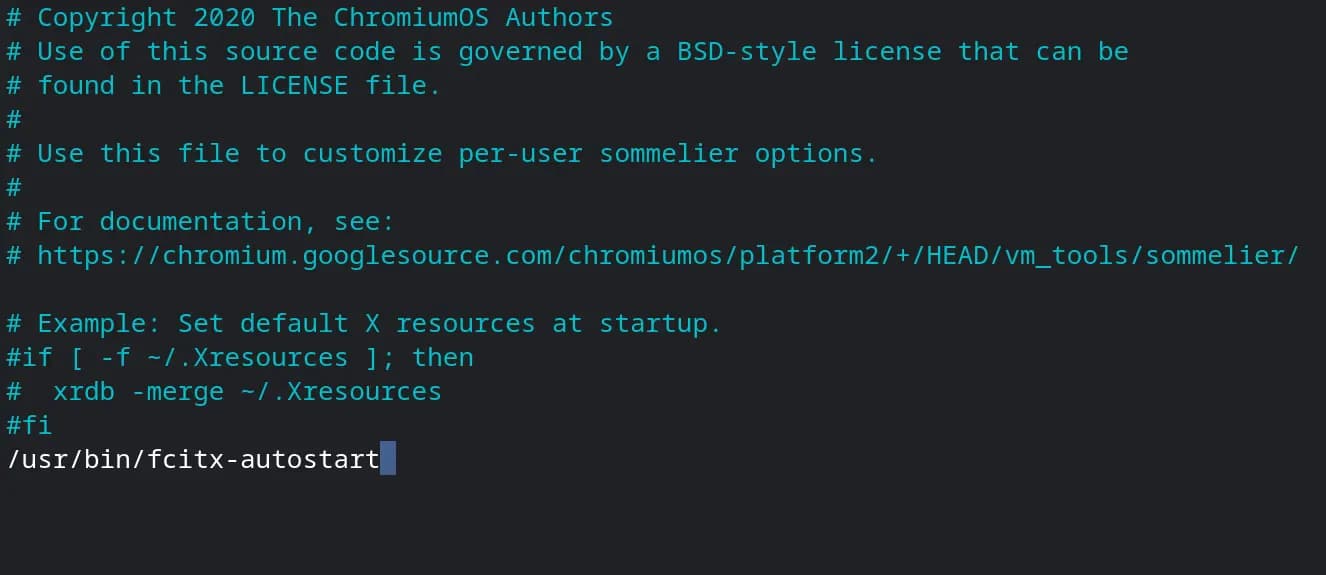
Then, enter /usr/bin/fcitx-autostart, press ESC, then :wq and Enter.
This saves the file and exits the vi editor.
This way, fcitx will run whenever Linux starts, allowing Korean input.
7. Final Verification
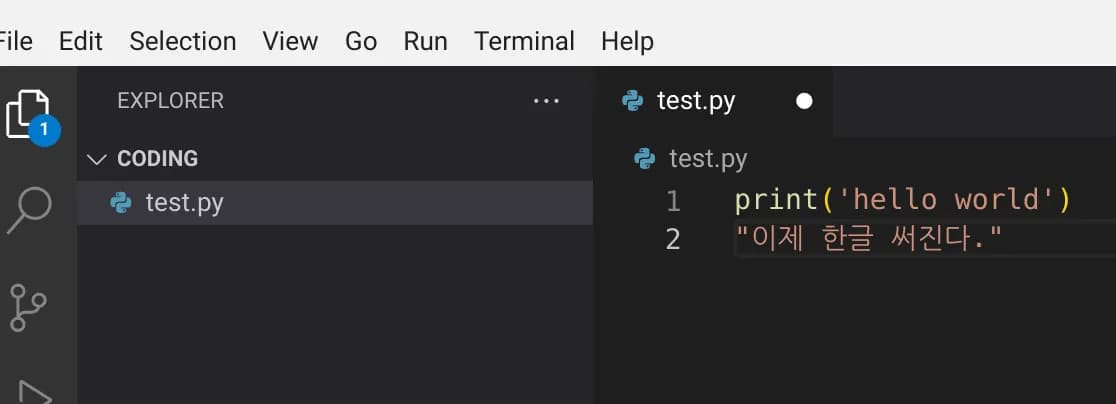
Verify Korean input in VS Code.
Then, turn the Chromebook off and on and re-run VS Code to check if Korean input works properly.
If everything's set, now it's time to demonstrate this method to the kids and start coding together.



댓글을 불러오는 중...