Today, I'm going to write about setting up a Python execution environment using Visual Studio Code.
1. Download Python
First, since we'll be using Python, let's download Python.
Just enter the top result from the Google search for python.
For those who find searching tedious, here's the direct link.
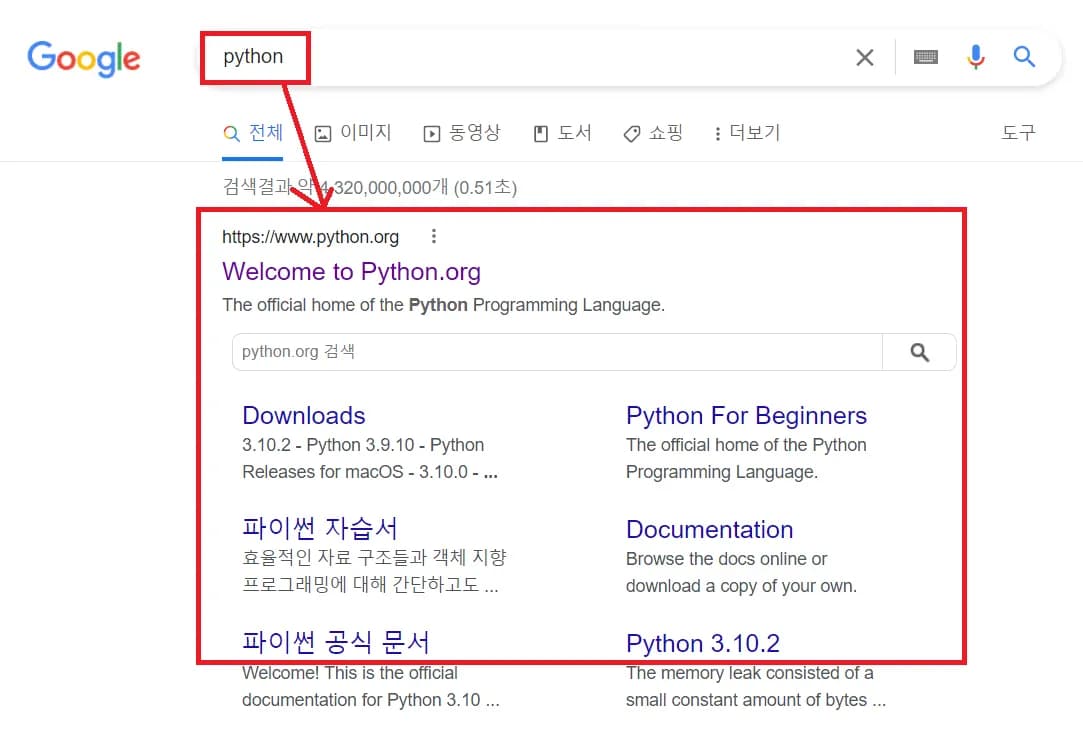
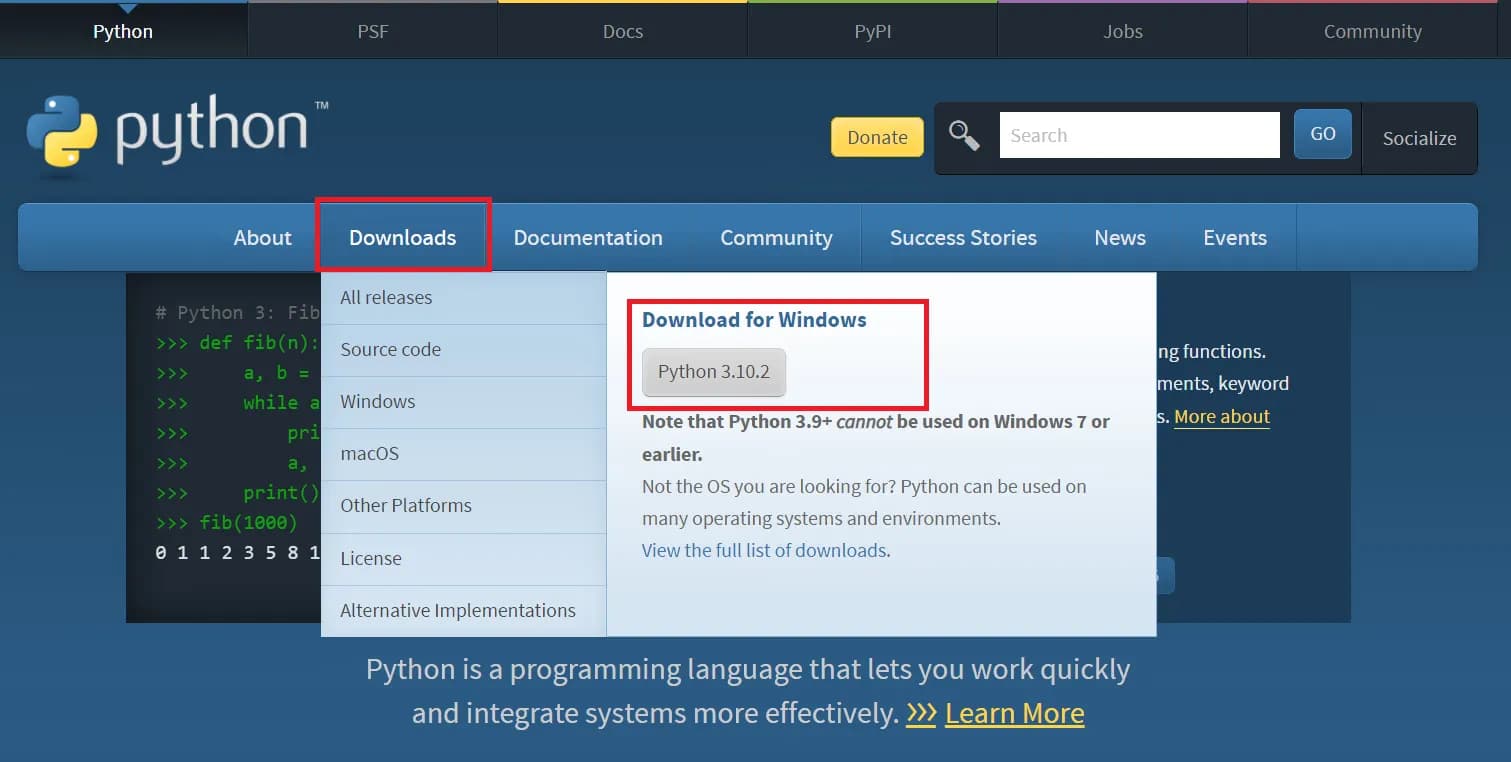
Once on the Python page, click the download button to download Python.
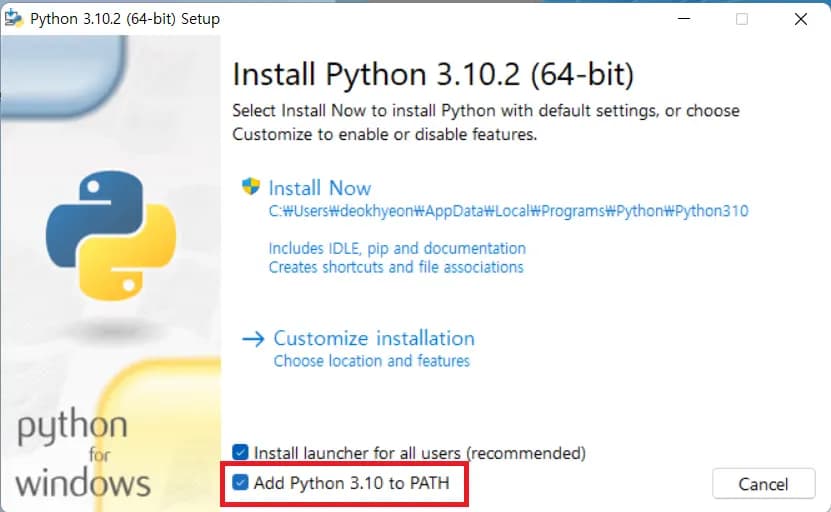
Install Python and make sure to check 'Add Python 3.10 to PATH'.
This means you're adding Python to the Windows program execution path.
2. Download Visual Studio Code
Now that Python is installed, it's time to install Visual Studio. Search for visual studio code on Google.
Note that visual studio and visual studio code are different programs.
Here's the link as well.
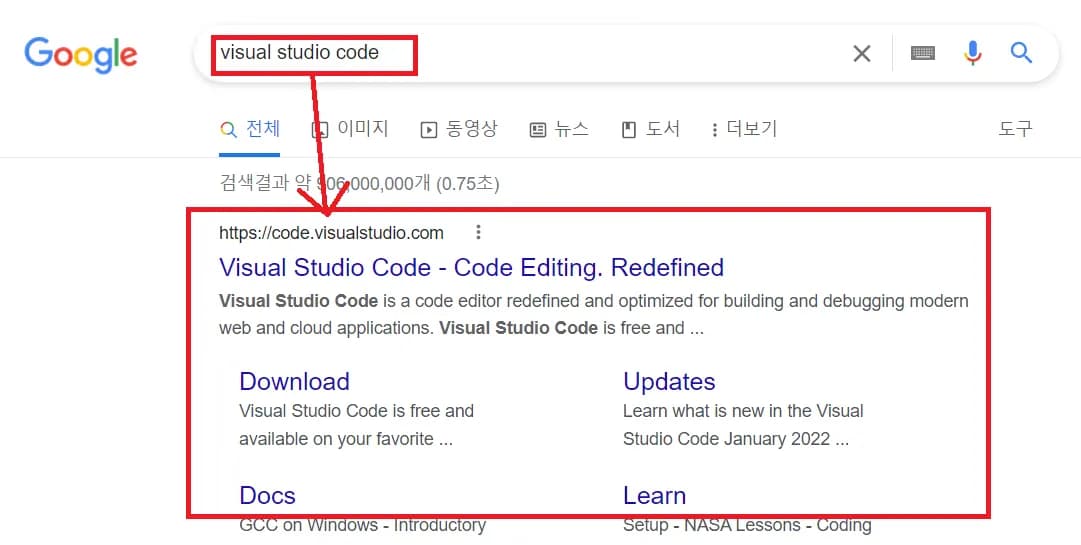
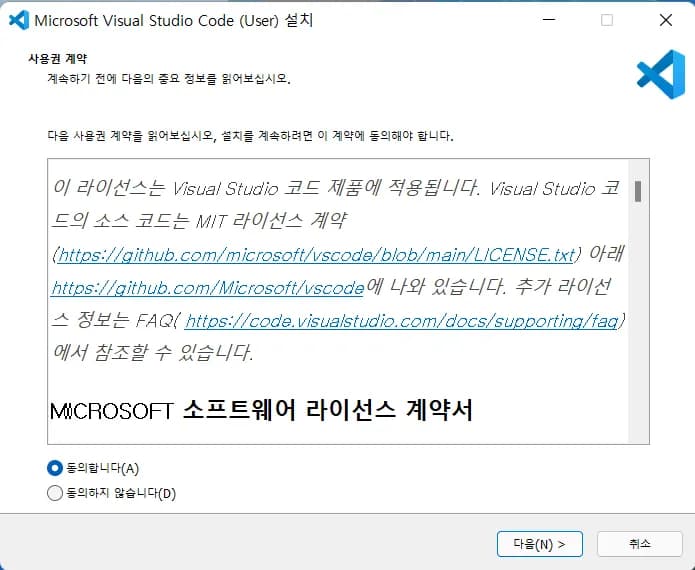
If you've downloaded the program suitable for your operating system, proceed to install it.
Just keep clicking next until it's done, it's not difficult.
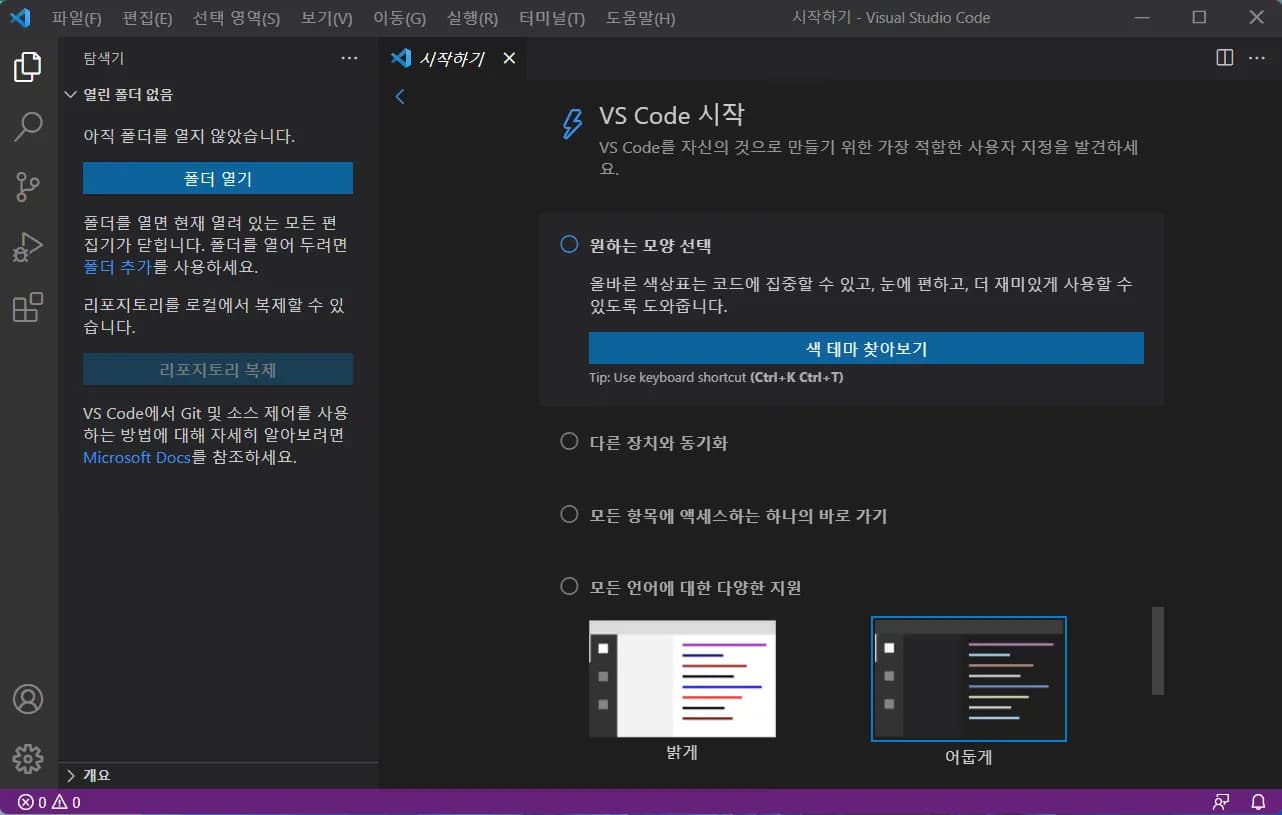
Below is what it looks like when Visual Studio is running.
Create a folder where you'll develop your programs.
Creating a folder directly in the C:\ path makes it much more convenient for developing and managing programs later on.
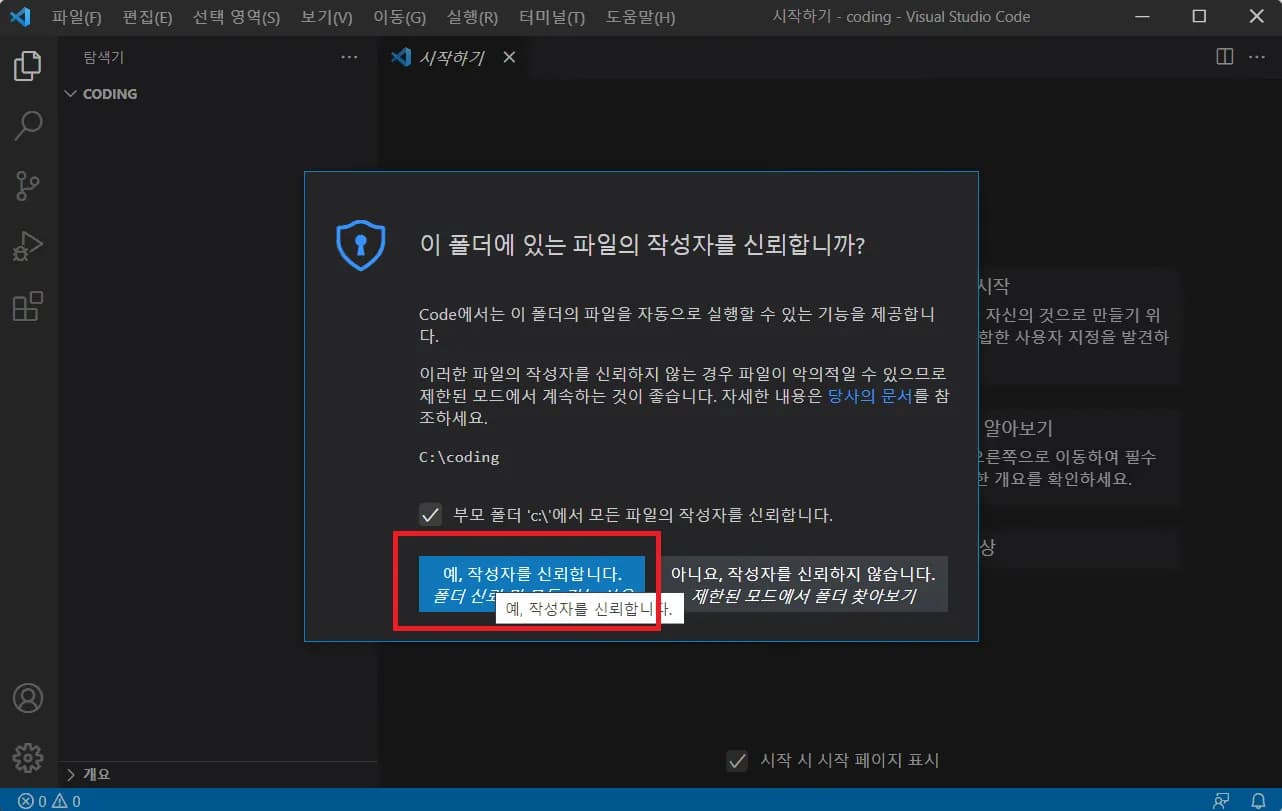
I created a folder called coding inside the C:\ drive.
The path is C:\coding.
If you get a trust question, just click trust.
3. Set Up Python Environment in Visual Studio
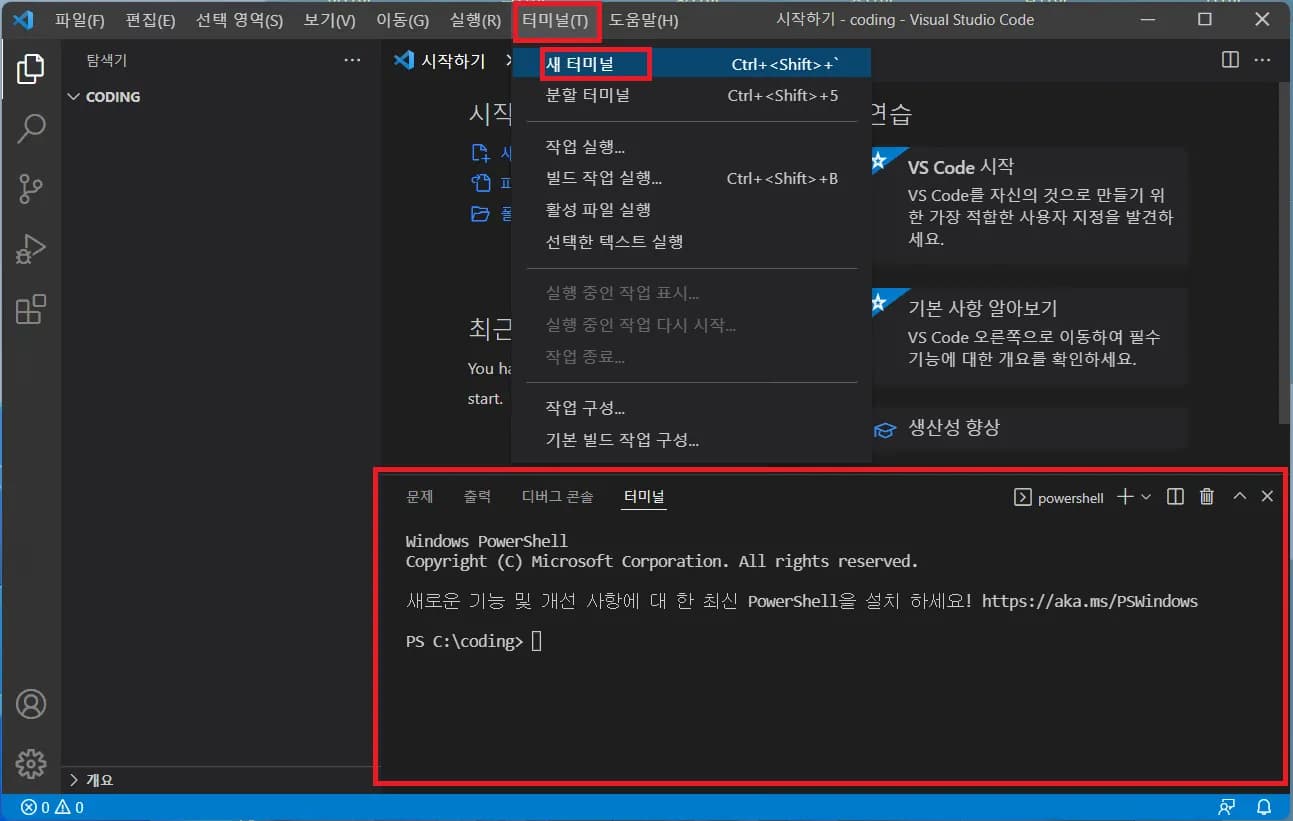
First, open a new terminal. You can run Python and issue commands via the terminal, or observe the program execution process.
Think of it as a sort of interface to issue commands to the computer.
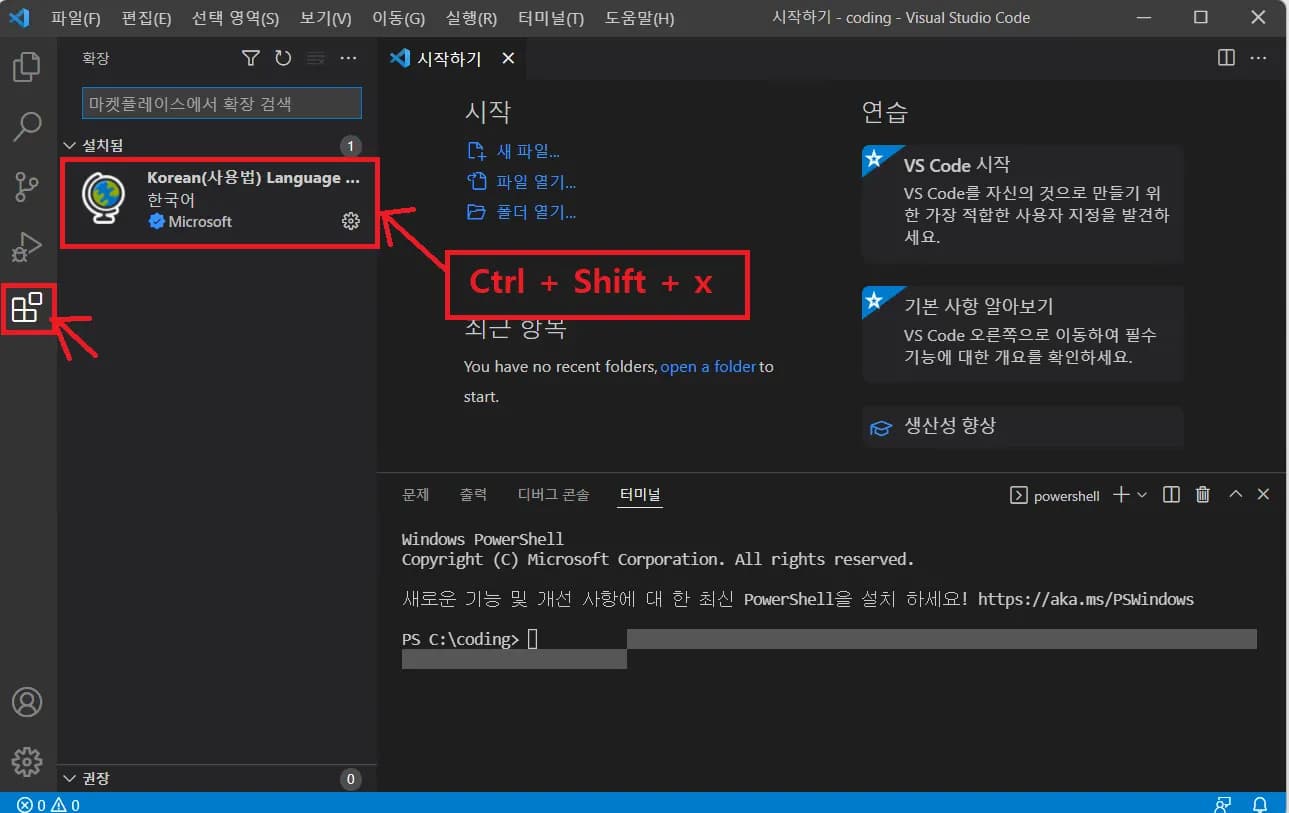
Click on the marketplace on the left (or use the shortcut Ctrl + Shift + X) to install the Korean package.
If you downloaded it as the Korean version initially, no need to install.
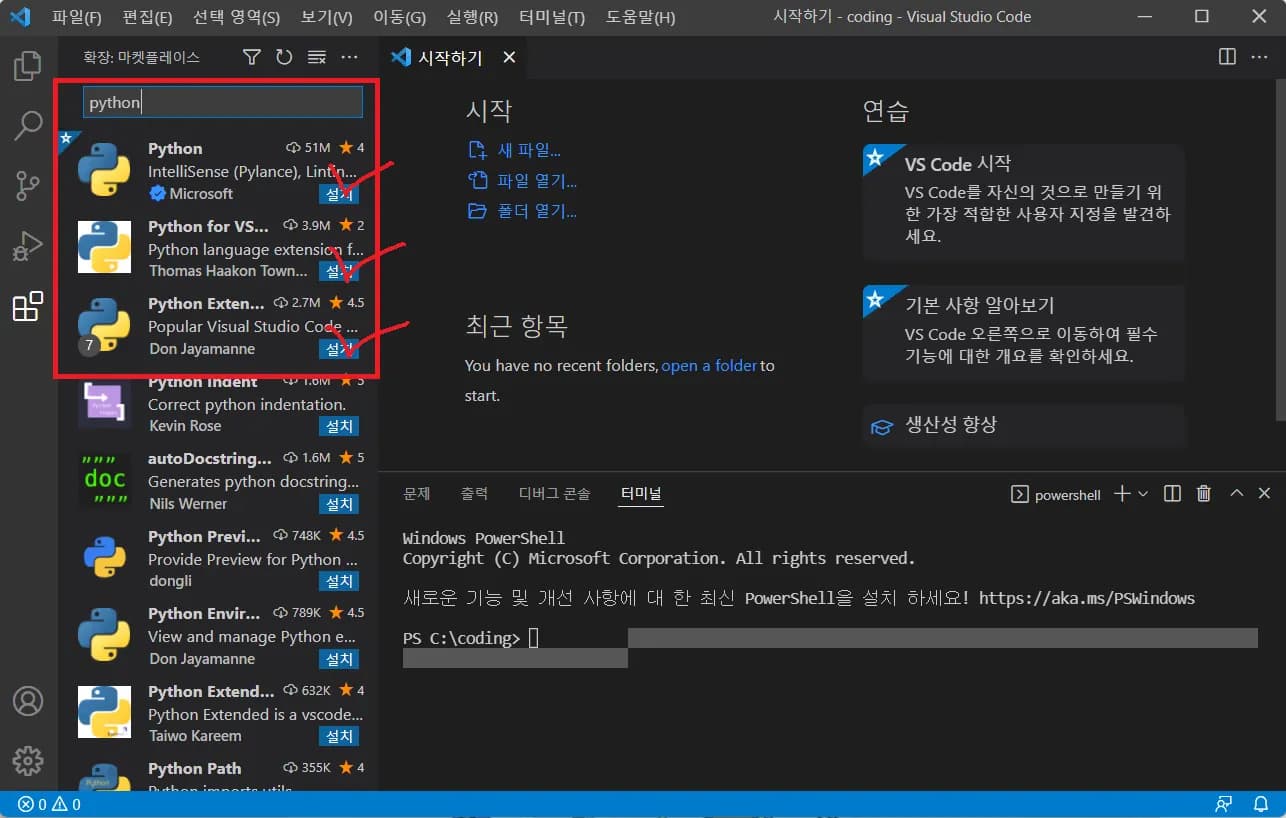
Then search for python and install the three checked items below.
These packages check for errors, making it easier to code.
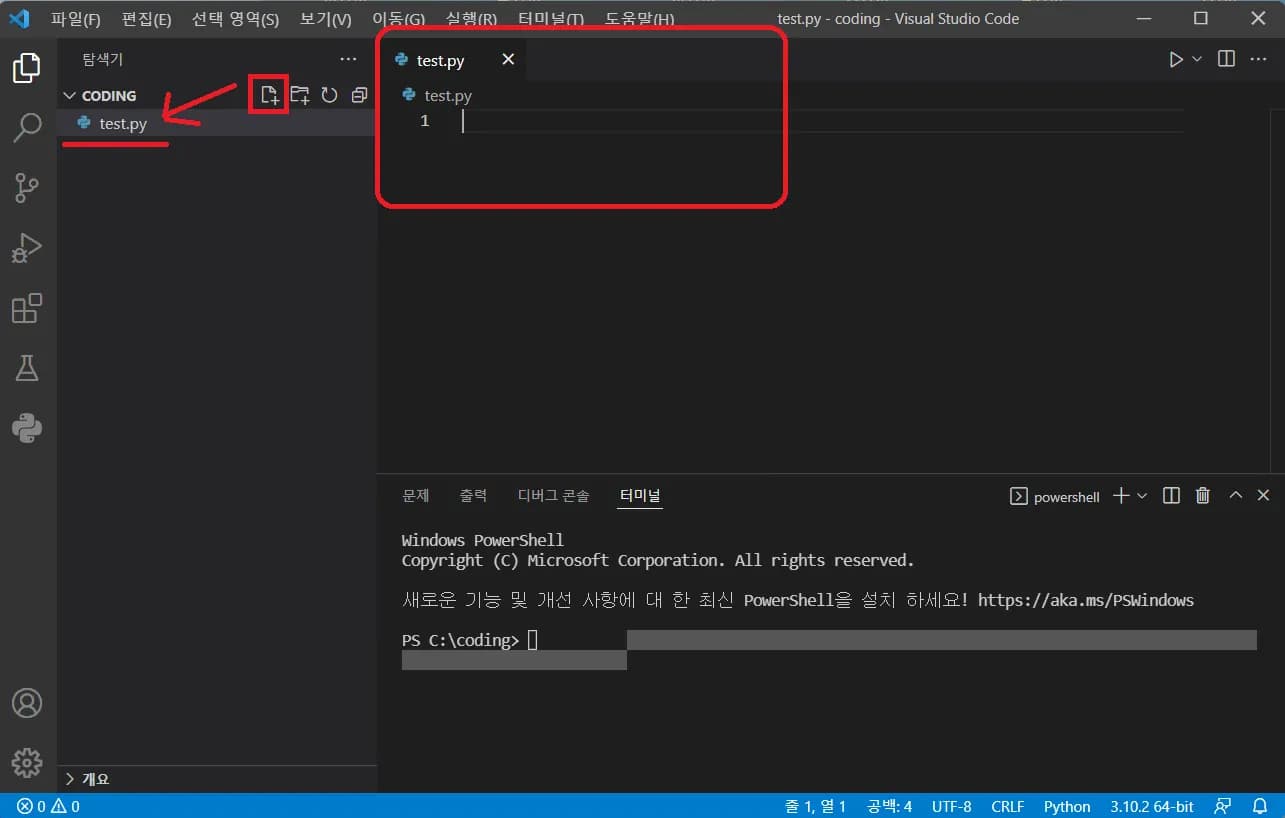
Now, create a Python program inside the coding folder.
Write any name in English and add .py at the end to make it a Python file.
Opening the file brings up the coding window on the right.
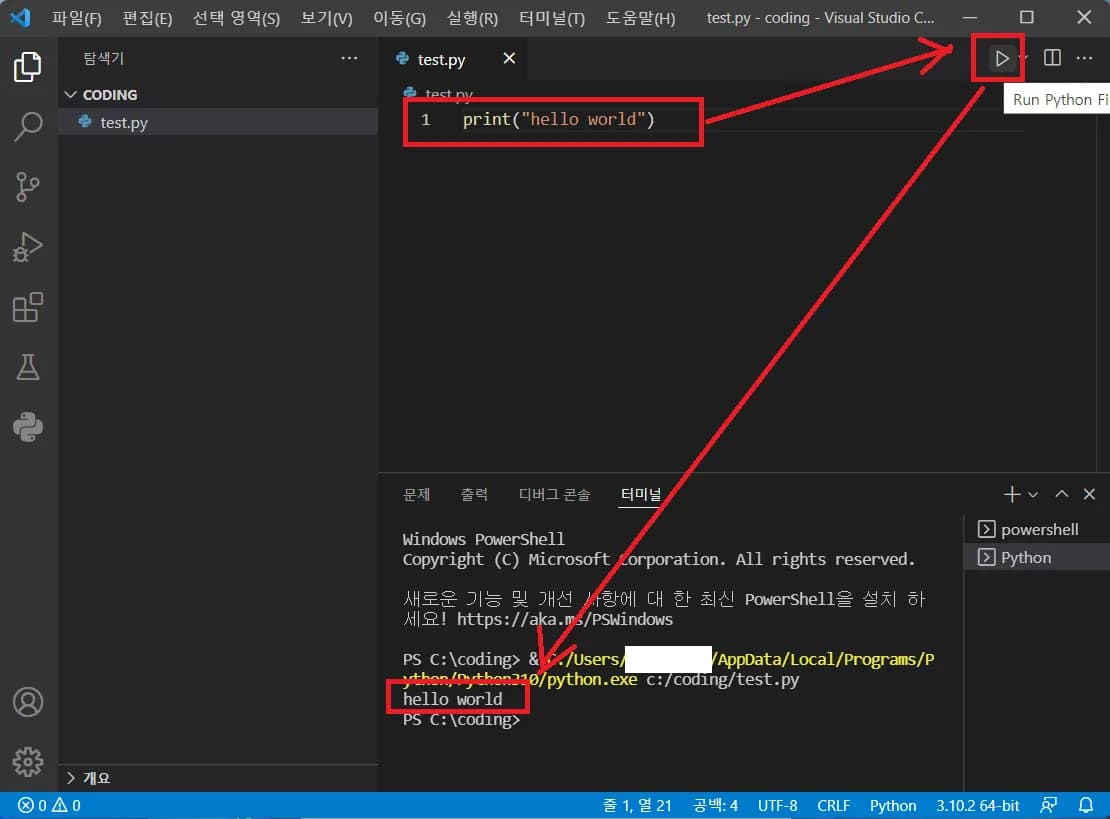
Let's try printing the famous "hello world".
Enter print("hello world") and click the ▶ button in the top right to see the program run in the terminal.
4. In Conclusion...
Many programmers on YouTube use Visual Studio Code for coding.
I hope you slowly enjoy coding while watching YouTube or reading books, discovering the fun of Python.




댓글을 불러오는 중...