I used to feel flustered every time I received a HanCell (.cell) file.
This is because .cell files can’t be opened directly in Excel.
So each time, I would either install HanCell or log into Hancom Office Web to check the file.
Now, let’s see how to easily view .cell files just by changing the file extension, without any of that hassle.
I’ve included both methods below.
1. Change the extension to ".xlsm"

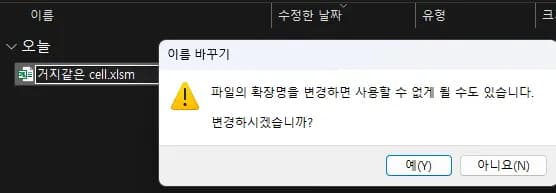
First, prepare the HanCell file, then change the extension from .cell ==> .xlsm.
You can ignore the warning message.
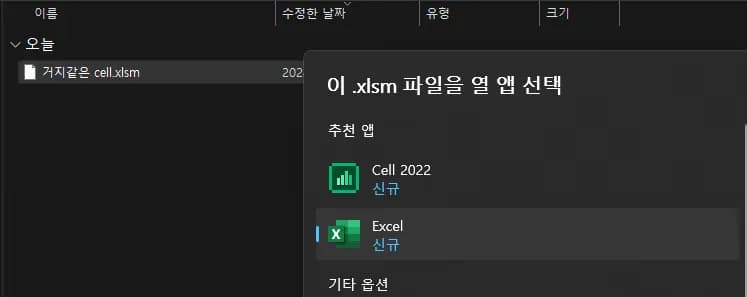
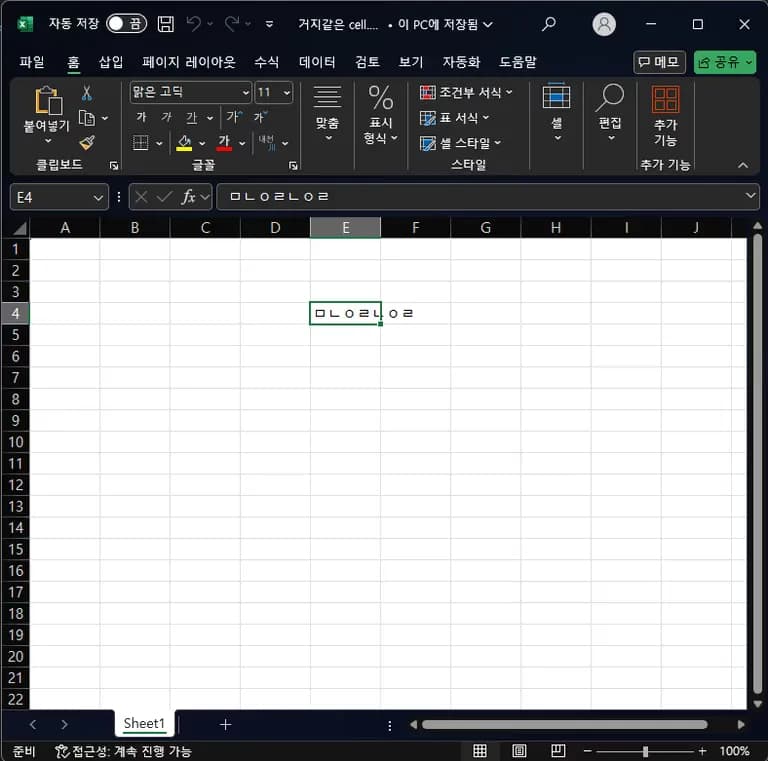
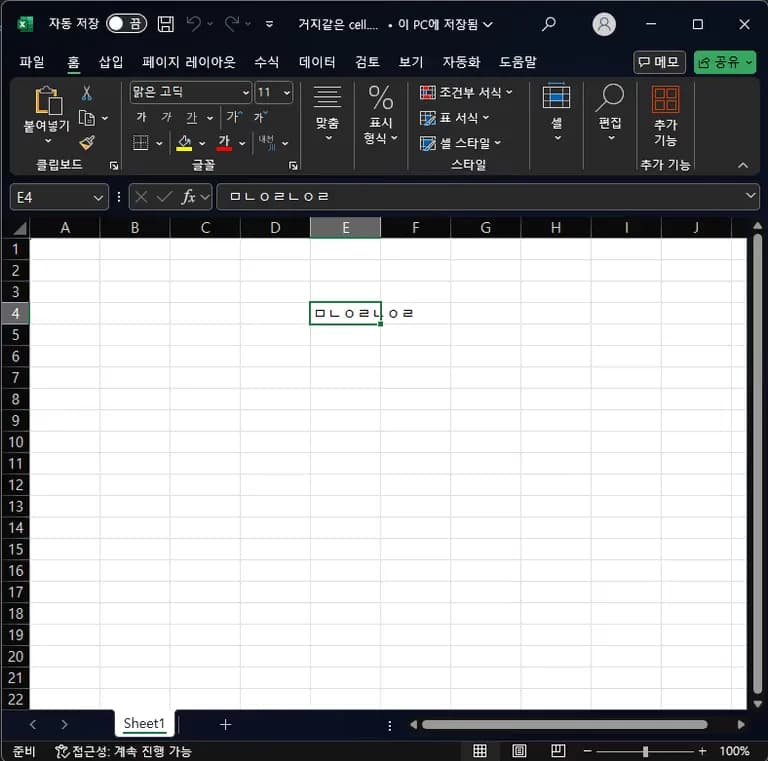
Now, when you open it in Excel, it opens.
It’s surprising that it opens without any warning at all.
It really makes me wonder why they even bothered creating a separate .cell extension in the first place.
2. Change the extension to ".xls"
As before, change the extension to .xls.
Lightly ignore the warning message.

A warning pops up saying something about file corruption.
Just click “Yes” and casually ignore it.
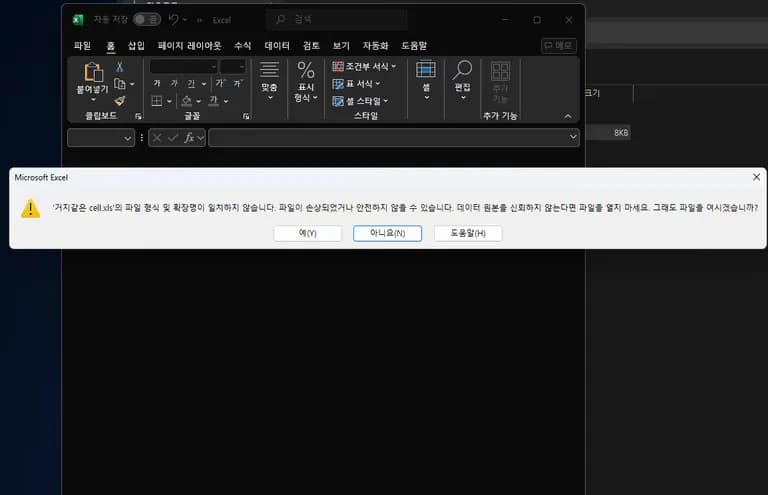
You can check the contents in Excel.






댓글을 불러오는 중...