지난 글에서 Pandas, Matplotlib을 다루는 방법에 대해 간단하게 보았다.
이번에는 Pandas로 불러온 엑셀 데이터를 Matplotlib으로 시각화 시켜보도록 하자.
Matplotlib이 데이터 프레임을 지원하기 때문에 간단하게 불러온 엑셀에서 x 값, y 값만 결정해서 입력하면 된다.
1. Pandas로 엑셀 불러오기
자, 이제 태초마을부터 시작해보자. 지난번에 보았던 직박구리 폴더에서 pandas를 이용해 시도별 폭염 일수를 불러오자.
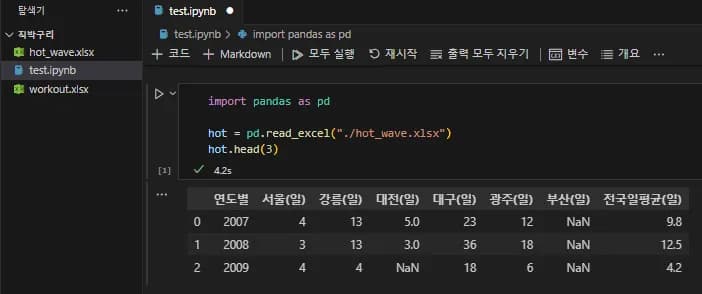
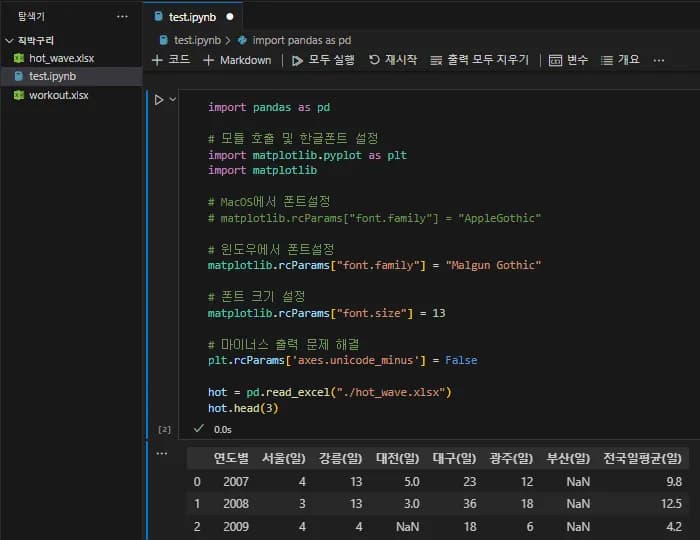
그리고 이전 글의 Matplotlib을 할 때 보았던, 한글 폰트를 설정하는 코드를 복붙해준다.
import pandas as pd

# 모듈 호출 및 한글폰트 설정
import matplotlib.pyplot as plt
import matplotlib

# MacOS에서 폰트설정
# matplotlib.rcParams["font.family"] = "AppleGothic"

# 윈도우에서 폰트설정
matplotlib.rcParams["font.family"] = "Malgun Gothic"

# 폰트 크기 설정
matplotlib.rcParams["font.size"] = 13

# 마이너스 출력 문제 해결
plt.rcParams['axes.unicode_minus'] = False

hot = pd.read_excel("./hot_wave.xlsx")
hot.head(3)
정형화 된 데이터를 이용하기 때문에 이렇게만 하면 데이터 시각화를 위한 준비가 끝난다.
이제 이 자료를 활용해 그래프를 그려보자.
2. Matplotlib으로 시각화하기
데이터를 불러 왔으니 일단 그냥 한번 집어넣어 보자.
아래와 같이 데이터 프래임을 통째로 때려박아본다.
plt.plot(hot)아래와 같은 그래프가 나온다.
무언가 잘못된 것 같은 감이 올 것이다.
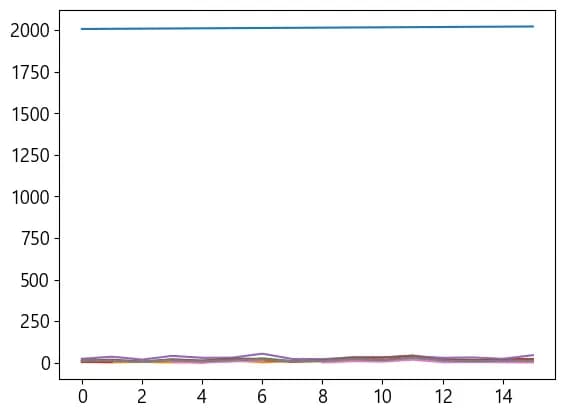
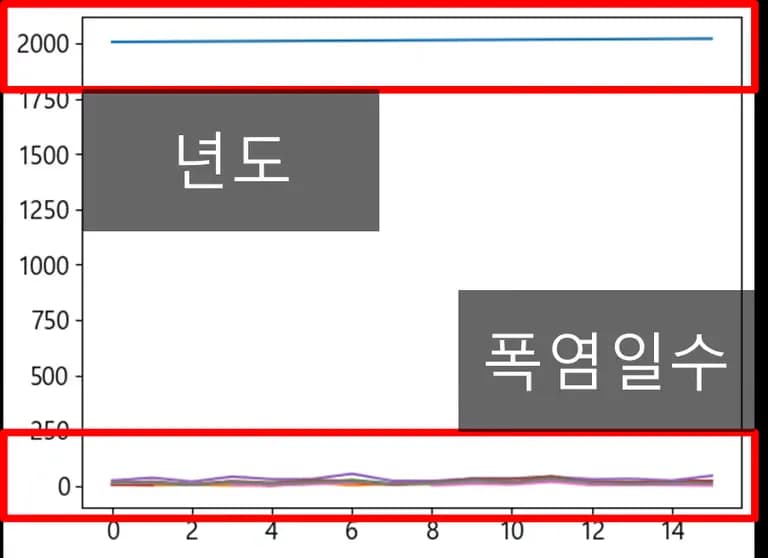
이것은 엑셀 데이터에 있던 연도가 y 값으로 들어갔기 때문이다.
x 축과 y 축을 지정해주지 않는 이상, plot은 주어진 값을 y 값으로 해석해 표현해낸다.
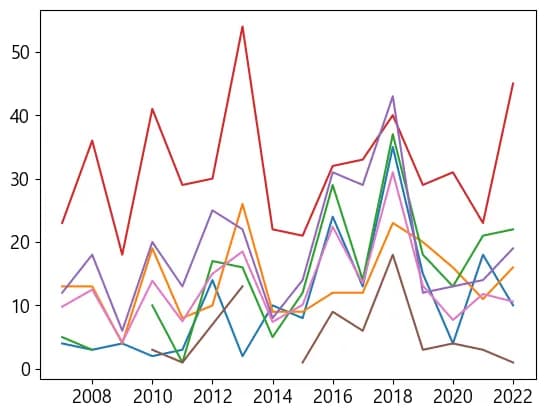
아래와 같이 x 축 값을 연도별, y 축 값을 연도 이외의 모든 값으로 주어 보았다.
plt.plot(hot["연도별"], hot.loc[:, "서울(일)":])이번에는 뭔가, 우리가 원하는 형태의 그래프가 얼핏 보이는 것을 볼 수 있다.
3. 원하는 형태로 가공하기
이제 데이터를 원하는 형태로 가공해서 plot에 넣어주면 된다.
지난번 글과 같은 순서로 진행하면 된다.
x 축, y 축 데이터 선정
제목 설정
범례 설정
축 이름 설정
축 간격 설정(필요하다면)
그래프 스타일 변경
코드에 대한 자세한 설명은 지난 글을 참고 바란다.
이번 글에서는 최대한 코드의 활용 예시에 집중하고자 한다.
1) x 축, y 축 데이터 선정
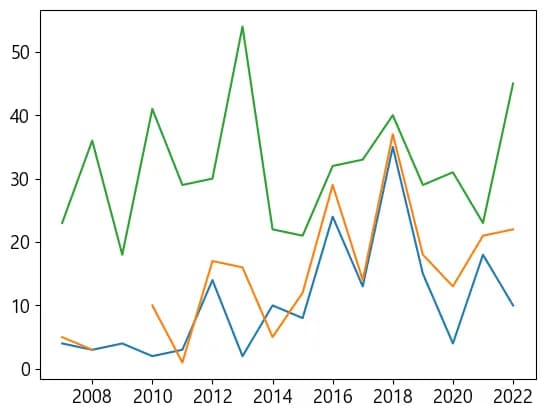
먼저 서울, 대전, 대구의 폭염일수를 비교해보기로 했다.
위쪽의 출력에 데이터가 보이니, 편하게 iloc으로 추출해 그래프를 그려 보았다.
x = hot.iloc[:,0]
y = hot.iloc[:,[1,3,4]]
plt.plot(x, y)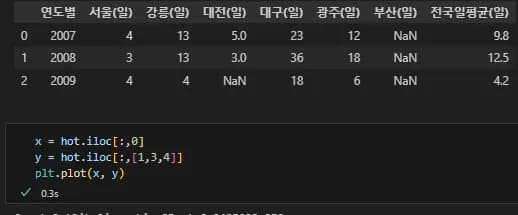
그래프의 출력이 아래와 같으면 성공이다.
2) 제목 설정
제목은 '시도별 폭염일수' 라고 지어 보았다.
x = hot.iloc[:,0]
y = hot.iloc[:,[1,3,4]]
plt.plot(x, y)
plt.title("시도별 폭염일수") # <-- 추가!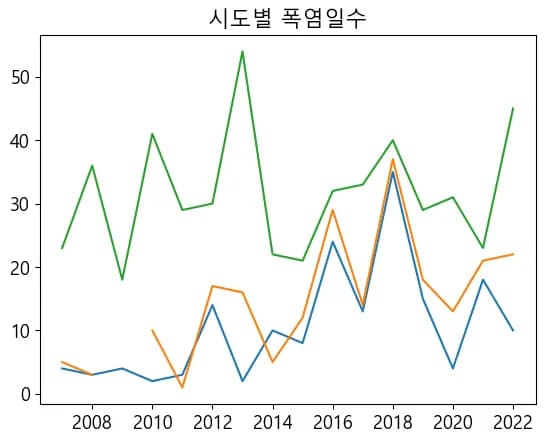
3) 범례 설정
그래프의 값이 뭐가 뭔지 알기 힘드니 범례를 설정하자. columns를 이용하면 쉽게 범례를 표시할 수 있다.
x = hot.iloc[:,0]
y = hot.iloc[:,[1,3,4]]
plt.plot(x, y, label=y.columns) # <-- 추가!
plt.legend() # <-- 추가!
plt.title("시도별 폭염일수")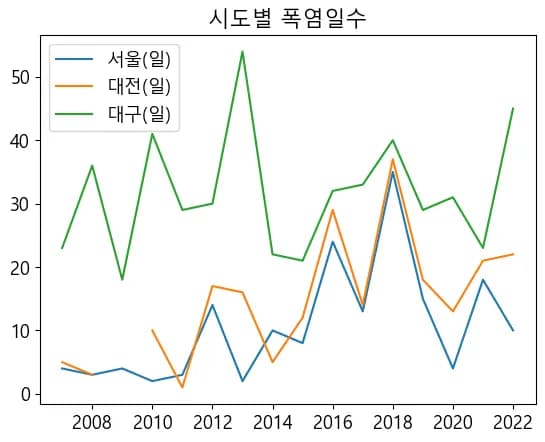
4) 축 이름 설정
축 이름을 정해주자. x 축은 연도, y 축은 폭염일수이다.
x = hot.iloc[:,0]
y = hot.iloc[:,[1,3,4]]
plt.plot(x, y, label=y.columns)
plt.legend()
plt.title("시도별 폭염일수")
plt.xlabel("연도") # <-- 추가!
plt.ylabel("폭염일수") # <-- 추가!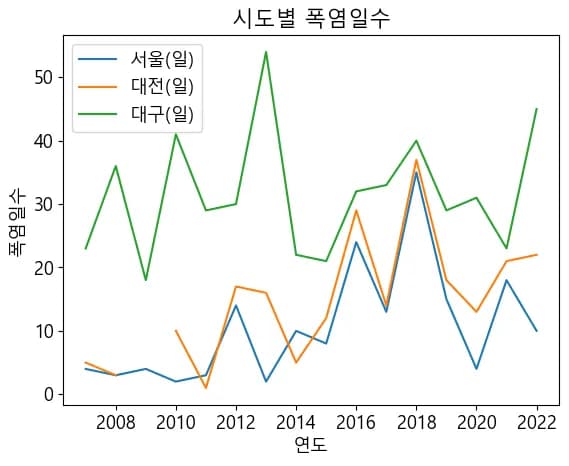
5) 축 간격 설정
축 간격은 이대로라도 마음에 든다.
그냥 넘어가자.
6) 그래프 스타일 변경
그래프 스타일을 흑백으로 보아도 구분할 수 있을 정도로 만들어 보고 싶었다. 한꺼번에 스타일을 지정해줄 수 없어서 for 문으로 데이터를 열별로 순회하며 스타일을 지정해 주었다.
x = hot.iloc[:,0]
y = hot.iloc[:,[1,3,4]]
lines = ["o-", "r^:", "bd--"] # <-- 추가!
for i in range(len(y.columns)): # <-- 추가!
    plt.plot(x,y.iloc[:,i], lines[i] ,label=y.columns[i])
plt.legend()
plt.title("시도별 폭염일수")
plt.xlabel("연도")
plt.ylabel("폭염일수")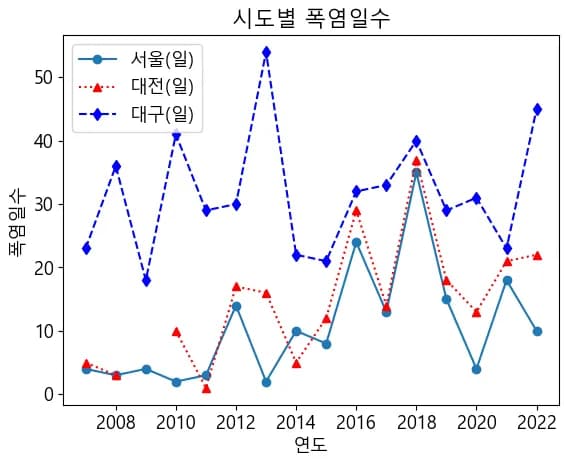
4. 후가공 하기
이제 마음에 들지 않는 곳이 있다면 조금씩 고쳐본다.
그래프를 보니 뭔가 점선이 있어서 값을 명확하게 볼 수 있었으면 좋겠다는 생각이 든다.
구글에 'matplotlib 그리드' 라고 검색해보자.
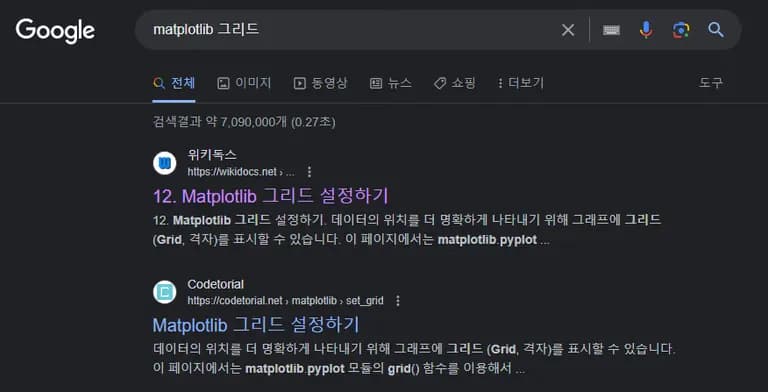
우리의 사랑 위키독스가 제일 위에 있다.
한번 들어가보자.
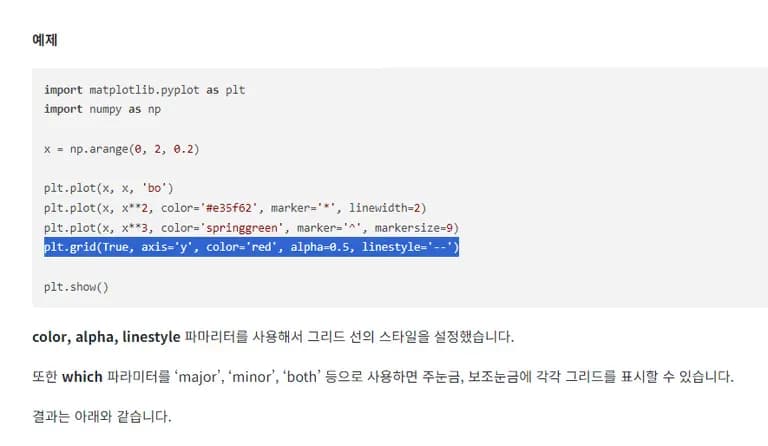
해당 내용을 살포시 복사해서 내 코드에 붙여넣어 준다.
물론, 원하는 형태로 바꿔서 말이다.
x = hot.iloc[:,0]
y = hot.iloc[:,[1,3,4]]
lines = ["o-", "r^:", "bd--"]
for i in range(len(y.columns)):
    plt.plot(x,y.iloc[:,i], lines[i] ,label=y.columns[i])
plt.legend()
plt.title("시도별 폭염일수")
plt.xlabel("연도")
plt.ylabel("폭염일수")
plt.grid(linestyle="--") # <-- 추가!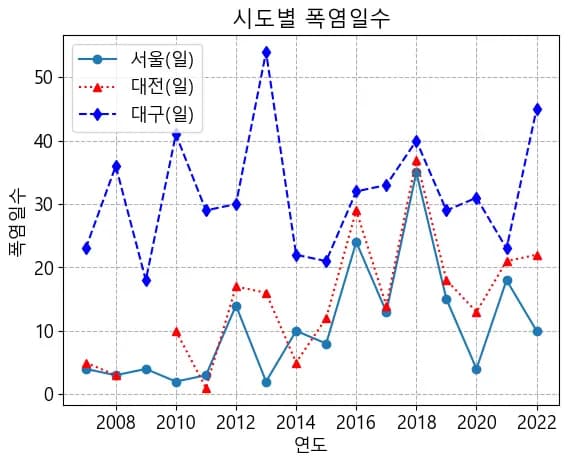
이정도면 마음에 드는 것 같다.
그런데 연도가 2008년부터...?
너무 긴 것 같다.
출력 연도를 한번 줄이고 x 축도 변경해보자.
x = hot.iloc[6:,0] # <-- 추가!
y = hot.iloc[6:,[1,3,4]] # <-- 추가!
lines = ["o-", "r^:", "bd--"]
for i in range(len(y.columns)):
    plt.plot(x,y.iloc[:,i], lines[i] ,label=y.columns[i])
plt.grid(linestyle="--")
plt.legend()
plt.title("시도별 폭염일수")
plt.xlabel("연도")
plt.ylabel("폭염일수")
plt.xticks(x) # <-- 추가!
이렇게 최근 10년 동안의 서울, 대전, 대구의 폭염일수 그래프가 왼성되었다.
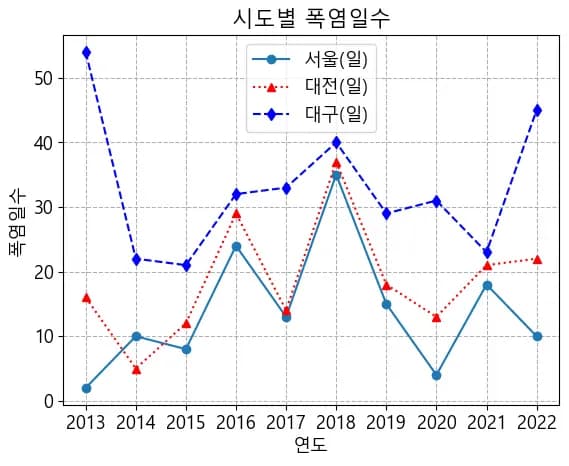
이제 이것으로 시험 문제를 내거나, 원하는 결론을 이야기 하고자 할 때 제시해주면 좋을 듯 하다.
5. 글을 마치며
이번 시간에는 폭염 일수 데이터를 이용하여 간단하게 시각화를 해보았다.
다음 글에서는 주어진 그래프를 똑같이 만들어보는 연습문제를 풀어보도록 하자.





댓글을 불러오는 중...