Pandas 이후로 이어지는 글이다. 이전글을 붙여두니 참고하길 바란다.
파이썬으로 데이터 시각화를 하려고 할 때, 가장 입문하기 어려웠던 라이브러리가 matplotlib 이었다.
자료는 많은데 구체적으로 어떤식으로 익혀나가야 할지 감이 오지 않았다.
이 글에서는 Matplotlib으로 정말 기본적인 사용법에서 시작해서 세부적인 축 설정까지 순차적으로 다루어 보려고 한다.
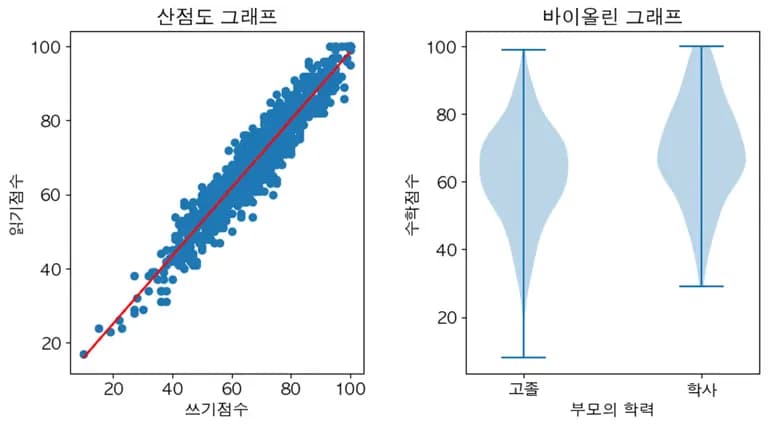
1. Matplotlib 호출 및 한글 설정
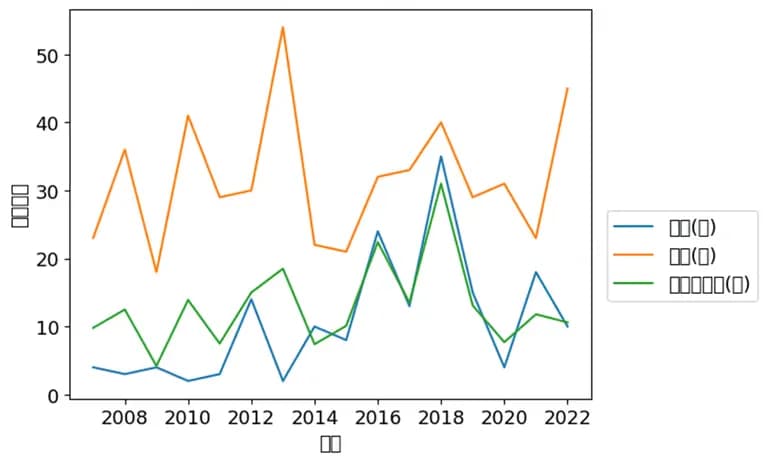
아래 그래프는 이전 글에서 이용했던 시도별 폭염 일수를 시각화 시킨 것이다.
한글이 모조리 □ 모양으로 나오는 것을 볼 수 있다.
이것은 matplotlib에 한글 폰트를 지원하지 않기 때문이다.
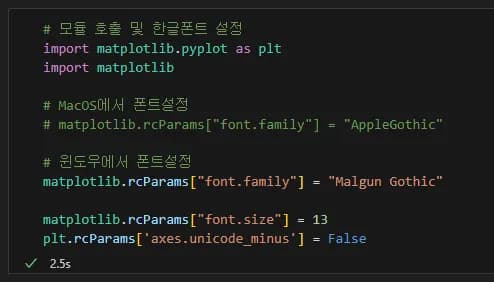
한글 폰트를 쓰고 싶다면 아래의 코드를 그대로 복사, 붙여넣기 해주자.
폰트는 필자가 가장 좋아하는 폰트인 맑은 고딕을 설정했다.
# 모듈 호출 및 한글폰트 설정
import matplotlib.pyplot as plt
import matplotlib

# MacOS에서 폰트설정
# matplotlib.rcParams["font.family"] = "AppleGothic"

# 윈도우에서 폰트설정
matplotlib.rcParams["font.family"] = "Malgun Gothic"

# 폰트 크기 설정
matplotlib.rcParams["font.size"] = 13

# 마이너스 출력 문제 해결
plt.rcParams['axes.unicode_minus'] = False
지난 글에서도 말했지만, 이러한 내용은 모두 외우는 것이 아니다.
'이런 해결 방법이 있다' 라는 정도만 알면 된다.
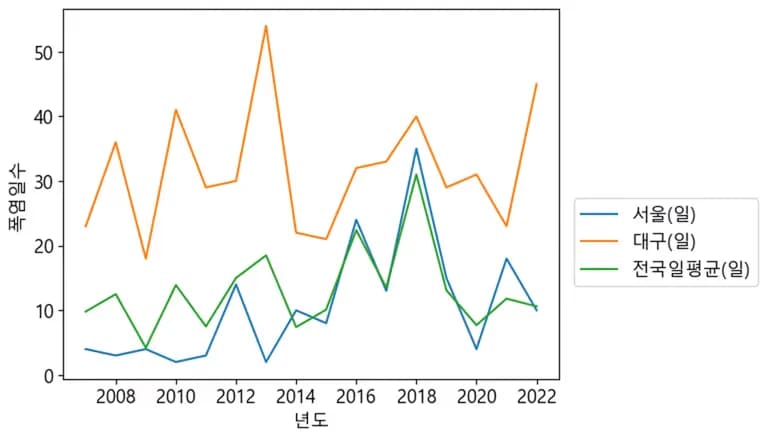
해당 코드를 실행한 뒤 그래프를 그려보면 아래와 같이 한글이 잘 나오는 것을 볼 수 있다.
아래와 같은 그래프도 다음 시간에 그려볼 것이다.
2. 직선 그래프(plot) 그리기
그래프 중에서 가장 그리기 쉬운 것이 직선 그래프이다.
직선 그래프를 그릴 수 있다면 다른 그래프들도 쉽게 그릴 수 있다.
그래프를 꾸미는 것보다, 그래프를 한번 그려보는 것에 집중하여 글을 써내려가려고 한다.
1) 그래프 그리기
먼저 y=x 형태의 1차 함수를 그려보자. x 값과 y 값을 아래와 같이 리스트에 넣어보았다.
x = [1,2,3,4,5]
y = [1,2,3,4,5]
그리고 이것을 그대로 아래와 같이 파라미터로 주면 된다.
plt.plot(x, y)이렇게 하면 아래와 같은 출력이 나오는 것을 볼 수 있다.
원래는 plt.show()를 이용해 그래프를 띄워야 하지만, 주피터 노트북에서는 그러한 과정 없이 바로 결과값을 볼 수 있다.
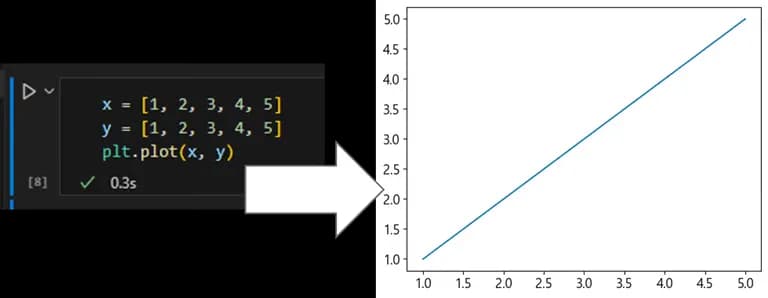
이렇게 x 값과 y값을 이용해 그래프를 그려보았다.
plt.plot() 안에 파라미터로 x, y 값을 리스트 형태로 넣으면 그래프를 그냥 그려준다.
데이터 프레임도 지원한다.
하지만 이것으로 끝내기는 아쉬우니 여러 기능들을 한번 익혀보자.
2) 범례 설정
그래프에 값을 하나 더 추가해보자.
아까 입력한 x, y 값을 드래그 한 뒤 Alt + Shift + ↓(화살표)를 누르면 값이 그대로 복사된다.
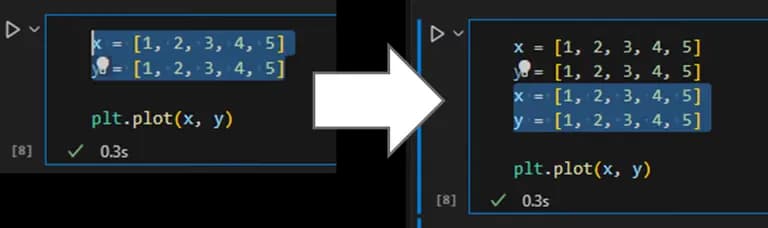
이것을 하나하나 바꿔서 x1, y1으로 지정할 수도 있지만, 멋있지 않다.
아래와 같은 방법으로 쉽게 입력해보자.
x1 = x.copy()
x1.reverse()
y1 = y.copy()
plt.plot(x1,y1)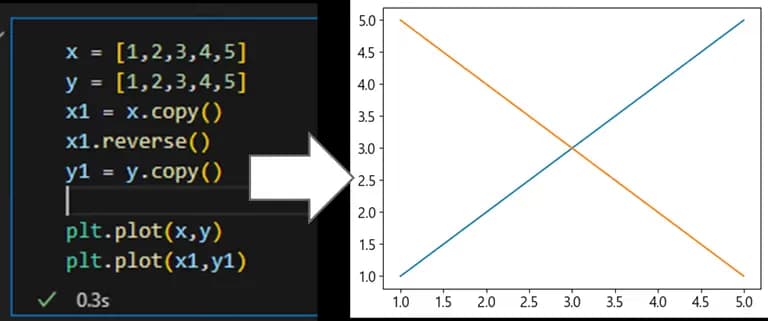
이렇게 그래프를 그리면 두 개의 직선이 서로 다른 색깔로 보이는 것을 알 수 있다.
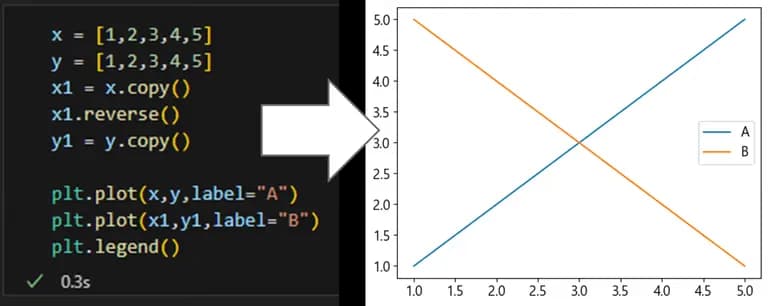
이것을 좀 더 명확하게 해주고 싶다면 범례를 설정하면 된다.
각각의 plt.plot() 내부에 label 이라는 파라미터를 추가해준다.
x = [1,2,3,4,5]
y = [1,2,3,4,5]
x1 = x.copy()
x1.reverse()
y1 = y.copy()
plt.plot(x,y,label="A")
plt.plot(x1,y1,label="B")
plt.legend()
아래와 같이 오른쪽 옆에 범례가 표시된 것을 볼 수 있다.
범례 위치도 임의로 변경 가능하지만, 그건 다른 기능을 익힌 뒤에 해보자.
3) 제목 설정
제목 설정은 단순하게 plt.title() 안에 str 형태로 파라미터를 주면 된다.
plt.title("나의 멋진 그래프")이렇게 입력하면 그래프 상단에 제목이 표시된다.

fontsize라는 파라미터를 주면 글자 크기도 변경 가능하다.
plt.title("나의 멋진 그래프", fontsize=25)아래처럼 그래프 제목의 크기가 커진 것을 확인할 수 있다.

4) 축 이름 설정
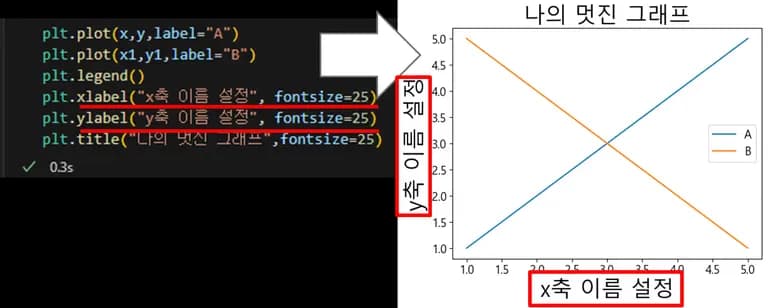
이번에는 x 축과 y 축이 무엇을 나타내는지 표현해보려고 한다. 아래와 같이 비교적 간단한 코드로 입력 가능하다.
plt.xlabel("x축 이름 설정", fontsize=25)
plt.ylabel("y축 이름 설정", fontsize=25)
xlabel, ylabel 도 title과 마찬가지로 fontsize를 파라미터로 받을 수 있다.
입력하지 않으면 기본 폰트 사이즈로 입력된다.
5) 축 간격 설정
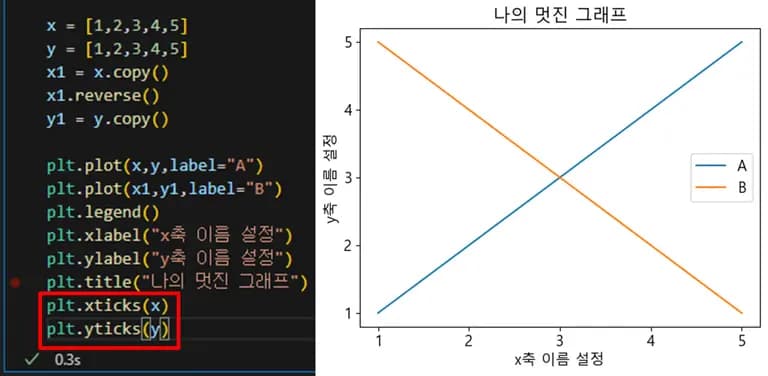
축 간격 0.5 인게 불편하다. 축 간격을 한번 변경해보자.
plt.xticks(x)
plt.yticks(y)
xticks나 yticks 내부에 리스트 형태로 원하는 값을 넣어주면 된다.
지금은 1~5의 값을 했지만, 이보다 더 적은 값도 가능하다.
또한 축의 값 자체를 변경할 수도 있다.
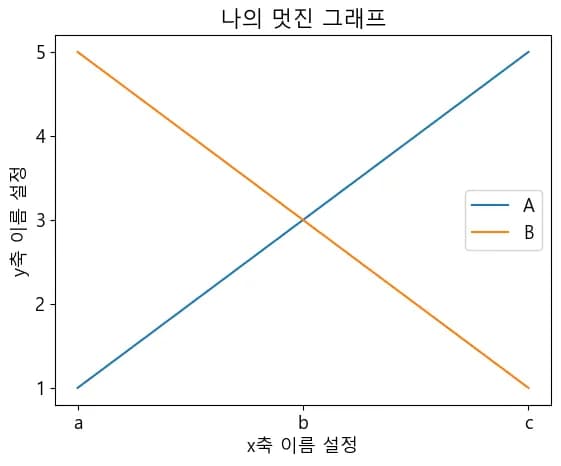
이번에는 x축의 간격을 [1,3,5] 로 설정하고, 이것을 문자열인 ["a", "b", "c"] 로 변경해보자.
# plt.xticks("축 값의 간격 및 범위", ["변경할 값"])
# y값 변경은 yticks이며 xticks와 사용법은 동일하다.

plt.xticks([1,3,5], ["a", "b", "c"])
plt.yticks(y)
해당 코드를 입력하면 아래와 같이 x축의 값이 변경된 것을 볼 수 있다.
xticks, yticks의 첫번째 파라미터는 변경할 축의 간격을, 두번째 파라미터는 변경하고자 하는 값으로 입력하면 된다.
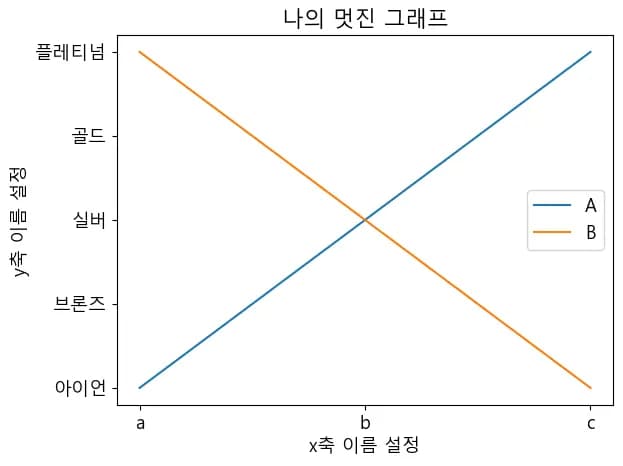
내친김에 y축도 변경해보자.
plt.xticks([1,3,5], ["a", "b", "c"])
plt.yticks(y,["아이언", "브론즈", "실버", "골드", "플레티넘"])
아래와 같이 값이 잘 변경된 것을 볼 수 있다.
주의할 점은, 축의 간격과 변경할 값의 개수는 동일해야 한다.
6) 선 스타일 지정
선 스타일도 변경할 수 있다.
plt.plot() 내에 color, marker, linestyle 등의 파라미터를 입력하면 된다.
plt.plot(x,y,
         label="A",
         marker = "^", # 점찍기
         color="darkred", # 선색깔
         linestyle=":" # 라인 형태
         )
두 개의 그래프 중 하나만 바꿔주면 아래와 같이 그래프가 나타는 것을 볼 수 있다.
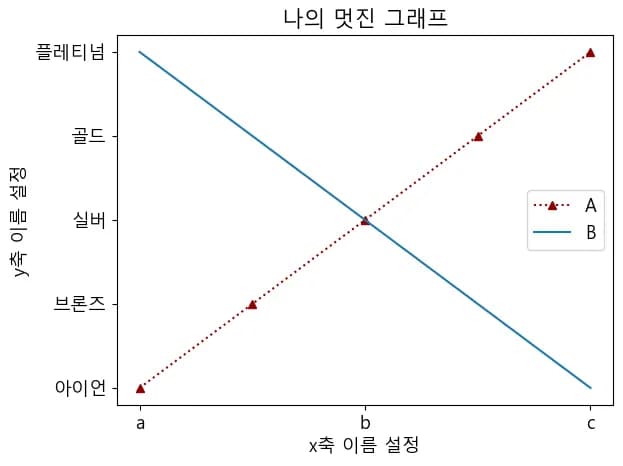
위의 방식으로 입력하는 것은 명시적이나, 파라미터를 모두 외우기 힘들다.
그럴 경우에는 아래와 같은 방법으로 간단하게 입력할 수도 있다.
# 선 스타일 변경 1
plt.plot(x,y,
         label="A",
         marker = "^",
         color="darkred",
         linestyle=":")

# 선스타일 변경 2
plt.plot(x1,y1,"go:",label="B")
x 값과 y 값 뒤에 str의 형태로 색깔, 마커, 선스타일을 모두 붙여서 입력한다.
이 방법이 훨씬 표현하기 쉽다.
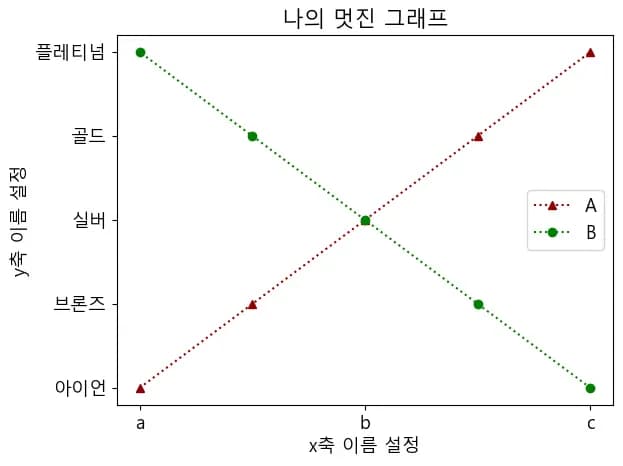
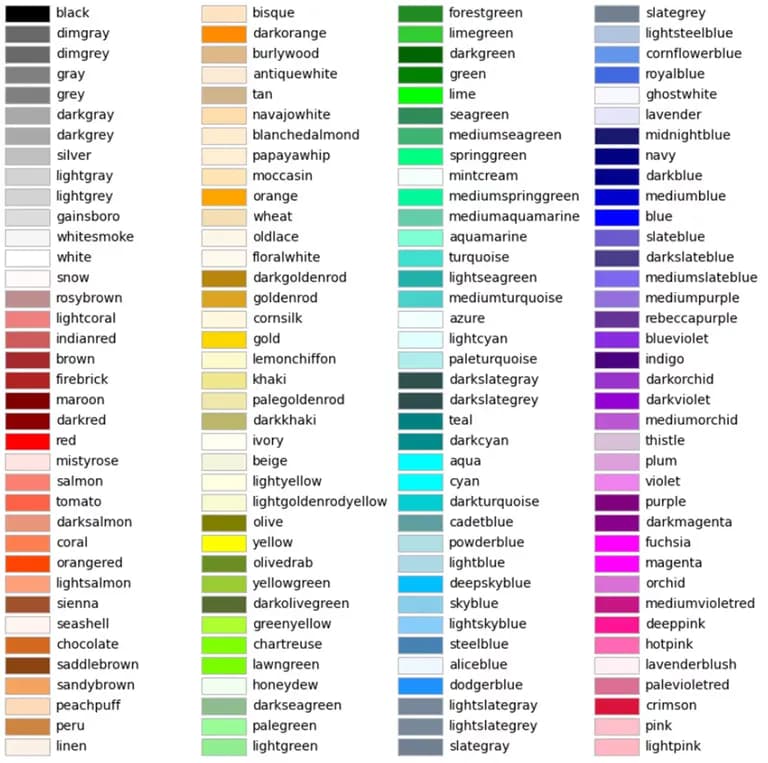
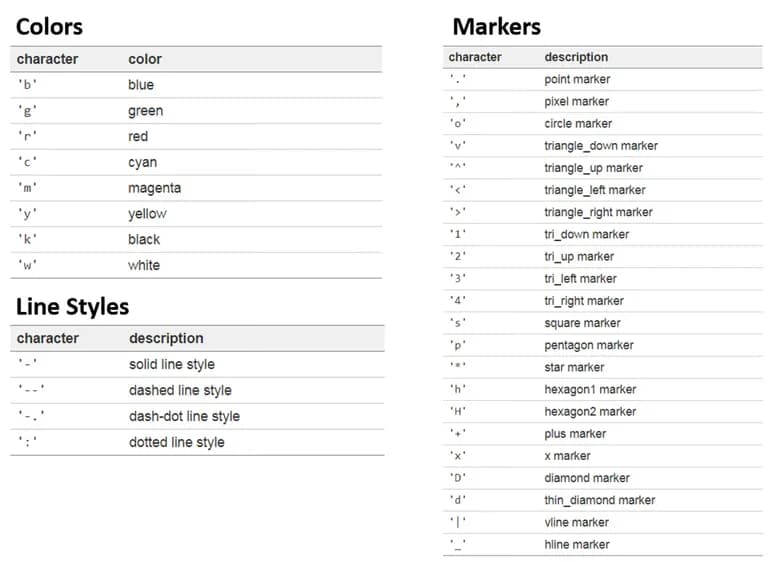
아래는 matplotlib에서 지원하는 색, 마커, 라인 스타일의 종류이다.
마음에 드는 것을 선택하길 바란다.
3. 다양한 그래프 그려보기
이번에는 plot 이외에 다른 그래프들을 그려보자.
파라미터만 조금씩 다를 뿐, x 값과 y 값을 모두 입력하는 것은 동일하다.
1) 막대 그래프(bar)
먼저 하나의 그래프에서 x, y값과 label 을 제외한 모든 파라미터를 삭제하자.
그리고 plt.plot을 plt.bar로 변경해준다.
plt.bar(x,y,label="A")정발 단순하게 앞의 plot만 바꿔주면 그래프를 그려준다.
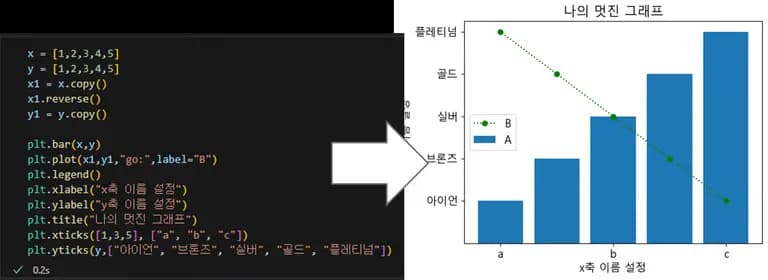
그래프가 서로 너무 진해서 불편하니 bar에 투명도로 alpha 값을 파라미터로 추가해주자.
plt.bar(x,y,label="A",alpha=0.4)이렇게 하면 기존의 값이 막대 그래프로 변경된 것을 볼 수 있다.
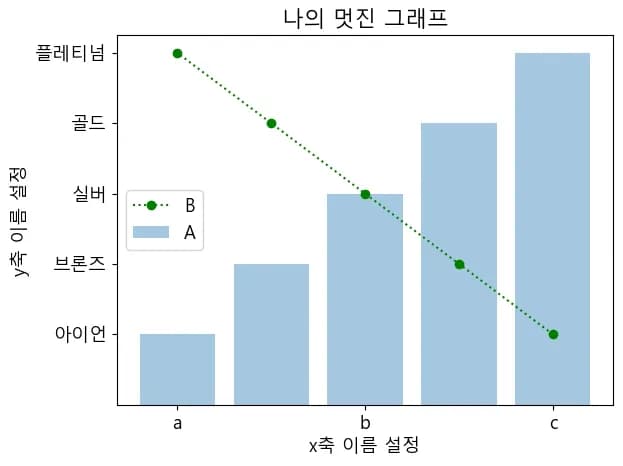
plot과 비슷한 방식으로 색상이나 넓이도 지정 가능하다.
plt.bar(x,y,label="A",alpha=0.4,color="red")
plt.bar(x,y,label="C, width=0.4",alpha=0.4,width=0.4,color="yellow")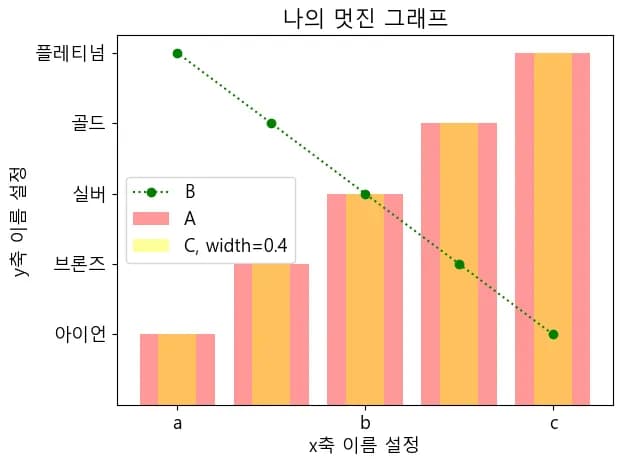
2) 수평 막대 그래프(barh)
이번에는 수평 그래프를 그려보자.
이전에 plt.bar 뒤에 h만 하나 더 붙여서 plt.barh로 만들면 된다.
plt.barh(x,y,label="A", alpha=0.4, color="red")아래와 같이 그래프가 변경된 것을 확인할 수 있다.
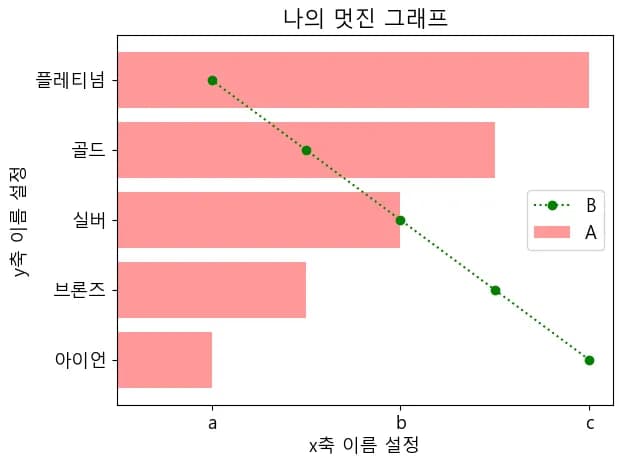
B 그래프도 수평 그래프로 변경하고 alpha 값을 주어 보았다.
그리고 x, y 값을 원래의 값으로 변경했다.
plt.barh(x,y,label="A",alpha=0.4,color="red")
plt.barh(x1,y1,label="B",alpha=0.4,color="green")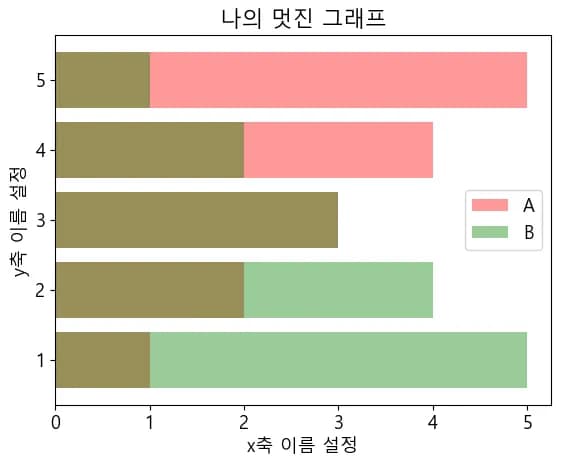
겹치는 것이 마음에 들지 않는다면 그래프 하나의 y 값에 마이너스를 곱해서 좌우로 펼쳐 볼수도 있다.
y1 = y.copy()
y1 = [-i for i in y1]
plt.barh(x,y,label="A",alpha=0.4,color="red")
plt.barh(x1,y1,label="B",alpha=0.4,color="green")
아래와 같이, 출산율을 볼 때 많이 나왔던 것 같은 그래프가 나온다.
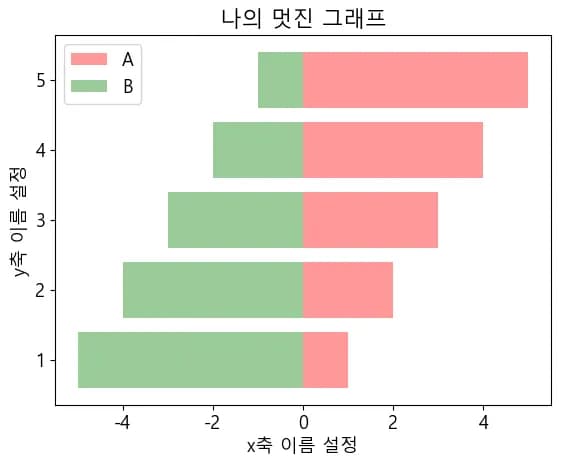
numpy를 사용할 줄 안다면, 아래와 같이 numpy.array를 이용해 비교적 간편하게 값을 반전시킬 수도 있다.
결과는 위와 동일하다.
y1 = y.copy()
y1 = np.array(y1)
plt.barh(x,y,label="A",alpha=0.4,color="red")
plt.barh(x1,-y1,label="B",alpha=0.4,color="green")
3) 산점도 그래프(scatter)
이번에는 산점도 그래프를 그려보자.
앞의 barh를 지우고 scatter라고 입력하면 된다.
B 그래프의 y 값도 원래대로 돌려놓았다.
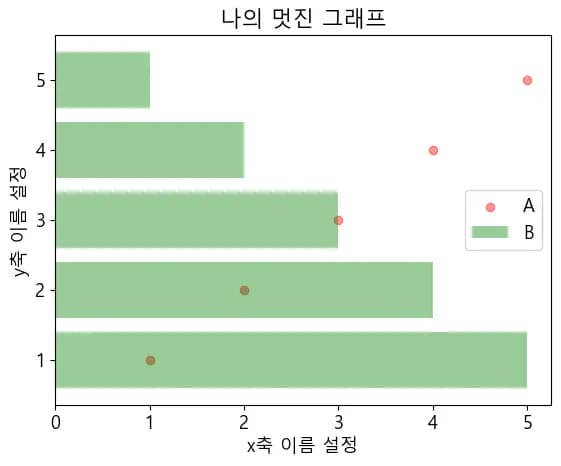
plt.scatter(x,y,label="A",alpha=0.4,color="red")
plt.barh(x1,y1,label="B",alpha=0.4,color="green")
산점도 그래프는 값의 위치를 단순하게 점으로 찍어준다.
값의 분포, 상관 관계를 확인하고자 할 때 이용하기 좋다.
4) 히스토그램(hist)
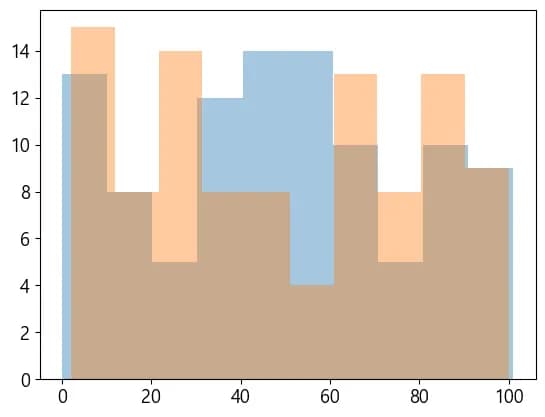
히스토그램은 값의 분포를 보여준다.
우리가 설정한 1~5 사이의 값은 모두 동일하므로, 히스토그램을 그리면 직선만 나올 뿐이다.
random이라는 내장함수를 이용해서 램던한 값을 추가해보자.
혹시나 해서 numpy 이용 예시도 넣어뒀다.
# 내장함수를 이용할 경우
import random
y2 = [random.randint(0,101) for i in range(100)]
plt.hist(y2, alpha=0.4)

# numpy를 이용할 경우
import numpy as np
y3 = np.random.randint(0, 101, 100) # (시작숫자, 끝숫자, 길이) 순 입력
plt.hist(y3, alpha=0.4)
아래와 같이 하나의 범위에 얼마나 많은 값이 들어있는지 보여준다.
추산하고자 하는 값의 범위와 그래프 넓이도 지정해 줄 수 있다.
값의 범위인 bins를 10으로, 그래프 넓이를 15로 주어 보았다.
import random
y2 = [random.randint(0,101) for i in range(100)]
plt.hist(y2,label="a",alpha=0.4)

import numpy as np
y3 = np.random.randint(0,101, 100)
plt.hist(y3,label="b, bins=5",alpha=0.4,bins=5,width=15)

plt.legend()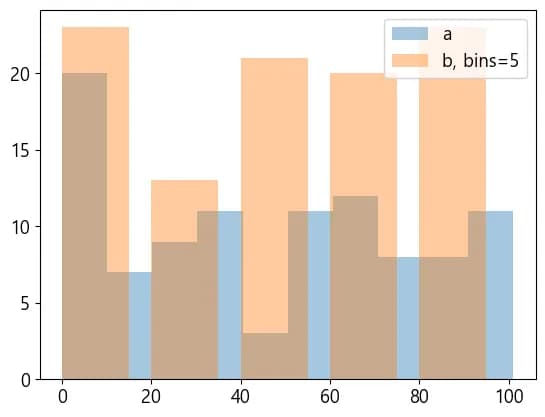
5) 박스플롯(boxplot)
이번에는 박스플롯이다.
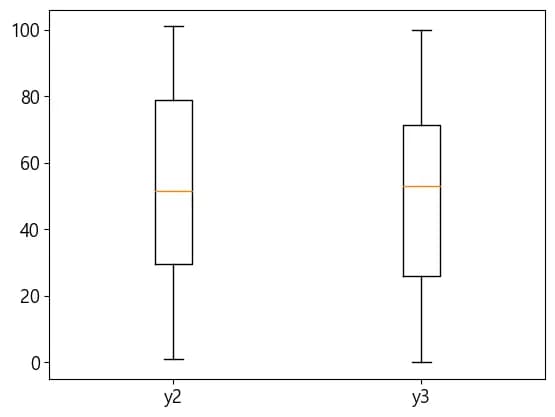
생소하게 생겼지만, 제일 위에서부터 최대값, 상위 25프로, 중위값, 하위 25프로, 최하값을 나타낸다.
위의 y2, y3를 하나의 박스 플롯에 입력해 보았다.
import random
y2 = [random.randint(0,101) for i in range(100)]

import numpy as np
y3 = np.random.randint(0,101, 100)

plt.boxplot([y2,y3], labels=["y2","y3"])
원하는 값을 리스트 형태로 넣으면 한꺼번에 표현해준다.
그리고 labels라는 파라미터를 리스트 형태로 입력해 값이 무엇인지도 표현할 수 있다.
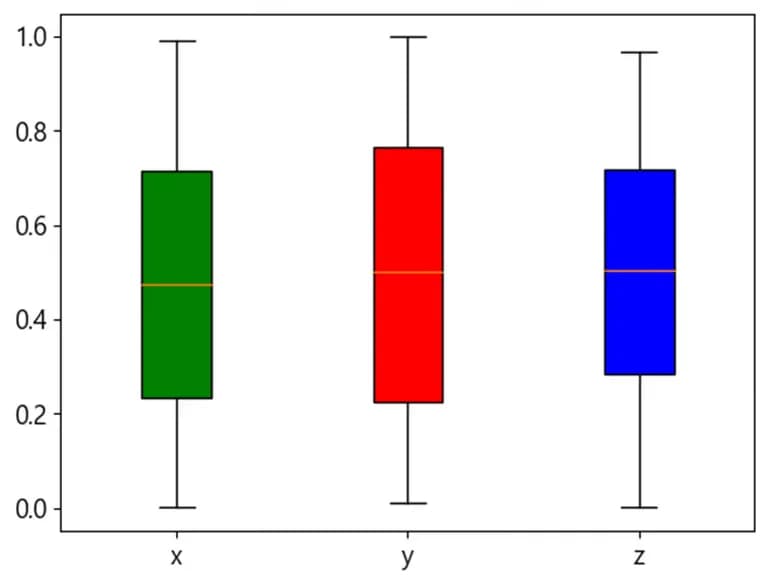
색상도 지원하기는 하지만 각각의 객체를 다루어야 하기 때문에 그냥 넘어가자.
좀 더 깊이 알고 싶다면 쉽게 찾아볼 수 있다.
6) 바이올린플롯(violinplot)
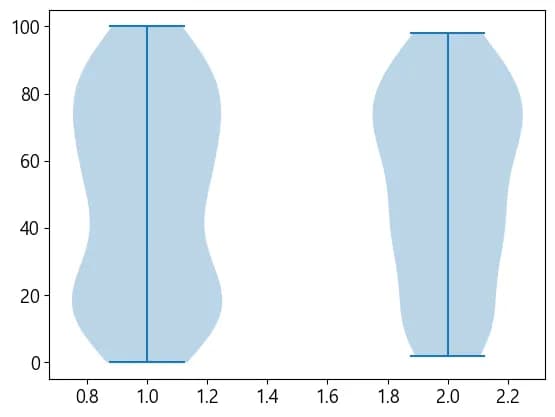
바이올린 플롯은 박스 플롯과는 조금 다르게 루프의 형태로 값의 분포를 보여준다.
import random
y2 = [random.randint(0,101) for i in range(100)]

import numpy as np
y3 = np.random.randint(0,101, 100)

plt.violinplot([y2,y3])
바이올린 플롯은 박스 플롯 보다 값의 분포를 조금 더 자세하게 알 수 있다.
여기서 중위값이나 상, 하위 25% 라인을 보고 싶다면 아래와 같이 코드를 추가할 수 있다.
plt.violinplot([y2,y3], showmeans=True, quantiles=[[0.25,0.75],[0.25,0.75]])showmeans 는 중위값을, quantiles는 각각에서의 표현할 분위를 소숫점으로 입력한다.
아래처럼 박스플롯보다 조금 더 자세하게, 보기 좋게 표현된다.
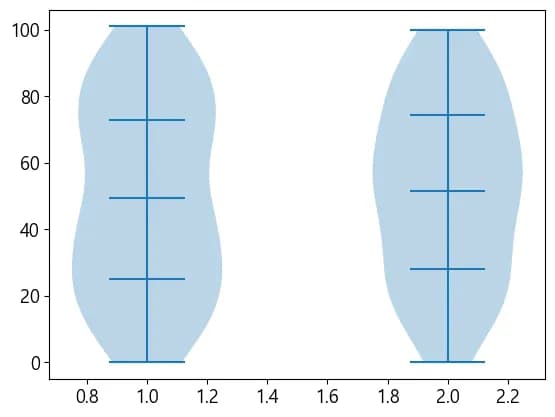
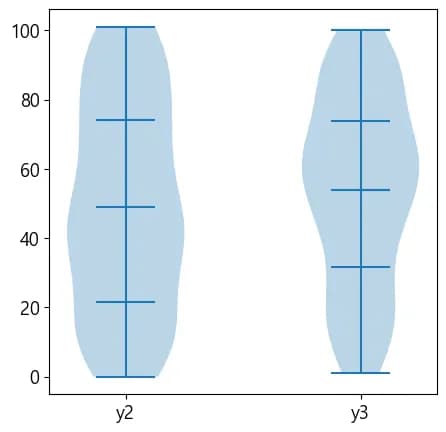
그래프를 보니 x축이 조금 마음에 들지 않는다. x축을 아래와 같이 수정해보았다.
plt.violinplot([y2,y3], showmeans=True, quantiles=[[0.25,0.75],[0.25,0.75]])
plt.xticks([1,2], ["y2","y3"])
조금은 편안해진 것 같다.
4. 글을 마치며
이번 글에서는 Matplotlib을 이용한 시각화를 정말 맛보기만 해보았다.
정말 간단하게 생각하면, 그저 x 값과 y 값을 주는 것 만으로도 그래프를 그리는 것이 가능하다.
그 이후에 축 설정, 회전 등은 부차적인 것이다.
처음부터 모든것을 익히려고 하는 태도는 학습의 진행에 방해가 될 뿐이다.
하나씩 만들어보고 풀어나가면서 서서히 익히기를 바란다.
다음 글에서는 Pandas로 호출한 데이터를 Matplotlib으로 시각화 시켜보도록 하자.




댓글을 불러오는 중...