이번에 아이들과 파이썬 셀레니움, 피지컬 컴퓨팅을 한번 같이 해보기로 했다.
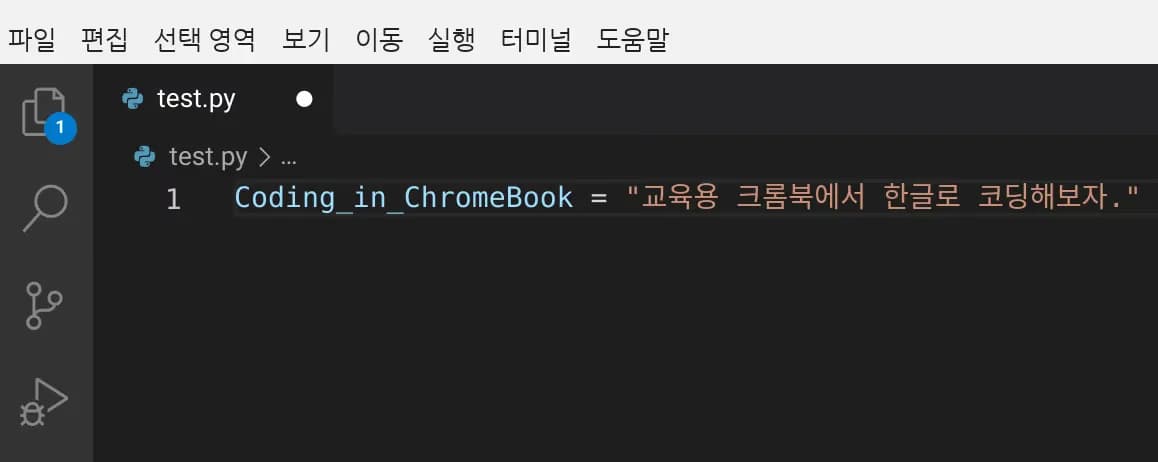
vscode는 유니코드 변수를 지원해주니, 한글로 코딩을 가르치기 너무 좋을것 같았다.
그런에 아이들이 학교에서 나눠준 크롬북으로 코딩을 하고 싶다고 했다.
이에 크롬북에 개발환경을 설정하기 위해 구글링을 많이 했고, 이에 기록으로 남긴다.
1. 리눅스 가상 머신 제한 해제하기
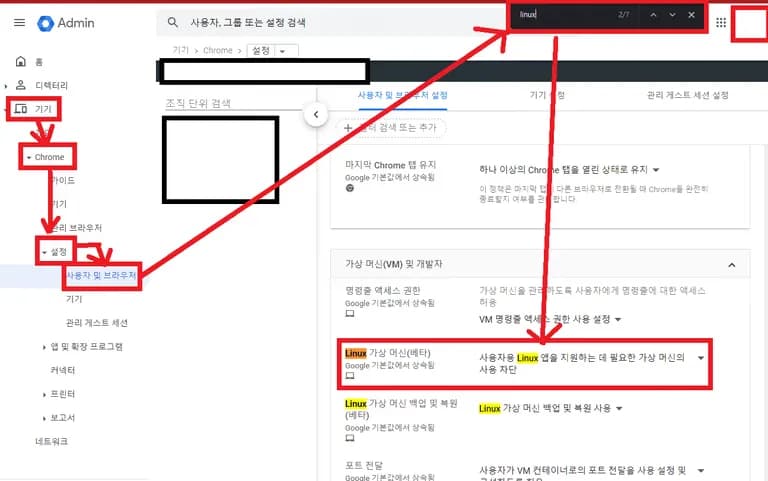
학교에서 사용하는 크롬북은 기본적으로 개발자모드, Linux 가상 머신 모드가 차단되어 있다.
크롬 os의 제어 기능이 막강하기에, 학교 담당 선생님께 말씀드려서 해제하는 수 밖에 없다.
관리콘솔-기기-chrome-설정-사용자 및 브라우저-Linux 가상 머신(베타)에서 리눅스 모드를 해제할 수 있다.
2. 리눅스 가상 머신 설정하기
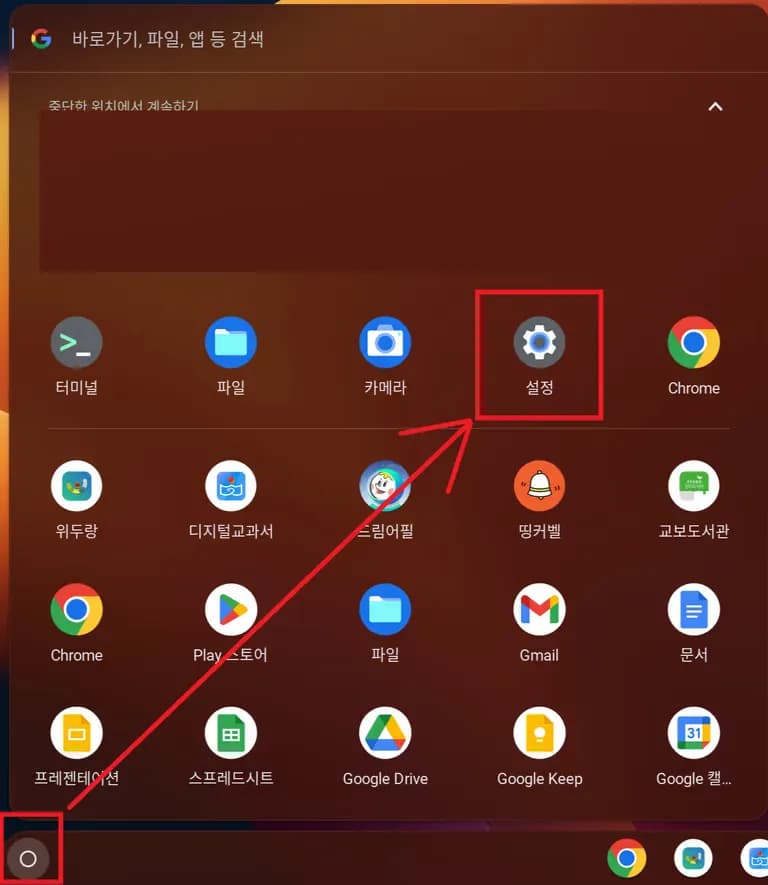
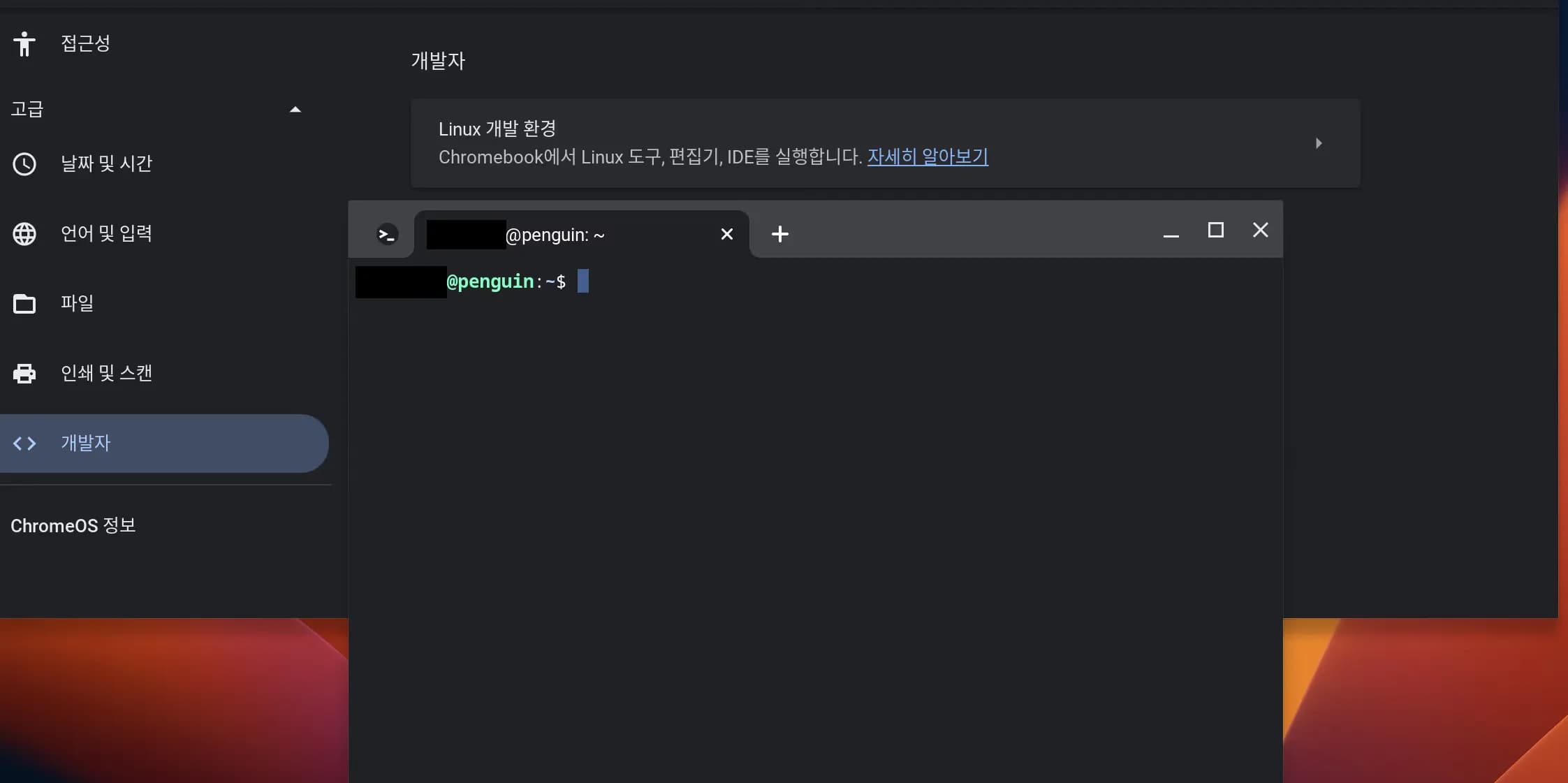
아래 그림처럼 왼쪽의 버튼을 눌러 크롬북의 설정으로 들어간다.
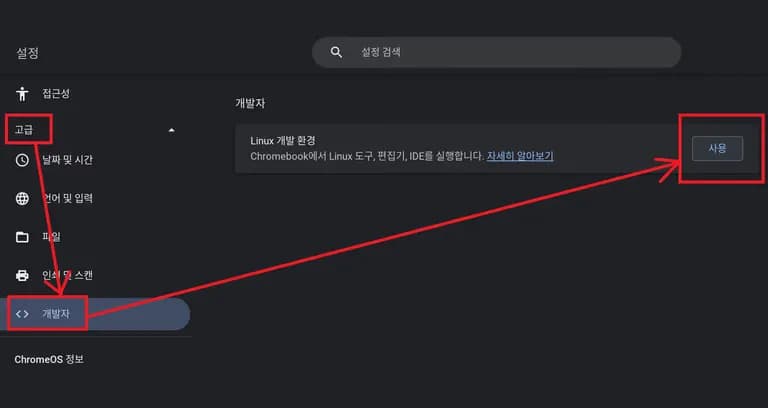
그리고 고급-개발자-리눅스 개발 환경에서 사용을 눌러준다.
이후 설정은 쉽다. 그냥 무지성으로 "다음"만 눌러 주어도 리눅스 설치는 끝난다.
가상 머신의 용량은 기본적으로 10Gb이나, 이후에 쉽게 조정 가능하다.
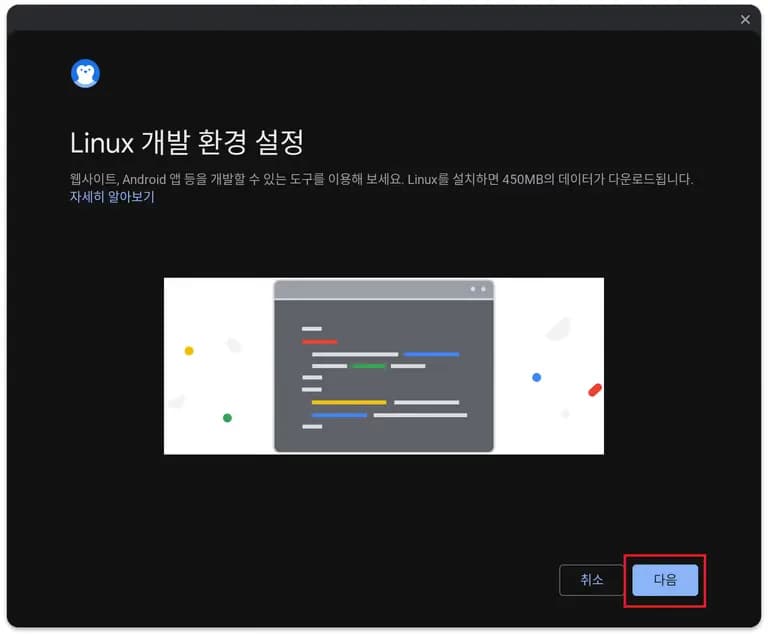
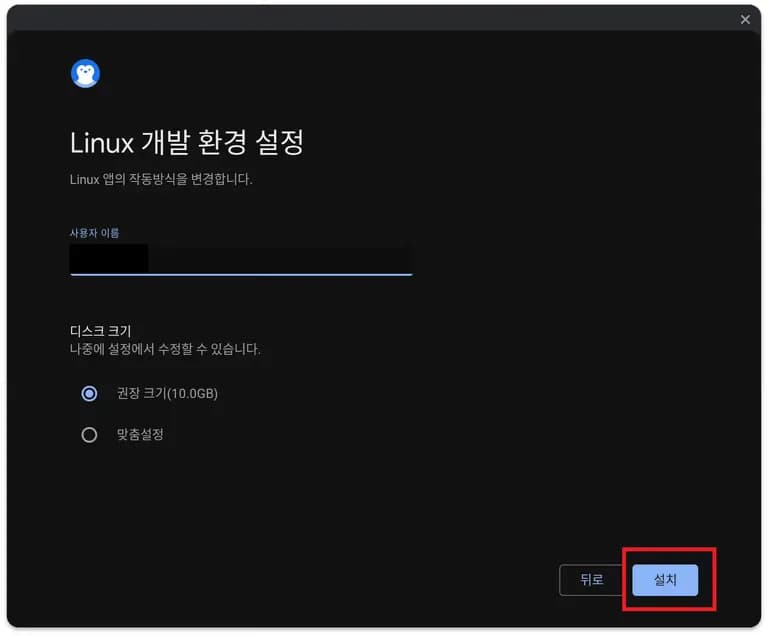
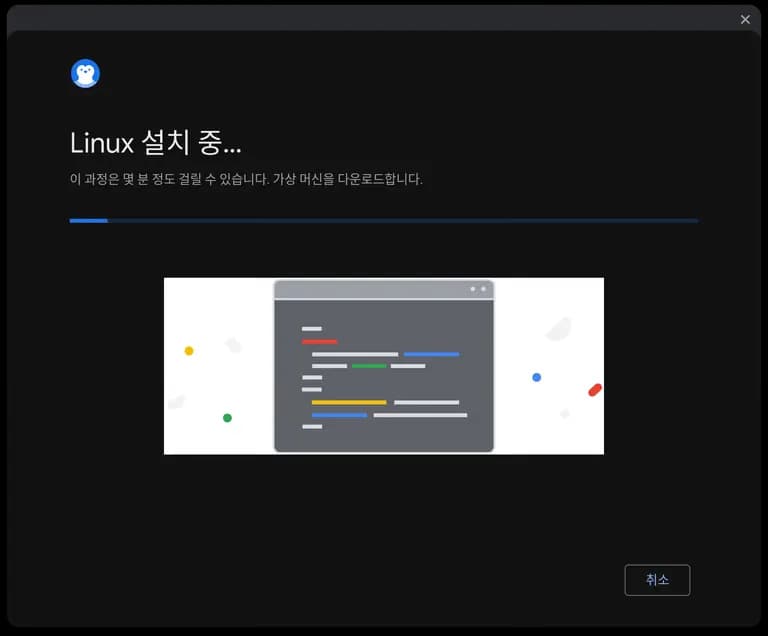
조금만 기다리면 아래와 같이 리눅스 터미널이 열린다.
이제 리눅스 설정은 끝이 났다.
3. VS Code 설치하기
먼저 아래와 같은 명령어를 이용하여 리눅스를 최신화 시켜준다.
참고로 명령어 사이에 "&&"은 이전 명령어 실행 후 다음 명령어를 실행한다는 뜻이다.
sudo apt update && sudo apt upgrade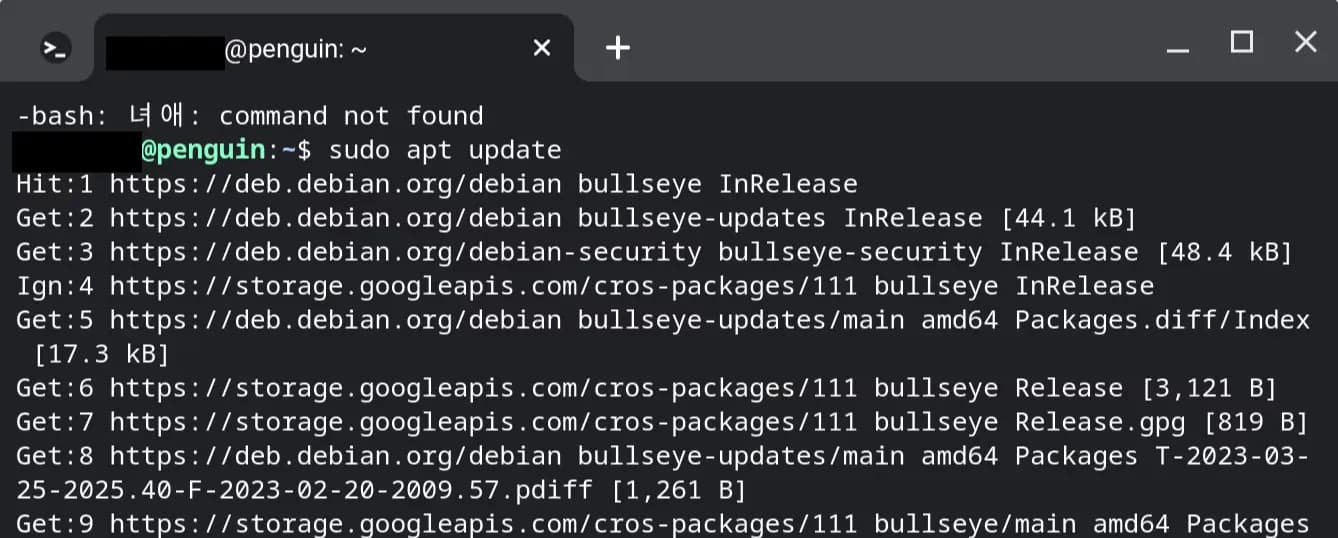
그리고 dpkg 명령어를 이용해 cpu의 아키텍쳐를 확인해준다.
dpkg --print-architecture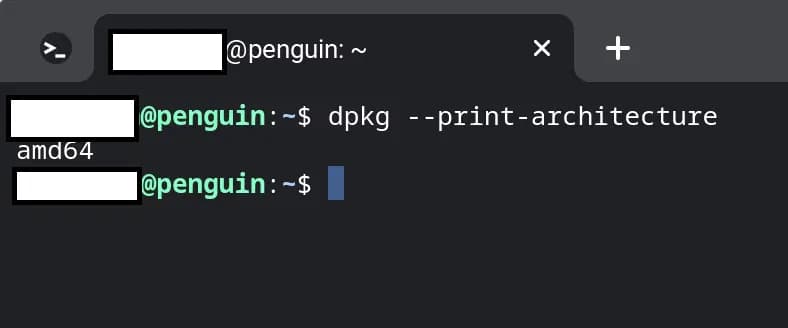
위와 같이 amd64가 나오면 일반적인 64bit 프로그램이 설치 가능한 것.
비쥬얼 스튜디오 홈페이지로 접속한 뒤 리눅스 배포파일인 "deb" 파일을 받아준다.
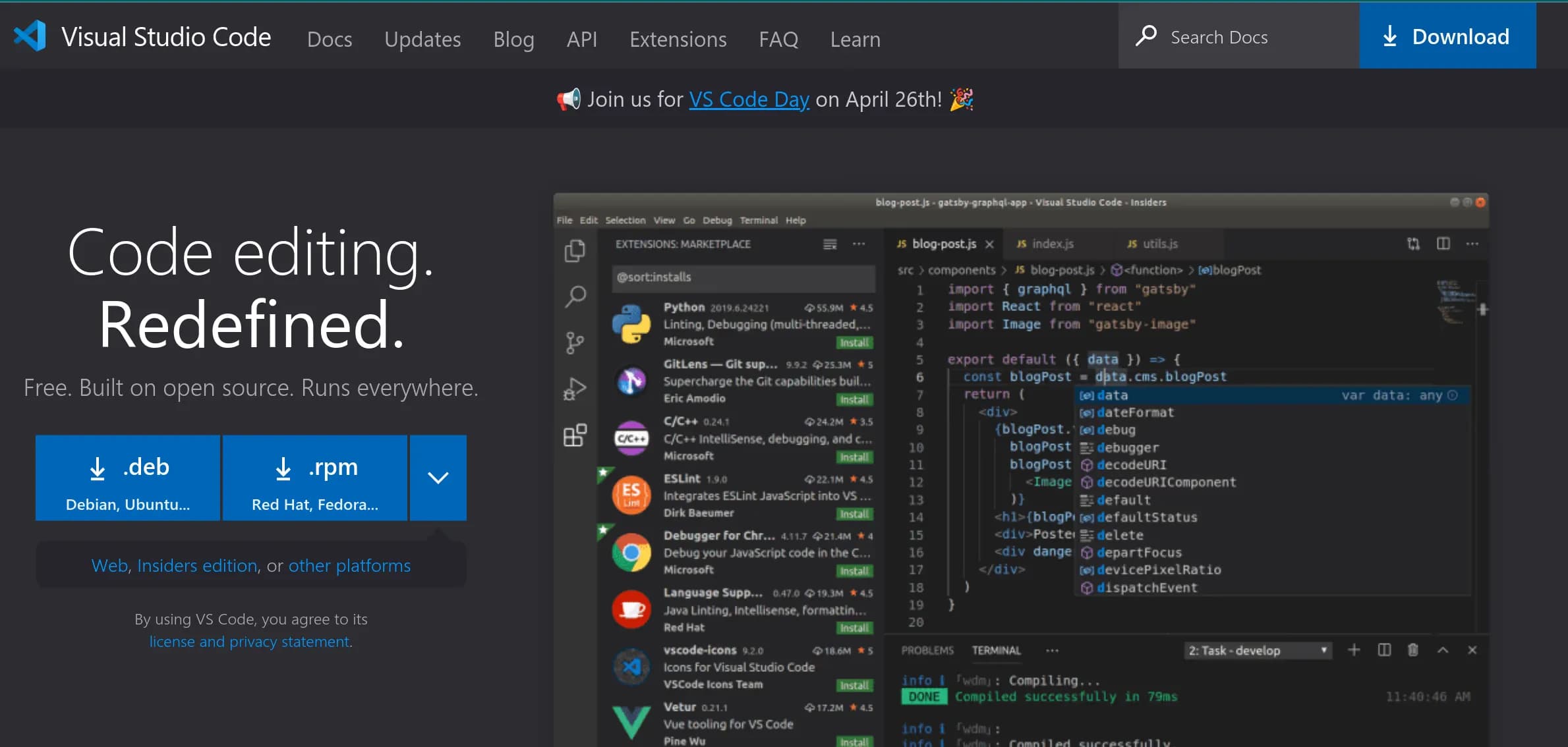
왼쪽에 위치한 [.deb]를 누르면 다운이 가능하다.
혹은 우측 상단의 [Download]를 눌러서 다른 배포판도 확인이 가능하다.
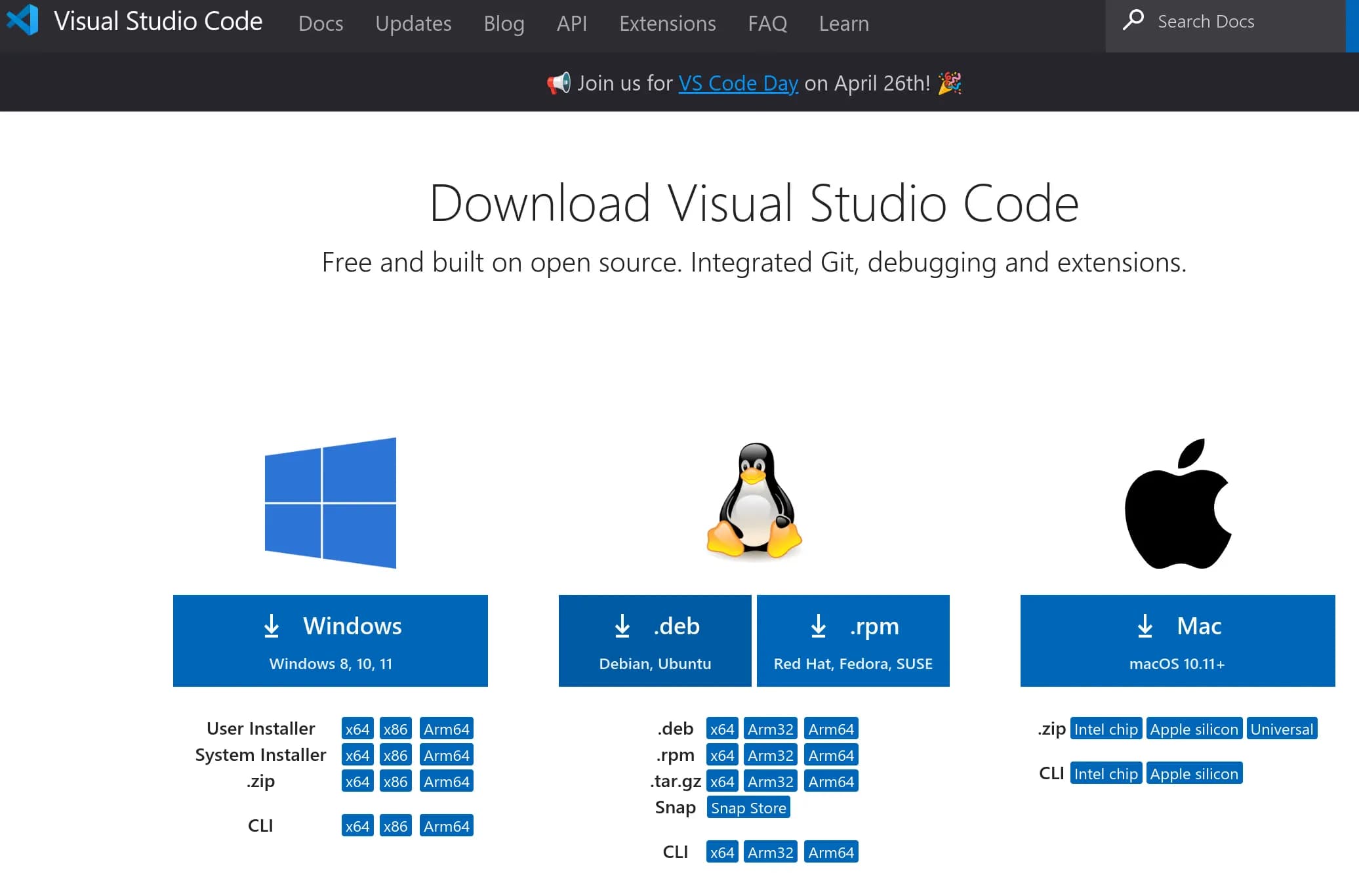
이제 다운받은 파일을 더블클릭하여 설치하면 된다.
리눅스를 잘 하는 사람이라면, wget과 dpkg를 이용하거나 apt를 이용해서 설치를 할 수도 있다.
참고로 apt에서 다운받은 배포판은 한글을 이용할 수 없다고 한다.
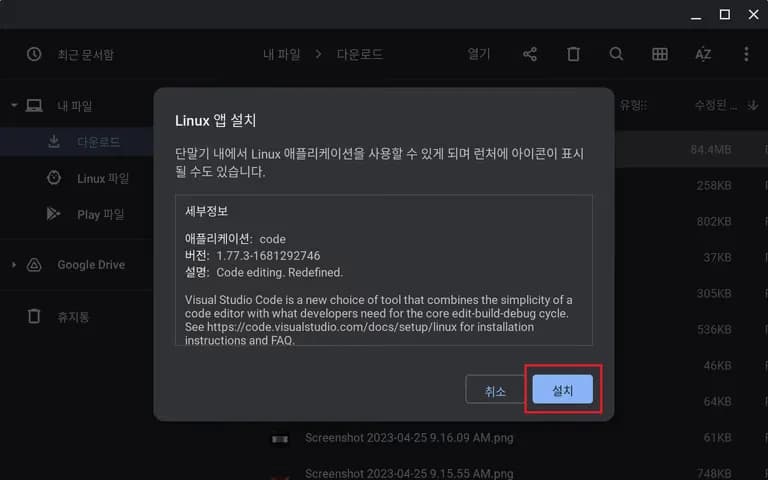
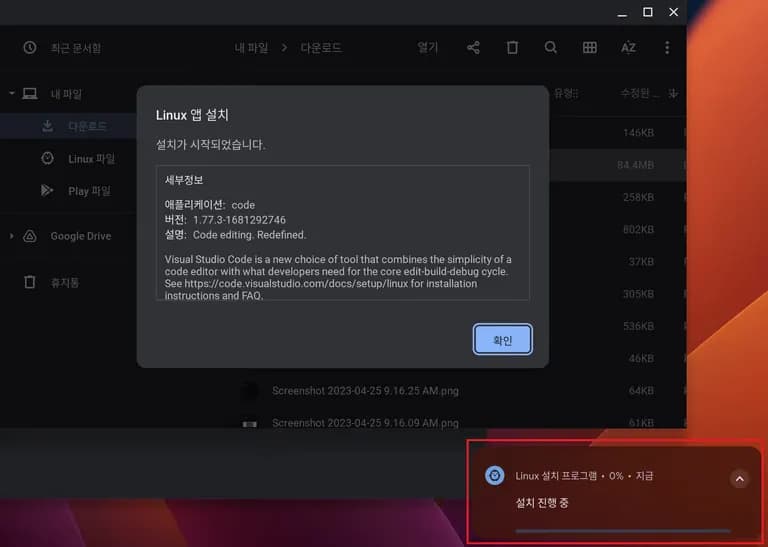
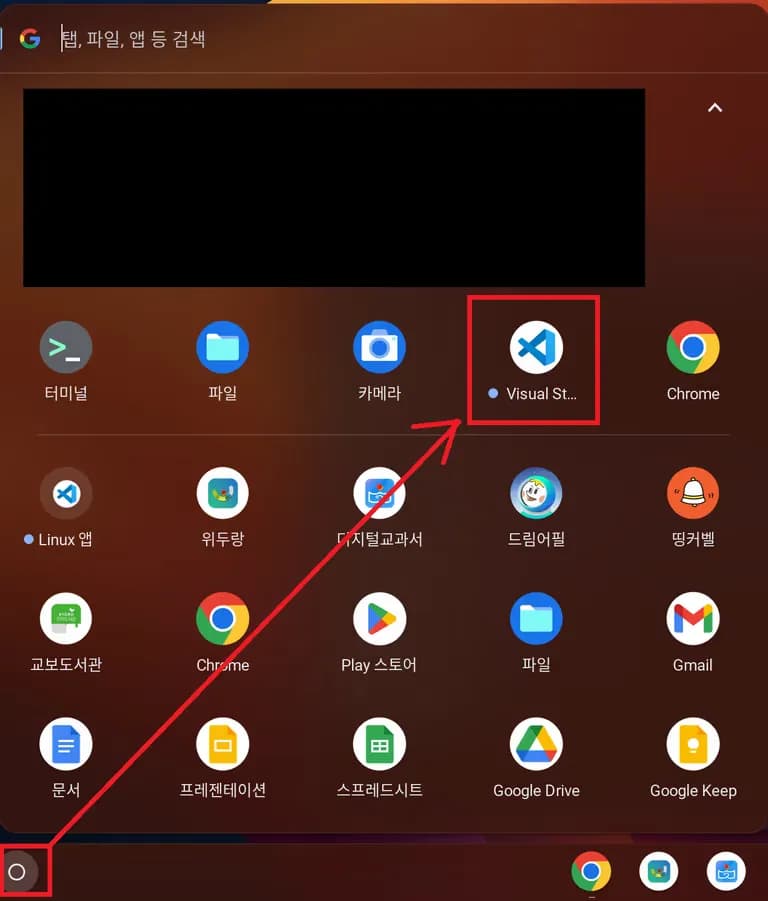
조금만 기다리면 크롬의 시작 창에서 VS Code를 찾을 수있다.
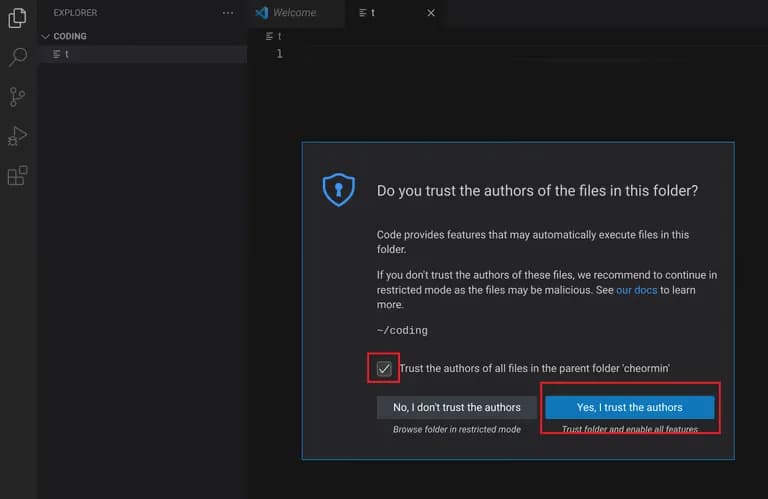
클릭해서 폴더를 열고 실행을 확인해보자.
신뢰(trust)에 대한 창이 나오면 모두 허용(yes)해준다.
4. Python과 pip 설치하기
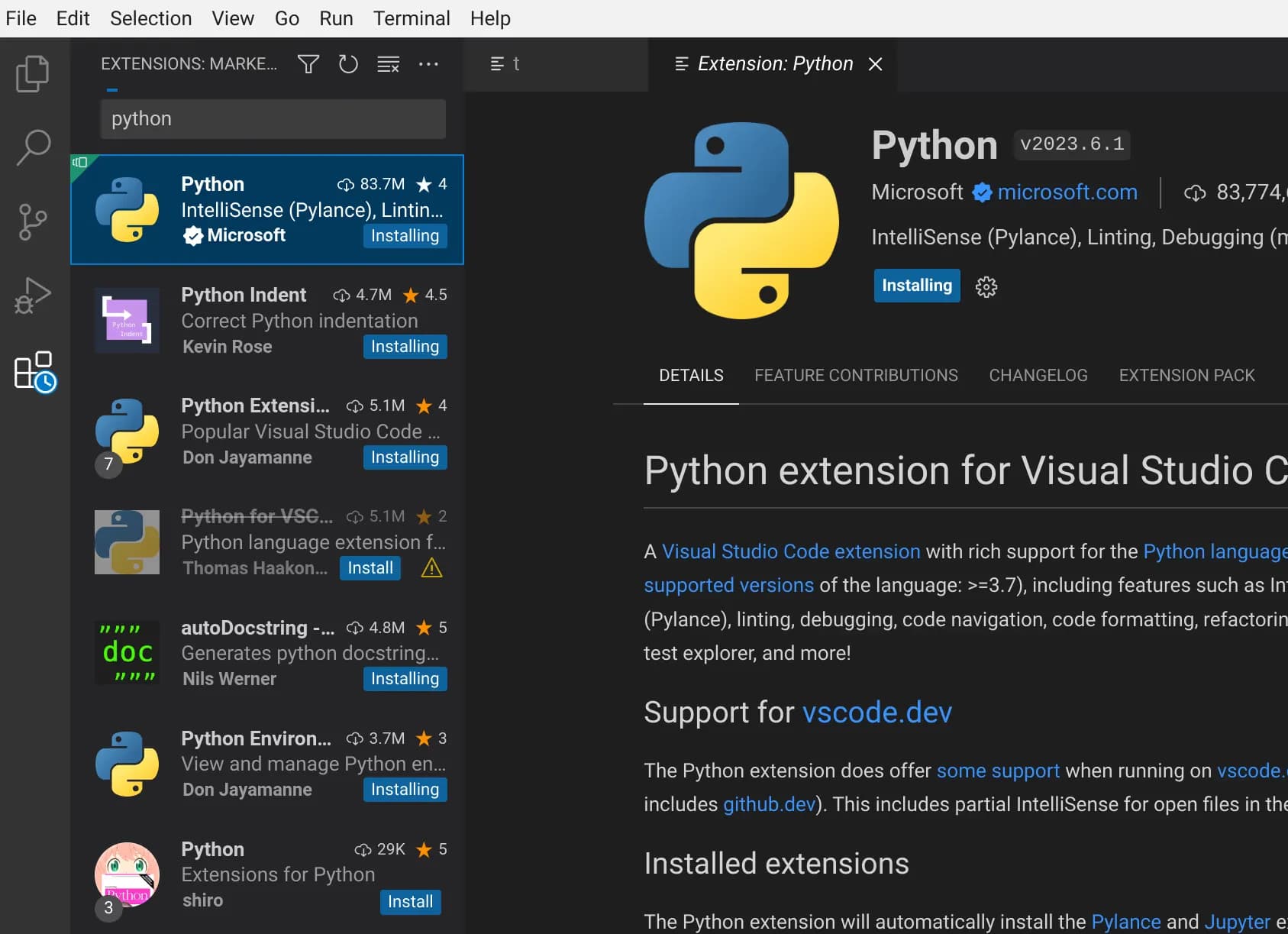
VS Code에서 Extension을 설치해주자.
검색할 때 Python과 관련된 것들을 설치해주면 파이썬을 파일을 실행할 수 있다.
Python, Python Extension를 설치하고 더 원하는 것이 있으면 설치해보자.
그리고 터미널에 아래와 같이 명령어를 입력해서 pip를 설치해준다.
sudo apt install python3-pip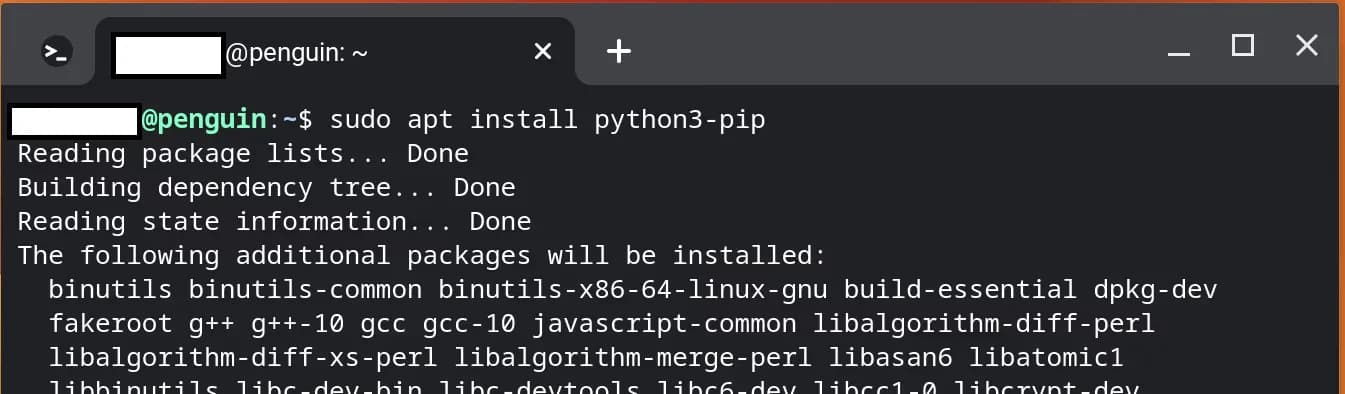
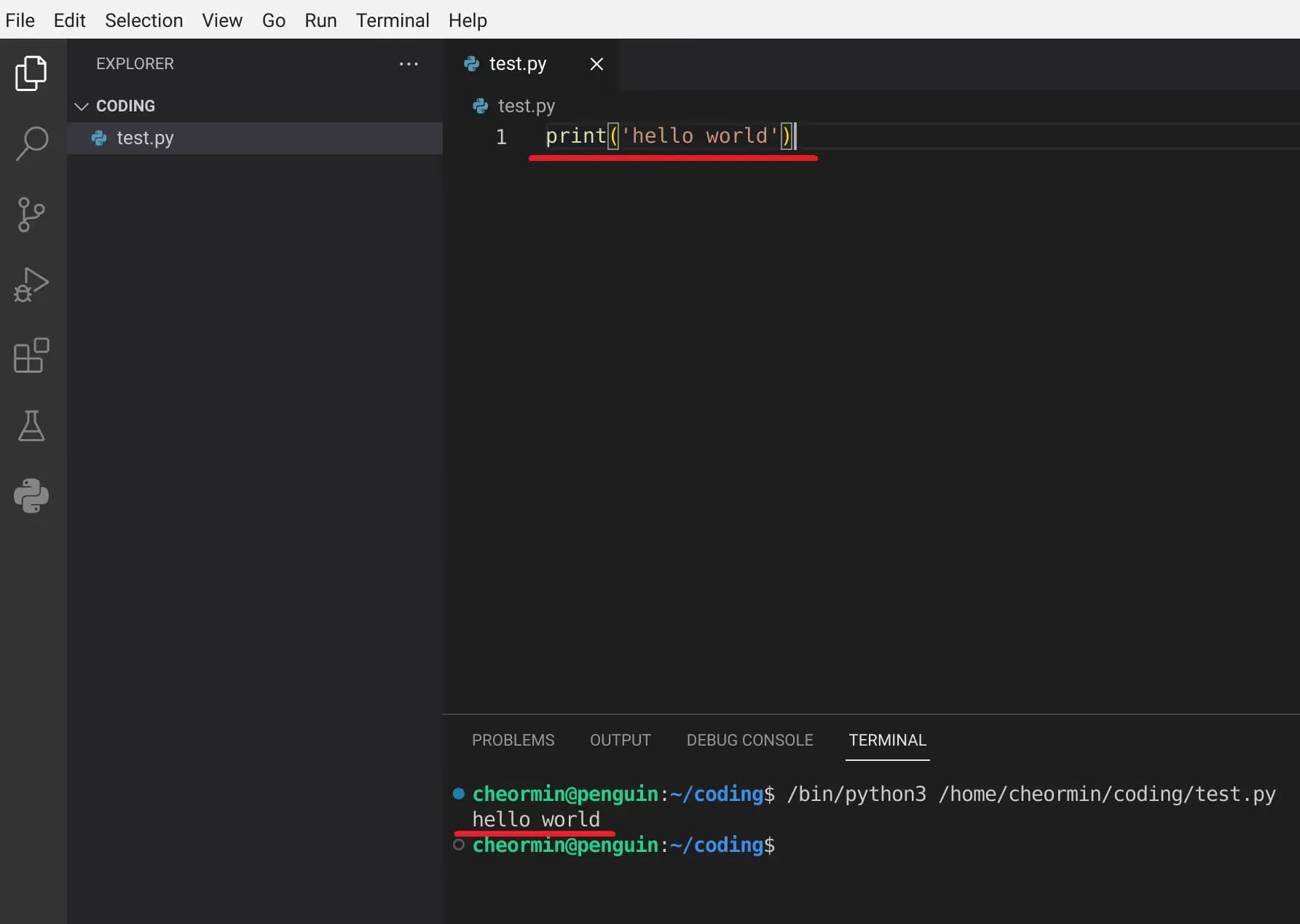
마지막으로 VS Code로 돌아와서 늘 그랬듯이, print("hello world")를 입력해서 출력을 확인해본다.
아마 "한글을 쓸 수 없다"는 큰 문제 이외에는 다른점이 없을 것이다.
5. 리눅스 한글 사용 설정하기
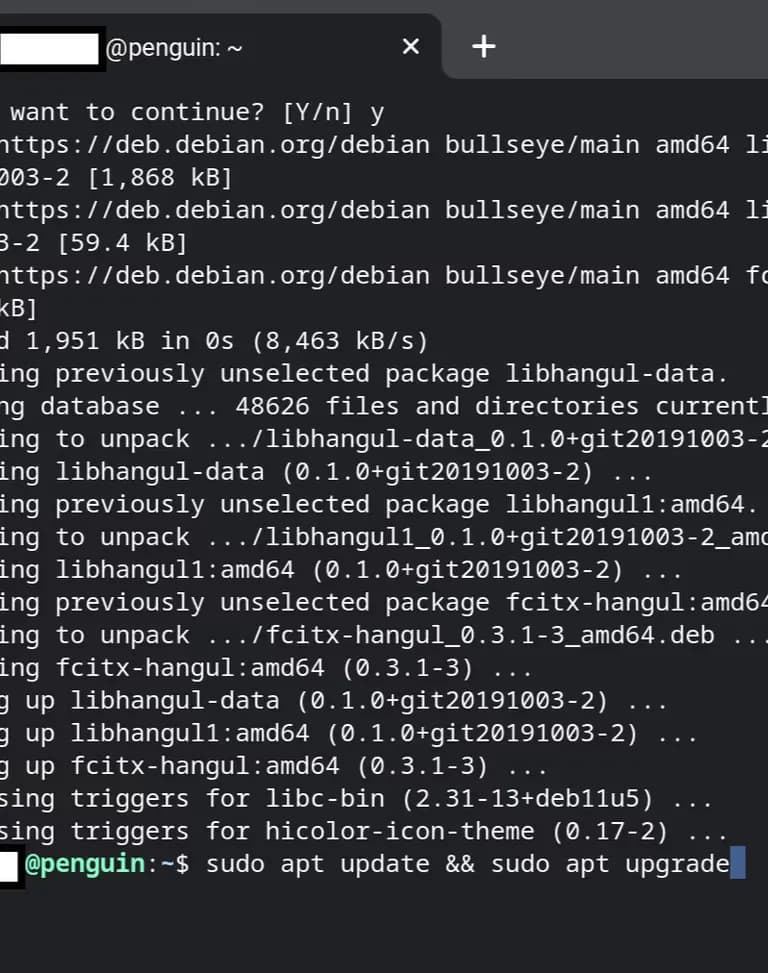
이제 fcitx와 한글폰트 등 4개의 모듈을 설치하려고 한다.
아래와 같이 install 뒤에 띄어쓰기로 구분하면 모듈을 한꺼번에 설치할 수 있다.
sudo apt install fcitx fcitx-hangul fcitx-lib* fonts-nanum*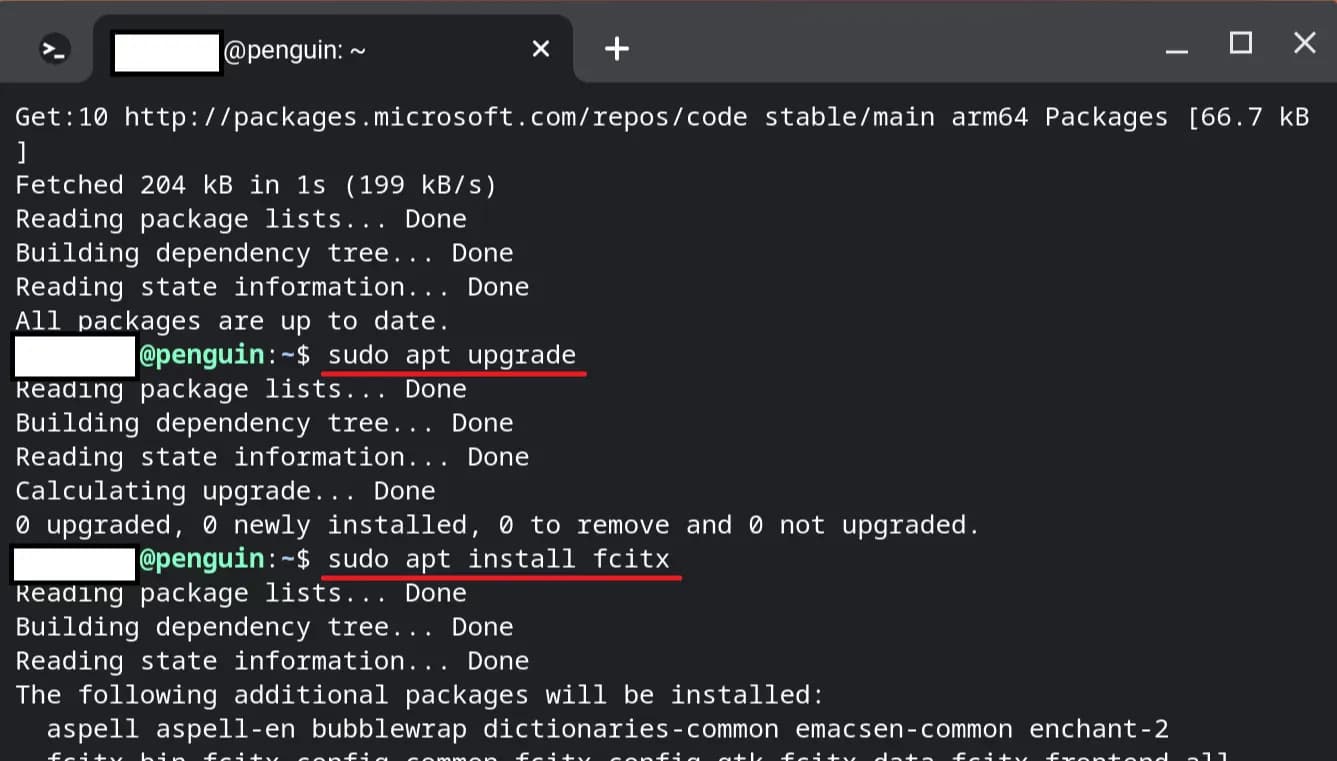
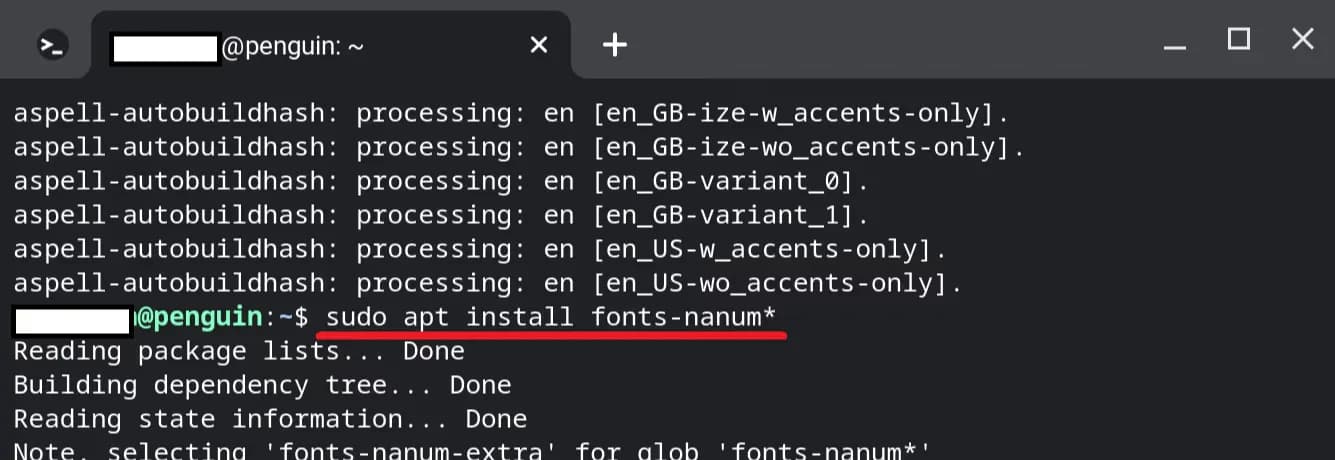
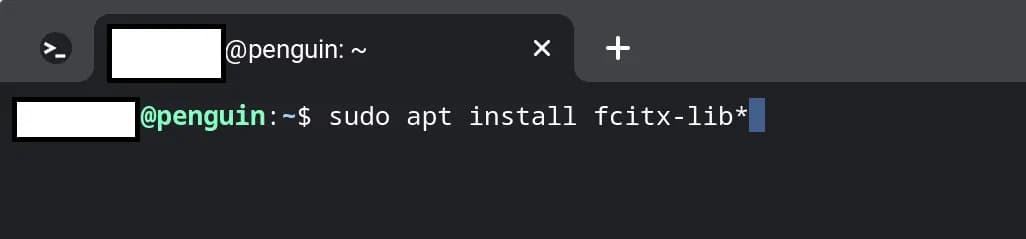
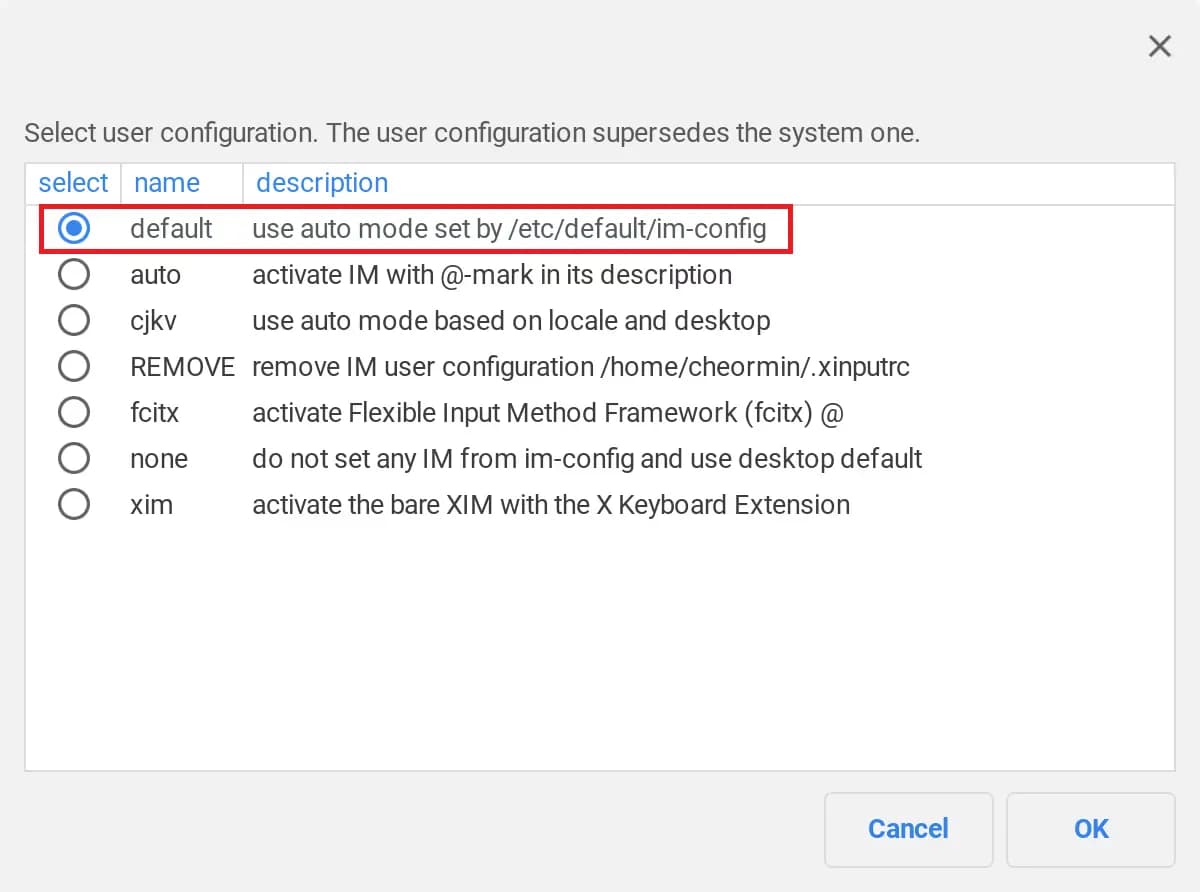
터미널에 im-config를 입력해 설정을 해준다.
전부 ok를 누르고, 중간에서는 default를 선택한다.
im-config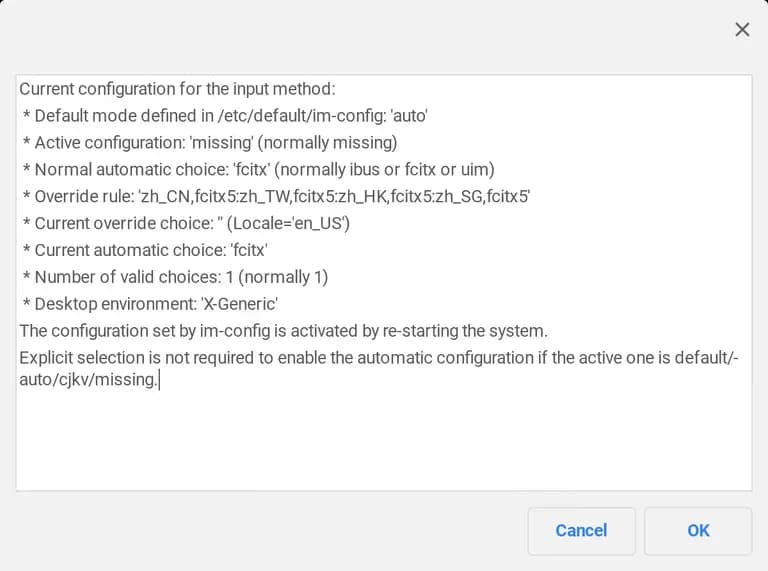
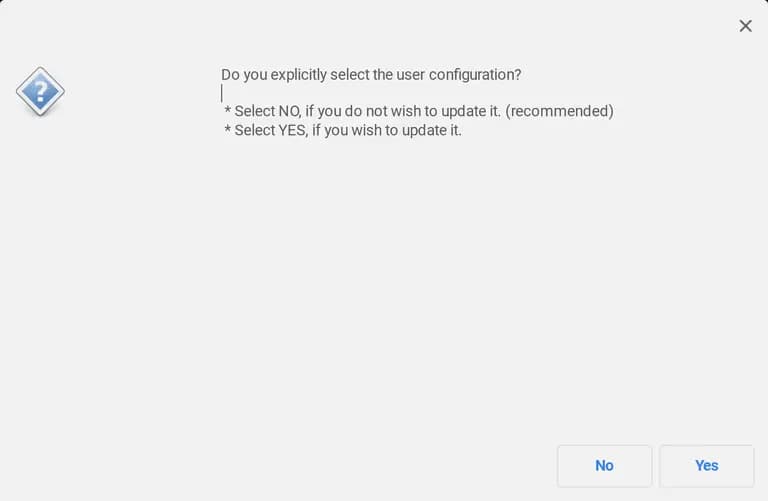
이제 아래와 같은 명령어를 입력하면 언어 셋팅창을 볼 수 있다.
autostart로 실행 후, configtool을 실행하는 것.
만약 여기에 아무런 언어도 나와있지 않다면, apt를 업데이트 해준 뒤에 다시 실행해보면 제대로 나온다.
sudo fcitx-autostart && sudo fcitx-configtool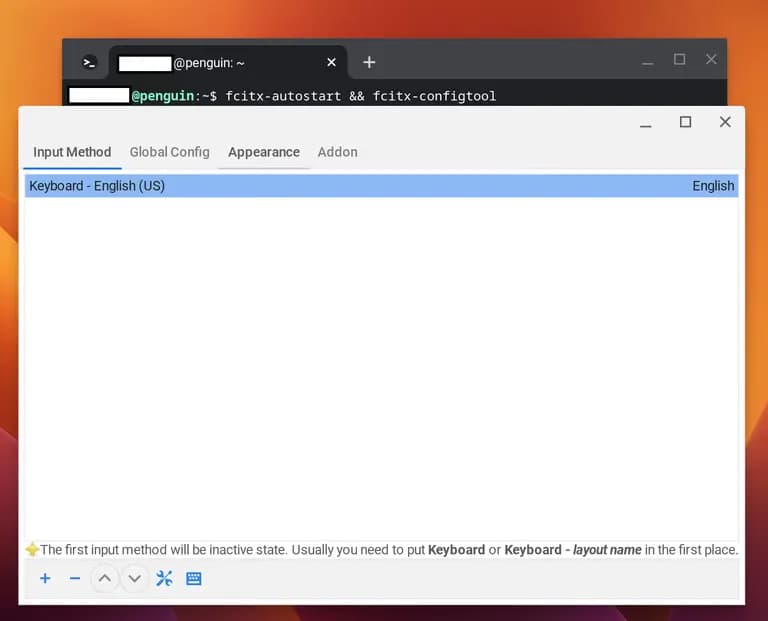
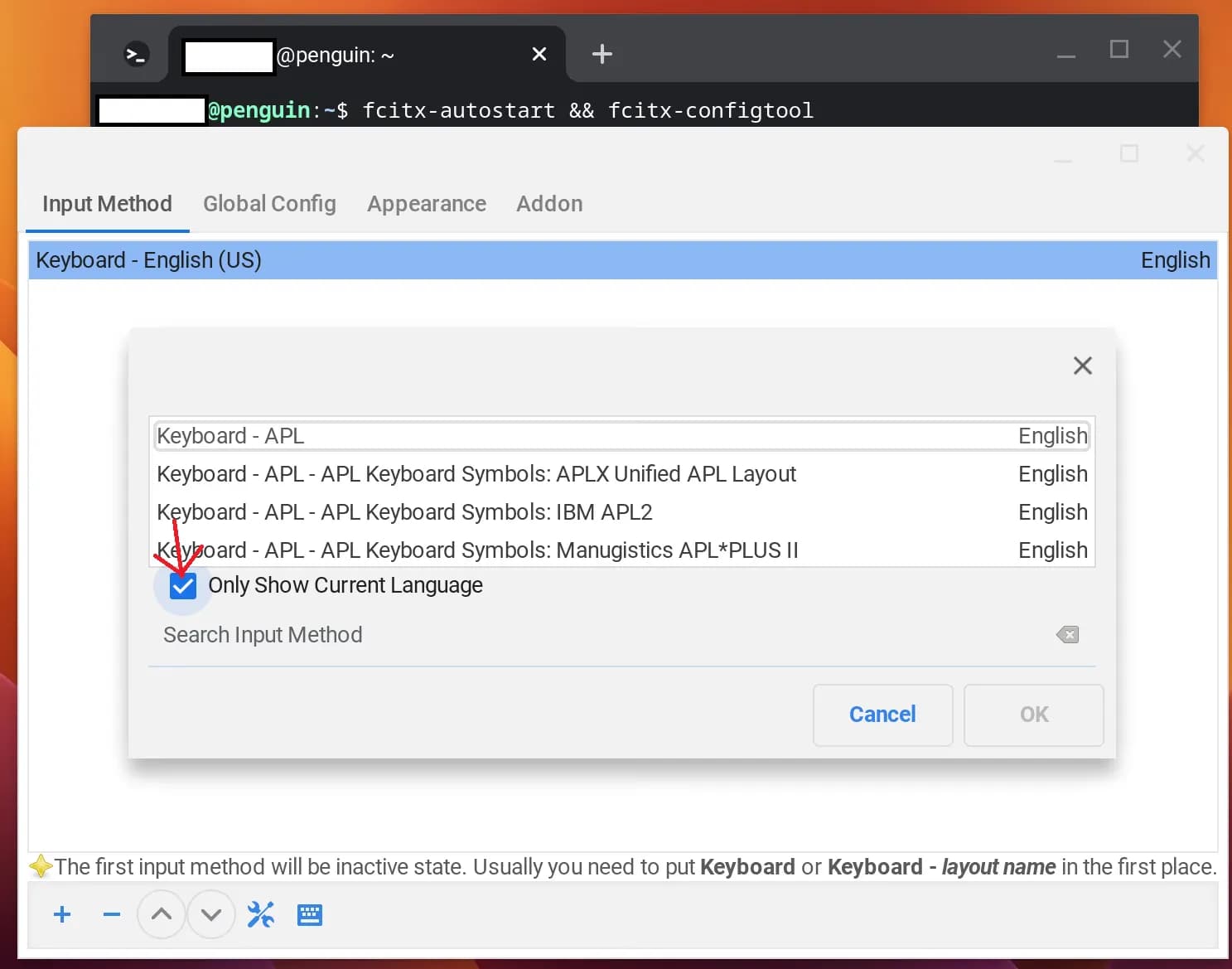
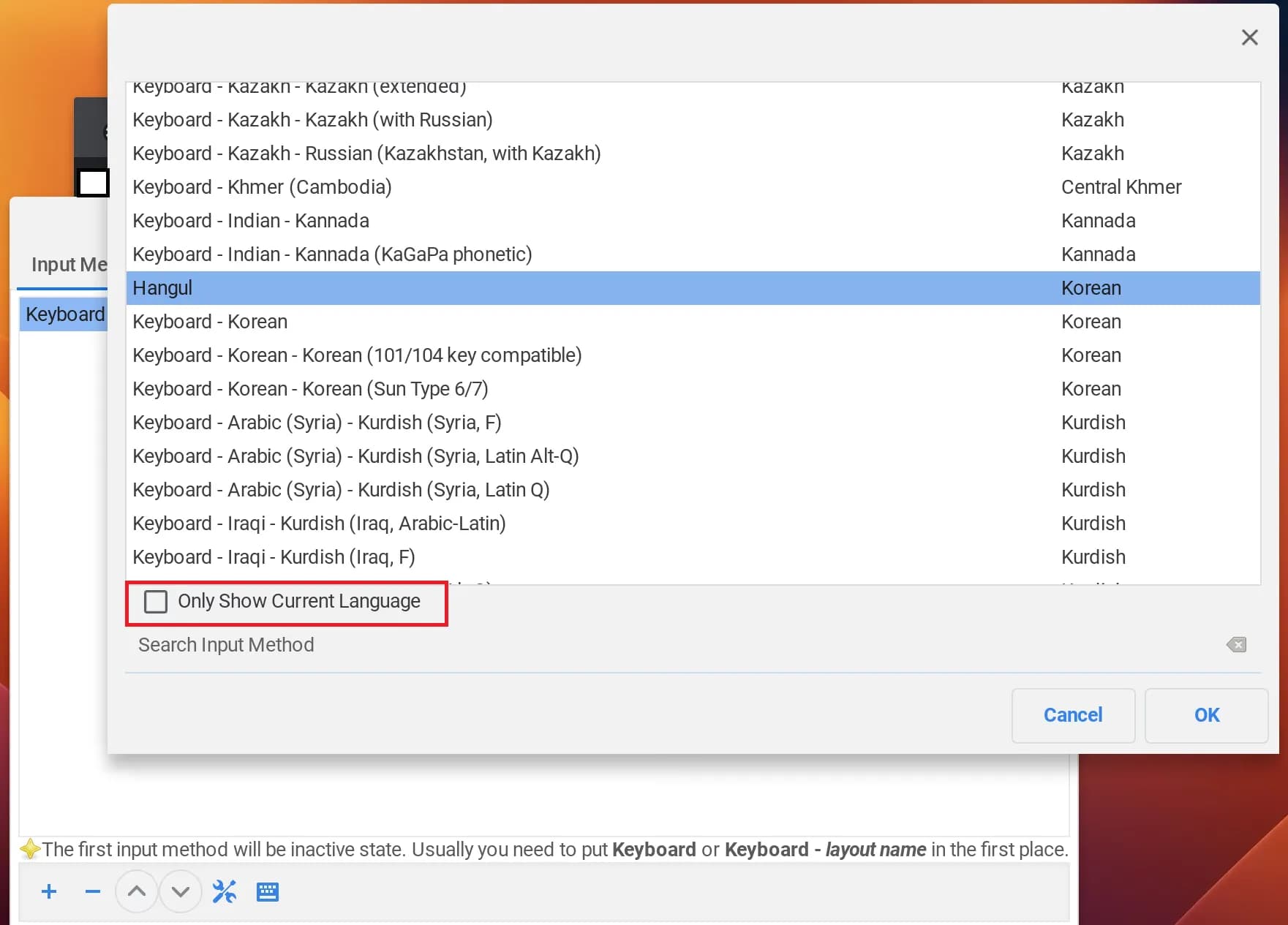
아래쪽의 (+) 버튼을 눌러 언어를 추가해준다.
[ ]Only Show ~ 앞의 체크를 해제해주면 한글을 찾을 수 있다.
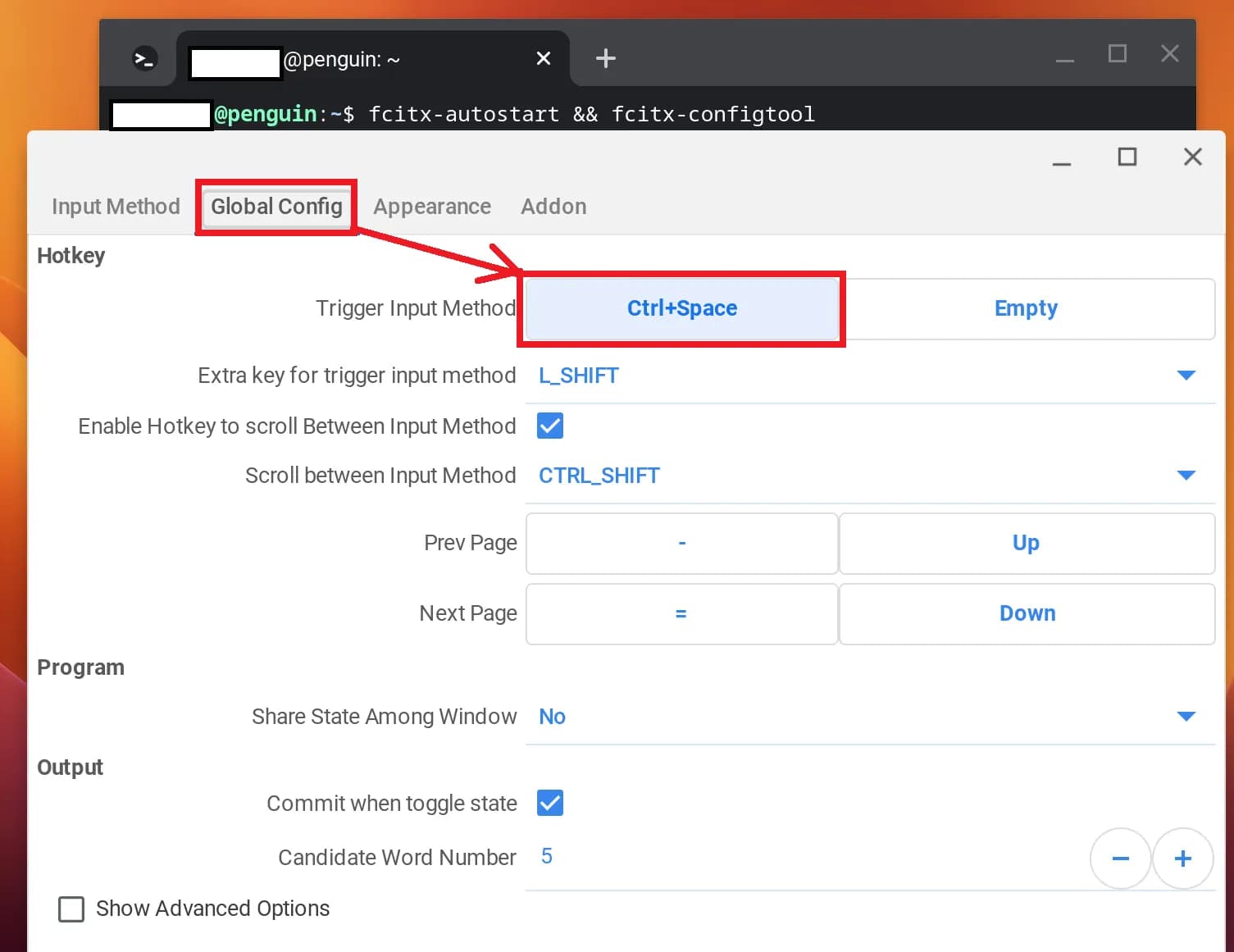
다음으로 Global config로 들어가서 한영 전환키를 변경해준다.
처음에는 Ctrl+Space로 되어있는데, 이게 VS Code에서는 다른 단축키와 충돌하므로 변경하는 것이 좋다.
변환하는 방법은 해당 매써드를 클릭한 뒤, 한영 젼환키로 사용하고 싶은 키를 누르면 된다.
6. 리눅스 시작 프로그램에 명령어 등록하기
fcitx를 이용하면 VS Code 한글을 입력할 수 있지만, 문제는 크롬북을 껐다 켤 때마다 새롭게 fcitx-autostart를 실행해 모듈을 실행해 주어야 한다는 것이다.
이를 방지하기 위해 리눅스 편집기인 vi를 이용해 명령어를 등록해준다.
sudo vi ~/.sommelierrc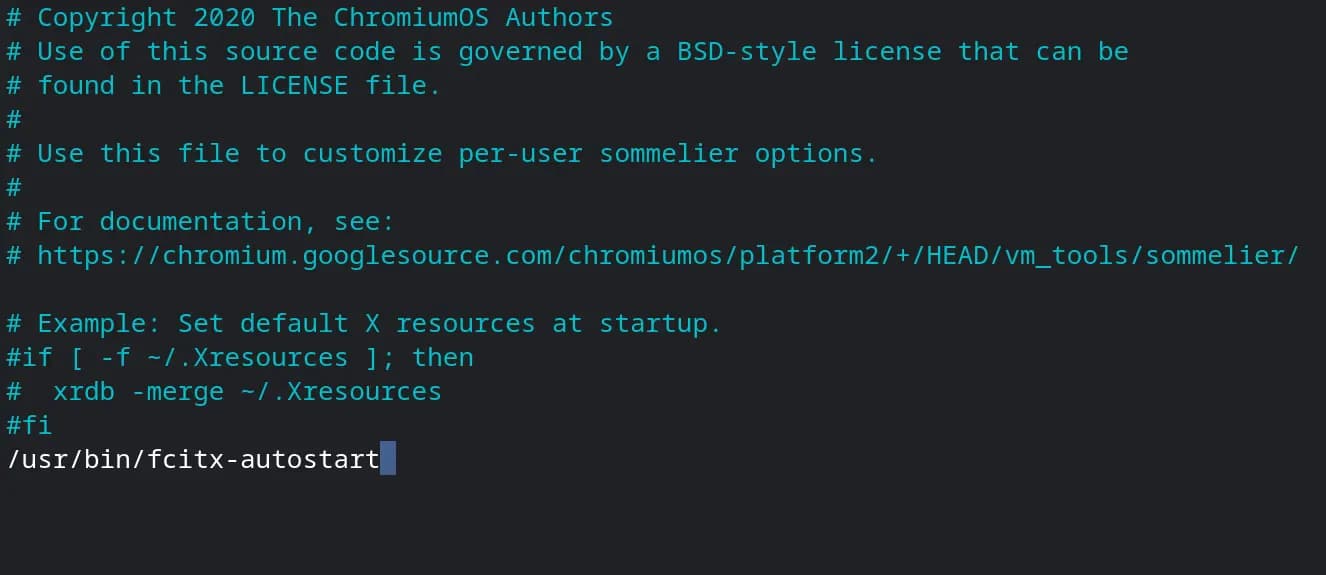
그리고 /usr/bin/fcitx-autostart를 입력한 후, ESC 키를 누르고 :wq를 눌러서 엔터를 눌러준다.
그러면 파일이 저장되고 vi 편집기가 종료된다.
이렇게 하면 리눅스가 실행될 때 마다 fcitx가 실행되고 한글을 입력할 수 있다.
7. 마지막으로 확인하기
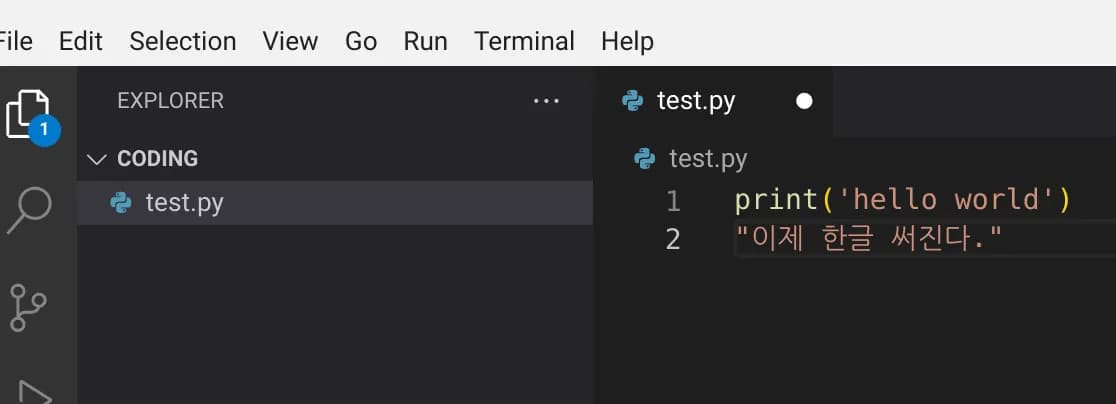
VS Code에서 한글 입력을 확인해본다.
그리고 크롬북을 껐다 켠 뒤, VS Code를 재실행 해서 한글이 잘 입력되는지 확인해본다.
마무리 되었다면, 이제 이 방법을 아이들에게 알려주고, 함께 코딩하는 일만 남았다.



댓글을 불러오는 중...