VS Code로 마크다운 글을 5개 정도 쓰고나니, 대략적인 방법들은 거의 익힌 것 같다.
오늘은 VS Code를 마크다운 편집기로 이용하는 법이다.
확장팩 두개랑 settings.json만 살짝 만지면 끝이다.
1. 확장팩
마크다운을 쓸 때 귀찮은 두 가지를 해결해주는 팩을 설치해보자.
왼쪽의 확장으로 들어가서 markdown을 검색해준다.
그리고 그림에서 보이는 팩을 설치해준다.
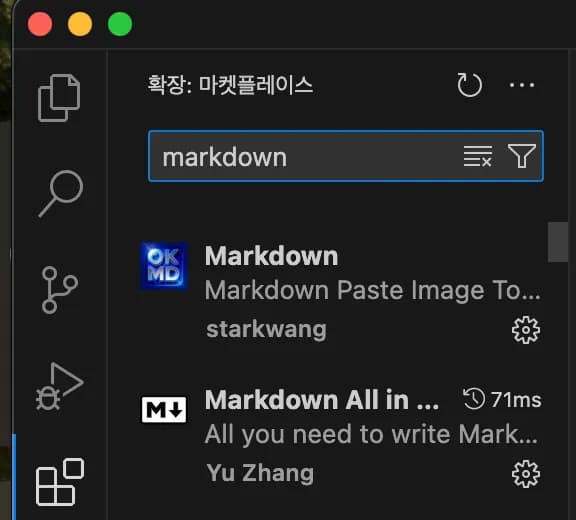
일단 마크다운 관련 기능들은 올인원 하나면 끝이다.
볼드체, 테이블, 리스트 등 간편한 기능들을 많이 제공한다.
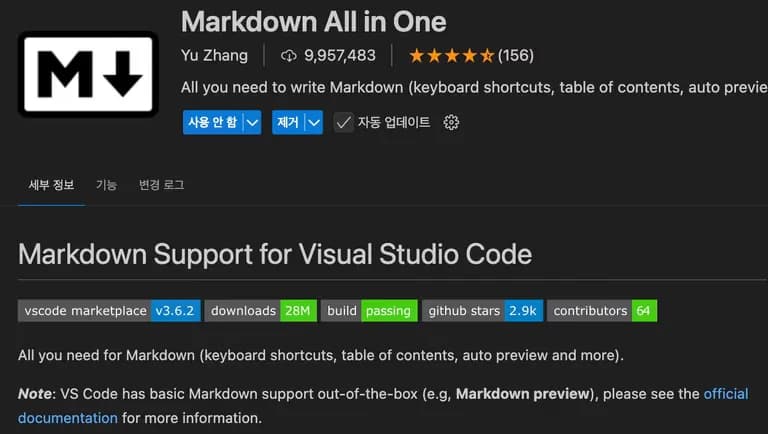
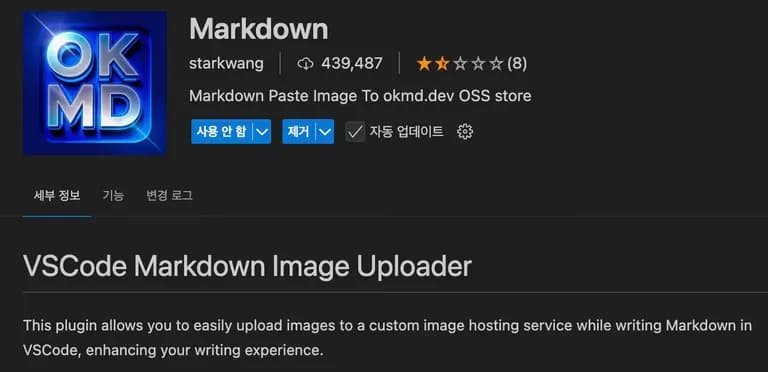
이미지 업로더는 그림 넣는걸 편하게 해준다.
원래라면 이미지 다운 ➡️ 폴더로 이동 ➡️ 이미지링크삽입 의 번거로운 과정을 거쳐야 한다.
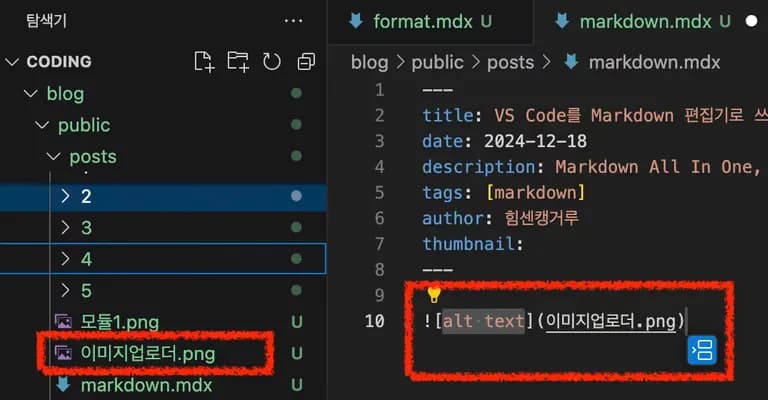
이 확장팩이면 이미지복사 ➡️ cmd+v 하나면 폴더내로 이미지가 들어가고 글에도 삽입이 된다.
2. 이용해보기
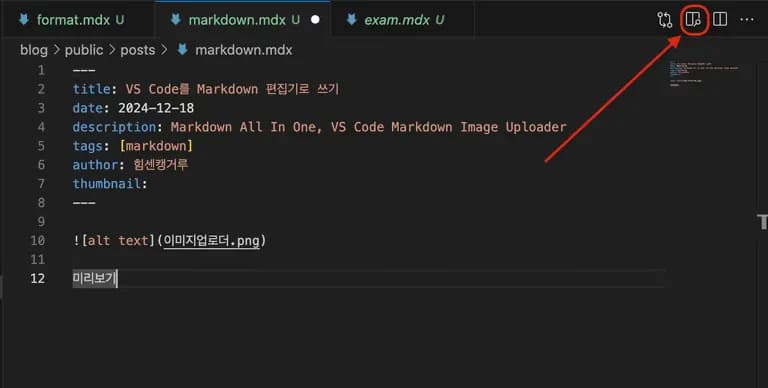
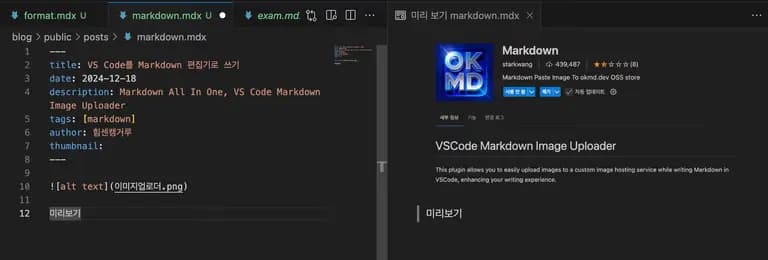
마크다운을 켰을 때 오른쪽 위를 보면 탭이 하나 더 있다.
이걸 누르면 오른쪽에서 미리보기 창이 켜진다.
글을 작성하면 바로바로 형식을 미리 볼 수 있다.
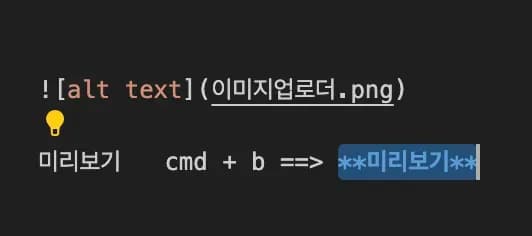
단축키도 한번 써보자.
만약 중간에 글자를 강조하고 싶다면, 해당 부분을 드래그 하고 cmd + b를 누르면 된다.
이미지 업로더가 대박 유용하다.
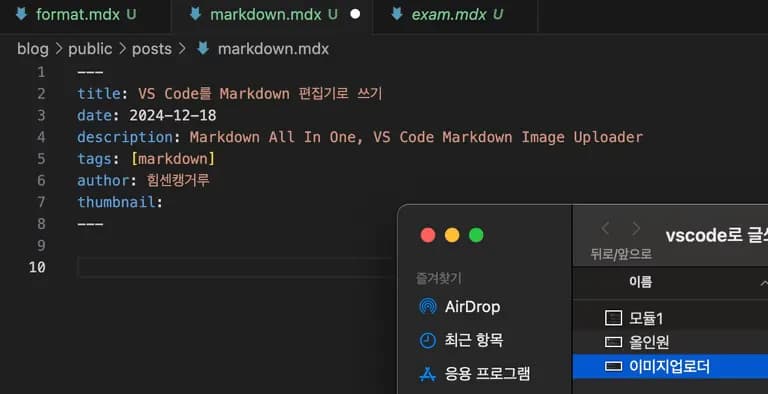
만약 마크다운에 넣고싶은 그림이 있다면 복사한다.
파일 자체를 복사해도 되고, 온라인에서 클립보드에 넣은 것도 가능하다.
그리고 마크다운에서 붙여넣기를 하면 아래와 글 내에 삽입되고 폴더에도 그림이 저장된다.
3. .mdx로 글을 작성 중이라면...
나는 현재 마크다운 글을 .mdx 확장자로 쓰고 있다.
이때는 .vscode 에서 settings.json을 조금만 손보면 된다.
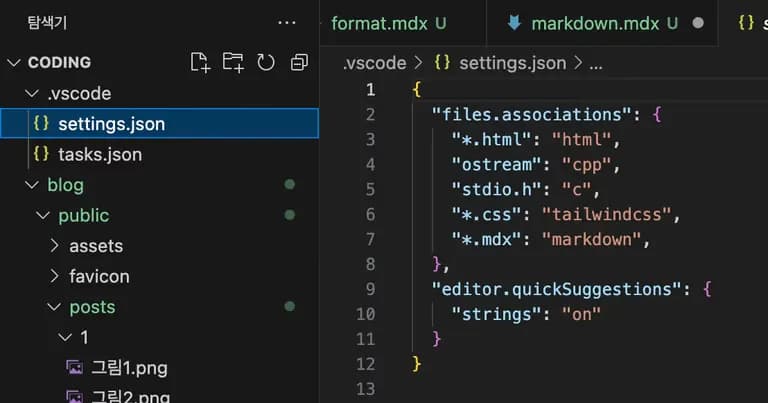
{
  "files.associations": {
    "*.html": "html",
    "ostream": "cpp",
    "stdio.h": "c",
    "*.css": "tailwindcss",
    "*.mdx": "markdown", // 이게 핵심!
  },
  "editor.quickSuggestions": {
    "strings": "on"
  }
}
이렇게 하면 .mdx 파일도 마크다운처럼 확장팩을 이용 가능하다.
4. 글을 마치며
처음에는 마크다운으로 글을 쓰는 것에 대한 거부감이 강했다.
무조건 블로그는 웹에디터를 써야 한다고 생각했는데, 쓰는게 적응되다 보니 오히려 웹편집기보다 더 편하다.
많은 사진을 올려도 업로드를 기다릴 필요가 없다.
사진 편집도 자유롭게 할 수 있다.
어쨌든...
그렇게 생각하고 싶다.




댓글을 불러오는 중...