In this post, we will explore Pandas, a tool for data processing.
If your environment for data visualization is not set up, please refer to the guide below.
1. What is Pandas?
Pandas is a library for data manipulation and analysis.
You can organize lists or dictionaries into tables.

For example, consider a list containing 3 lists as shown below.
lstInLst = [[1,2,3],[4,5,6],[7,8,9]]Transforming this data results in the following form. At a glance, it looks like a table.
lstInLst = [[1,2,3],
            [4,5,6],
            [7,8,9]]
Now, let's convert this data into Pandas...
import pandas as pd
df = pd.DataFrame(lstInLst)
print(df)
It becomes a table as shown below.
This type of Pandas data is referred to as a dataframe.
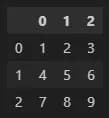
You can now process this data by rows and columns.
Think of it like Excel if that helps in understanding.
Let's explore some basic functions.
2. Basic usage of pandas
As mentioned, Pandas is similar to Excel.
Therefore, the functions you need to learn to use Pandas are the same as those you need to learn for Excel.
Generally, the most important functions in Excel are data inspection, sorting, and copying desired cells.
Let's have a taste of Pandas based on these tasks.
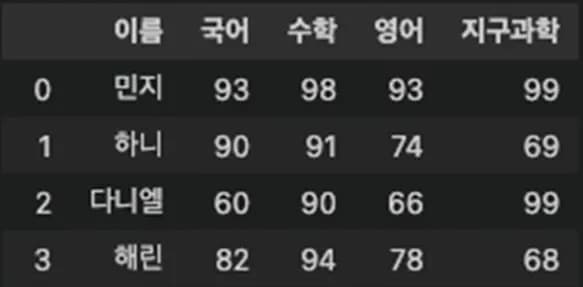
The data is attached below as a file. It contains 11 rows and 5 columns. You can use this data or create your own.
1) Calling modules and loading files (read_excel)
First, place data and the Jupyter notebook file together in the path of the file.
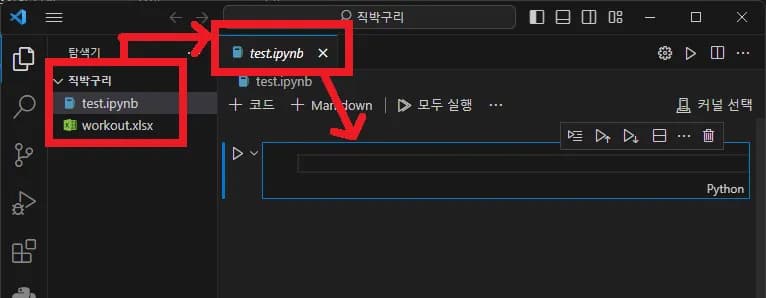
Then, enter the code as shown below. Explanations of the code are provided with comments.
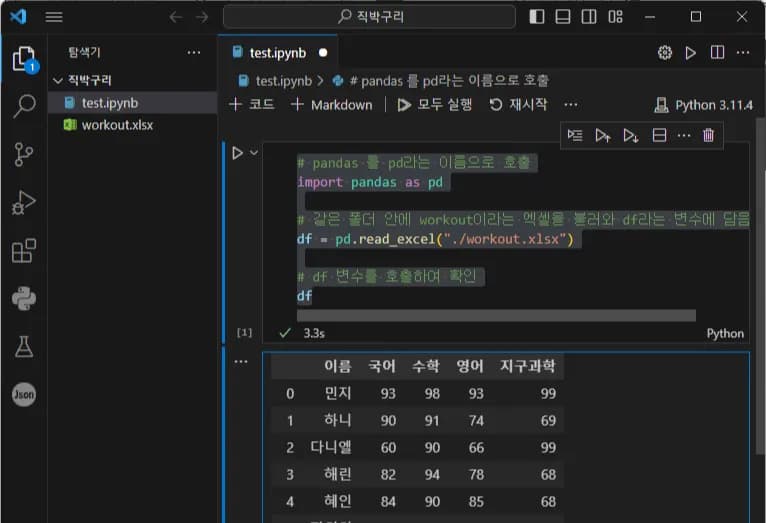
# Import pandas with the name pd
import pandas as pd

# Load the Excel named workout in the same folder into a variable called df
df = pd.read_excel("./workout.xlsx")

# Check the df variable
df
When you check df, you can see that the data is loaded as shown below.
Normally, you would use print(df), but in Jupyter Notebook, you can directly check the value just by entering a variable.
Now let's explore and enjoy this data.
2) Viewing (head, tail, index, columns)
Currently, all data is displayed because it's small, but it can be hard to see all at once when there's more data.
In such cases, you can roughly check the data using head, tail functions and index.
(1) head
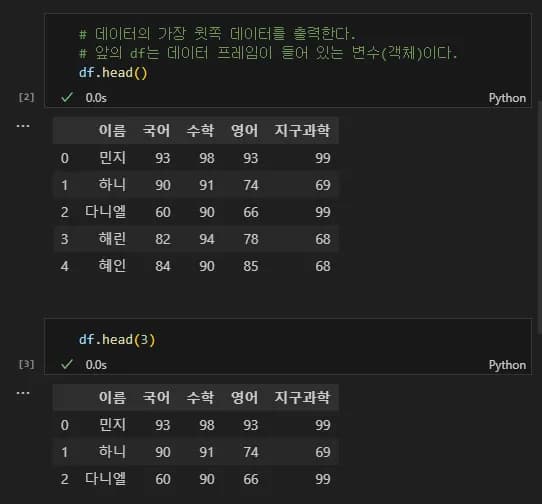
Head outputs the top data.
By clicking the [+ code] at the top, an input window is added.
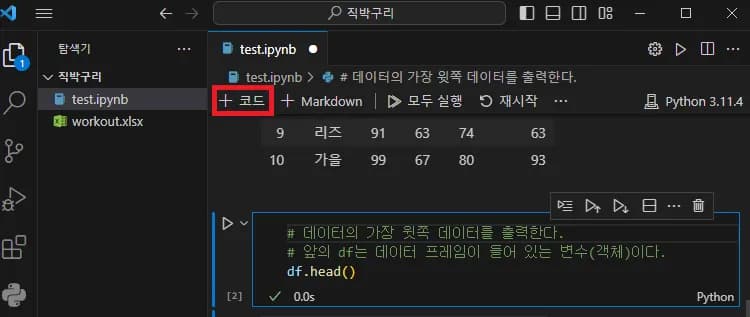
Enter the code below.
# Outputs the top data (default 5 rows)
# df in front is a variable (object) containing the DataFrame
df.head()

# You can input the number of rows you want to view in the parentheses
df.head(3)
If the output appears as shown below, it's successful.
This is a way to check some of the data.
(2) tail
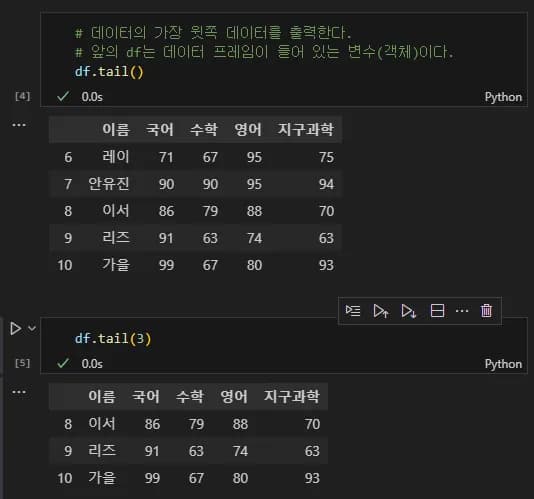
The tail shows the data at the very end.
It defaults to 5, but you can input a value in the parentheses to display that many.
It's the same as head.
# Outputs the bottom data
df.tail()

# Input the desired number of rows in the parentheses
df.tail(3)
For beginners, the value entered in the parentheses is called a parameter.
(3) index
The index simply outputs the number and shape of the data.
It is useful when you want to check the approximate amount of data.
df.index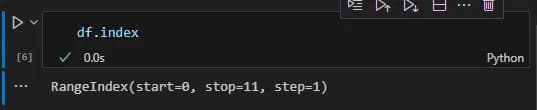
3) Sorting (sort_values, sort_index, reset_index)
(1) sort_values
sort_values sorts data in ascending or descending order.
You can easily sort by entering the code in the form below behind a variable with the object.
# Variable.sort_values("column name")
df.sort_values("Name")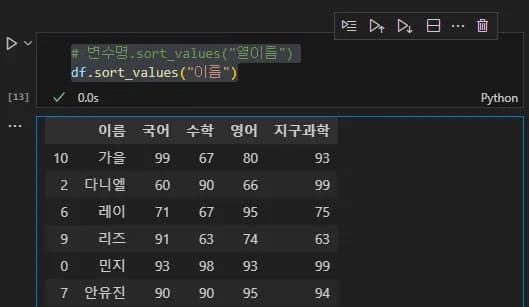
If you want to sort by more than one column, you can enter the column names as a list in the parentheses.
# If the entered list is ["Math", "Name"],
# it sorts by the name first then the math score.
# The list order determines the sorting priority.
df.sort_values(["Math","Name"])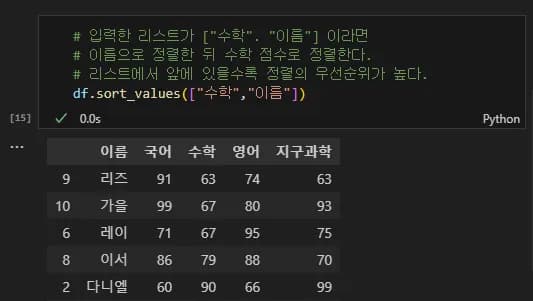
By default, sorting is in ascending order.
If you want to sort in descending order, add another parameter.
# Setting ascending to False results in descending order.
# You can clearly represent the roles of parameters by using by=[] in the list.
df.sort_values(["Math","Name"], ascending=False)
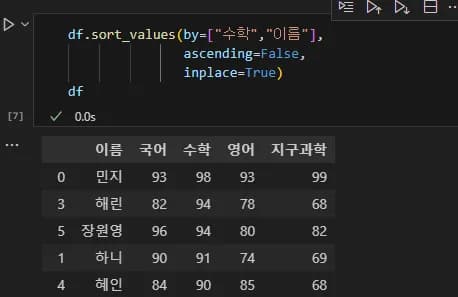
df.sort_values(by=["Math","Name"], ascending=False)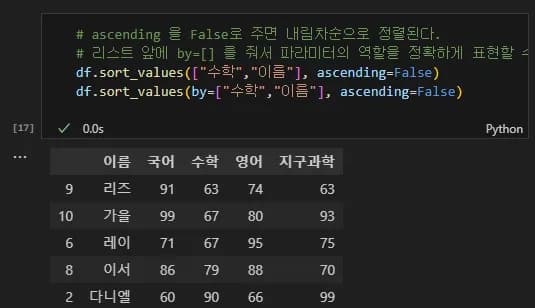
Note that when you check the original data after doing this, it appears the same.
This is because the sorted data was not reassigned to df.
There are two solutions.
Assign to a new variable
Add the parameter inplace = True.
If you create a new variable, it will look like this:
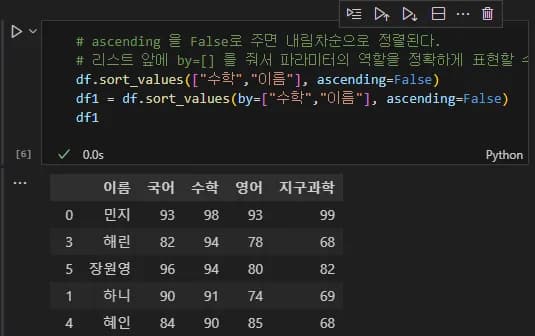
By adding the parameter inplace=True, the existing variable is overwritten.
(2) sort_index
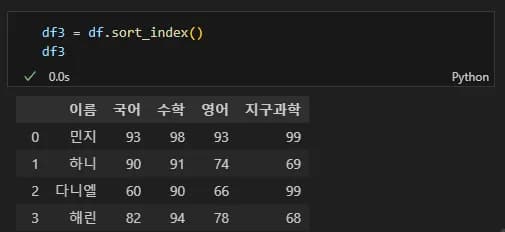
sort_index, as its name suggests, sorts by index. Enter the code as shown below.
# Assigning to a new variable
df3 = df.sort_index()
df3

# Using the inplace parameter
df.sort_index(inplace=True)
df
When you see the output, you will notice it is reordered by index, similar to the original.
(3) reset_index
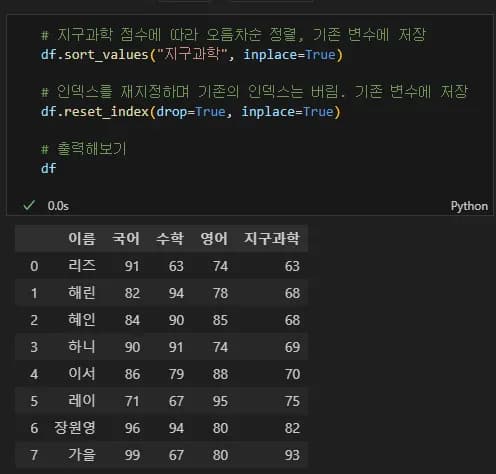
reset_index assigns a new index. Sort by Earth Science score in ascending order and assign a new index using the code below.
# Sort in ascending order by Earth Science and save to the original variable
df.sort_values("Earth Science", inplace=True)

# Reassign the index while discarding the original one. Save to the original variable
df.reset_index(drop=True, inplace=True)

# Check output
df
It can be noted that the rows are arranged in ascending order by Earth Science score and the index is reassigned.
If you want to keep the original index, just remove the drop parameter.
4) Deletion (drop, dropna)
(1) drop
This function is used to delete desired rows or columns.
It accepts index and columns as parameters.
While other methods exist using axis, etc., you usually end up using the simplest and most convenient option.
# The drop function accepts multiple parameters, but index and columns are the easiest.
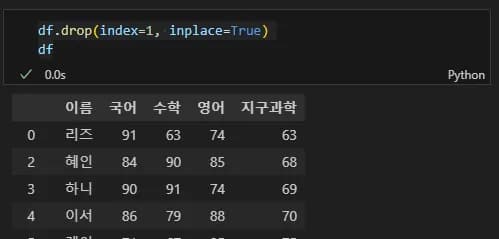
# Delete the second row
df.drop(index=1, inplace=True)
df

# Delete Math, English columns
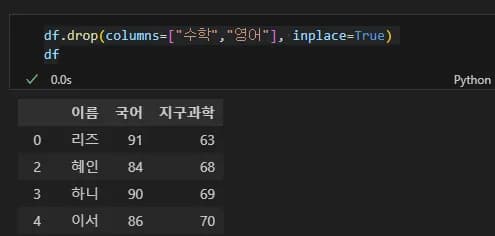
df.drop(columns=["Math","English"], inplace=True)
df
First, when you delete the row with index 1, it is displayed as follows.
Now, let's delete the Math and English columns. Provide columns as a parameter and enter values in a list form.
(2) dropna
dropna is used to remove rows with missing values.
This is generally referred to as removing missing values.
I used numpy to temporarily create arbitrary missing values.
You don't need to understand the code below.
Basically, it's a code that changes the value at the 4th row, 3rd column to a missing value.
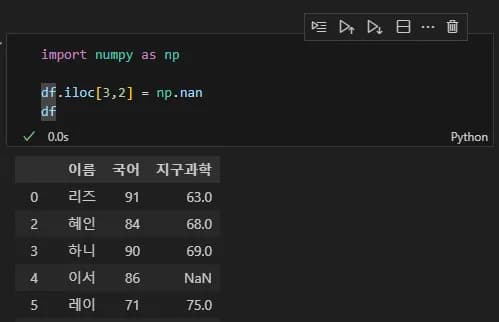
If the data call shows NaN, it indicates a missing value. It's an abbreviation for Not a Number.
Let's remove the rows with missing values.
df.dropna(inplace=True)
df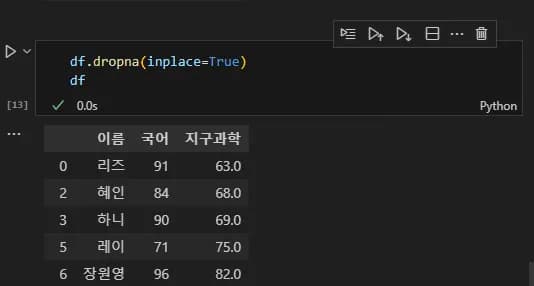
You can see that 'ESeo' with no Earth Science score was removed.
Alternatively, NaN values can be replaced with 0 or another number.
This level will not be covered here.
5) Matrix extraction (loc, iloc, easy method)
When using data, you can only work with the desired rows or columns.
For this, you use loc and iloc.
(1) loc
Loc is short for location.
Enter the ranges for rows and columns as if entering dictionary keys after loc.
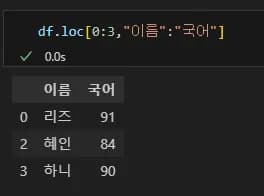
# df.loc[row index range, column index range]
df.loc[0:3,"Name":"Korean"]
df
Simply input the index and column as they are.
Currently, row index is a number and column index is in Korean, so inputting like this will display the data for the relevant range.
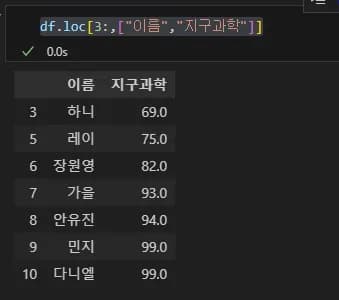
If you want to read the Name and Earth Science from row index 3 onwards, you can input it like this.
df.loc[3:,["Name","Earth Science"]]
df
Continuous data is input with a colon (:) and discrete data is input in list form.
(2) iloc
Iloc is short for integer location.
Functionally, it's the same as loc but takes row and column positions as numbers.
For example, if you want to output the Name and Earth Science from row index 3 as shown above, enter the following:
df.iloc[2:,[0,2]]
df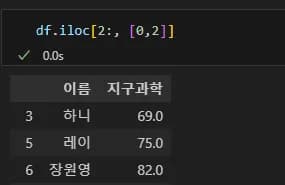
Note that in loc, the row parameter is 3, but in iloc, the row parameter is 2.
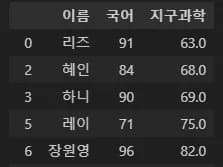
Loc was used to output from row index 3, while iloc started outputting from the 2nd row after skipping the 0th and 1st rows.
(3) Easy method
You can also simply attach brackets [] in a dictionary form behind a variable to query data.
If you want to view rows 0-3 and the Name and Earth Science columns, you can input it like this.
# You can simply use [] behind a variable to query data.
df[0:4][["Name","Earth Science"]]
df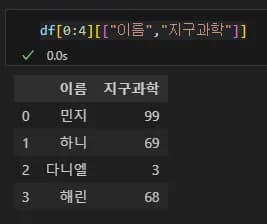
Let's try querying the Name column.
The index for the column with Name as the title is "Name" so you can easily input it like this.
df["Name"]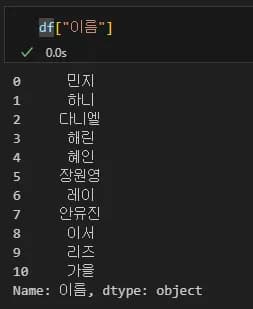
As you'll realize, this method might cause errors when trying to change data.
Therefore, it's recommended to use loc or iloc when attempting to alter values.
6) Conditional statements
(1) Single conditional statement
Conditional statements help locate the data that matches your conditions.
It's similar to Excel's filter function.
For example, if you want to find students with more than 90 in Earth Science, input it as follows.
df["Earth Science"] > 90This way, all cells in the table are checked, and True or False values for the condition are returned.
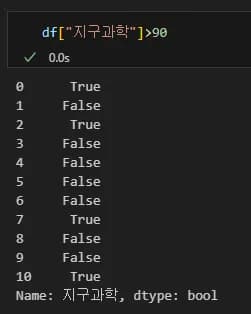
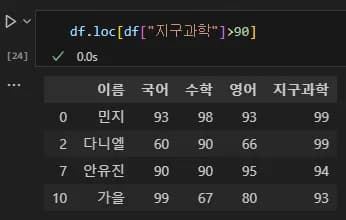
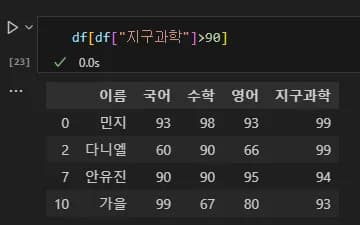
Inserting it back into the dataframe results in Pandas outputting rows with True.
# Using loc for conditional statements (recommended)
df.loc[df["Earth Science"]>90]

# A simpler method
df[df["Earth Science"]>90]
No significant differences in output, whichever method you choose.
Because our purpose is not mastering Pandas.
Try one, and if there's an error, switch methods later.
(2) Multiple conditional statements
It's possible to set multiple conditions.
df.loc[(df["Earth Science"]>90) & (df["English"]>90)]If you want to find values that meet both conditions, you should enclose them in parentheses and place an & between them.
Using and will cause an error.
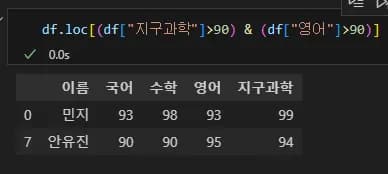
To find a value that satisfies either condition, use |.
Similarly, using or will result in an error.
df.loc[(df["Earth Science"]>90) | (df["English"]>90)]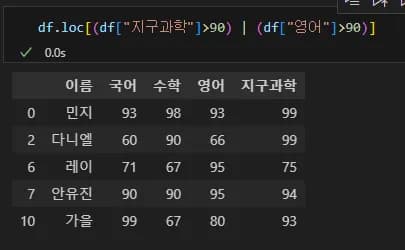
It is also possible to view only specific columns from the values that meet the condition.
df.loc[(df["Earth Science"]>90) | (df["English"]>90), ["Name","English" "Earth Science"]]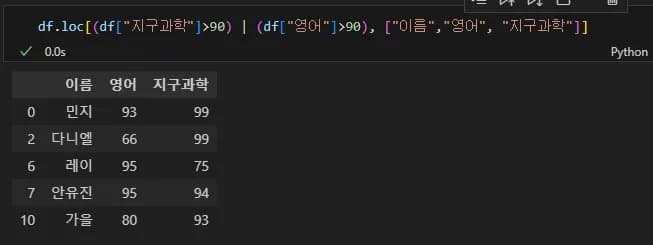
7) Other useful features (columns, unique)
When visualizing data, it is often necessary to express it as a legend to show what it represents.
In such cases, columns can be used to check column indexes, or you can use the unique function to return unique values.
(1) columns
Used to query the column indexes of data.
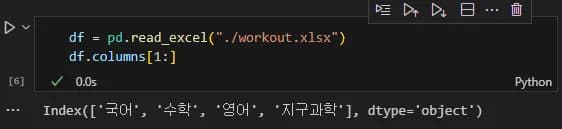
df.columnsWhen you create new data and check the indexes, the output will look like the following.
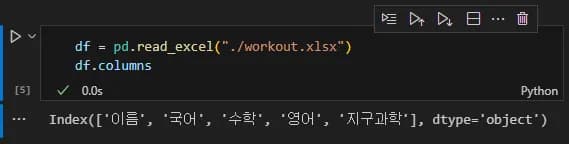
If you are graphing Korean, Math, English, Earth Science scores excluding student names, you can easily assign legends without typing all of them.
(2) unique
This function removes duplicates and returns only unique values.
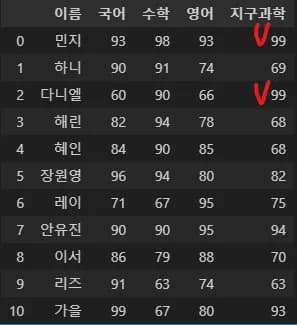
First, let's check Earth Science scores.
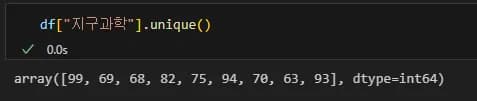
Output the unique values for Earth Science scores.
df["Earth Science"].unique()By examining the output of this code, you can see that even though there are two students with a score of 99, it only includes one.
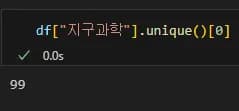
Since it is returned as an array, you can also check the values sequentially.
3. Conclusion
In this post, we explored how to handle data using Pandas.
Since it only covered basic content, it might feel relatively easy.
Remember, our main goal is not data preprocessing but visualizing structured data.
In the next article, we'll attempt some simple Pandas exercises.





댓글을 불러오는 중...