I've recently developed an interest in upgrading laptops.
My brother-in-law and his wife were a great help by looking after our baby for three days, so to show my gratitude, I decided to upgrade his laptop.
My brother-in-law's laptop is the 320S-14IKB, with 4GB of RAM and a 128GB SATA SSD as the main memory.
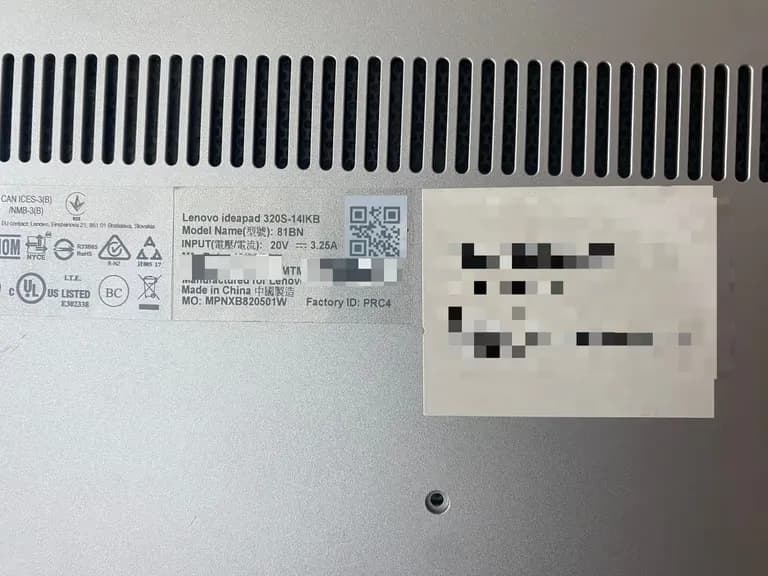
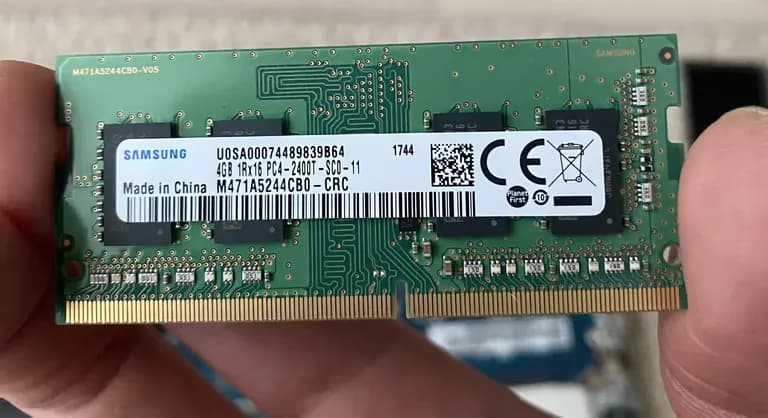
Luckily, I had a spare m.2 256GB SSD at home, and I purchased an additional 16GB RAM.
For reference, this model has one memory slot and can recognize up to 16GB of RAM.
Now all that's left is the installation.
Fortunately, there are no hidden screws, so removing the ten screws visible on the back allows you to disassemble the cover.
If you insert the pick a bit deeply and give it a scrape, the back will come apart with a 'click' sound.
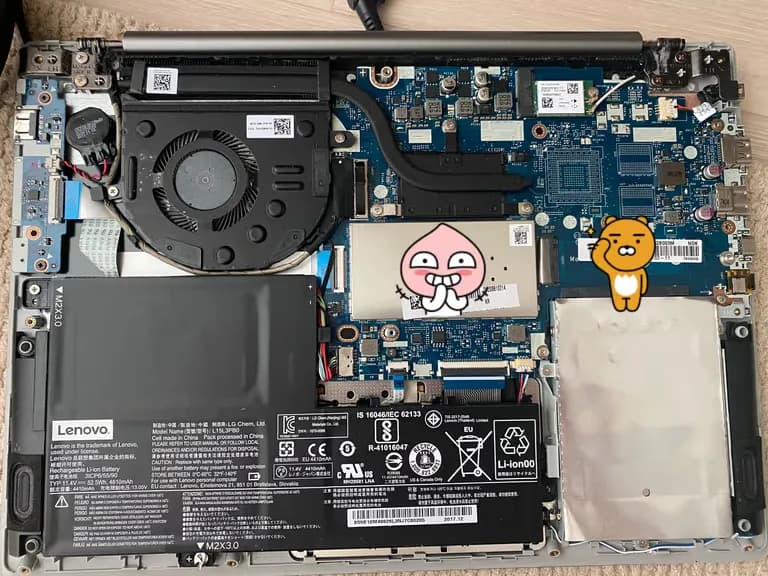
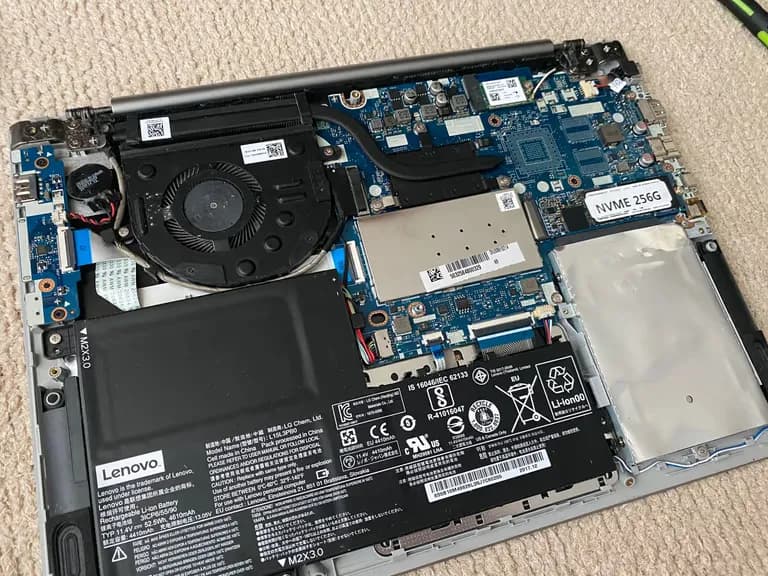
This is the disassembled view.
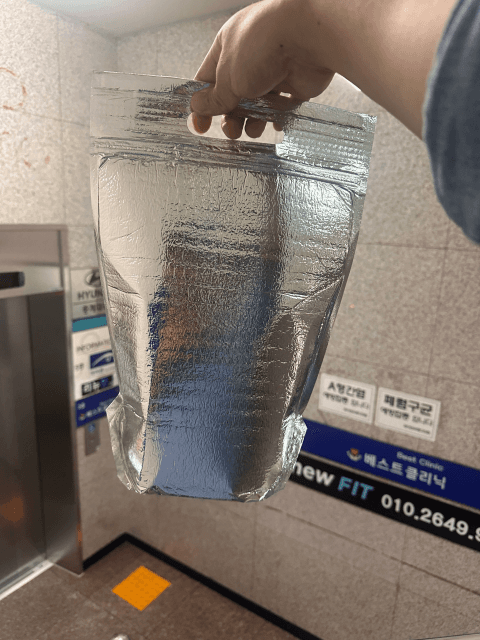
The area wrapped in foil is where the SATA SSD is located.
They say it's wrapped like this to prevent bit flips caused by cosmic rays.
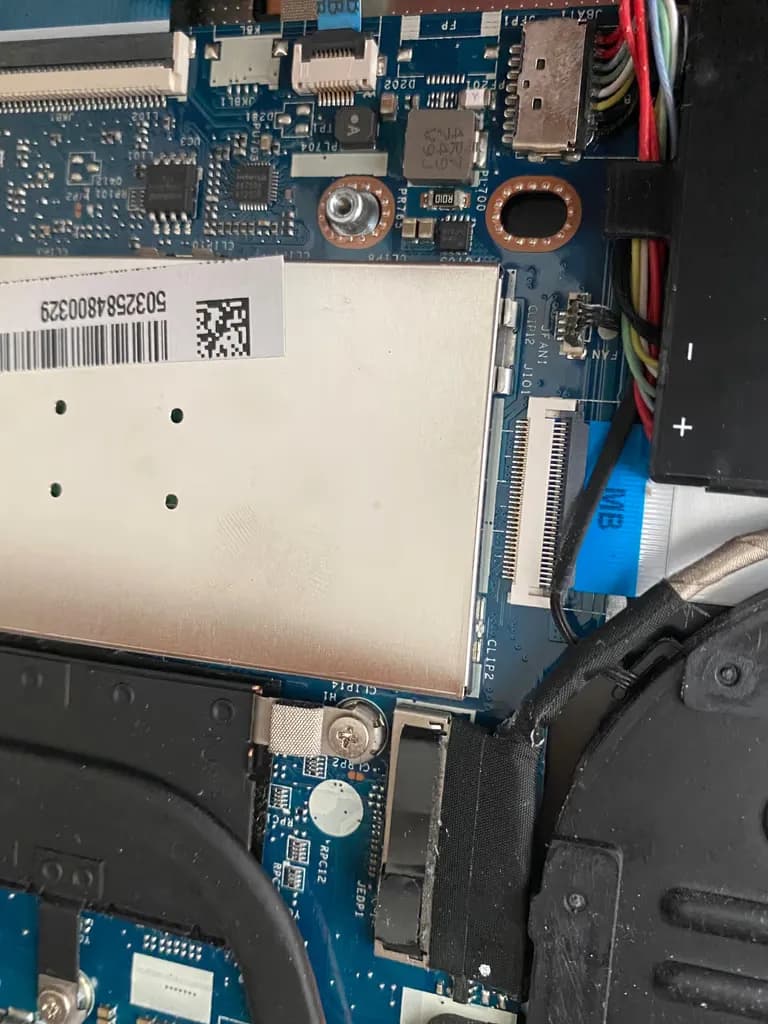
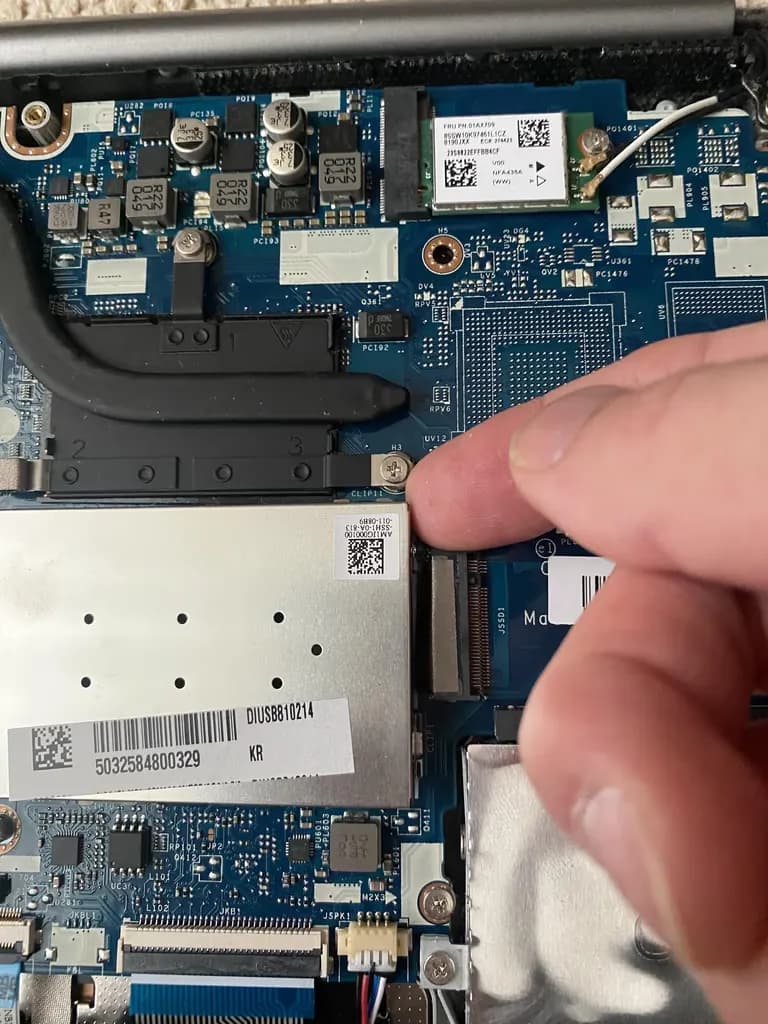
At first, I was quite worried about how to remove the memory guard, but it came off easily when I inserted a nail into the gap at the bottom right and pulled.
Since it's clipped in, pulling it out is straightforward.
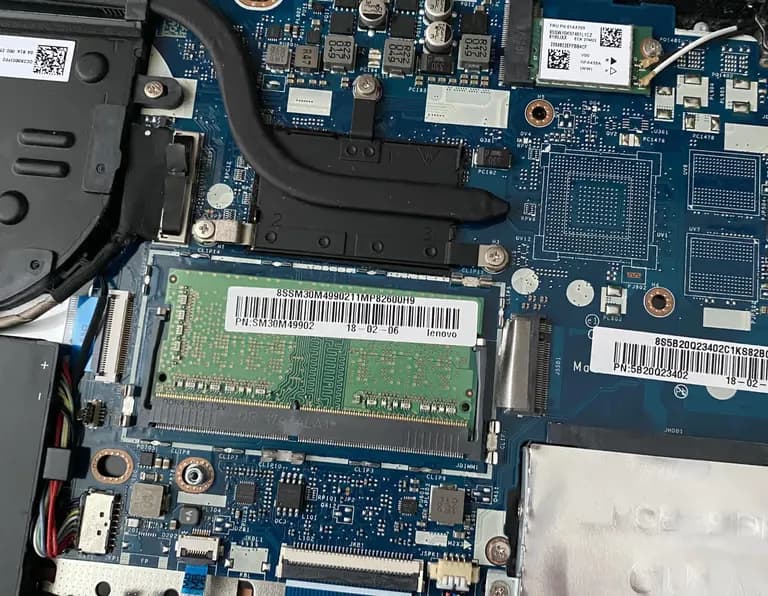
I removed the existing 4GB of RAM and installed the 16GB RAM.
I also installed the m.2 SSD.
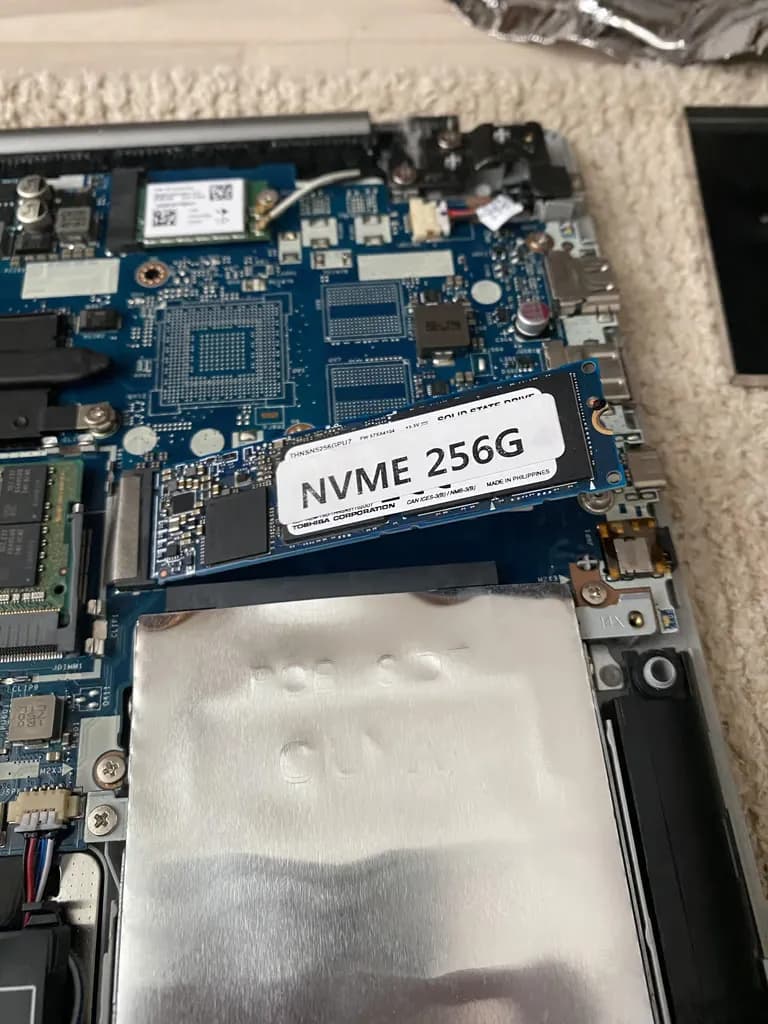
Unfortunately, there was no screw to secure the m.2 SSD, but I took one from the SATA SSD installation to solve the issue.
Since just one screw is stable enough, the other seemed unnecessary.
I took one from the left side and inserted it into the m.2.
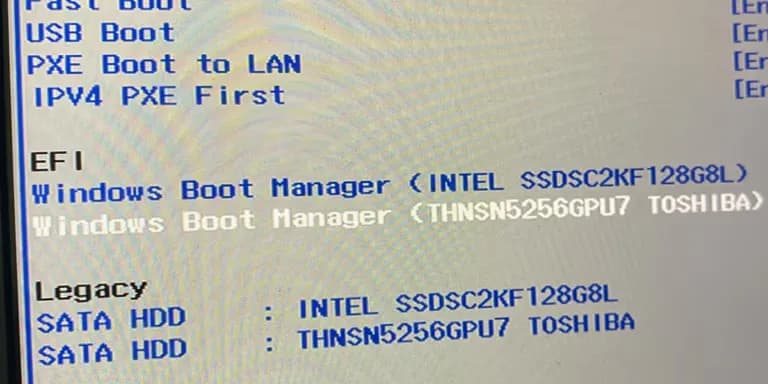
I tested the laptop by turning it on and pressing F2 to check memory and disk recognition in the BIOS environment.
Both were recognized well.
The newly installed m.2 SSD was recognized by the Windows 11 boot manager because I hadn't formatted it.
Now, all that's left is to assemble and format it.
Of course, assembly is the reverse of disassembly.
I won't go into detail.
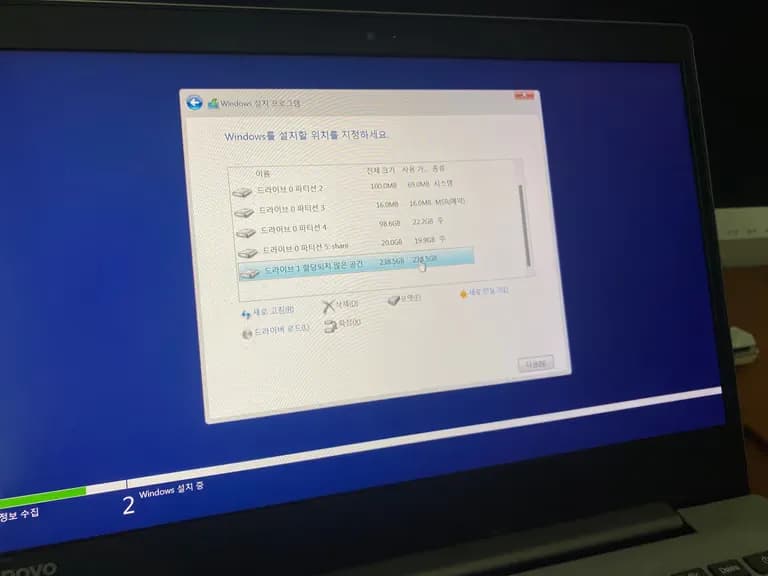
I backed up to a partition called 'share' on the existing hard disk and installed Windows 11 on the m.2 SSD.
It seems possible to dual boot Windows on both drives using the Windows 11 bootloader.
The cost for upgrading the 8th generation Intel CPU laptop was approximately 70,000 to 80,000 won.
Spending less than 100,000 won seems enough for it to remain effective.


댓글을 불러오는 중...