I implemented a simple backend just enough to handle sign-up, but strangely I couldn’t bring myself to go any further.
I think the problem was that, although I had used Prisma and PostgreSQL, I only followed someone else’s article passively and never really learned it properly.
So I decided to try implementing it myself.
1. Installing PostgreSQL
First, install PostgreSQL with homebrew.
If you’re on Windows, you can install choco and do it easily that way.
Then use services start so it starts automatically.
# On MacBook
brew install postgresql
brew services start postgresql
If you can connect normally after entering the command below, the installation is complete.
Because PostgreSQL uses a server–client structure, the PostgreSQL server needs to be running to connect to the DB.
psql postgres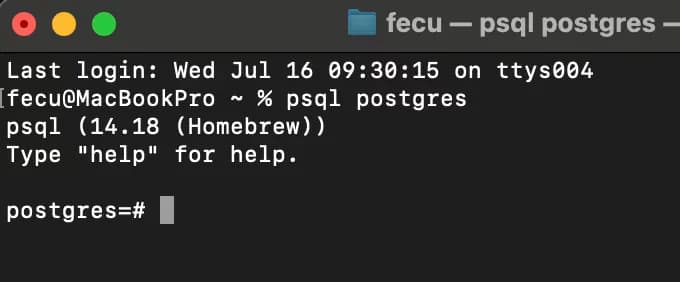
Now let’s set up the user and DB.
I set both the username and password to testuser.
CREATE USER testuser WITH PASSWORD 'testuser';
\du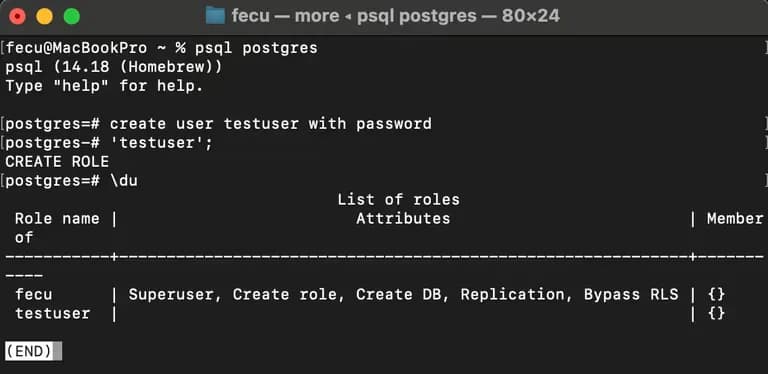
The user kept failing to be created, and when I checked, it turned out you must put a semicolon at the very end for the command to finish.
Now let’s create a database as well.
CREATE DATABASE testdb;Then check the databases with \l or \list.
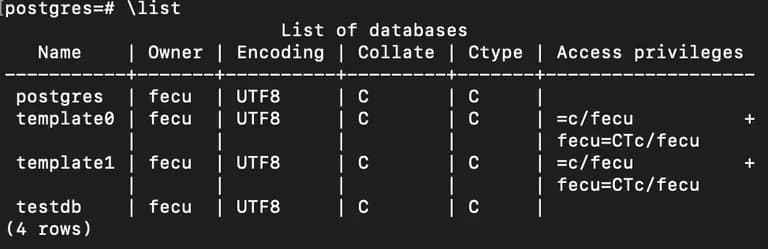
The three DBs at the top here are created by default.
It’s better not to delete them because that can cause problems.
2. Installing Prisma
Now let’s install Prisma.
I created a folder called prismaTest.
You can use npm, but I simply initialized with yarn.
yarnThen install Prisma.
Use the npx command to create Prisma’s initial setup.
When you run prisma init, Prisma config files are created in a folder.
For reference, npx is a command-line tool that lets you run npm packages without installing them globally.
yarn add prisma
npx prisma init
3. PostgreSQL connection settings
Now go into prisma/schema.prisma.env and edit the environment settings.
Inside the file, change the setting as below.
DATABASE_URL="postgresql://아이디:비밀번호@localhost:5432/데이터베이스이름?schema=public"4. Setting up schema.prisma
Now let’s define the database schema.
By default, the schema looks like this:
generator client {
  provider = "prisma-client-js"
  output   = "../generated/prisma" <-- 이 줄 삭제할 것!
}

datasource db {
  provider = "postgresql"
  url  = env("DATABASE_URL")
}
Now you can freely change this.
The issue is that you need to learn a bit about schema definitions.
For example, let’s say we have a schema like below.
model User {
  id    Int @id @default(autoincrement())
  email String  @unique
  name  String?
}
➡️ model User { ... } is the database table name.
➡️ id Int @id @default(autoincrement())
This field is the primary key, and it automatically fills with numbers 1, 2, 3…
Element | Meaning |
|---|---|
| Field (column) name |
| Data type = integer |
| This field is the Primary Key |
| Default value is an auto-incrementing number |
➡️ email String @unique
The email value must be unique, and there cannot be more than one user with the same email.
Element | Meaning |
|---|---|
| Field name |
| String type |
| No duplicates allowed (Unique constraint) |
➡️ name String?
name can exist or it can be null (absent).
Element
Meaning
nameField name
String?String type, and
?means nullable (null allowed)
So, to summarize Prisma’s decorators:
Decorator | Meaning |
|---|---|
| Specify primary key |
| Set default value |
| Unique value constraint |
| Relationship setting (foreign key, related table) |
| Specify the actual column name in the DB |
| This field is nullable (the value may be absent) |
| Array (e.g. |
| When the field type is datetime, automatically update to the current date when the record is modified |
5. Running a migration
Run a migration to apply the model to the DB.
The name at the end can be anything you like.
npx prisma migrate dev --name testMyDB
## Enter the migration name after --name
6. Prisma Client usage example
Now let’s create a simple server and test CRUD in the backend.
We’ll build the server with Express.
yarn add @prisma/client expressFirst, install with the command above.
Create an index.js file and enter the following.
Then run node index.js in the terminal to start the server.
const express = require('express');
const { PrismaClient } = require('@prisma/client');

const app = express();
const prisma = new PrismaClient();

app.use(express.json());
const port = 3001;

app.get("/", (req, res)=> {
   const body = req.params;
   res.send("test");
});

app.get('/users', async (req, res) => {
  const users = await prisma.User.findMany();
  console.log(users);
  res.send(`<div>${users.map((user) => {
    return `<name:$>email : ${user.email} / name:${user.name}</p><br>`
  }).join("")}</div>`);
});

app.get('/input', async (req, res) => {
  const { email, name } = req.query;
  const result = await prisma.User.create({data:{email : email, name: name}})
  console.log(email, name);
  res.send(`<h1>${email
  }</h1>
  <h2>${name}</h2>
  `);
})

app.listen(port, () => {
    console.log("listen http://localhost:3001")
});
Prisma works in the form prisma.TableName.command.
The server is running, so now try passing email and name via query string.
http://localhost:3001/input?email=testur@email.com&name=힘센캥거루After entering that URL, check /users and you’ll see that the data is printed correctly.
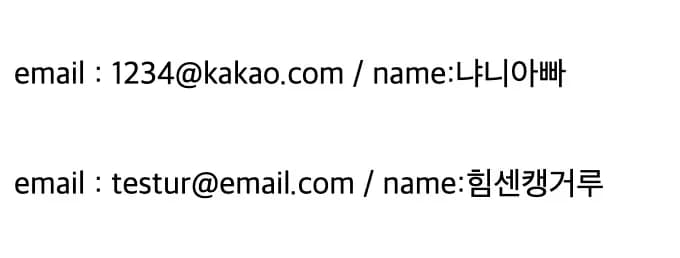
In the same way, you can also update and delete.
Let’s add the code below.
...
app.get("/delete", async (req, res) => {
  const { email } = req.query;
  const result = await prisma.User.delete({where : {email: email}});
  console.log(email);
  res.send(`<h1>${email} 삭제 성공</h1>`)
})
...
Then, when you make a request like the URL below, the record is deleted.
http://localhost:3001/delete?email=testur@email.comUpdating is not hard either.
Put the data in where, then change the content in the data field.
...
app.get("/edit", async (req, res) => {
  const { email, name } = req.query;
  const result = await prisma.User.update({where : {email: email},
    data : {name : name}
  });
  console.log(email, name);
  res.send(`<h1>${email} 이름 수정 성공</h1>`)
})
...
After passing query strings and checking, you can see that the name has been changed as below.

7. Using it in Next.js
To use Prisma easily in Next.js, some preparation is needed.
I created a prisma.ts file inside the src/lib folder.
I wrote code that handles all I/O for user.
import { PrismaClient } from "@prisma/client";

const globalWithPrisma = global as typeof globalThis & {
  prisma: PrismaClient;
};

let prisma: PrismaClient;

// When not in development mode, create a new connection each time
if (process.env.NODE_ENV === "production") {
  prisma = new PrismaClient();
} else {
  if (!globalWithPrisma.prisma) {
    globalWithPrisma.prisma = new PrismaClient();
  }
    // In development mode, reuse the existing connection to prevent memory leaks.
  prisma = globalWithPrisma.prisma;
}

export default prisma;
After that, inside /src/db I defined functions to manage users.
import { dbUserObject } from "@/types/allTypes";
import prisma from "@/lib/prisma";

export async function createUser(data: dbUserObject) {
    try {
        const user = await prisma.user.create({
            data: {
                ...
                email : data.user.email as string,
                ...
            }
        });

        return user; // 생성된 사용자 반환
    } catch (error) {
        console.error('Error create user', error);
        throw error;
    }
}

export async function getAllUsers() {
    try {
      const users = await prisma.user.findMany();
      return users;
    } catch (error) {
      console.error('Error fetching users:', error);
      throw error;
    }
  }

  // Read - 특정 사용자 조회
export async function getUserByEmail(email: string) {
    try {
      const user = await prisma.user.findUnique({
        where: { email },
      });
      return user;
    } catch (error) {
      console.error('Error fetching user:', error);
      throw error;
    }
  }

  export async function updateUser(email: string, data: Partial<Omit<dbUserObject, 'email'>>) {
    try {
      const updatedUser = await prisma.user.update({
        where: { email },
        data: {
          nickName : data.user?.nickName,
          ...
        },
      });
      return updatedUser;
    } catch (error) {
      console.error('Error updating user:', error);
      throw error;
    }
  }

  export async function deleteUser(email: string) {
    try {
      const deletedUser = await prisma.user.delete({
        where: { email },
      });
      return deletedUser;
    } catch (error) {
      console.error('Error deleting user:', error);
      throw error;
    }
  }
8. Thoughts
I used to think backend development itself was difficult, but with tools that help you, it’s much easier.
There are many libraries, but among them Prisma feels the most intuitive and best.
I’d like to try building my own website and some projects with this going forward.




댓글을 불러오는 중...