It varies by school, but if there is great demand from students, there is a high likelihood of having nighttime self-study.
Thus, our school still has nighttime self-study.
The name of the study is 'Dokseosamdo'.
Until now, attendance checks for nighttime self-study have been done manually.

Before entering the self-study room, students had to write their student ID and name on an attendance sheet with a diagram of seats, then the teacher in charge would go around the room to check students' names.
So, before self-study, students would line up in front of the attendance sheet to write their names.
At the end of the semester, statistics were needed for students who participated in nighttime self-study.
All of this was done by hand.
So, we decided to computerize the process, and successfully operated it for a semester.
The survey and spreadsheet links are pre-inserted.
1. Idea

We extracted the key points crucial to nighttime study attendance checks.
- Attendance should be possible in an easy and convenient way.
- Editing after submission should be possible.
- Confirmation by a teacher is needed.
A solution satisfying these three points was to distribute Google Form query strings in a QR code format.
If we create a survey QR code containing query strings for each seat, students can scan the code and submit the form.
The data collected this way can be automatically appended with the date using the Apps Script in the spreadsheet.
This allows the teacher in charge to add or modify content on the attendance sheet via mobile.
We can also gather participation data at the end of the semester.
Let’s proceed with the setup process.
2. Creating Survey and Spreadsheet for Nighttime Study
The content of the Google Form is simply the seat number, student ID, and name.
Input content should be as concise as possible.
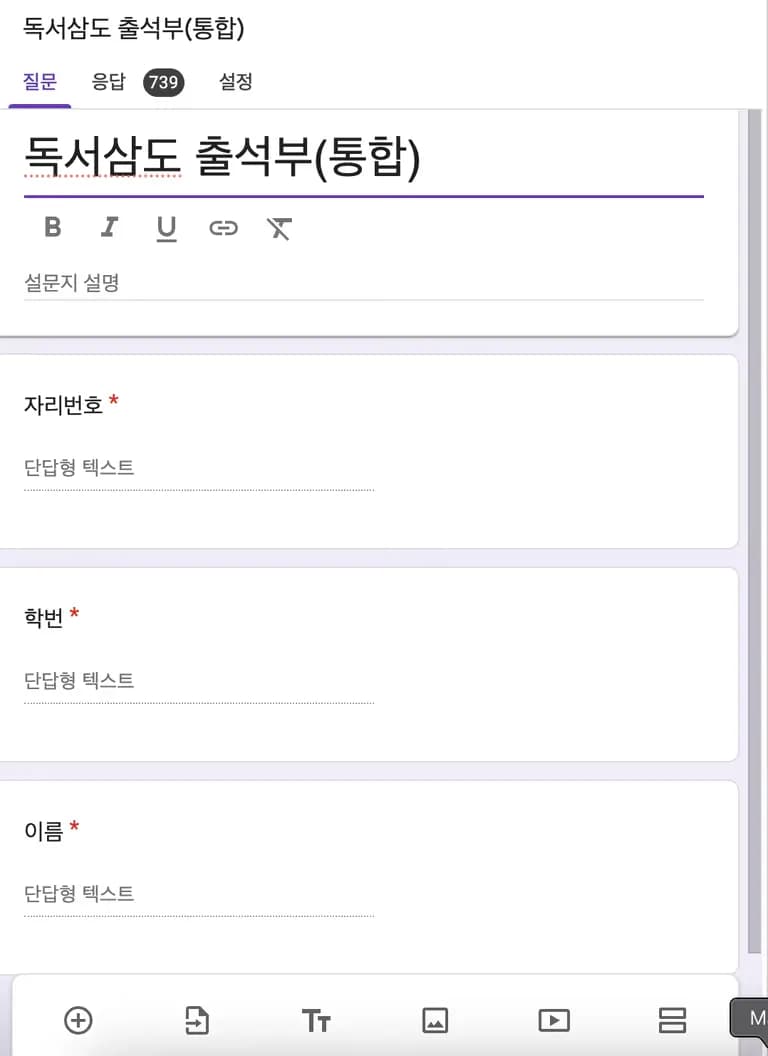
On the top right, there is an option to get a prefilled link.
Go to that link.

As our school's seating for nighttime study isn't assigned, student IDs and names will be left blank, with seat numbers pre-filled.
Click copy link to get an address like the one below.
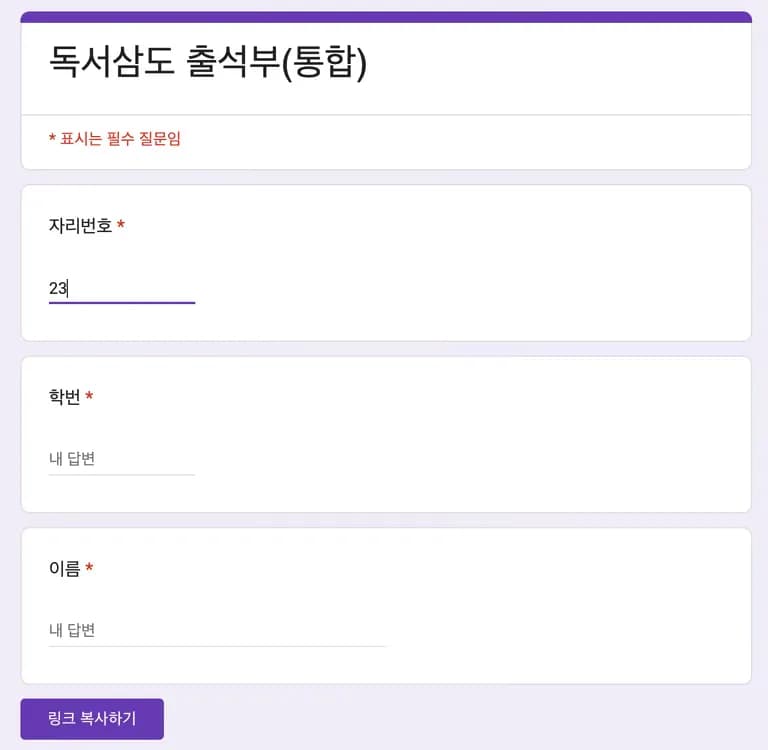
The part after viewform? is the query.
Query strings deliver key and value pairs after the question mark.
I generated the address for seat number 23, student ID 20366, and name 'Kangaroo'.
https://docs.google.com/forms/d/e/1FAIpQLScXgTn9UK5HETv3fCipGiRMl-et9IezB1OSZp2r9-Nj8b54Fg/viewform?usp=pp_url
&entry.1738725719=23 // Seat Number
&entry.7330080=20366 // Student ID
&entry.1354978010=%EC%BA%A5%EA%B1%B0%EB%A3%A8 // Name
Thus, the address to generate is as follows.
When accessing that address,
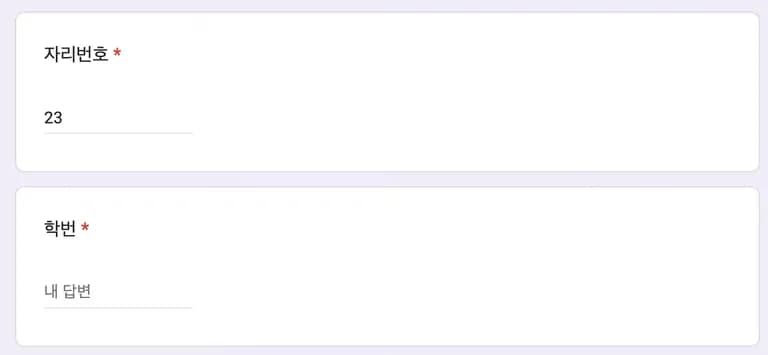
Now, let's generate and prepare the spreadsheet connected to this form.
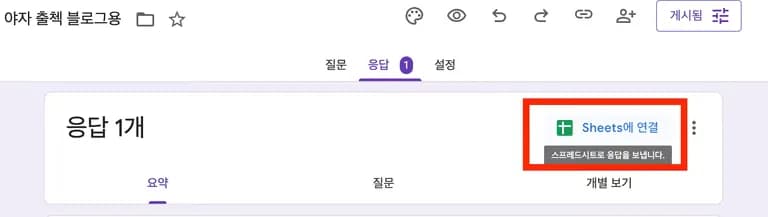
3. Setting Up the Spreadsheet
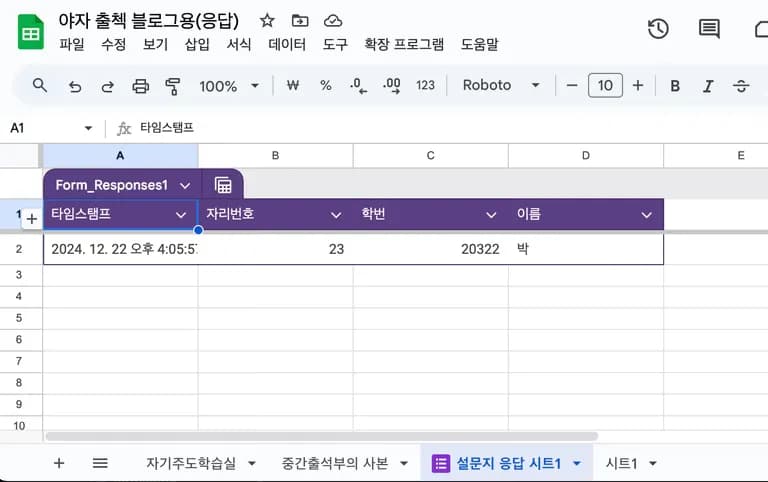
There is a responses sheet when you enter the spreadsheet.
This sheet accumulates survey responses in chronological order.
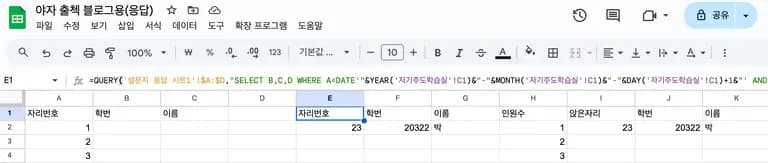
The interim attendance sheet serves to refine survey responses.
This is the most important part.
Use the query function to bring up data with timestamps matching the specified date.
=QUERY('Survey Responses Sheet1'!$A:$D,"SELECT B,C,D WHERE A=DATE'"&YEAR('Self-directed Learning Room'!C1)&"-"&MONTH('Self-directed Learning Room'!C1)&"-"&DAY('Self-directed Learning Room'!C1)&"' ORDER BY A",1)
Some issues to consider when bringing this data include:
- When a student changes seats and their name appears in multiple places
- Two students are recorded in one seat
The unique function along with xlookup solved these issues.
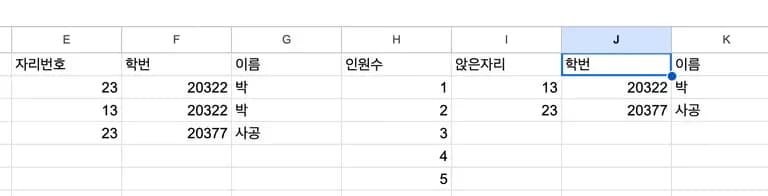
In the "ID", "Name" columns, use =UNIQUE(F:G) to fetch unique values.
In the "Current Seat" tab, use =XLOOKUP(J2,F:F,E:E,,,-1) to fetch only the latest submitted value for a given student ID.
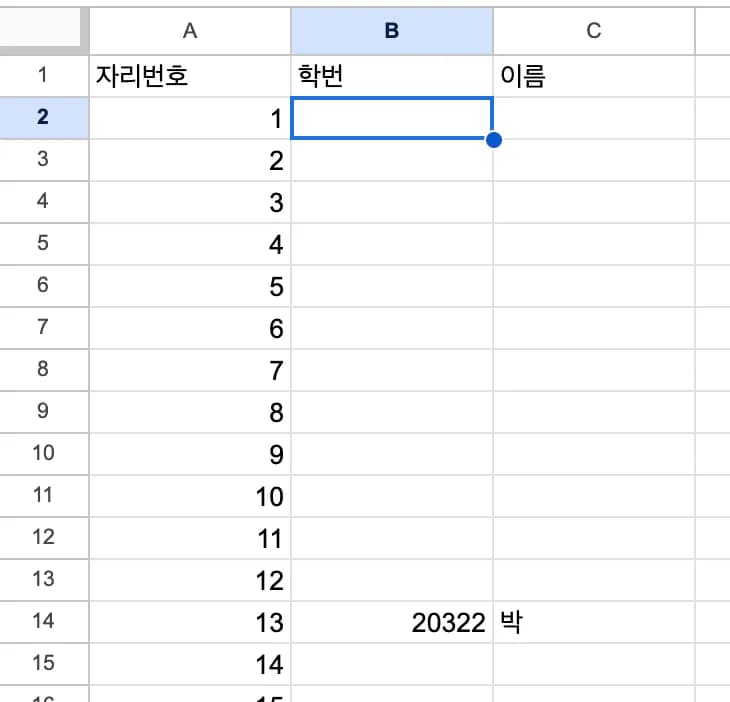
Finally, determine the student seated for each seat number.
=XLOOKUP($A2,$I:$I,J:J,"",,-1) fetches the latest submission for each occupied seat.
This completes the data refinement.
Now multiple sheets with student ID and name for each seat can be prepared.
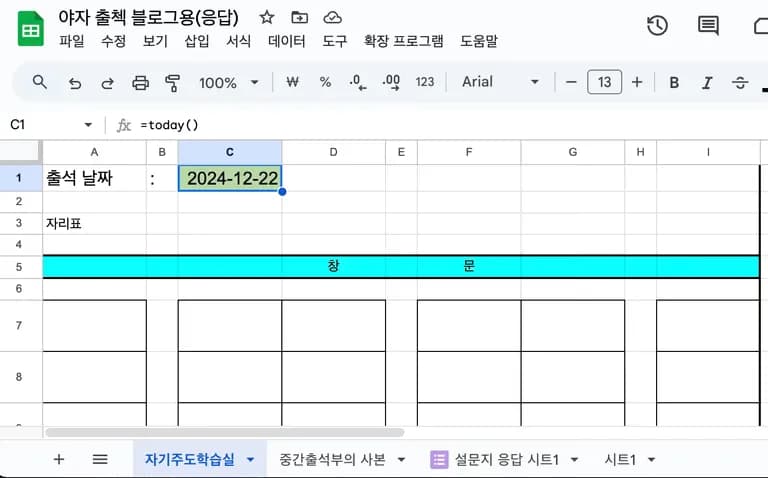
The self-directed learning room sheet is for teachers to view.
It uses the spreadsheet function today() to display today's date.
Create a seating table to match the actual arrangement, then pull student ID and name from the interim attendance sheet.
Seats occupied are highlighted in green using conditional formatting.
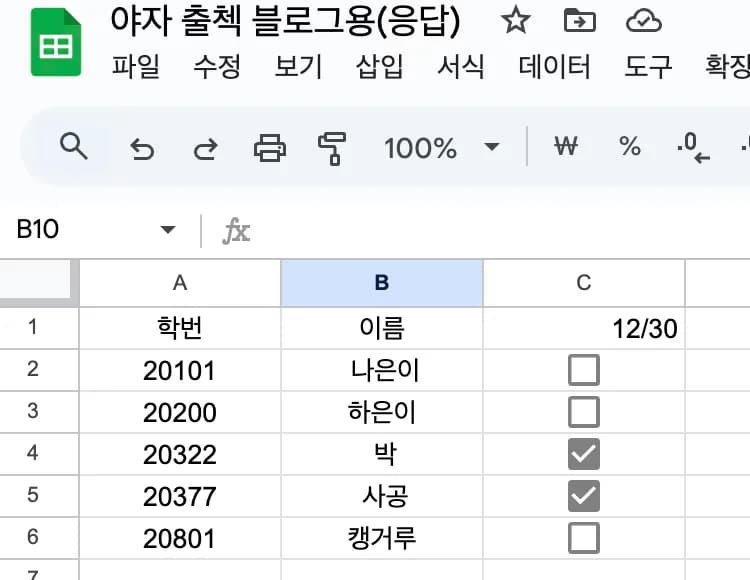
The last part is a sheet for attendance statistics and checks.
It is for compiling statistics on students participating in nighttime self-study.
If a student attends 2/3 of the sessions, it can be recorded in their student record.
Apps Script settings are required here.
4. Setting Up Apps Script
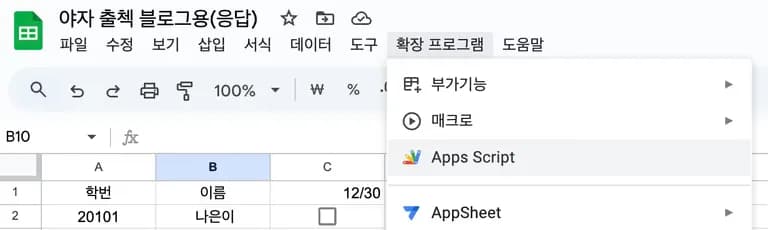
In the top menu, go to Extensions and find the Apps Script tab.
Here, commands for the sheet can be given in JavaScript.
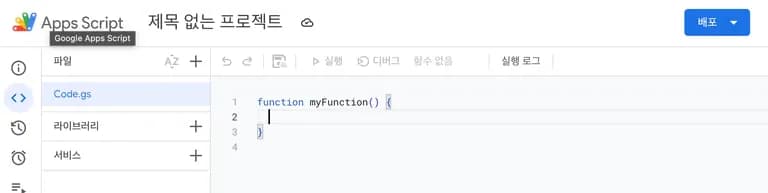
While Excel requires learning Visual Basic for programming, in Google Sheets, only JavaScript is needed to implement desired functions.
Enter the following code in the input section.
The function name was set to addRowDaily, but it can be anything.
Detailed explanations are provided in comments.
function addRowDaily() {
  // Create an object to call the sheet
  let checkSheet = SpreadsheetApp.getActiveSpreadsheet().getSheetByName("Attendance Statistics");
  let data = SpreadsheetApp.getActiveSpreadsheet().getSheetByName("Interim Attendance");

  // Date information to be used as column index
  let date = new Date()
  let month = date.getMonth() + 1;
  let day = date.getDate();
  let time = date.getHours();

  // Insert middle column and find the last row
  let lastColumn = 3
  let rowRange = checkSheet.getLastRow()

  // Insert the middle column. The column name is month, day, and time, with checkbox form
  checkSheet.insertColumnAfter(lastColumn-1);
  checkSheet.getRange(1, lastColumn).setValue(`${month}월 ${day}일 ${time}시`);
  checkSheet.getRange(2, lastColumn, rowRange-1, 1).insertCheckboxes();

  // Store row info for students in a map. Keys are student IDs, values are row numbers.
  let studentMap = new Map();
  checkSheet.getRange("A1:B6").getValues().forEach((row, idx) => {
    studentMap.set(row[0], idx+1)
  });

  // Loop through rows with attendance, accessing student IDs. Find rows with matching IDs in the map and set those rows to [true].
  let checkedStudents = data.getRange("A2:C64").getValues();
  checkedStudents.forEach((rows) => {
    let seatNumbers = rows[0];
    let studentIdNumber = rows[1];
    let studentName = rows[2];
    if (studentIdNumber ===""){
      return
    };
    checkSheet.getRange(studentMap.get(studentIdNumber), lastColumn).setValue([true]);
  })
}

// Monitor cell edits. When cell A11 on the Attendance Statistics sheet is changed, execute the function
function onEdit(e){
  let rg = e.range;
  if (rg.getA1Notation() === "A11" && rg.isChecked() && rg.getSheet().getName() === "Attendance Statistics"){
    addRowDaily();
    rg.uncheck();
  };
}
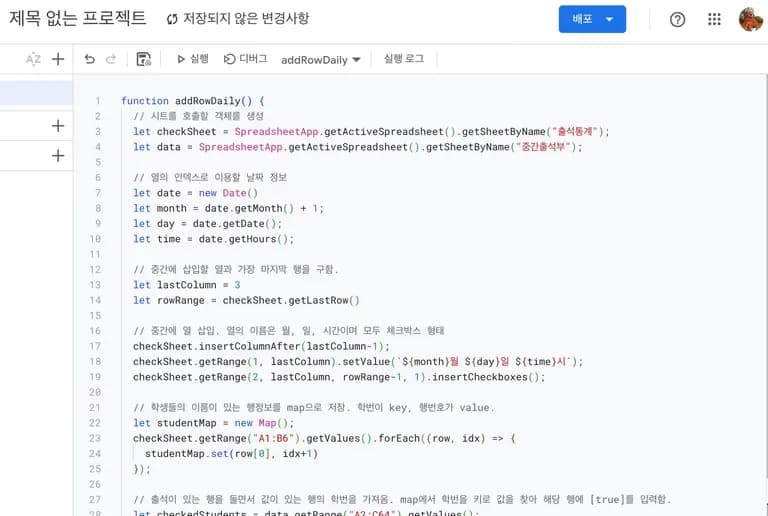
A trigger was set at the end to execute the function.
If you want to know why a checkbox is used as a button, refer to Stack Overflow.
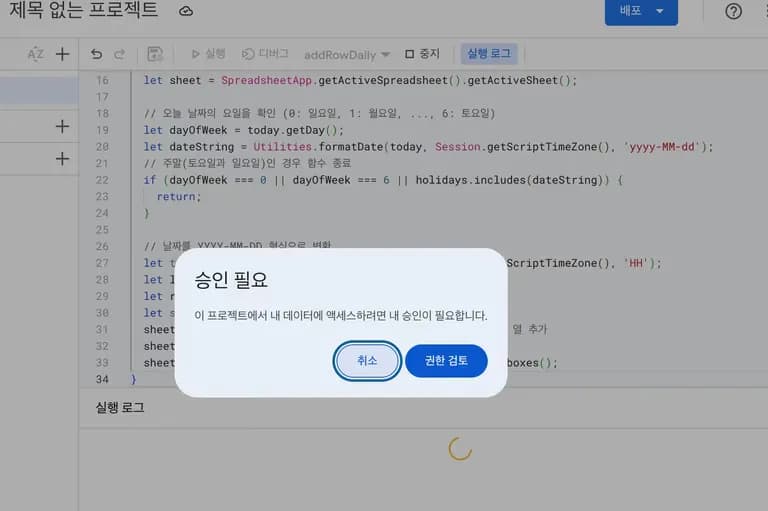
When you press test, a strange window pops up.
Click on authorization review.
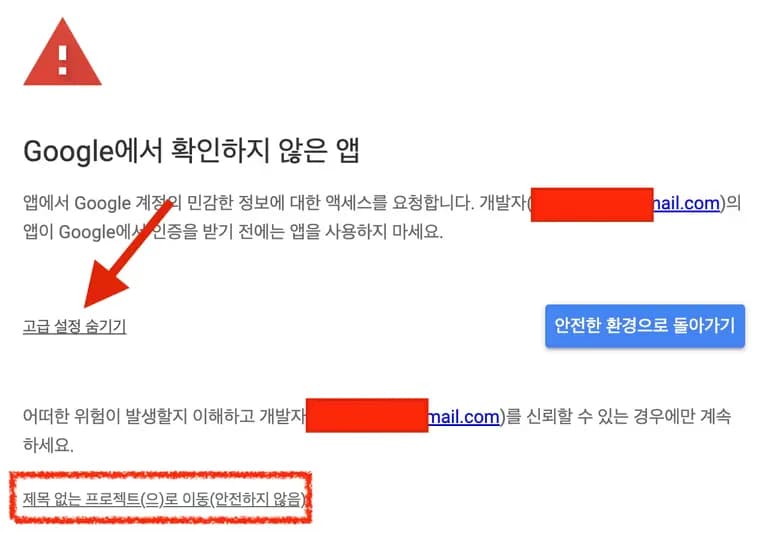
A warning about an unverified app appears, but as this is your own code, no separate verification is needed.
Go to advanced settings and click the link at the bottom.
Returning to the sheet, you can see that a row is added.
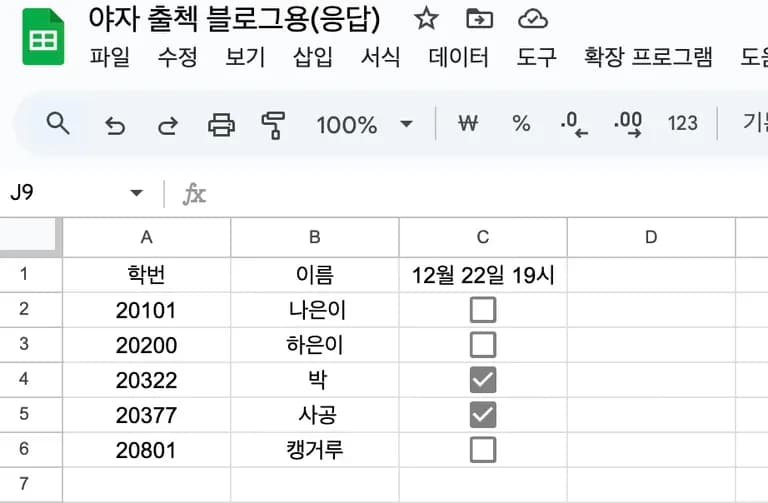
A trigger is set in cell A11, so create a checkbox to execute the function.
Check the box once.
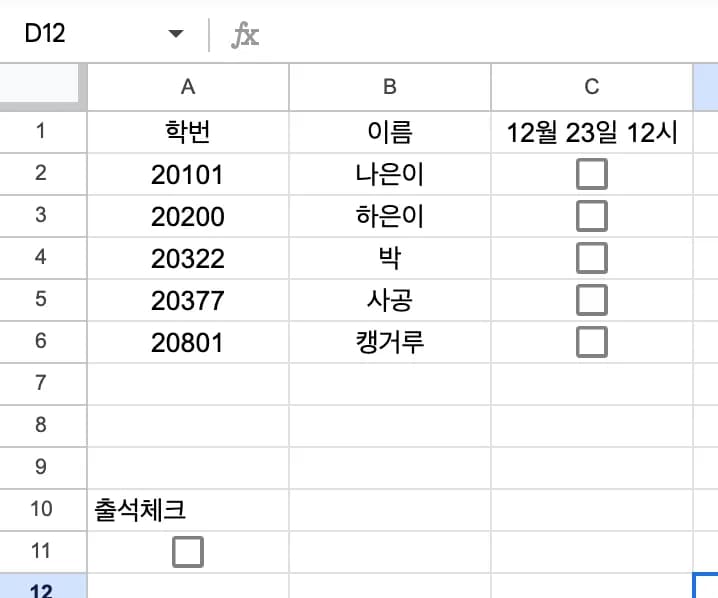
When the checkbox is clicked, you can see the function execute, then uncheck itself.
The rough setup is complete, so let’s make QR codes.
5. Making QR Codes
QR codes were generated using Python's qrcode.
If you don’t have the library, install qrcode using pip.
pip install qrcode
Qrcode usage is intuitive and simple.
Using make and save generates a QR code easily.
import qrcode

checkqr = qrcode.make('https://naver.com')
checkqr.save('./qr.png')
After discovering this library, I’ve been using Python to make QR codes exclusively.
Anyway, as we want to create QR codes for seat numbers, a for loop will do the trick.
Let’s utilize the addresses used previously.
import qrcode

for i in range(1,44):
    url = f"https://docs.google.com/forms/d/e/1FAIpQLScXgTn9UK5HETv3fCipGiRMl-et9IezB1OSZp2r9-Nj8b54Fg/viewform?usp=pp_url&entry.1738725719={i}"
    qr = qrcode.make(url)
    qr.save(f"./qr/{i}번.png")
This creates QR codes up to the desired seat number.
However, we need a format to utilize them.
A description of how to use the QR code and attendance checks should be included.
This was resolved using pywin32.
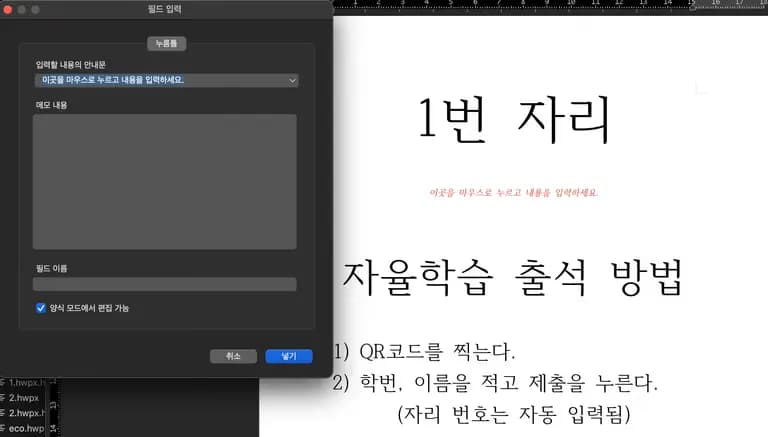
Just like before, create placeholders for seat numbers and images.
Then execute this code.
import win32com.client as win32
import os
import time

hwpdir = os.getcwd()
hwpfiles = hwpdir + "/2.hwpx"

maxnum = 43 // Desired seat number

hwp = win32.gencache.EnsureDispatch('HWPFrame.HwpObject')
hwp.RegisterModule("FilePathCheckDLL", "FilePathCheckerModule")
hwp.Open(hwpfiles)
field_list = [i for i in hwp.GetFieldList().split('\x02')]
time.sleep(0.5)
hwp.MovePos(3)
hwp.Run('SelectAll')
hwp.Run('Copy')
hwp.MovePos(3)

for i in range(0,maxnum):
    hwp.MovePos(3)
    hwp.Run('Paste')
    hwp.MovePos(3)

for page in range(0,maxnum):
    hwp.PutFieldText(f'자리번호{{{{{page}}}}}', page+1)
    hwp.MoveToField(f'qr코드{{{{{page}}}}}')
    hwp.InsertPicture(f'{hwpdir}/2qr/{page+1}번.png', True, 1, False, False, 0, 60, 60)
   al
hwp.SaveAs(hwpfiles+".hwpx")
hwp.Quit()
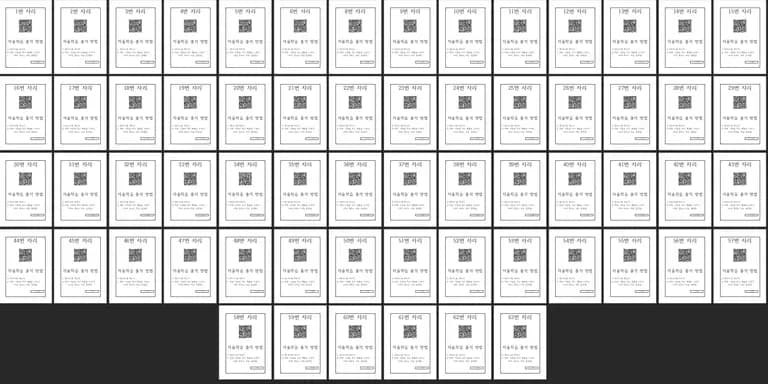
This completes the HWP document with seat numbers you want to attach.
Print it using page partitioning as A4 might be too large.
6. User Review
This method was devised in April and used until July successfully.
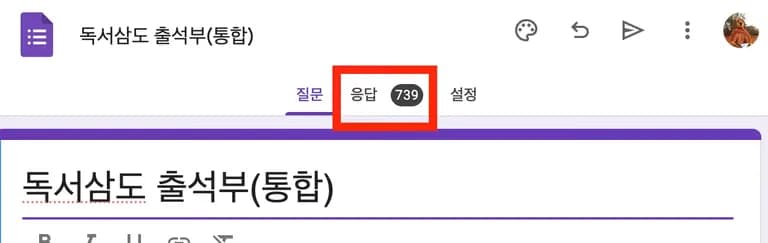
With 739 survey results, I worked with club students to analyze trends and preferred seating.
The reason for not using it in the second semester was due to integrated nighttime self-study for grades 1 to 3 leading to changes in the list.
Moreover, as I'm not the task manager, getting involved with a unified operation of another grade is not easy.

Next year, I plan to make the format more visually appealing and recommend it to the task manager.
Since it was useful this year, there is a high chance of adopting it next year too.
I hope for more school processes to become automated.



댓글을 불러오는 중...