
Although I became a teacher with dreams of education, we spend too much time on things that are not education.
Therefore, in this article, I would like to introduce the automation of handling attendance issues in the Life Education Committee.
The process of directly guiding students cannot be automated, but the document process can be.
Something too lengthy has been replaced with a link.
1. Life Education Committee
The process for handling target students of the Life Education Committee is as follows.
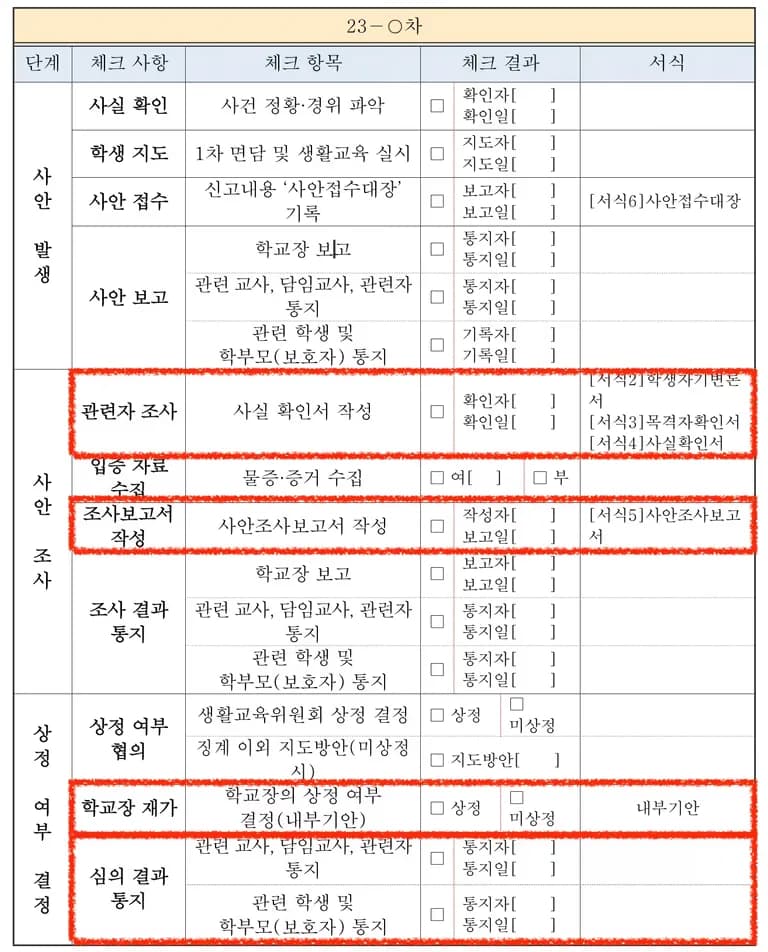
At least four documents are needed per student, so for 10 students, it's 40 sheets.
Among them, attendance issues were quite complicated.
Documents must record each unexcused attendance of the student.

Originally, the student's attendance was received as a HWP document from the homeroom teacher and then manually transferred after verifying each one.
The process was so cumbersome that I decided to finish it all at once using a spreadsheet and python.
2. Idea

In coding, ideas are more important than skills themselves.
Let's think about how to automate the document creation process.
- Compile and distribute repeated data into a spreadsheet.
- Receive the number of unexcused absences for the target students and the homeroom teacher's report. Previously done on paper, now compiled in a spreadsheet.
- Use the spreadsheet API to retrieve data.
- Use pandas to clean the data.
- Create documents in hwp, hwpx format using Hangeul's fields and pywin32.
- Get confirmation from homeroom teachers and students, scan everything at once, and proceed for approval.
Through this process, document creation was automated.
3. Collecting Required Data

Before starting, it's time to look at what data each document requires.
- Student's Statement
- Name, Student ID, Gender, Case Title, Unexcused Absence, Student's Name
- Fact Confirmation (Homeroom Teacher's)
- Student Name, Student ID, Gender, Case Title, Homeroom Teacher's Name
- Student Incident Investigation Report
- Name, Student ID, Gender, Case Title, Date and Time of Incident, Incident Location, Related Students, Incident Content, Related School Regulations, Creation Date, Authoring Teacher
- Life Education Committee Attendance and Opinion Submission Request Form
- Event Date and Time, Event Location, Name, Student ID, Incident Date and Time, Incident Location, Violation Act, Related Regulations, Creation Date
- Written Opinion
- Related Student's Name, Student ID, Guardian's Name, Relationship to Student
- Mailing Envelope
- Student Name, Postal Code, Address
The data commonly required by these documents is highlighted in bold.
If this is written on a spreadsheet, the index of columns can be set by removing data duplication.
Let's create a sheet.
4. Creating and Setting Up the Spreadsheet API
The sheet was created as follows.
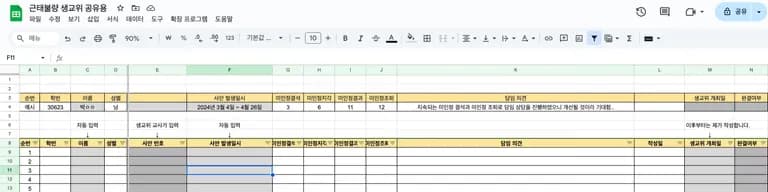
- Student Information
- Student ID, Name, Full Name
- Content
- Case Number, Date and Time of Occurrence, Unexcused Absence, Homeroom Teacher's Opinion, Date of Writing, Life Education Committee Date
The reason for omitting case content, violation acts, applicable school regulations is that the case is related to attendance.
Now we need to set up an API to access the spreadsheet.

I wanted to cover the API setup as well, but it might take two weeks, so I replaced it with a link.
For spreadsheet API setup, refer to the official documentation or junsugi's velog.
The general process of spreadsheet API setup is as follows.
- Enable API usage
- Configure OAuth consent screen
- Approve user credentials for desktop application
- Install Google client library
- Usage
5. Hangeul Document Setting
Before using python, setting up the Hangeul document is necessary.
Handling everything with coding takes time, so I use input fields to roughly set the data entry positions.
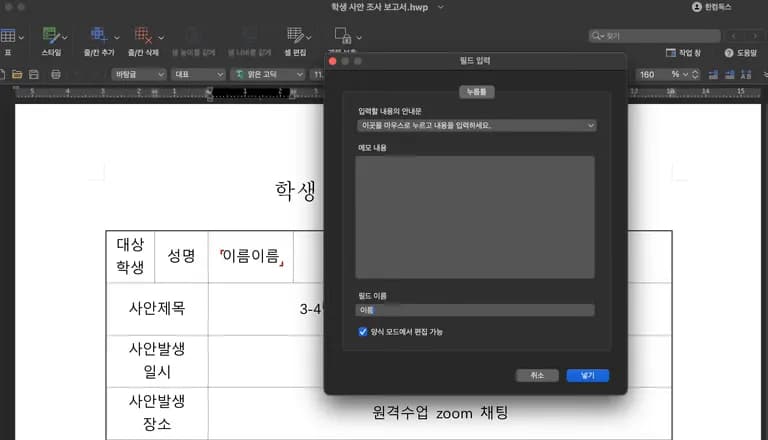
Enter the field names where the data of documents such as the Student Incident Investigation Report and Student's Statement will go.
It's important that the field names match the spreadsheet's column names.
I specified templates in the following documents.
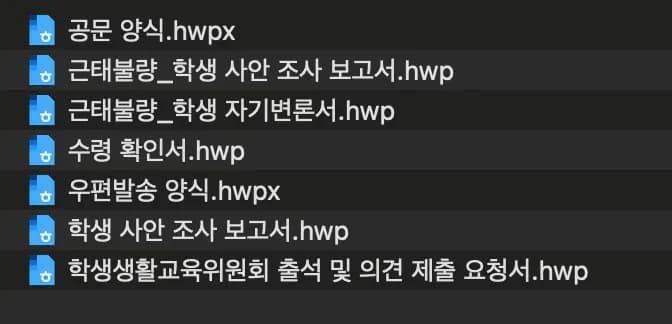
If you encounter any difficulties, refer to Daily Coding's Tistory.
6. python Code
First, install the necessary libraries using pip.
pip install pywin32 pandas google-api-python-client google-auth-httplib2 google-auth-oauthlib
Then create a py or ipynb file and import the required modules.
In my experience, it's convenient to have management variables at the top for paths or homeroom teacher's names.
If it's large, managing it with a JSON file might be nice.
import win32com.client as win32
import pandas as pd
import time
import pathlib
import datetime as dt
from google.auth.transport.requests import Request
from google.oauth2.credentials import Credentials
from google_auth_oauthlib.flow import InstalledAppFlow
from googleapiclient.discovery import build
from googleapiclient.errors import HttpError

hwp = win32.gencache.EnsureDispatch('HWPFrame.HwpObject')
hwp.RegisterModule('FilePathCheckDLL', 'SecurityModule')

rootpath = pathlib.Path.cwd()/"school"/"guidance"
errorfilepath = rootpath / "오류보고서.txt"
beforefilespath = rootpath / "format" / "before"
rulesdfpath = rootpath / "생교위_명단.xlsx"
addressdfpath = rootpath / "format" / "info.xlsx"
phonedfpath = rootpath / "format" / "phoneNumber.xlsx"
lastsavepath = rootpath / "created"
backuppath = rootpath / "backup"
lastsavepath.mkdir(exist_ok=True)

teachers = {301:"Kim", 302:"Park", 303: "Namkoong", 304:"Sagong"}
I grabbed the required code for the spreadsheet from the official documentation.
It looks complex at first glance but basically accepts the sheet's id and range to return the data.
def main(spreadID, spreadRange):
    SCOPES = ["https://www.googleapis.com/auth/spreadsheets"]

    creds = None

    if pathlib.Path(f"{rootpath}/jsonFiles/token.json").exists():
        creds = Credentials.from_authorized_user_file(f"{rootpath}/jsonFiles/token.json", SCOPES)

    if not creds or not creds.valid:
        if creds and creds.expired and creds.refresh_token:
            creds.refresh(Request())
        else:
            flow = InstalledAppFlow.from_client_secrets_file(
                f"{rootpath}/jsonFiles/credentials.json", SCOPES
            )
            creds = flow.run_local_server(port=0)

        with open(f"{rootpath}/jsonFiles/token.json", "w") as token:
            token.write(creds.to_json())

    try:
        service = build("sheets", "v4", credentials=creds)

        sheet = service.spreadsheets()
        result = (
            sheet.values()
            .get(spreadsheetId=spreadID, range=spreadRange)
            .execute()
        )
        values = result.get("values", [])

        if not values:
            print("No data found.")
            return

        return values
    except HttpError as err:
        print(err)
Now it's time to process the returned data into a dataframe.
Remove unnecessary data and process the loaded spreadsheet data.
Applicable school rules and student addresses were matched using the student ID as the key.
def load_checkdata():
    # Call and process spreadsheet data
    SPREADSHEET_ID = "Your spreadsheet API key"
    SPREADRANGE = "SheetName!A8:V200"
    sheet = main(SPREADSHEET_ID, SPREADRANGE)
    df_origin = pd.DataFrame(sheet[1:], columns=sheet[0])
    df_origin.drop("No.", axis=1, inplace=True)
    df_origin.reset_index(drop=True, inplace=True)
    df_origin.dropna(subset="Student ID", inplace=True)
    df_origin = df_origin.loc[df_origin['Student ID'] != ""]
    df_origin.reset_index(drop=True, inplace=True)
    df_origin.fillna("", inplace=True)
    df_origin["Case Title"] = "Attendance Issues"
    df_origin["Incident Location"] = "Not applicable"
    df_origin["School Regulation"] = "Frequent Unexcused Absences"
    df_origin["Violation"] = "Attendance Issues"
    df_origin["Completion"] = df_origin["Completion"].str.replace("TRUE", "Finished")
    df_origin.rename(columns={"Homeroom Opinion":"Incident Content"},inplace=True)

    # Occasionally, IDs are not recognized, so change to numbers
    excel["Student ID"] = pd.to_numeric(excel["Student ID"])
    excel.sort_values("Student ID", inplace=True)
    excel.reset_index(drop=True, inplace=True)

    # Assign homeroom teacher names
    excel["Homeroom Teacher"]="Teacher"
    for student in range(len(excel)):
        studentClass = int(excel.loc[student, "Student ID"])//100
        excel.loc[student, "Homeroom Teacher"] = teachers[studentClass]

    excel = excel.dropna(subset=["Student ID"])
    excel = excel.drop(excel[excel['Completion']=="Finished"].index)

    # Enter address based on student ID
    address = pd.read_excel(addressdfpath)
    phone = pd.read_excel(phonedfpath)
    rules = pd.read_excel(rulesdfpath, sheet_name="Sheet2")

    excel = pd.merge(excel, address, on="Student ID", how="left")
    excel = pd.merge(excel, phone, on="Student ID", how="left")

    # Enter violation items
    add_columns = ["Violation Item"]
    excel[add_columns] = ""
    for i in range(len(excel)):
        # Collect violation items
        student_rules = []
        for j in range(len(rules)):
            if rules.loc[j, "Content"] in excel.loc[i, "School Regulation"]:
                student_rules.append(rules['Item'][j])
        excel.loc[i, "Violation Item"] = ", ".join(student_rules)

    excel.reset_index(drop=True, inplace=True)
    excel['Student ID']=excel["Student ID"].astype(int)
    if len(excel) < 1 :
        return

    # Backup in case the original document is damaged
    backupfilename = dt.datetime.now().strftime("%Y%m%d %H")
    excel.to_excel(backuppath / f"{backupfilename}_backup.xlsx")

    return excel
This gives you a dataframe with student addresses, postal codes, etc., entered.
The dataframe's column length is quite long, but the memory is sufficient, so no problems.
Frequently used codes were moduled.
# Copy pages as much as the row count of the sheet
def copypage(name, df):
    name.SetActive_XHwpDocument()
    if len(df) > 1:
        hwp.MovePos(3)
        hwp.Run('SelectAll')
        hwp.Run('Copy')
        hwp.MovePos(3)
        for i in range(len(df)-1):
            hwp.MovePos(3)
            hwp.Run('Paste')
            hwp.MovePos(3)
        hwp.Run('DeleteBack')
    hwp.Run('DeleteBack')

# Enter text into specified fields of a Hangeul document
# Activate a Hangeul document named name to input df's data into fields
def fillpage(name, df, field_lst : list):
    name.SetActive_XHwpDocument()
    for page in range(len(df)):
            for field in field_lst :
                hwp.PutFieldText(f'{field}{{{{{page}}}}}', df[field].iloc[page])
Now, create the Hangeul documents using the data.
Load data with load_checkdata, then use pywin32 to input appropriate values into each document's fields.
Sorry, but the code is a bit long.
If it's too lengthy to read due to poor coding, just refer to my idea.
def start():
    # First, load the Excel data.
    excel_check = load_checkdata()
    if excel is None:
        return

    if len(excel) < 1 :
        return

    # Open all files in the folder with templates
    beforefiles = list(beforefilespath.iterdir())
    for file in beforefiles:
        hwp.Run('FileNew')
        hwp.Open(file)

    # Assign variable names
    offical = hwp.XHwpDocuments.Item(1)
    report_check = hwp.XHwpDocuments.Item(2)
    student_excuse = hwp.XHwpDocuments.Item(3)
    confire = hwp.XHwpDocuments.Item(4)
    mail = hwp.XHwpDocuments.Item(5)
    demand = hwp.XHwpDocuments.Item(6)

    # Write official document
    offical.SetActive_XHwpDocument()
    dateDict = {0: 'Mon', 1:'Tue', 2:'Wed', 3:'Thu', 4:'Fri', 5:'Sat', 6:'Sun'}
    date_origin = excel['Life Education Committee Date'].iloc[0]
    date = dt.datetime.strptime(str(date_origin), '%Y년 %m월 %d일')
    dow = dateDict[date.weekday()]
    date_strf = dt.datetime.strftime(date, '%Y.%m.%d.')

    once = ["Life Education Committee Date", "Day", "Case", "Number"]
    tables = ["Violation Act", "Student ID", "Name", "Case Number"]
    guidanceType = excel["Violation Act"].unique()
    for one in once :
        if one == "Day":
            hwp.PutFieldText(f'{one}{{{{{0}}}}}', dow)
            continue
        elif one =="Case":
            if len(guidanceType) == 1:
                    hwp.PutFieldText(f'{one}{{{{{0}}}}}', f"{guidanceType[0]} 1 case")
            else :
                hwp.PutFieldText(f'{one}{{{{{0}}}}}', f"{guidanceType[0]} and {len(guidanceType)-1} more cases")
            continue
        elif one =="Number":
            hwp.PutFieldText(f'{one}{{{{{0}}}}}', len(excel))
            continue

        hwp.PutFieldText(f'{one}{{{{{0}}}}}', date_strf)

    for student in range(len(excel)):
        for table in tables :
            if table == "Student ID":
                studentGrade = int(excel['Student ID'].iloc[student])//10000
                studentClass = int(excel['Student ID'].iloc[student])//100 - studentGrade*100
                hwp.PutFieldText(f'Student ID{{{{{student}}}}}', f"{studentGrade}-{studentClass}")
                continue
            if table == "Name":
                studentName = excel['Name'].iloc[student]
                hwp.PutFieldText(f'Name{{{{{student}}}}}', f"{studentName[0]}{(len(studentName)-1)*'O'}")
                continue
            hwp.PutFieldText(f'{table}{{{{{student}}}}}', excel[table].iloc[student])
    hwp.SaveAs(lastsavepath / beforefiles[0].name)

    # Write incident investigation report
    report_check.SetActive_XHwpDocument()
    field_list = [i for i in hwp.GetFieldList().split('\x02')]
    copypage(report_check, excel_check)
    fillpage(report_check, excel_check, field_list)
    hwp.SaveAs(lastsavepath / beforefiles[1].name)

    # Write student's statement
    student_excuse.SetActive_XHwpDocument()
    field_list = [i for i in hwp.GetFieldList().split('\x02')]
    copypage(student_excuse, excel_check)
    fillpage(student_excuse, excel_check, field_list)
    hwp.Run('DeleteBack')
    hwp.SaveAs(lastsavepath / beforefiles[2].name)

    # Write confirmation receipt
    confire.SetActive_XHwpDocument()
    field_list = [i for i in hwp.GetFieldList().split('\x02')]
    copypage(confire, excel)
    fillpage(confire, excel, field_list)
    hwp.SaveAs(lastsavepath / beforefiles[3].name)

    # Write mail envelope output form
    mail.SetActive_XHwpDocument()
    field_list = [i for i in hwp.GetFieldList().split('\x02')]
    copypage(mail, excel)
    fillpage(mail, excel, field_list)
    for page in range(len(excel)):
        hwp.PutFieldText(f'Postal Code{{{{{page}}}}}', (" ").join(list(str(int(excel["Postal Code"].iloc[page])))))
    hwp.SaveAs(lastsavepath / beforefiles[4].name)

    # Write life education committee notice and attendance request
    demand.SetActive_XHwpDocument()
    field_list = [i for i in hwp.GetFieldList().split('\x02')]
    copypage(demand, excel)
    fillpage(demand, excel, field_list)
    todayDate = dt.date.today().strftime("%Y년 %m월 %d일")
    for page in range(len(excel)):
        hwp.PutFieldText(f'Creation Date{{{{{page}}}}}', todayDate)
    hwp.SaveAs(lastsavepath / beforefiles[5].name)
    hwp.Quit()
This way, after receiving the attendance details from homeroom teachers via spreadsheet, running the start() function once completes everything in one go.
Of course, direct interaction with students to confirm facts is still necessary, but the time spent on document creation greatly decreases.
Using this method, pre-event documents for the Life Education Committee, post-event documents, and special education requests can automate all document processes.
7. Conclusion

Some might ask this.
Aren't you spending more time coding than writing these documents?
Indeed, it took as much time to code and learn as it does to write Life Education Committee documents.
However, the former doesn't aid personal development, while the latter provides much more benefit.
And I could allocate more time for class preparation.

Unfortunately, I don't expect programs like this will be developed by education offices or the Ministry of Education for teachers anytime soon.
It is likely that we cannot expect it in the future either.
Thus, we must be self-sufficient.
I hope this article serves as an idea for someone.




댓글을 불러오는 중...